
Online Client Setup Guide
Getting started with the DSM Online Client Portal.
The DSM Online Client Portal gives your dance families a convenient way to interact with your studio online. Depending on your settings, clients can view schedules, register for classes, make payments, review their account ledger, receive messages, sign agreements, and update important family information.
The Online Client is also available as a Progressive Web App, which means families can add it to their phone, tablet, or computer and access it more like an app. This also allows DSM to support features such as push notifications for clients who enable them.
Many of the settings referenced in this guide can be found in Settings > Online Client inside your DSM admin area.
Logging in
Your DSM account normally includes separate links for the admin area and the Online Client Portal.
Your admin link will usually look something like:
clients.dancestudiomanager.com/name-of-your-studio/admin/Your client portal link will usually look something like:
clients.dancestudiomanager.com/name-of-your-studio/client/The admin area is where your staff manage students, classes, billing, settings, reports, and other studio operations. The Online Client Portal is the area your families use to access their own accounts.
As an administrator, you can also quickly log in as one of your clients when you need to see what they see. From the family or student list, use the action menu and choose Login as Client. This is helpful when troubleshooting a registration question, checking what a family sees in the portal, or confirming that your Online Client settings are working as expected.

Displaying classes online
One of the most important parts of the Online Client Portal is how classes are displayed to families. DSM gives you several ways to show your schedule. You can use a calendar-style view, or you can use a class list view. Many studios prefer the list view for registration because it is simple, mobile-friendly, and easy for parents to browse.
Common class display options include:
- Calendar view
- List view
- Program-based tabs
- Student-specific class lists
- Filters by genre, level, location, or program
- Wait list options when a class is full
- Book Now or registration buttons when online registration is open
In Settings > Online Client, you can control whether classes appear as a list or a calendar, whether clients must log in before seeing classes, and which class list format is used.
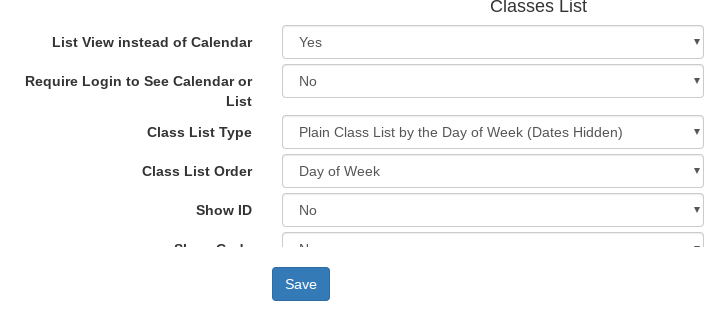
For many studios, a good starting point is:
- List View instead of Calendar: Yes
- Require Login to See Calendar or List: No, if you want prospective clients to browse your offerings
- Class List Type: Plain Class List by the Day of Week
- Class List Order: Day of Week
This setup usually gives families a clean, easy-to-understand view of your available classes. If your studio has many programs, you may also want to organize classes into tabs so families can browse preschool, children, teen, adult, ballet, hip hop, competition, summer camp, or fall-season offerings more easily.
Showing and hiding seasons, programs, and classes
DSM gives you control over what appears online. This is useful when you are preparing a new season but are not ready to publish it yet.
- Prepare Fall classes before registration opens
- Hide a draft season until the schedule is final
- Show Summer Camps in a separate tab
- Hide classes that are not open to the public
- Display adult and children’s programs separately
- Keep old seasons available internally but not visible to clients
This is one of the most useful parts of setting up the Online Client carefully. A clear class display can reduce confusion, improve registration, and make your studio look more professional.
Online class registration
When online registration is enabled, families can select the correct student, choose a class, and register through the portal. If shopping cart checkout is enabled, they can add classes, packages, or other items to the cart and complete checkout online.
Depending on your studio’s settings, DSM can also support wait lists for full classes, invitation-only classes, age or eligibility restrictions, class packages, pay-in-full options, payment plans, drop-in registration, registration fees, and sale start and end dates.
This gives your studio a lot of flexibility. A simple recreational class may only need a basic registration button, while a camp, intensive, or team program might need packages, payment plans, agreements, or a limited registration window.
Payments, ledgers, and stored payment methods
The Online Client Portal can also give families access to financial tools. Depending on your settings and payment processor, clients may be able to:
- View their account ledger
- See charges, payments, balances, and pending amounts
- Make a payment online
- Add a credit card
- Add a bank account or ACH or direct debit payment method
- Select a default payment method
- View scheduled payments
- View recurring payments or subscriptions
- Download PDF invoices
- View payment receipts
This can reduce common office questions such as what do I owe, did my payment go through, can you send me an invoice, can I get a receipt, and what is this charge for. When families can answer those questions in the portal, your staff has more time for registration support, customer service, and studio operations.
School logo and portal branding
You can customize the Online Client Portal with your studio branding. In Settings > Online Client, you can upload a school logo and control whether the custom school logo is shown. You can also set the logo height so it displays cleanly on desktop and mobile devices.
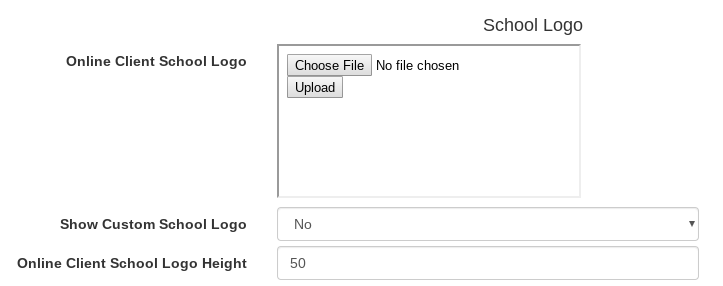
For best results, use a logo that is simple, clear, and easy to read at smaller sizes. Wide horizontal logos usually work well. If your logo is too tall or too detailed, it may take up too much space on mobile devices.
A polished Online Client Portal helps families feel that they are using a professional system connected directly to your studio.
Agreements, waivers, and forms
DSM can require clients to review and accept agreements during registration or other portal workflows. Depending on your needs, an agreement can be accepted with a checkbox or signed with a mouse, finger, or touchscreen.
This is useful for documents such as participation agreements, liability waivers, payment terms, photo releases, student agreements, checkout agreements, sales item contracts, and class-specific agreements.
When a signature is required, the client can review the agreement, open the signature area, draw their signature, confirm their agreement, and submit it.
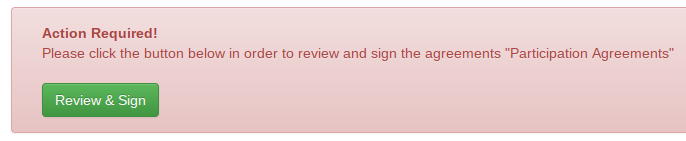
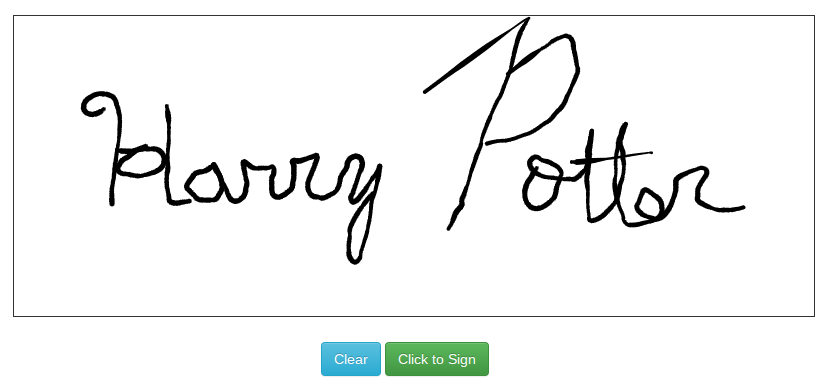
This can help your studio collect important acknowledgements as part of the online registration process instead of relying on separate paper forms.
Creating agreements
To create or manage agreements, go to Settings > Pages in the DSM admin area and create a new page.
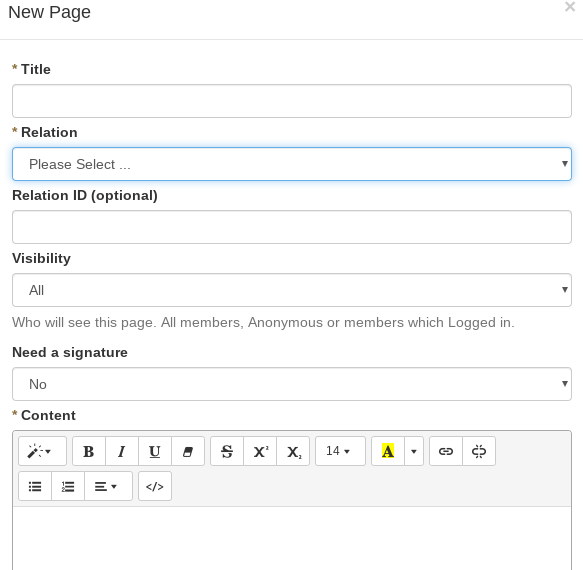
Give the page a clear title, such as Participation Agreement, Payment Terms, Photo Release, Student Agreement, Checkout Agreement, or Summer Camp Waiver. Then choose the appropriate Relation for the page.
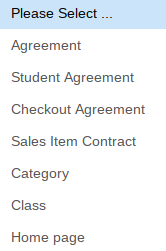
Common relation types include:
- Agreement for new-family registration workflows
- Student Agreement for each student being added
- Checkout Agreement during checkout
- Sales Item Contract for specific purchases, packages, camps, or memberships
- Class when an agreement applies to a specific class
- Category when an agreement applies to a group of classes
- Home Page for more general portal content
You can also choose whether a signature is required. If you do not require a signature, the agreement can be accepted with a checkbox. If you do require a signature, the client will be asked to sign using a mouse or finger.
Viewing signed agreements and waivers
After clients sign agreements, you can review signed waiver and agreement information from the admin area. This is useful when you need to check who has signed, who has not signed, or whether a specific family completed the required agreement.
If needed, you can also print or save signed agreement records as part of your studio’s documentation process.
Messaging and client updates
The Online Client Portal also works together with DSM’s communication tools. Your studio can use DSM to send important updates by email, SMS, announcements, account messages, or scheduled messages.
- Weather closures
- Schedule changes
- Registration reminders
- Recital updates
- Payment reminders
- Workshop announcements
- Class-specific instructions
- Studio-wide announcements
If clients use the portal as a Progressive Web App and enable notifications, push notifications can also help keep them informed.
Tips before you go live
Before sending the Online Client link to all families, it is a good idea to test the portal from a client’s point of view.
- Log in as a test client or use Login as Client from the admin area.
- Confirm the class list is easy to understand.
- Check that the right seasons and programs are visible.
- Test registration for a class.
- Review the cart and checkout process.
- Confirm payment options are correct.
- Review the ledger display.
- Test any required agreements or signatures.
- Check the portal on a phone.
- Make sure your logo looks clean on mobile and desktop.
A few minutes of testing can prevent confusion once families begin using the portal.
Final thoughts
The DSM Online Client Portal is more than just a login page. It can become the central online hub for your dance families.
With the right setup, clients can view schedules, register for classes, make payments, manage account details, review balances, sign agreements, receive messages, and access your studio from almost any device.
If you need help configuring the Online Client Portal, we are always happy to assist. A well-organized portal can save staff time, improve the client experience, and make your studio look more professional online.