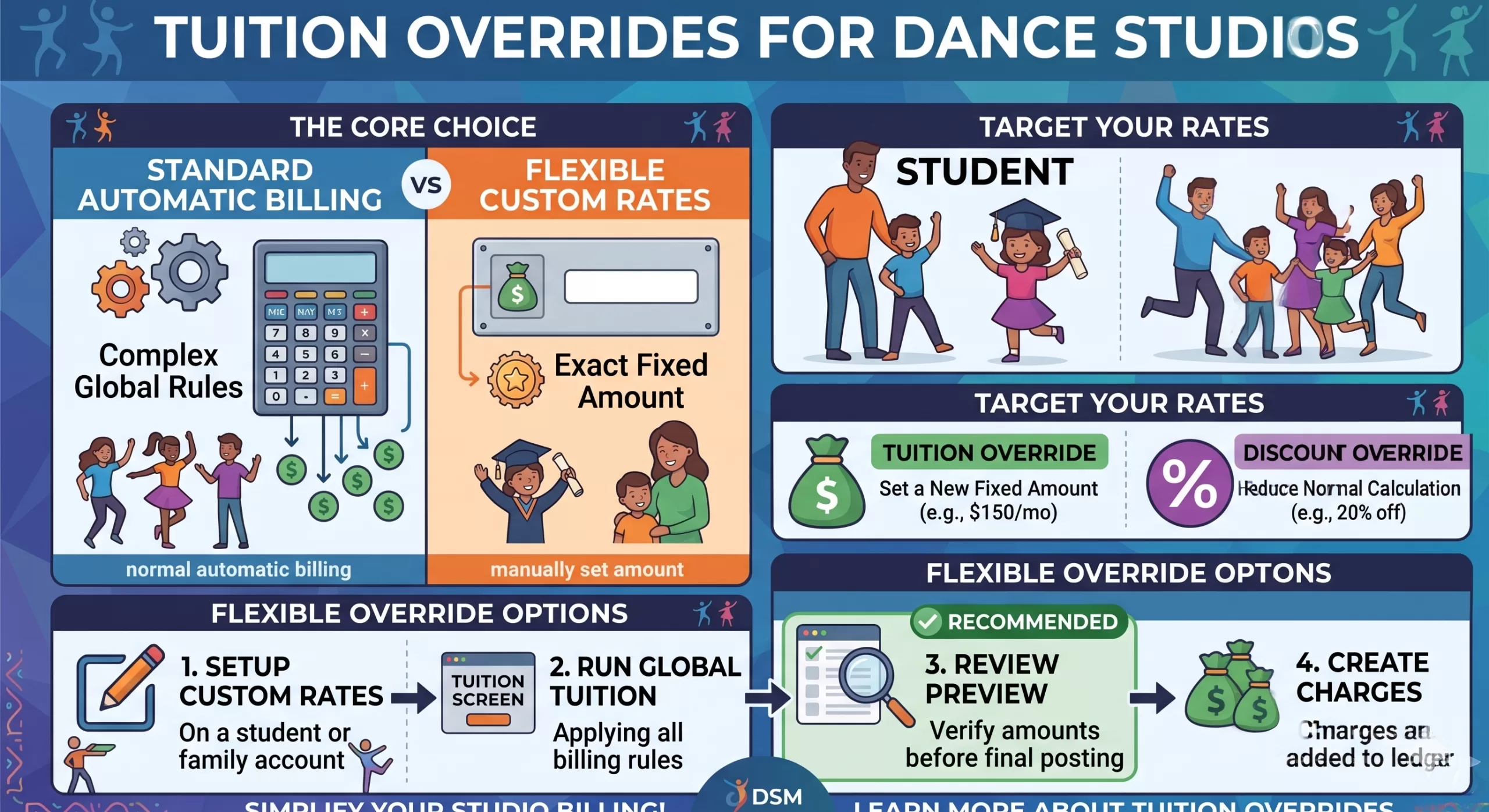
Dance Studio Manager includes many ways to calculate tuition automatically, including billing schedules, pricing levels, hourly rates, multi-class discounts, multi-student discounts, member categories, and class-based tuition settings. Most of the time, those settings allow tuition to be calculated automatically when you run Global Tuition.
However, some situations require a special tuition amount for one family or one student. For example, you may need to set a fixed monthly rate for a scholarship student, waive or reduce tuition for a teacher's child, create a special employee discount, or honor a custom pricing arrangement that should not be calculated from the normal class rules.
The Tuition Override feature allows you to enter a specific tuition amount on a family account or an individual student account. When you run Global Tuition using the appropriate override option, Dance Studio Manager can charge that special amount instead of calculating tuition from the student's normal class enrollment.
Tuition Override vs. Discount Override
There are two related fields that are useful for special pricing, and they are not the same thing.
- Tuition Override is used when you want to charge a specific fixed amount. If a family should always be charged $150 for the month, you can enter $150 as the tuition override.
- Discount Override is used when you want the normal tuition calculation to remain in place, but apply a special discount. The discount can be entered as either a fixed amount or a percentage.
In simple terms, use Tuition Override when you already know the exact amount to charge. Use Discount Override when you still want Dance Studio Manager to calculate tuition normally and then reduce it with a custom discount.
Family Tuition Override
Use a Family Tuition Override when the special tuition amount should apply to the entire family account. Open the family or main account, go to the Additional tab, enter the amount in the Tuition Override field, and choose the appropriate Billing Schedule.

The override amount is stored on the family account along with the related billing schedule and discount override fields. In other words, the account keeps the override settings until you deliberately change them, and the charge itself is created later when you run Global Tuition.
After saving the account, go to Finance → Tuition and choose Family Tuition Override as the processing mode. This tells Global Tuition to look for family accounts with an override amount instead of calculating standard tuition for those families.
Student Tuition Override
Use a Student Tuition Override when only one student in a family should have a special tuition amount. This is useful when one child has a scholarship, employee benefit, custom agreement, or other special arrangement while the rest of the family should continue using the normal tuition calculation.
To set this up, open the family account, go to Related Students and Classes, edit the student, and then open that student's Additional tab. Enter the Tuition Override amount and choose the appropriate Billing Schedule.

The student account stores the override amount and billing schedule on that individual student record, so the override can apply to one student without changing the family's normal setup.
Global Tuition Processing Modes
The Finance → Tuition screen includes several processing modes, not just standard tuition. Depending on what you need to run, you can choose:
- Normal Tuition
- Family Tuition Override
- Student Tuition Override
- No Discounts Classes Only
That matters because override billing is not just a field on the account. You still choose the correct processing mode when you run tuition so Dance Studio Manager knows whether to calculate standard tuition, apply family overrides, apply student overrides, or separately process classes that should not receive discount rules.
Running Tuition Overrides from Finance → Tuition
When running tuition overrides from Finance → Tuition, the processing form includes a number of useful run-time options. Depending on your workflow, you can control the billing schedule, member category, class date range, charge category, exception categories, charge date, description, whether to view the list first, whether to auto-apply available credit, and whether to include a convenience fee if your studio uses one.
These options make it easier to run overrides in a controlled way. For example, you can limit the run to a specific billing schedule, preview the list before posting charges, choose a clear ledger category, and avoid duplicate charges by using the exception settings.
It is usually a good idea to use View List Only before running the final process. That preview helps confirm the students or families, descriptions, and amounts before charges are added to the ledger.
No Discounts Classes Only
The No Discounts Classes Only option is different from Tuition Override. Use it when certain classes should be charged separately and should not receive the normal tuition discounts. For example, a studio may want competition fees, special workshops, or selected programs to be excluded from regular discount calculations.
A Tuition Override is for a special amount stored on a family or student account. The No Discounts option is for classes that should be processed outside the normal discount structure.
Sales Items and Membership Package Workflows
Sales Items also support student tuition override and student billing schedule fields. That can matter in membership or package workflows where purchasing a specific item should place a student on a particular tuition amount or billing schedule.
That setup is more advanced than manually entering a tuition override on the student account, but it can be useful for studios that sell memberships, unlimited class packages, or recurring tuition plans through Sales Items.
Best Practices
- Use View List Only before running tuition overrides so you can catch incorrect amounts, missing billing schedules, or accounts that should not be included.
- Use clear charge descriptions so the family ledger is easier to understand later.
- Review override settings periodically, especially if a special rate is temporary.
- Use the correct override level: family for a whole-account special amount, student for an individual student's special amount.
Frequently Asked Questions
Does a tuition override automatically create a charge?
No. The override amount is stored on the family or student account. The actual charge is created when you run the appropriate Global Tuition option from Finance → Tuition.
Should I use Family Tuition Override or Student Tuition Override?
Use Family Tuition Override when the special amount applies to the entire family account. Use Student Tuition Override when only one student in the family needs the custom amount.
Can I enter a percentage discount instead of a fixed tuition amount?
Yes, but that is handled through Discount Override, not Tuition Override. Tuition Override is for a fixed amount. Discount Override is for an amount or percentage discount applied to the normal tuition calculation.
Can I preview the charges before creating them?
Yes. Use View List Only before running the final tuition process so you can review the accounts, students, descriptions, and amounts first.