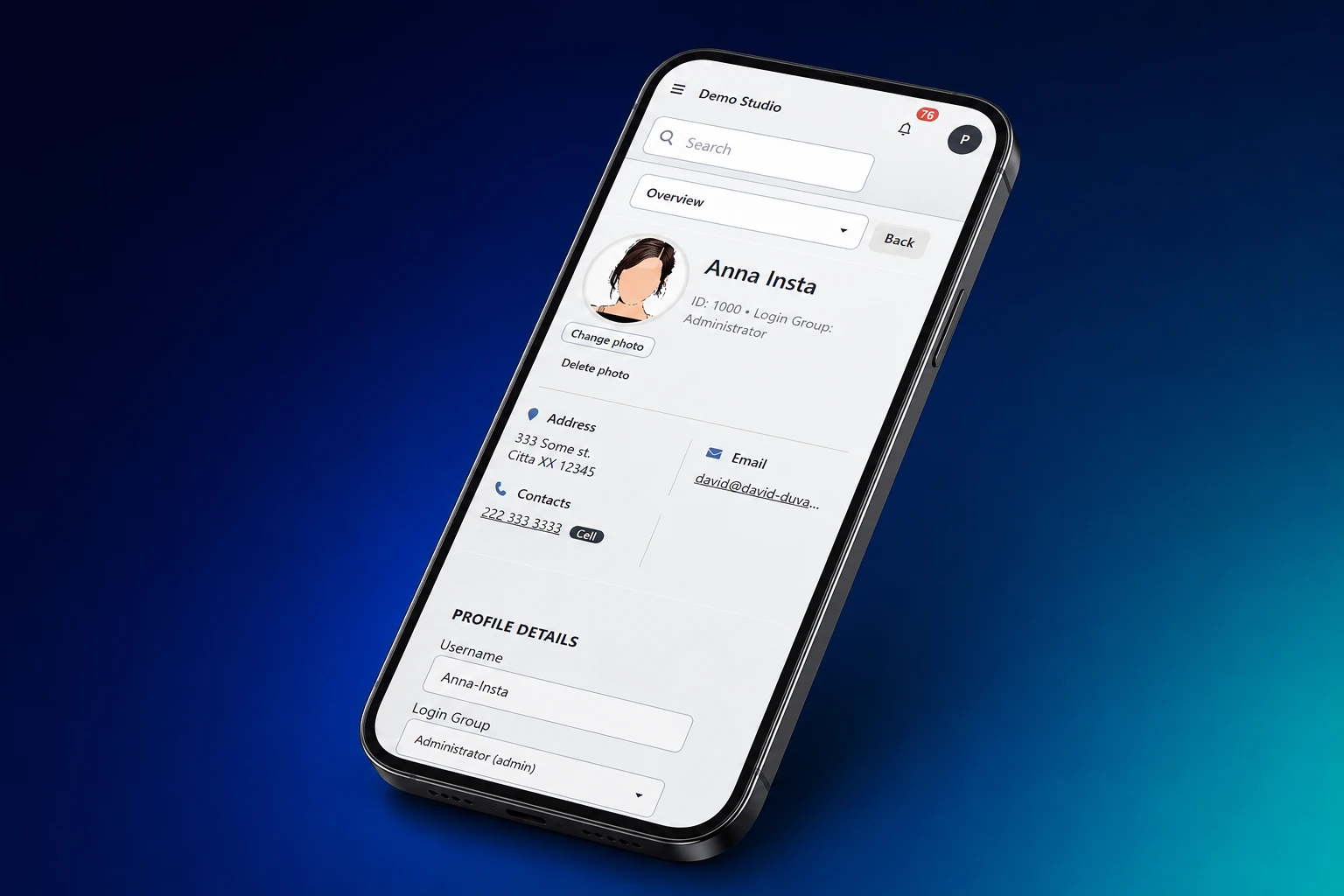
Dance Studio Manager gives each person a useful view of the same studio information. Families can handle common account tasks, adult students can manage their own activity, and authorized teachers can work from the class schedule without carrying paperwork back to the office.
One system, three everyday views
For parents
Family information without another front-desk call
Parents can review the family account, register children, follow schedules, manage eligible payments and saved methods, complete waivers, and read studio information when those options are enabled.
For adult students
Self-service for the person taking class
Adult clients can use the same Online Client tools for their own classes, private lessons, purchases, packages, memberships, payments, messages, and account details.
For teachers
The teaching day in a practical view
Authorized instructors can review their schedule, open a dated class, work from the roster, record attendance, and use the notes or class information their studio makes available.
What mobile-friendly access looks like
The screen should fit the task. A family usually needs a fast path to the calendar, account, or checkout. A teacher usually needs today's classes and the students in front of them. DSM keeps those tasks connected to the studio record instead of creating a separate mobile data silo.
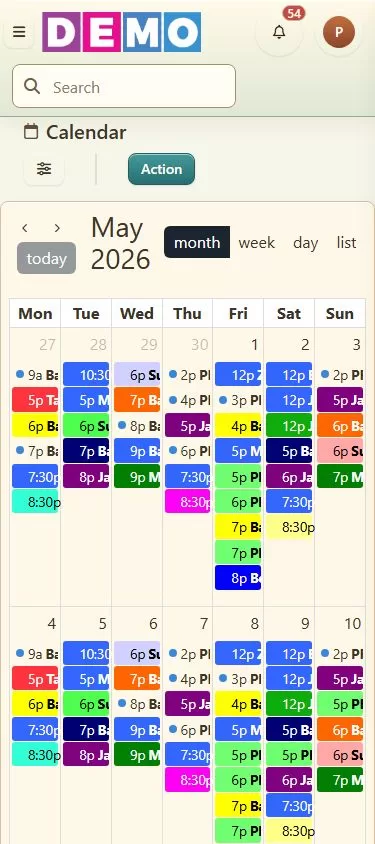
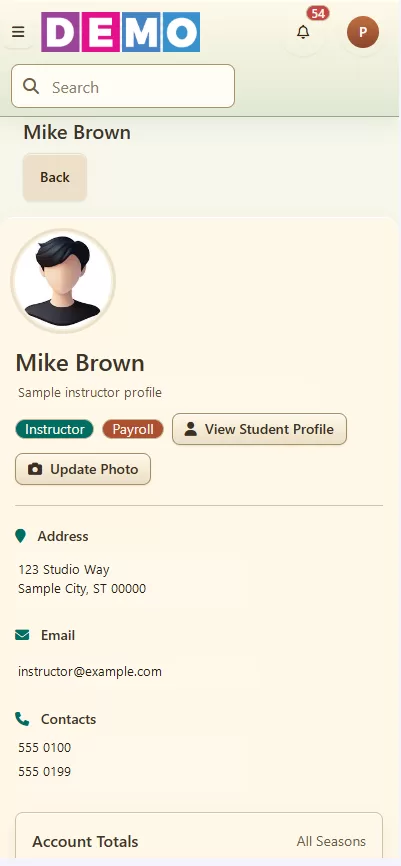
See more current DSM screenshots and videos
What families can do in the Online Client
The exact tabs depend on the studio's settings, registration rules, country, and payment processor. A configured Online Client can bring several routine tasks into one place:
- Manage the account: review or update eligible family and student information.
- Find and register: browse available classes, join a waitlist, reserve a drop-in spot, or register through the workflow the studio has configured.
- Follow the schedule: review classes, private lessons, room bookings, cancellations, and studio calendar information.
- Handle finances: review the ledger, eligible invoices or receipts, saved payment methods, scheduled or recurring instructions, and make a payment when allowed.
- Complete studio tasks: purchase eligible packages or items, sign waivers, read messages and announcements, and manage notification choices.
For a closer look at registration and family account workflows, visit the Online Client Portal overview and the online booking guide.
What teachers can do from a phone or computer
Teacher access is permission-based. That matters: an instructor can receive the tools needed for class without automatically receiving every administrative or financial permission.
Start with today's schedule
Use the calendar, Day Overview, or instructor Teaching view to find the correct class occurrence and confirm the assigned instructor, time, and room.
Work from the roster
Open the dated class, review who is expected, and record the attendance status approved by the studio. The result is available to authorized staff and reporting workflows.
Keep context with the class
Depending on permissions and setup, instructors can review class notes, routines, videos, meeting information, or other details attached to the class.
Studios planning a teacher rollout can also review the practical guide to marking attendance in DSM.
Browser access, installable web access, or a branded app?
Mobile-friendly browser
Open DSM or the Online Client in a current browser. This is the simplest path when a studio does not need an app-store download or custom branding.
Progressive Web App
Families can add the Online Client to a supported phone, tablet, or computer so it opens more like an installed app and can support features such as enabled push notifications.
Optional white-label app
Studios that want their own branding on iOS and Android can add the white-label mobile app. Review current packaging on the DSM pricing page.
A five-minute demo test
A useful app demonstration should follow real work, not a feature checklist. During a demo, try these five handoffs:
- Family to office: register a sample student and confirm the enrollment appears in the studio record.
- Family to finance: review a charge or sample payment flow and confirm the account history is understandable.
- Schedule to teacher: open today's class from a phone-sized screen and find its roster.
- Teacher to office: record sample attendance and confirm an authorized administrator can review it.
- Studio to family: publish or send a sample update and confirm where the client sees it.
Questions about DSM app access
Do families need to download an app to use DSM?
No. The Online Client works in a mobile-friendly browser. Families can also add it as a Progressive Web App on supported devices, and studios may choose the optional branded mobile app.
Can teachers take attendance from a phone?
Yes. Authorized teachers can use mobile-friendly attendance workflows, and studios using the optional iOS or Android app can support teacher-side attendance there as well.
Can parents make payments through the Online Client?
Yes, when the studio has enabled online payments and configured an eligible processor and payment method. Available finance tabs and controls vary by studio.
Does every teacher see the same information?
No. DSM filters menus and features according to role, permissions, studio settings, and enabled options. Studios should test each staff role before rollout.
Try the handoffs yourself
See how family and teacher access fits your studio
Use a sample class, family, and instructor to test the exact mobile workflows your team handles every week.
Start your free DSM demo