Manual
-
-
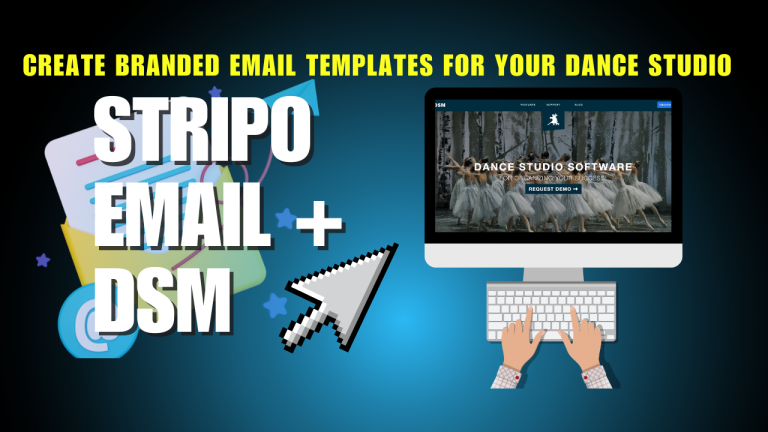
How to Use Stripo Email Templates in Dance Studio Manager (DSM)
How to Use Stripo Email Templates in Dance Studio Manager (DSM) Create Beautiful Email Templates for Your Dance Studio Looking to create beautiful and professional email templates for your dance studio? With Stripo and Dance Studio Manager (DSM), it’s easier than ever to design, customize, and send branded email campaigns that reflect your studio’s personality….
-
Using Amazon SES with DSM
Amazon Simple Email Service (SES) is a cloud-based platform trusted by developers and marketers to send high-volume, transactional, or marketing emails. When connected to Dance Studio Manager (DSM), SES offers a cost-effective and reliable way to send notifications, receipts, and mass email communications. Why Use Amazon SES? How to Connect DSM to Amazon SES Amazon…
-
Using SMTP2GO with DSM
SMTP2GO is a reliable and easy-to-use email delivery service that works perfectly with DSM’s SMTP settings. It’s ideal for sending email receipts, automated messages, and class updates from your studio’s domain — all with great deliverability and tracking. Why Choose SMTP2GO? Step-by-Step Setup Guide Tips for Best Deliverability Need Help Setting Up SMTP2GO? Here is…
-
Using Gmail to send Mass Email
Want to send emails directly from DSM using your Gmail account? This video will walk you through everything you need to set it up using SMTP. It’s a quick “set it and forget it” process… once configured, all your DSM emails will be sent through Gmail automatically. Once setup, don’t forget about automated messaging with…
-
Categories Settings Guide
Categories are pivotal in personalizing your Dance Studio Manager and should be one of the initial setup steps. For each category, set up options that best fit your dance studio. Below are tips, tricks, and explanations of each category option and its application in the software. Blue highlight – This means the setting is especially…
-
Sales Bundles
Sales bundles offers a way for you to sell a package of classes together as a bundle. For example, let’s say you have a ballet academy, and you have a youth ensemble. Each member of the ensemble will be enrolling in several classes that are all part of the same program (tap, hip hop, modern,…
-
Gift Cards
Gift cards are a great way to encourage your students to recruit their friends to come to your dance school for the first time, and they make great gifts for holidays, birthdays or special occasions. Let’s dive right in and go through the steps needed to get gift cards set up correctly. Create a Notification…
-
Poll Questions
The poll questions feature allows you to ask questions to students at registration or checkout. The answers to the poll questions are then stored, and you can access them under the student’s account or in the poll questions report. Some common poll questions might include: At the time of this writing, there is only one…
-
Lessons Remaining Report
The lessons remaining report provides a list of all students with lessons remaining. You can filter this by Sales Item, Teacher or Student. For example, perhaps you have clients who have purchased Summer Camp Passes with 10 class credits per pass, and you want to get a list of students who purchased that have lessons…