
Dance Studio Manager Finance Guide
Understanding the client ledger in Dance Studio Manager.
The Client Ledger is one of the most important daily-use areas in DSM. It connects charges, payments, balances, statements, selected invoices, purchases, scheduled payments, and client-facing account visibility in one place.
DSM includes both an Admin Ledger and an Online Client Ledger. They are related, but they are not the same. Staff can manage and correct financial records on the admin side, while clients can only see the charges, payments, balances, and finance tools that your settings allow them to see.
Admin Ledger
Used by staff to manage charges, payments, invoices, statements, purchases, and payment corrections.
Online Client Ledger
Used by families to view only the financial information and actions you choose to expose.
What it answers
What was charged, what was paid, what is still owed, what is scheduled next, and what can be invoiced or emailed.
Why the ledger matters
A well-maintained ledger helps your studio answer practical questions quickly.
- What does this family owe right now?
- Which charges are unpaid?
- Which payments were received and applied?
- Does this family have a credit?
- Are scheduled payments already set up?
- Should staff send a statement, invoice, or payment reminder?
Client ledger in the admin
From the Admin Dashboard, open a client or family account and go to the ledger and finance area. This is where staff can work with the account in detail rather than just view it.
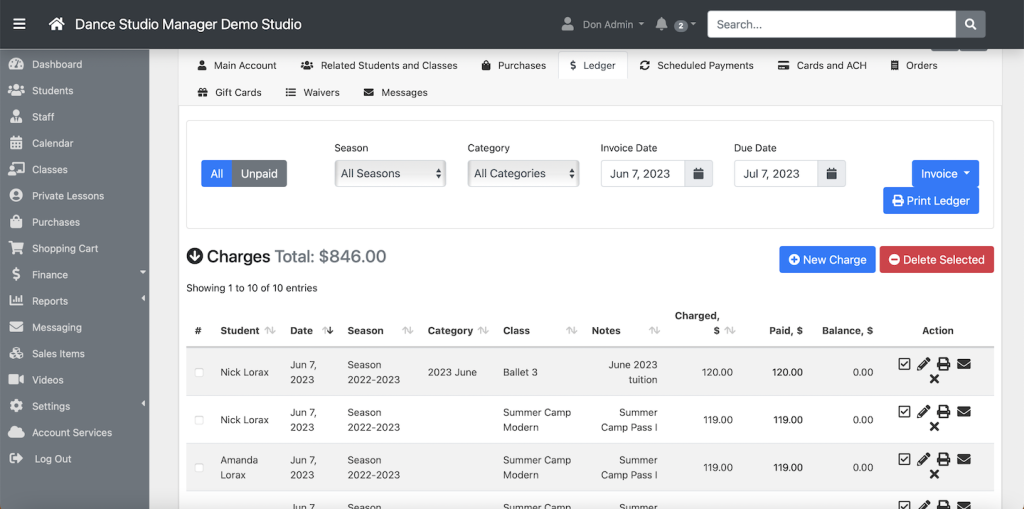
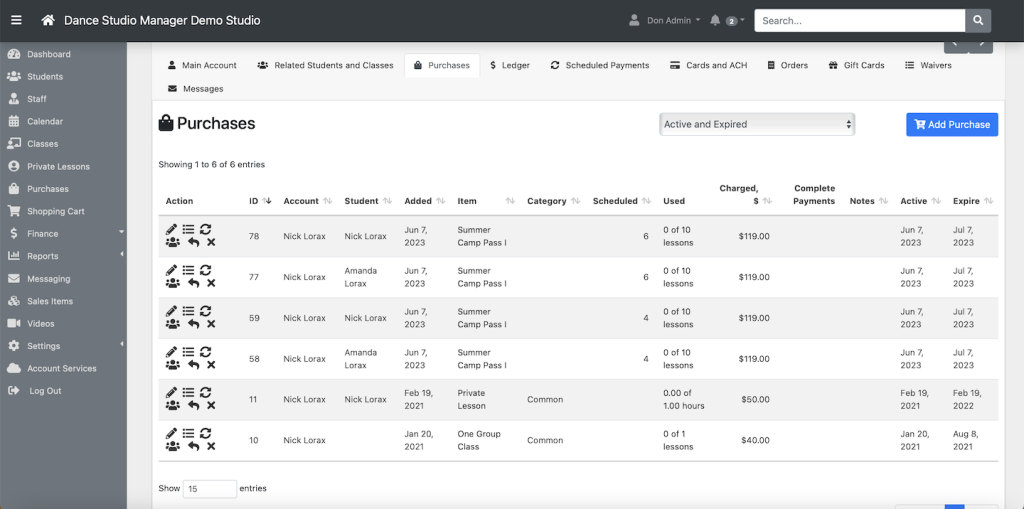
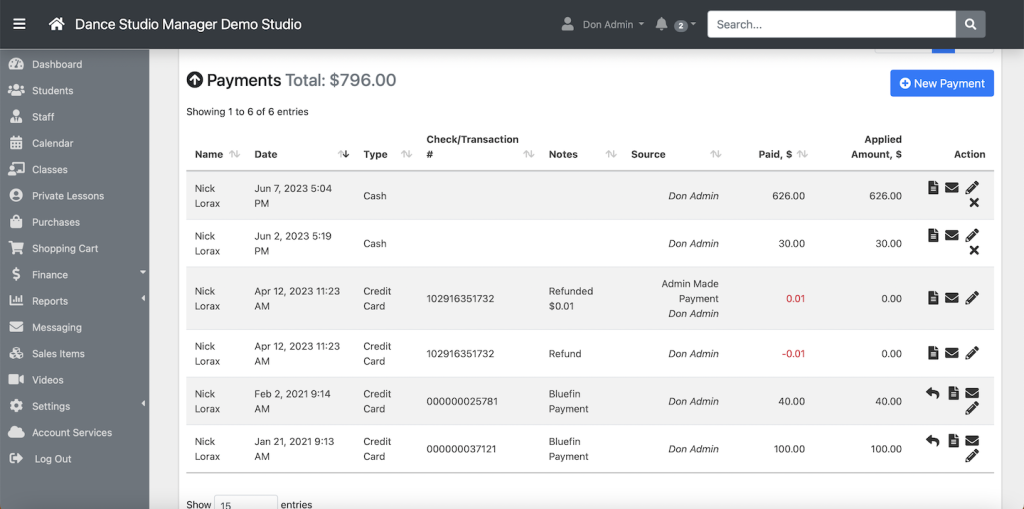
The admin account page connects several finance-related areas, including purchases, scheduled payments, charges, payments, orders, gift cards, and ledger actions. The ledger is where staff can review the whole picture before deciding what needs to happen next.
Charges
Charges are the amounts billed to the client, such as tuition, registration fees, recital fees, costume fees, merchandise, competition fees, or private lessons. Staff can add charges, edit charges, delete charges when needed, and review how much of each charge has been paid.
The charges area is also where selected-charge invoice actions become especially useful. Staff can select one or more charges and then print an invoice, email selected charges, create a PDF invoice, or send a statement tied to that work.
Payments
Payments are money received from the client. Some are entered manually, such as cash or check payments, while others come from online checkout, make-payment actions, recurring billing, admin purchases, or imported payment records.
One of the most important ledger habits is checking whether payments were applied the way staff expects. A family can have money paid on the account, but if it is not applied to the right charges, the balance can still look confusing until staff reviews the payment application.
Purchases
The Purchases section shows packages, memberships, products, gift cards, and other sales items purchased by the client. This is useful when a family bought a package with a set quantity of classes, hours, or lessons and staff needs to review what was purchased and what has already been used.
Scheduled payments
Scheduled Payments show future payment activity that is expected to happen later. These may represent payment plans, recurring memberships, installment payments, or scheduled payments tied to a purchase or balance. They should be reviewed before contacting a family about what they owe, because the family may already have an approved plan in place.
Useful ledger actions
- Print or email selected charges as an invoice
- Print the full ledger
- Generate a PDF invoice
- Email a single statement
- Review payments, purchases, and scheduled payments before following up with a family
That combination is what makes the ledger so central to daily front-desk and office work.
Filtering the admin ledger
Ledger filters help staff focus on the part of the account they actually need to review.
- Season
- Charge category
- Date range
- Charge history vs. unpaid charges
- Related payment and account history
This is especially helpful when a studio has several seasons of data in DSM and only wants to focus on current-season tuition, recital fees, or another specific part of the ledger.
Online Client ledger
The Online Client ledger lets families view financial information without needing to contact the office every time. Depending on your settings and payment-processor setup, the client-facing finance area can include the ledger itself, make-payment tools, stored cards or ACH, scheduled payments, and recurring-payment or subscription information.
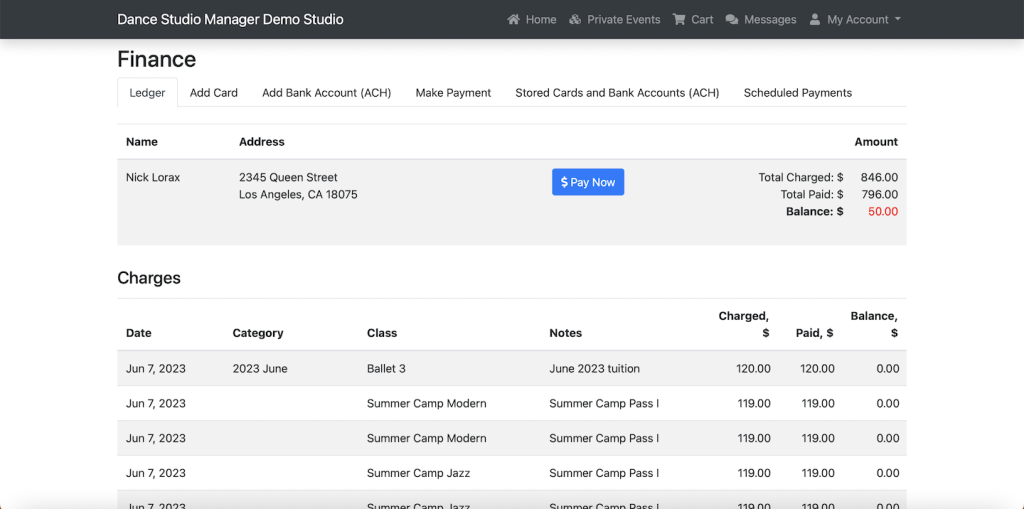
The Online Client ledger may show the family name, address, charges, payments, totals, balance, pending scheduled amounts, payment options, and invoice download actions. If the client has a balance and online payments are enabled, DSM can also show a Pay Now option.
The important distinction is that client-facing visibility is configurable. The admin ledger is a management tool. The Online Client ledger is a controlled view of the account for the family.
Online Client ledger settings
Go to Settings → Online Client → Ledger to control what families can see.
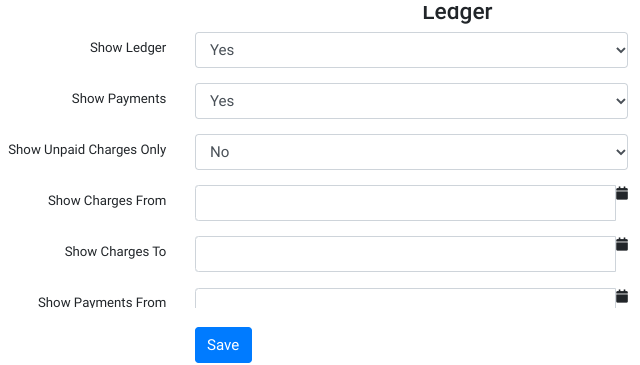
- Show Ledger to control whether clients can see the ledger at all
- Show Payments to control whether payment history appears
- Show Unpaid Charges Only if you want clients to focus only on open items
- Show Charges From / Show Charges To to limit the charge date range
- Show Payments From / Show Payments To to limit visible payment history
- Show Total Charged, Show Total Paid, and Show Balance for top-level account summary visibility
- Download PDF Invoice if you want clients to generate invoices from their side
- Invoice Default Due Date for client-facing invoice defaults
- Show Pending Amount in Ledger to expose pending scheduled payment amounts when appropriate
Related client-facing views in your broader DSM setup may depend on how your studio uses the Online Client and connected payment tools, so it is better to treat these as the core ledger visibility controls rather than assume every client-facing surface behaves identically.
Best practices for studio staff
- Open the client account and review the current balance.
- Check unpaid charges.
- Review whether recent payments were applied correctly.
- Look at scheduled payments before contacting the family.
- Send a statement or selected-charge invoice if needed.
- When a payment is received, make sure it is applied to the correct charges.
- If the balance still looks wrong, check for unapplied payments, credits, duplicate charges, or charges posted to the wrong student or season.
A clean ledger makes financial conversations much easier. When staff can clearly see what was charged, what was paid, what remains unpaid, and what is scheduled next, they can explain the account confidently and make corrections faster.
Frequently asked questions
What is the Client Ledger in DSM?
The Client Ledger is the financial history for a family or client account. It shows charges, payments, balances, and related account activity.
What is the difference between charges and payments?
Charges are amounts billed to the client. Payments are money received from the client. Payments may be applied to one or more charges depending on how the account is managed.
Why does a client still show a balance after making a payment?
The payment may not have been applied the way staff expects, the family may still have other unpaid charges, or the payment may be scheduled for the future rather than completed already.
Can I show only unpaid charges to clients?
Yes. Use the Show Unpaid Charges Only setting in the Online Client ledger configuration.
Can I hide payments from clients?
Yes. Set Show Payments to No if you do not want clients to see payment history in the Online Client ledger.
Can clients make payments from the ledger?
Yes, if online payments are enabled and the client has a balance, DSM can show a pay-now option in the client-facing finance area.
Can clients download a PDF invoice?
Yes, if Download PDF Invoice is enabled in the Online Client ledger settings.
Can staff print or email selected charges?
Yes. Staff can select charges from the admin ledger and print or email an invoice for only those selected charges.
Should every studio give clients full ledger access?
Not necessarily. Some studios show all charges and payments, while others show only unpaid charges or limit the visible date range to keep the client view simpler.