Dance Studio Manager Billing Guide
Client statements in Dance Studio Manager.
Client statements help your studio clearly communicate balances, charges, payments, credits, and class-related billing activity. A statement can be printed, generated as a PDF, or emailed to a client. Statements are useful after tuition runs, after recital or costume billing, when following up on unpaid balances, or whenever a family asks for a clean copy of their account history.
Dance Studio Manager includes more statement controls than many studios realize. You can change how statements look, what descriptions they use, how due dates behave, what date ranges are shown, and whether statements are generated one account at a time or in bulk.
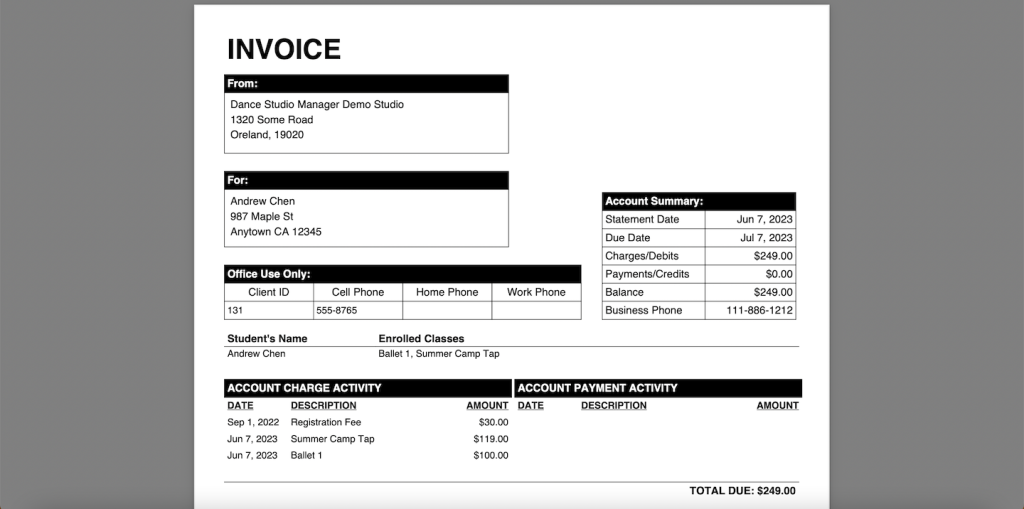
What statements can include
- Studio name and address
- Client name and address
- Account summary and due date
- Charge and payment activity
How you can send them
- Print or PDF one account
- Email one account
- Generate in bulk
- Email in bulk from reports
What this page fixes
Many current statement settings live under Settings → Reports → Statement, not only under general global settings.
Where to configure statement settings
To review statement settings, go to Settings, then Reports, and then Statement.
You can also use the settings search box and search for statement. Some older statement-related options may still appear under Global Settings, but many of the current layout and reporting options are found under the Reports settings group.
Important clarification
The older advice to only look under Global Settings is incomplete. If you are trying to change statement titles, font sizes, due days, descriptions, payment layout, or statement content behavior, check the Reports statement settings area too.
Important statement settings
Statement Title
This controls the title printed at the top of the statement. Some studios use Invoice, while others prefer Client Statement, Account Statement, or Tuition Statement.
Title Font Size
This controls the size of the statement title.
Paper Size
This controls the PDF paper size used for statements.
Show Logo
Enable this if you want your studio logo to appear on statements.
School Logo, Logo Width, and Logo Height
These settings control which logo is used and how large it appears on the statement.
Statement Text 1 and Statement Text 2
These are custom text areas you can use for payment instructions, thank-you notes, office contact reminders, or policy wording.
Show Business Phone
Controls whether the studio phone number appears on the statement.
Default Due Days
Controls the default due date offset shown on invoices or statements.
Show Due Date / Highlight Due Date
These control whether a due date appears and whether it is emphasized visually.
Show Student for Charges
Useful for family accounts with more than one student, because it lets parents see which student each charge belongs to.
Show Payments Under Charges
Changes how payments appear in relation to charges. Some studios prefer a separate payment section, while others prefer payments grouped with the charges they were applied to.
Show Applied Payments Only
Controls whether the statement shows only payments applied to the selected charges or season instead of every payment in the date range.
Charges Description Item
Controls what DSM uses as the charge description on the statement, such as class, charge category, notes, or combinations of those fields.
Payments Description Item
Controls how payment descriptions are shown, such as payment notes or payment type with receipt number.
Show Charged Amount at Description Item
Can display the charge amount alongside the description item.
Show Charges From / Show Payments From
These start dates control how far back statement history goes. This is useful if you only want to show the current season, current year, or another recent period.
Generating statements from reports
DSM includes a dedicated Client Statements report. To generate statements in bulk:
- Go to Reports and then Client Statements.
- Choose filters such as season, class, or charge category.
- List the matching families.
- Review the balances and the accounts that match your filters.
- Generate or email statements in bulk.
This is especially useful after running global tuition, posting recital or costume charges, or sending reminders to families with outstanding balances.
When emailing statements, DSM can prepare the email and attach the statement PDF. The bulk process also includes a progress flow so you can monitor how many statements have been processed.
Printing or emailing a single client statement
You can also generate statements from an individual client account. From the ledger or account area, DSM includes tools to:
- Print selected charges as an invoice
- Email selected charges
- Print the full ledger
- Generate a PDF invoice
- Email a single statement
This is helpful when a parent asks for a statement for just one family or when you only want to send a statement related to selected tuition, recital, costume, or registration charges.
When generating a single invoice or statement, DSM can also prompt for the due date before processing.
Choosing the right statement format
A few common choices work well in practice:
- For simple tuition billing, use a clear title like Tuition Statement or Invoice, show the due date, show payments, and include a short payment message.
- For family accounts with multiple students, enable Show Student for Charges so parents can see who each charge belongs to.
- For studios that apply many payments to specific charges, consider Show Applied Payments Only or Show Payments Under Charges so the statement is easier to reconcile.
- For studios that only want recent billing activity shown, set charge and payment start dates to the beginning of the current season or year.
Best practices
- Before emailing statements in bulk, generate a test statement for one account and confirm the logo, due date, charge descriptions, payment descriptions, and balance display look correct.
- Use charge categories consistently. Clean categories such as January Tuition, Registration Fee, Recital Fee, and Costume Fee make statements much easier for families to understand.
- Use the statement text fields to add payment instructions, office contact information, or a friendly note.
- When sending many statements, use the Client Statements report instead of opening each family one by one.
Related guides: Processing Tuition and Emailing Statements, Track Outstanding Balances, Accounting Software for Dance Studios, and Dance Studio Reports.
Frequently asked questions about client statements
What is a client statement in DSM?
A client statement is a PDF account summary showing a family’s charges, payments, credits, and balance. It can be printed or emailed.
Where do I configure statement settings?
Go to Settings, then Reports, then Statement, and search for statement-related settings.
Can I email statements to clients?
Yes. DSM can email statements and attach the statement PDF to the outgoing message.
Can I print a statement for just one family?
Yes. Open the client account and use the statement or invoice tools from the ledger or account area.
Can I send statements in bulk?
Yes. Use Reports → Client Statements to list families and generate or email statements in bulk.
Can I show only selected charges?
Yes. From a client account, you can select specific charges and generate or email a statement for only those selected charges.
Can I control what appears in the charge description?
Yes. DSM includes settings that control whether the charge description uses the class, charge category, notes, or combinations of those fields.
Can statements include my studio logo?
Yes. Enable the logo setting and adjust the logo width and height if needed.