Dance Studio Manager Report Guide
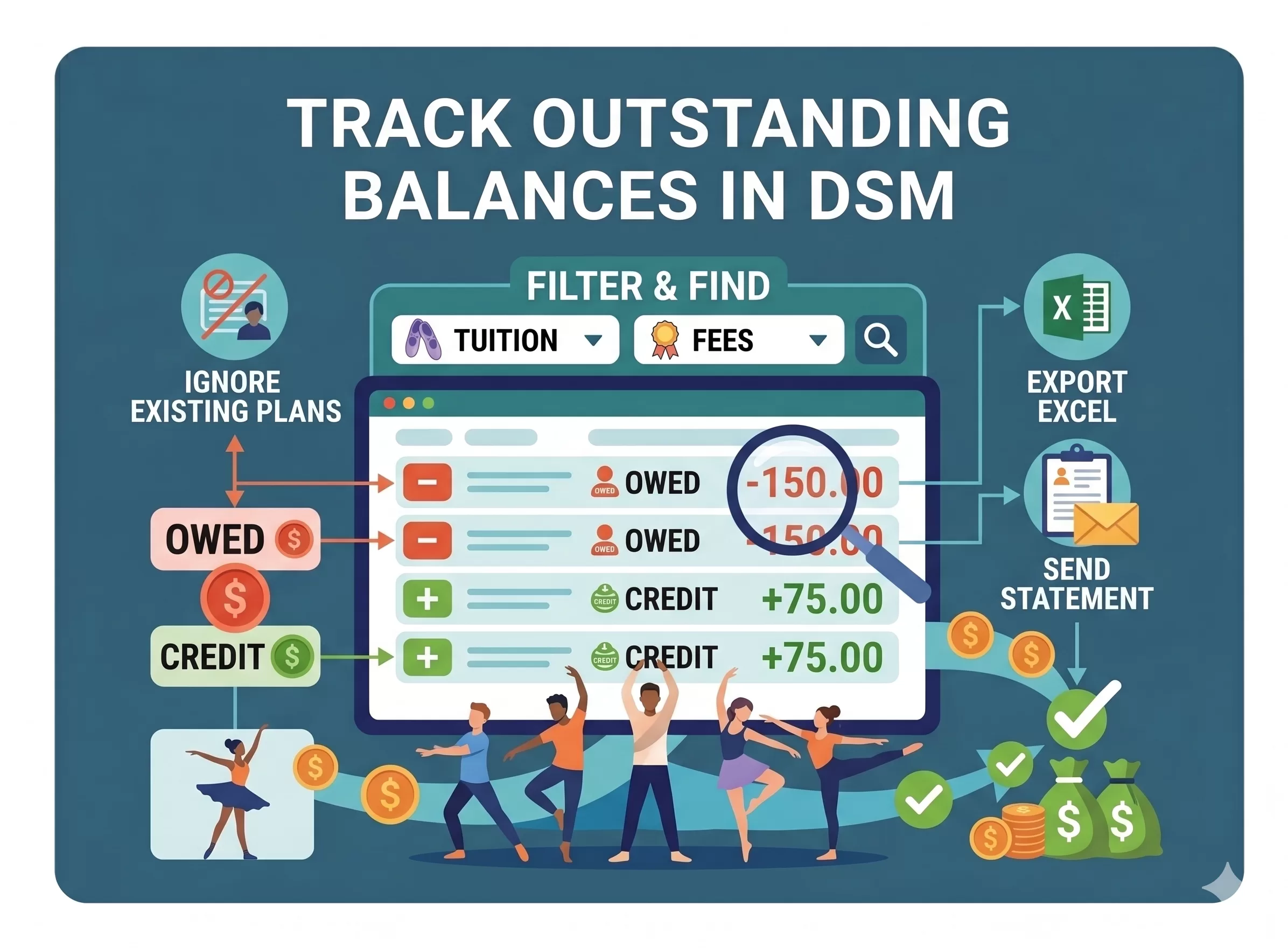
Track outstanding balances in Dance Studio Manager.
The Outstanding Balances report helps you quickly find families or students who owe money, have credits, or already have scheduled payments arranged. This is one of the most useful reports for keeping tuition, registration fees, costume fees, recital fees, private lessons, and other charges from slipping through the cracks.
You can use this report to find unpaid balances, review balances by family or by student, see credits, check whether payment plans already exist, and export a clean follow-up list.
What it helps you find
- Accounts that owe money
- Accounts with credit
- Families already on payment plans
- Balances by student or family
Important interpretation
In DSM, a negative balance usually means the client owes money. A positive balance usually means the client has a credit.
Why scheduled totals matter
A family may still owe money on paper but already have scheduled payments in place, so the report helps you avoid unnecessary follow-up.
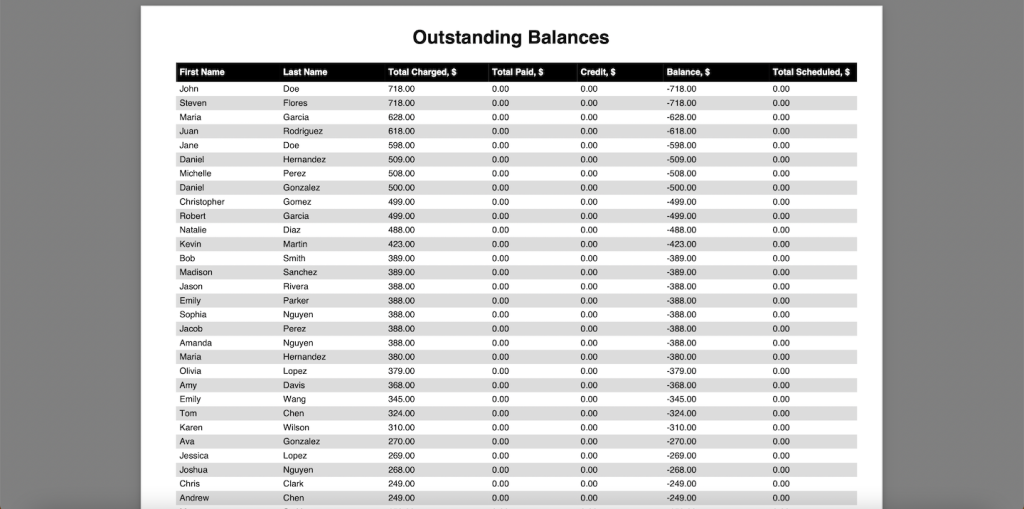
Understanding the report columns
The Outstanding Balances report includes several useful columns:
Total Charged
The total amount charged to the account based on the filters you selected.
Total Paid
The total amount paid that applies to the account or selected filter range.
Credit
This can include unapplied payments or available account credit.
Balance
This shows the account’s remaining balance. In DSM’s balance math, a negative balance usually means the client owes money, while a positive balance usually means the client has a credit.
Total Scheduled
This shows scheduled payments that are already set up. That is important before contacting a family, because they may already be on a payment plan.
Report options
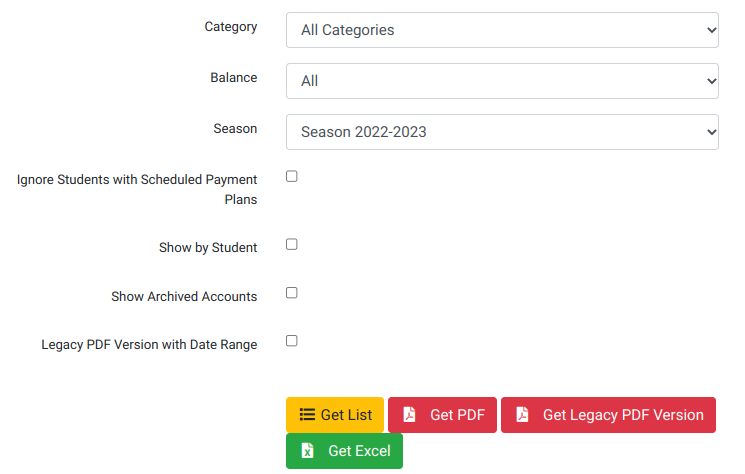
To access the report, go to Reports and then Outstanding Balances. You will see options like the filters shown below.
Category
Use the Category filter when you only want to review balances for a specific charge category, such as tuition, registration fees, costume fees, recital fees, competition fees, or private lessons.
Related guide: Category Summary Report
Balance
Use this filter to choose which type of balances you want to review.
- All to show every account
- Owing / Negative Balance to show accounts that owe money
- Credit / Positive Balance to show accounts with a credit or overpayment
This is the key place where the balance direction matters: in DSM, negative balances are usually the accounts that owe money.
Season
Use the Season filter when you want to review balances for a specific season, such as the current dance season, summer session, recital season, or competition season.
Ignore Students with Scheduled Payment Plans
Enable this when you want to focus on families who owe money and do not already have scheduled payments arranged.
That helps avoid contacting families who are already working through an agreed payment plan.
Show by Student
If you use DSM Family Mode, this option helps you see balances broken down by student instead of only by family account.
Show Archived Accounts
Enable this if you want to include archived or inactive accounts that still owe money or have balance activity you need to review.
Legacy PDF Version with Date Range
Use this when you need the older PDF format or a date-range-based version of the report. For day-to-day follow-up, the list, Excel, or standard PDF view will usually be easier to work with.
Output options
- Get List shows the report directly on the page.
- Get PDF creates a PDF version of the current list.
- Get Excel exports the report to Excel so you can sort, filter, and add follow-up notes.
- Get Legacy PDF Version creates the older PDF format for date-range or category-based reviews.
What to do after finding outstanding balances
- Send client statements. Use Reports → Client Statements to generate or email statements in bulk.
- Open the family account. Review the ledger, charges, payments, scheduled payments, and payment history in context.
- Check scheduled payments. Before contacting a family, confirm whether they already have a scheduled payment plan in place.
- Use payment plans or auto payments. If a family cannot pay in full immediately, consider scheduled payments or automatic payment tools.
- Review unapplied payments. If a family says they already paid, the credit column can help you spot payments that were entered but not applied correctly.
A simple weekly collections workflow
- Go to Reports → Outstanding Balances.
- Select the current season.
- Choose accounts with balances owed.
- Enable Ignore Students with Scheduled Payment Plans.
- Click Get List.
- Review the largest balances first.
- Open each account and check the ledger.
- Send a statement or payment reminder.
- Set up a scheduled payment plan if needed.
- Repeat weekly.
This gives your staff a consistent process for staying on top of unpaid balances without waiting until the end of the season.
Related guides: Client Statements, Scheduled Payments, Processing Tuition and Emailing Statements, Accounting Software for Dance Studios, and Dance Studio Reports.
Frequently asked questions about outstanding balances
What does the Outstanding Balances report show?
It shows charges, payments, credits, balances, and scheduled payment totals for client accounts.
Why is a balance shown as negative?
In DSM, the balance is calculated as payments and credits minus charges. A negative balance usually means the client owes money.
Can I see only people who owe money?
Yes. Use the Balance filter to show only accounts with balances owed.
Can I exclude people who already have payment plans?
Yes. Use Ignore Students with Scheduled Payment Plans to focus on accounts that do not already have scheduled payments arranged.
Can I export outstanding balances?
Yes. You can view the list on screen, create a PDF, export to Excel, or use the legacy PDF version.
Can I see balances by student instead of by family?
Yes. Use Show by Student if you want balances broken down by individual student.
What should I do after finding outstanding balances?
Open the account, review the ledger, check scheduled payments, then send a statement or arrange a payment plan.