Staff
Add and manage staff
#Before you begin
- Your account must be allowed to view Staff and manage staff records.
- Ask the studio's deployment administrator or support contact to confirm the staff-write allowlist before giving a non-administrator role access to this area.
- Create and test login groups before assigning them to real staff. Keep one known administrator account available while testing.
- Give every person a separate username and password. Do not share an owner or administrator account.
- Decide whether the person teaches, belongs in payroll, and should be able to sign in. These are separate choices.
- Check for an existing staff or client record before creating another account. The current duplicate check is not a substitute for a complete account search.
- Use the minimum personal information the studio needs. Staff profiles can contain contact details, birth dates, internal comments, pay information, schedules, messages, and files.
Important: Staff-update access can be broader than the sidebar suggests when the studio's staff-write allowlist is not configured. Test both normal navigation and saved direct links with each login group. A hidden Staff menu item is not proof that the role is denied access.
Warning: A new account does not automatically email credentials. Plan a secure password handoff before activating the account.
#Understand the four account controls
Do not use one control as a substitute for another.
| Control | What it affects | What it does not prove |
|---|---|---|
| Login Group | Intended Studio Manager menus, pages, and actions; whether the group can be used for staff sign-in | Whether the person teaches, belongs in payroll, or is active |
| Display as Instructor | Instructor selectors and the Teaching tab; instructor scheduling tabs when the studio enables them | Staff permissions or payroll participation |
| Display in Payroll | The Pay tab and payroll-oriented lists that use this flag | Whether the person teaches or can sign in |
| Active | Default Staff-list visibility, future staff sign-in, and active-person selectors | Removal of old classes, availability, time entries, rates, messages, files, or an already-open browser session |
Primary Location is profile and filtering information. Assigning it does not by itself restrict the person's access to one location.
Do not assign the Client login group to remove staff access. A client-group record is excluded from the normal Staff list and from staff sign-in, which can make the record appear to have vanished. Use Active for staff deactivation.
#Find an existing staff record
- Open Staff.
- Enter a first name, last name, or email in Search staff.
- If needed, select a last-name letter or All.
- Select Filters.
- Review Login Group, Location, Instructor flag, and Payroll flag.
- Turn on Show Inactive when looking for a former or not-yet-active staff member.
- Use Archived group assignments when a person may still be assigned to an inactive login group.
- Select the row or View to open the profile.
Search for the person before creating or renaming an account. Use consistent lowercase email and username conventions, search for likely name and email variations, and open likely profiles to compare usernames. A staff member who already has an Online Client or student-related record may require an approved linked-account or duplicate-account review rather than another new record.
#Create the staff account
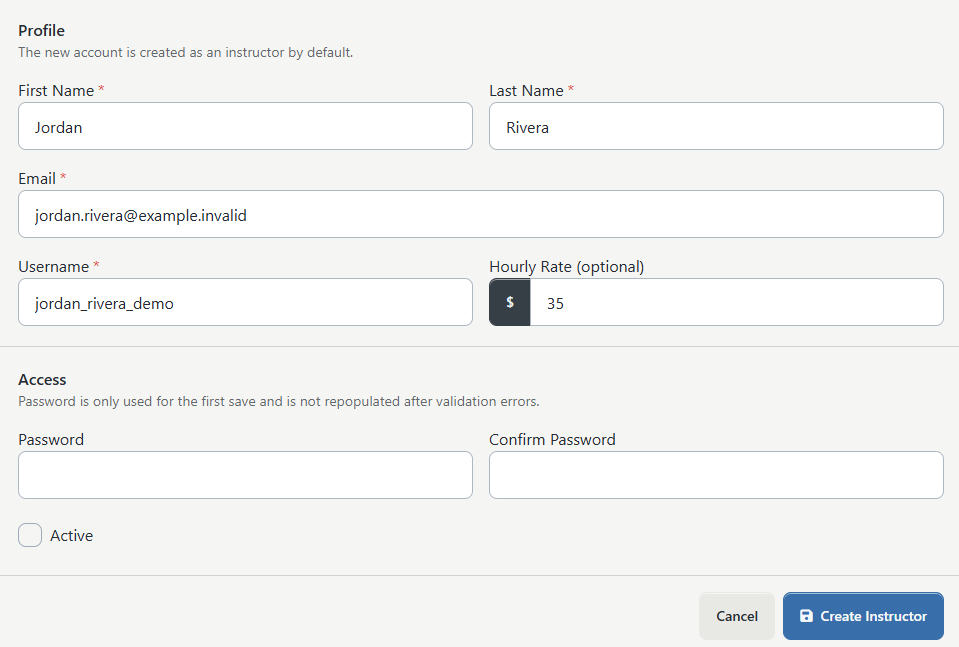
The current creation page makes every new record an instructor initially. The profile can be corrected immediately after the first save.
- Open Staff.
- Select Add New.
- Enter First Name and Last Name.
- Enter a valid, accessible, and unique Email.
- Enter a unique Username.
- Enter Hourly Rate (optional) only when the studio has approved a general hourly rate for this person.
- Enter and confirm a unique temporary password.
- Clear Active while the profile and permissions are being prepared.
- Review the entries.
- Select Create Instructor.
The form accepts passwords of six or more characters, but a longer randomly generated password or passphrase is safer. Store and transfer it through the studio's approved password manager or secure handoff process.
Important: The first save assigns the Instructor login group and turns on Display as Instructor. It does not ask for a different login group and does not turn on Display in Payroll. Review all four account controls before activating the account.
The optional general hourly rate is available during creation. Class-specific instructor rates and Time Clock category rates are managed in their respective payroll settings. Record the approved value before the first save; do not guess when pay policy is undecided.
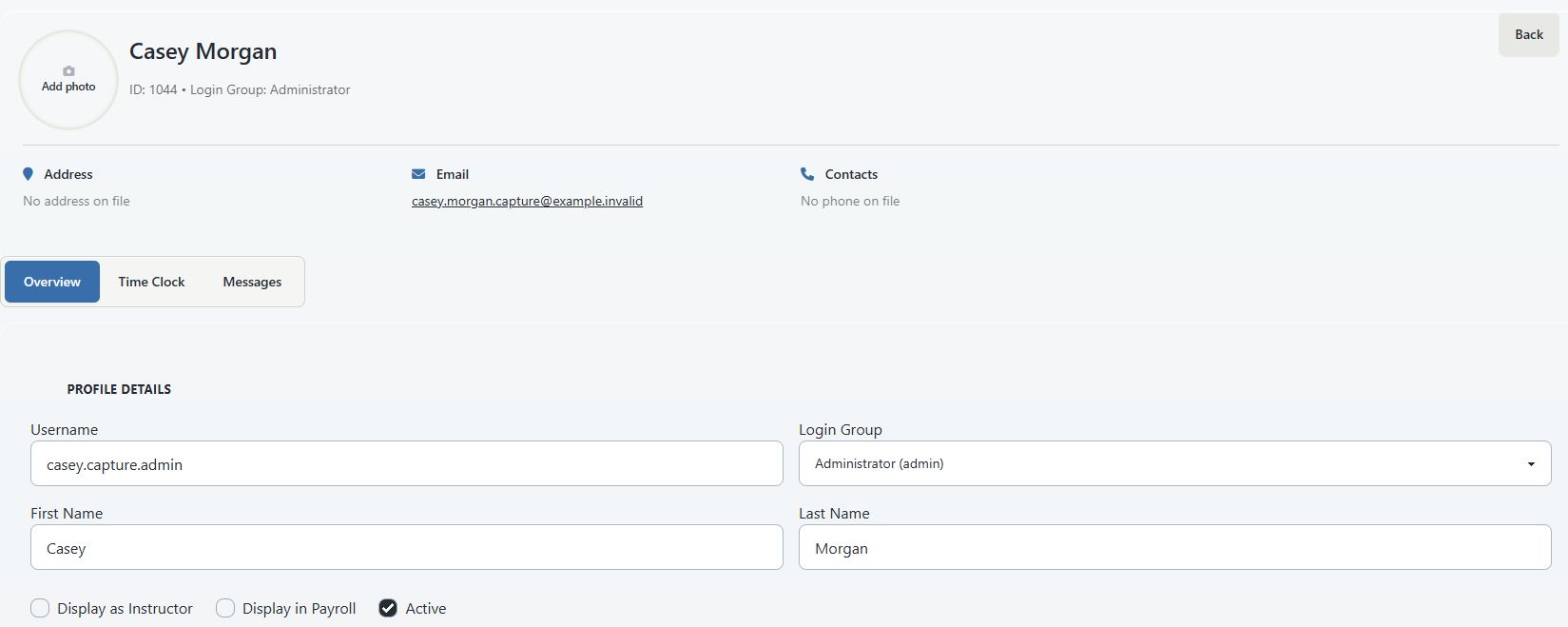
#Complete the profile
- On the new staff profile, open Overview.
- Review Username.
- Choose an active Login Group.
- Turn Display as Instructor on or off according to the person's teaching role.
- Turn Display in Payroll on or off according to the studio's payroll policy.
- Leave Active off until access testing is complete.
- Confirm First Name and Last Name.
- Add only the needed profile details.
- Choose a Primary Location when the studio uses location filters.
- Choose a Schedule Color when instructors need distinct calendar colors.
- Review Notes and Comments (Staff Alert) for unnecessary or sensitive content.
- Select Save.
- Return to the profile header and confirm the expected login-group, instructor, payroll, and inactive indicators.
Optional fields can include date of birth, gender, address, company, three phone numbers, email, schedule color, notes, and staff-alert comments. A profile photo may also be available. Use a photo only with the person's permission and according to the studio's retention policy.
Warning: A username change changes the value the person can use at staff sign-in. An email change can affect password recovery. Search first, enter both values carefully, and test the result before retiring the old sign-in details.
The current update form does not provide the same duplicate protection as the creation form. If another record already uses the intended username or email, stop and resolve the account ownership before saving.
#Assign the right login group
- Compare the person's task list with the studio's login groups.
- Open the profile and select the least-privileged active Login Group that supports those tasks.
- Do not leave Login Group blank.
- Do not use Client as a staff no-access group.
- Select Save.
- Keep the account inactive while testing the group with a separate synthetic staff account.
An inactive or archived login group can remain visible on an existing record, but it cannot be newly assigned from the normal active-group list. A person assigned to an inactive group cannot begin a new staff sign-in.
#Test a staff role before activation
Use a separate private browser session and a fictional test account assigned to the same group.
- Sign in as the test account.
- Confirm whether Staff appears in the sidebar as expected.
- Open the Staff list through normal navigation.
- Test a bookmarked Staff-list link and a bookmarked staff-profile link.
- Confirm one allowed read action.
- Confirm one allowed update on a fictional record.
- Review whether Add New, profile editing, password reset, availability changes, and Time Clock changes are available.
- Test one finance, permission, or other sensitive page that the role should be denied.
- Record the expected and actual result.
- Sign out of the test account.
Warning: If the role can open or change Staff data that its task list does not require, do not activate the real account. Restore the safer permission state and ask the deployment administrator or support contact to review both the login-group permissions and the staff-write allowlist.
After the role passes, open the real profile, turn on Active, select Save, and have the person test a new sign-in. Ask them to change the temporary password promptly.
#Configure teaching and availability
Turn on Display as Instructor only when the person teaches or must appear in instructor scheduling choices.
#Group Classes and schedules
The Teaching tab lists assigned Group Classes and the instructor's upcoming or historical schedule rows. It is a review surface; assign the instructor from the applicable Group Classes or class-schedule workflow.
- Turn on Display as Instructor and select Save.
- Open the applicable Group Class.
- Add or change the instructor through the class or schedule controls.
- Return to the staff profile.
- Open Teaching.
- Confirm the intended class and schedule information appears.
Removing the instructor flag or deactivating the profile does not erase old class and schedule links. Review future schedules before offboarding or changing a teaching assignment.
#Calendar availability
When private-lesson scheduling is enabled, an instructor profile can show Calendar and Default Availability.
- Calendar contains dated availability blocks and scheduled events.
- Default Availability contains the person's reusable weekly template.
- Copy Default Availability creates dated availability from the weekly template for 1 to 8 weeks starting on the selected date.
- Replace with Studio Default overwrites the person's weekly template with the studio default after confirmation.
To add a dated availability block:
- Open the instructor's Calendar.
- Choose the date and start time.
- Enter an end time later than the start time.
- Save the block.
- Confirm it appears on the intended date.
An exact duplicate block is rejected. Editing the weekly template does not by itself create dated bookable availability; use Copy Default Availability when the dated calendar must be populated.
Google Calendar information, when configured, can show sync status, calendar names, and future busy blocks in the availability area. The staff profile does not connect or configure Google Calendar.
#Configure payroll and Time Clock
Turn on Display in Payroll only when the person belongs in the studio's payroll workflow.
The Pay tab is a read-only summary. Depending on available data, it can show:
- the person's general hourly rate;
- a Time Clock hourly rate;
- Time Clock category overrides; and
- instructor-and-class rate overrides.
Use Settings > Payroll for supported instructor-and-class rates. Use the Time Clock category setup for work-type rates. Verify the applicable report after any pay change because different reports can use different rate sources.
The staff profile's Time Clock tab can show weekly entries and allow an authorized manager to add an entry. Use the main Time Clock page to edit, archive, or restore entries for the studio. Deactivating the staff profile does not remove existing Time Clock rows.
Warning: Pay rates and time entries can affect payroll. Keep a separate approved change record because the Staff profile does not show a complete staff-access or pay-rate audit history.
#Understand Messages, Files, and integrations
Conditional tabs depend on both the staff record and the signed-in manager's permissions.
| Tab | Current purpose | Where changes are made |
|---|---|---|
| Messages | Paged message history associated with the person | Use the appropriate messaging workflow to compose or send; this tab has no composer |
| Files | List and download available files from the configured Drive integration | Use the approved file-management workflow; the current Staff tab has no upload control |
| Teaching | Review assigned classes and schedule ranges | Use Group Classes and class-schedule controls |
| Pay | Review general, Time Clock, category, and class-specific rates | Use the applicable payroll or category settings |
| Calendar | Review schedules and manage dated instructor availability | Use the calendar controls on the instructor profile |
| Default Availability | Manage a reusable weekly availability template | Use the template editor, then copy it to dated availability |
If a tab is missing, first review the person's login group, instructor and payroll flags, studio scheduling settings, your own message-history permission, and the applicable Drive or calendar integration.
#Deliver or reset credentials
#Deliver a new account
- Confirm the account is active and assigned to the intended active login group.
- Send the studio-specific staff sign-in URL through the approved channel.
- Send the username and temporary password through the studio's secure handoff process.
- Ask the person to sign in in a new browser session.
- Ask them to open Account & Theme > Change Password and choose their own password.
- Have them sign out and sign in again.
The creation page does not send an invitation or credential email.
#Reset a staff password
- Open Staff and select the person.
- Open Overview.
- Find Reset Password.
- Enter New Password.
- Enter it again under Confirm New Password.
- Select Update Password.
- Confirm Set a new password for this user?
- Deliver the replacement through the approved secure channel.
- Test a new sign-in without exposing the password to another person.
An administrator reset accepts six or more characters. The signed-in staff password-change page uses a stronger rule of at least eight characters with mixed letter case and numbers. Prefer a longer unique password in either path.
Warning: Resetting the password does not currently end browser sessions that were already signed in. If the reset responds to a suspected compromise, deactivate the account, ask the person to log out on every device, and contact the deployment administrator or support contact for session revocation and incident review.
#Maintain an existing account
Use the same profile instead of creating a replacement when a person changes name, contact information, location, teaching duties, payroll participation, or staff role.
- Find and open the existing staff profile.
- Record the current username, login group, flags, and active state.
- Make one related set of changes at a time.
- Select Save.
- Confirm the profile header and conditional tabs.
- Test the affected downstream area.
- For an access change, ask the person to sign out and sign back in.
- Record the change date, approver, and reason in the studio's approved change log.
Use the relevant operational screen for linked data:
- Group Classes or class schedules for teaching assignments;
- the instructor calendar for dated availability;
- Default Availability for a weekly template;
- Settings > Payroll for supported instructor-and-class rates;
- Time Clock settings and the main Time Clock page for categories and entries;
- messaging workflows for new messages; and
- the approved integration workflow for Drive or Google Calendar setup.
#Deactivate a staff account
The current Staff area has no staff-person delete, archive, merge, or restore command. Active is the supported account-lifecycle control, and turning it back on restores the record to active use.
Before the person's final access date:
- Reassign future classes, private lessons, approvals, and operational responsibilities.
- Review open Time Clock entries and complete the approved payroll handoff.
- Transfer studio-owned files, calendars, message responsibilities, and shared-service ownership.
- Rotate any shared credentials the person knew. Deactivating the staff record cannot rotate external or shared passwords.
- Ask the person to sign out on every device.
- Open the staff profile.
- Clear Active.
- Select Save.
- Return to Staff and turn on Show Inactive.
- Confirm the record is present and marked inactive.
- In a separate private browser, confirm that a new staff sign-in is rejected.
- Record the deactivation date, approver, and remaining retention actions.
Warning: Deactivation blocks a future sign-in but does not currently revoke an already-open browser session. For an urgent or security-related departure, contact the deployment administrator or support contact for session revocation. Do not rely on password reset alone.
#What deactivation changes
| Area | After Active is cleared |
|---|---|
| Staff list | Hidden from the default active list; available with Show Inactive |
| New staff sign-in | Rejected |
| Existing signed-in session | Not automatically ended |
| Active instructor and payroll selectors | Normally excluded where active status is respected |
| Classes and schedules | Existing links remain; future assignments must be reviewed separately |
| Calendar and default availability | Stored blocks and templates remain |
| Pay rates and Time Clock | Stored rates and entries remain |
| Messages and files | Associated history and files remain according to their integration and retention rules |
| Username and login group | Remain on the record |
| Credential email | None is sent |
Do not remove instructor or payroll flags merely to erase history. Preserve the record state required by the studio's reporting and retention policy, and change future assignments in the operational area where they are managed.
#Reactivate a staff account
- Open Staff.
- Turn on Show Inactive.
- Find and open the person.
- Confirm that this is the original record rather than a duplicate.
- Review Username, Email, and Login Group.
- Choose an active non-client login group when the old group is inactive or unsuitable.
- Review Display as Instructor and Display in Payroll.
- Review future classes, availability, pay rates, and Time Clock categories.
- Turn on Active.
- Select Save.
- Test a new sign-in in a separate private browser.
- Confirm the person's allowed and denied tasks before returning the account to use.
Historical schedules, availability, rates, time entries, messages, and files may still be present. Review them rather than assuming reactivation creates a clean account.
#What happens next
- A newly created inactive record is available through Show Inactive.
- An active record appears in the default Staff list unless another filter excludes it.
- Login group changes affect the access the person is intended to receive.
- Instructor and payroll flags control their respective profile tabs and selectors independently.
- Class assignments, dated availability, weekly availability, rates, and time entries remain in their own records.
- No automatic invitation, administrator-reset credential notification, deactivation message, or reactivation message is sent from the Staff workflow.
#Confirm it worked
For a new or updated staff account, confirm all of the following:
- only one intended record exists for the person;
- the profile header shows the expected login group and status badges;
- Display as Instructor, Display in Payroll, and Active match the approved task list;
- the expected conditional tabs appear;
- the person can begin a new sign-in only when intended;
- the test account can complete allowed tasks;
- bookmarked links and sensitive actions are denied when they should be; and
- class, schedule, availability, payroll, and Time Clock records show the intended person.
For deactivation, also confirm that the record appears only with Show Inactive, a new sign-in is rejected, future duties were reassigned, and any open session or external-service access was handled separately.
#Protect staff information
- Collect only the profile details needed for operations, payroll, safety, or legal obligations.
- Do not put passwords, processor data, API keys, medical details, government identifiers, or unrelated confidential information in Notes or Comments (Staff Alert).
- Restrict staff screenshots, exports, message history, files, schedules, and pay information to approved recipients.
- Use fictional records and non-deliverable addresses for training, screenshots, and videos.
- Keep passwords empty or masked in every screenshot and recording.
- Follow the studio's policy for retaining former-staff records and external files.
#Troubleshooting
#Add New, Save, Update Password, or an availability action is missing or denied
Your login may have Staff-list access without staff-management access. Ask an administrator to review the login group and ask the deployment administrator or support contact to review the staff-write allowlist. Do not work around the restriction by using someone else's account.
#Staff is hidden in the sidebar, but the role can open a saved Staff link
Treat this as an access-control problem, not as expected sidebar behavior. Stop using the role for real staff data, capture the exact role, URL, action, and result without exposing personal information, then ask the deployment administrator or support contact to correct and verify the restriction.
#The person disappeared from Staff
Turn on Show Inactive, use Archived group assignments, and clear other filters. If the record was assigned the Client login group, it is excluded from the normal Staff list; ask an authorized administrator or support contact to correct the group rather than creating a duplicate.
#Username or email is already in use
Search Staff and the applicable people or account records for the existing identity. Check case and spelling. Do not alter another person's credentials or add punctuation merely to bypass a collision. Follow the approved duplicate-account review.
#The duplicate was not caught when an existing profile was edited
Stop using the changed credentials, record both affected account IDs, and ask an authorized administrator or support contact to resolve ownership. The current edit path does not provide the creation page's duplicate check.
#The staff member cannot sign in
Confirm the studio-specific sign-in URL, username or email, Active state, locked state, and login group. The login group must be active and must not be Client. After a group or password change, test a fresh private-browser sign-in.
#The staff member can still use an open page after deactivation or password reset
The existing session was not revoked. Ask the person to log out and contact the deployment administrator or support contact when access must be ended immediately. Do not reactivate the account merely to troubleshoot the old session.
#Instructor, Calendar, Default Availability, or Pay is missing
Review Display as Instructor and Display in Payroll. Calendar tabs also require an enabled private-lesson scheduler. The person must be a non-client staff profile for staff-specific tabs.
#Messages or Files is missing
Messages depends on the signed-in manager's message-history access. Files depends on the configured Drive integration and file permissions. Neither tab is a credential or integration setup page.
#A class cannot be assigned from Teaching
The Teaching tab is for review. Open the applicable Group Class or class schedule to assign or replace the instructor.
#Primary Location did not restrict access
That field supports profile information and filtering; it is not a location-authorization rule. Review the person's login group and the studio's permission design.
#The wrong payroll rate appears
Compare the general staff rate, Time Clock hourly rate, category override, and instructor-and-class rate. Then run the applicable report for one known synthetic or approved record. Do not change a rate until the studio has confirmed which source should apply.
#Default Availability changed, but the Calendar is empty
The weekly template is not itself a dated availability block. Use Copy Default Availability, choose a start date and 1 to 8 weeks, then confirm the dated blocks.
#I cannot find Delete, Archive, or Merge
Those actions are not available for staff people in the current Staff area. Clear Active to deactivate the record. Do not use the client-account deletion or family-account merge workflow for a staff record without an approved, separately verified procedure.
#Related articles
- Configure instructor availability
- Use Day Overview and instructor Teaching views
- Create, use, and retire studio locations safely
- Configure and verify Group Permissions
- Manage class instructors and substitutes
- Roles and permissions overview
- Staff and Time Clock
- Manage Time Clock entries
- Staff sign-in, profile, password, theme, and logout
- Configure instructor and class payroll rates
- Group Classes
- Class schedules
- Set up Online Client private-lesson booking
- Staff hours, schedules, and payroll reports
- Archive, restore, and merge client or family accounts safely
- DSM feature availability