Calendar
Use Calendar views and filters
#Before you begin
- Confirm the classes or lessons already have schedules.
- Check that class categories, locations, instructors, and rooms are active when you expect them in filters.
- Remember that the studio can configure the week start, visible hours, event text, archived-class behavior, room display, and action availability.
- Instructors can have a different action set from administrators.
Note: The calendar remembers the selected view, date, filters, and room-booking toggle in the current browser. Another device, browser profile, or staff member can open with a different calendar state.
Warning: If Reschedule Event is enabled, dragging an event or resizing its duration writes new schedule times immediately. The current interface does not show a confirmation prompt. Room-conflict handling, room-booking synchronization, instructor-specific restrictions, and notification effects have not been approved for publication; use the individual schedule editor until those effects are verified.
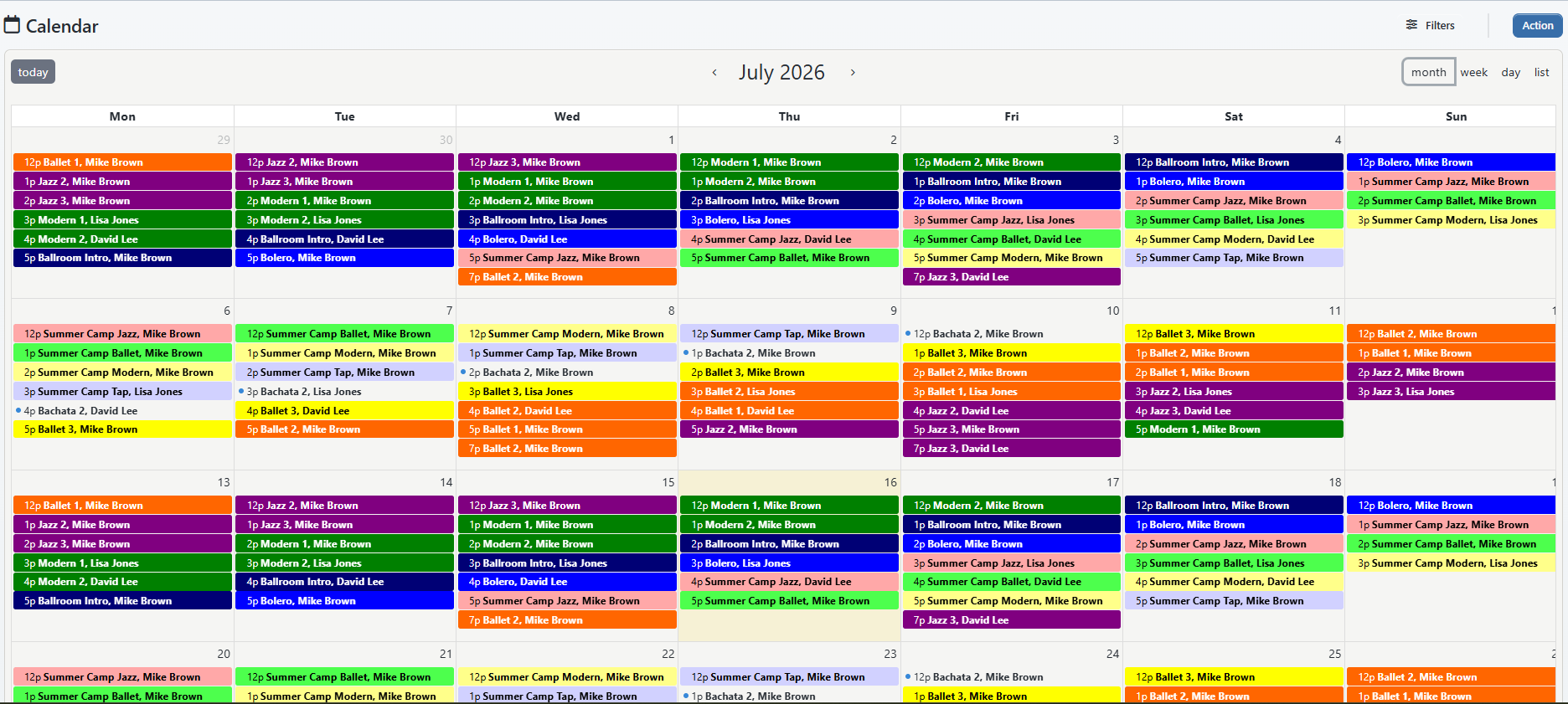
#Choose a calendar view
- Open Calendar.
- Select Today to return to the current date when needed.
- Use the previous and next controls beside the displayed date range.
- Choose the view that fits the task:
| View | Best for |
|---|---|
| Month | Finding busy days, closures, and broad schedule patterns. |
| Week | Comparing times and overlapping activity across a week. |
| Day | Reviewing one day's time grid. |
| List | Scanning a chronological week without a time grid. |
Selecting a blank calendar date opens Day View for that date. Selecting an event opens the same day and expands that schedule when possible.
The calendar can be configured to organize its week-oriented display around instructors, locations, or rooms. The Action menu labels that weekly option as Instructor Week Calendar, Location Week Calendar, or Room Week Calendar according to the studio setting.
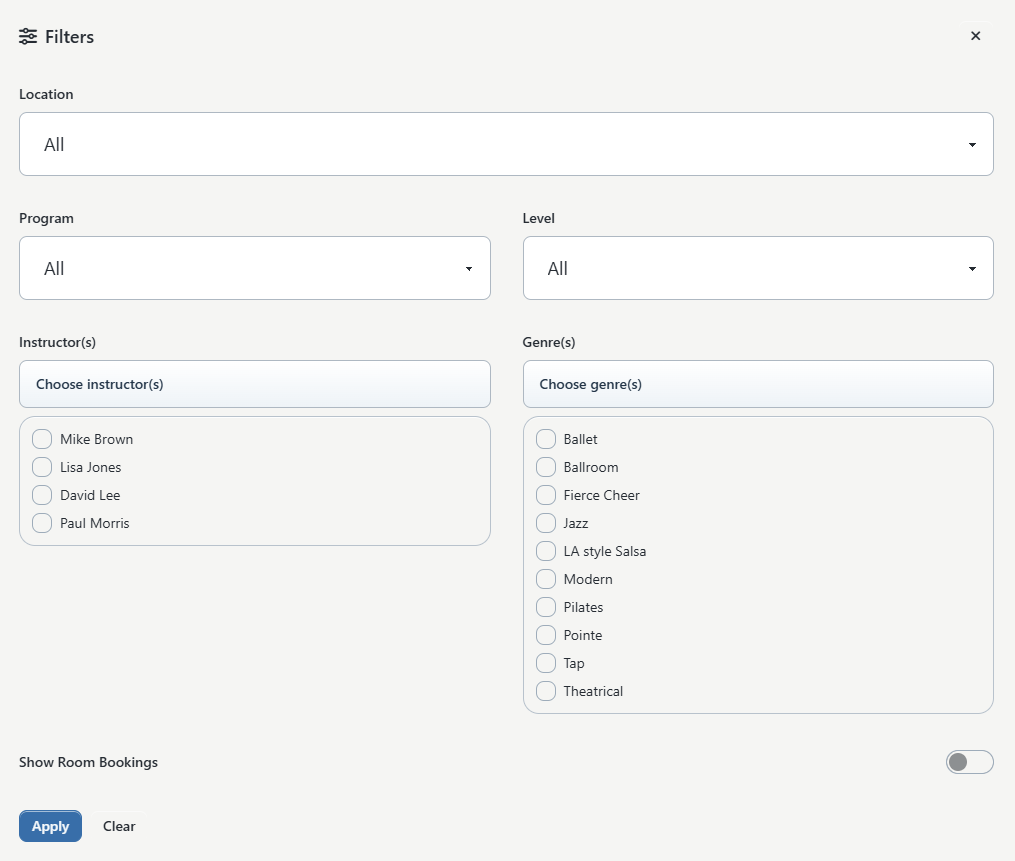
#Apply filters
- Select Filters.
- Select a Location when the location filter appears.
- Select a Program or Level when useful, subject to the current limitation below.
- Under Instructor(s), select one or more instructors.
- Under Genre(s), select one or more genres.
- Turn on Show Room Bookings when you need room bookings overlaid with class schedules.
- Select Apply.
- Read the filters-applied badge and inspect several known events to confirm the result.
Select Clear to reset the calendar filters. Clearing filters does not change the selected date or calendar view.
Important - current source gap: The filter panel presents Program and Level, and the browser sends those selections to the events feed. The current events controller does not apply either value to its query. Do not rely on Program or Level to produce a complete or exclusive calendar result until this is fixed and verified. Use Group Classes or another report for a controlled program/level list.
The currently implemented event filters are location, one or more instructors, and one or more genres. Show Room Bookings adds booking events; it does not remove ordinary class events.
When the studio uses one calendar per location, DSM Next renders a separate calendar for each location and hides the single Location selector.
#Understand event text
An event can show a studio-configured combination of:
- class code and name;
- level, program, and location;
- room and schedule notes;
- current/max students and waitlist count; and
- instructor names.
A schedule with the cancelled schedule status is labeled (Cancelled). Archived-class schedules can be hidden or, when the studio enables the option, shown for past dates.
Because these display fields are configurable, a short event title is not evidence that its class, room, or instructor assignment is missing. Open the event's day record or the class schedule before correcting data.
#Open Day View
- Select a calendar date or event.
- On Day View, use Prev, the date field, or Next to move between days.
- Find the schedule by its time and class label.
- Expand the schedule to view instructors, capacity, and roster.
Depending on permissions and studio settings, the expanded schedule can provide attendance/status controls, add-to-class and purchase actions, email or SMS actions, Edit, Export CSV, and Print Roster.
Warning: Day View is not read-only. Changing attendance, adding or removing a student, assigning a purchase, or adding an item to the Shopping Cart changes records and can have finance or messaging effects. Those workflows need their own procedures; do not experiment on a live roster.
The Note control in the current Day View is disabled and says that class notes are not available yet. Do not document it as a working note workflow.
Screenshot placeholder - ADM-CAL-03: Day View with two collapsed fictional schedules and one expanded roster. Show capacity, instructor, Edit, Export CSV, and Print Roster, but do not expose contact details, purchase identifiers, or real attendance.
#Use the Action menu
The current Action menu can include:
| Action | Current behavior and caution |
|---|---|
| Schedule Private Lesson | Opens Private Lessons for the calendar's current date. Lesson prerequisites and purchase rules still apply. |
| Schedule Event | Conditional. Current source sends the user to Day View with a query flag, but a matching create-event form was not found in the active Day View. Treat as unverified. |
| Add Notes | Conditional. Current source sends the user to Day View, while the visible Day View note control is disabled. Treat as unavailable until fixed or verified. |
| Reschedule Event | Conditional. Enables the instruction to drag or resize events; see the mutation warning above. |
| Instructor/Location/Room Week Calendar | Switches the current calendar to week view; the label follows studio configuration. |
| Daily Booking | Opens Day View for the current calendar date. |
| Day Overview | Opens Day View for the current calendar date. |
When enabled, right-selecting an event can also show Roll Sheet or Student List. Those context actions depend on calendar settings, role, and report access.
#What happens next
Changing the calendar view or filters does not change schedule records. The chosen state is stored in the current browser so it can be reused on a later visit.
Opening an event moves to Day View. Editing, dragging, resizing, changing attendance, or using roster actions can change schedule or student records and must be confirmed separately.
#Confirm the calendar result
For an important operational check:
- Clear the filters.
- Navigate to a known date.
- Compare at least one event with its class Schedules tab.
- Apply one filter at a time.
- Confirm that a known matching event remains and a known nonmatching event disappears.
- Open the matching event and verify the date, time, class, instructors, room, capacity, and roster in Day View.
Do not use Program or Level as the confirming filter while the current source gap remains.
#Troubleshooting
#The calendar is empty
Select Today, then Clear filters. Check the visible date range, class status, schedule status, and whether the class has schedule rows. If the studio uses a separate calendar per location, inspect the correct location panel.
#Program or Level does not narrow the events
This matches the current source gap. Use Group Classes, then filter or search there. Do not assume the remaining calendar events all match the selected program or level.
#Room bookings do not appear
Confirm Show Room Bookings is on and that room booking, rooms, and the selected location are configured. Class-room assignments and client room bookings are separate record types.
#The Calendar tools could not load
The current page loads its calendar library in the browser. Reload the page, check browser/network restrictions, and try a supported browser. If schedules load in Group Classes or Day View but the calendar surface still fails, report the browser, time, and visible error to support.
#An event moved unexpectedly
Stop making calendar changes. Open the affected schedule with Edit, verify its date and time, and check room, instructor, roster, and client visibility. Record what was dragged or resized before attempting a correction.