Sales
Create a Sales Item
#Before you begin
Write down the offer before building it:
- what the client receives;
- the normal price and whether it is taxable;
- who can buy it and where it should appear;
- when it can be sold, activated, and used;
- when it expires;
- whether it includes classes, lessons, hours, credits, or other Sales Items;
- whether it creates scheduled payments or offers a payment plan; and
- which contract, purchase category, and charge category apply.
Create any required categories, classes, rooms, billing schedules, pricing levels, message templates, and contract pages first.
Warning: A newly created item defaults to being available for Online Client sales in the current form. Set Sell Online to No while building or testing an offer that clients must not see yet. Inventory products need special care: the current Inventory selector lists only active, visible Sales Items, so use a controlled demo or a future sale window plus test-only eligibility while preparing variants, then verify that normal clients cannot see or buy the item.
Warning: Sales Item settings can control future charges, scheduled payments, agreements, class or lesson use, recurring purchases, and Online Client eligibility. Test the complete cart and checkout with a fictional account before making the offer available.
#Choose the Sales Item type
Select the type that matches the record you need to create. The type changes which fields and tabs are available.
| Type | Use it for | Important follow-up |
|---|---|---|
| Item | A general service or entitlement, including offers measured in lessons, hours, or credits. | Review units, class assignments, activation, expiration, and cancellation rules. |
| Product | A physical item that can be sold with inventory variants. | Create size/color variants and location stock under Inventory after saving. |
| Package | An offer made from quantities of other Sales Items. | Save the record, then add its Package Contents. |
| Bundle | A grouped offer whose class, pricing, and registration behavior can differ from a package. | Test every included result and restriction in checkout. |
| Gift Card | Gift value sold through supported gift-card workflows. | Verify code, value, activation, redemption, and finance behavior with a fictional purchase. |
| Room Booking | An offer used by room-booking setup. | Confirm the room, duration, availability, pricing, and booking workflow separately. |
Do not change an established item's type casually. Create a new test item when the intended business model is materially different.
#Create the basic record
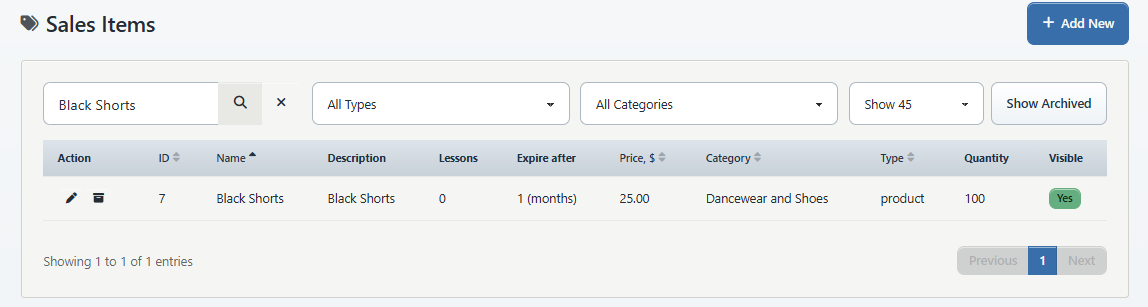
- Open Settings > Sales Items.
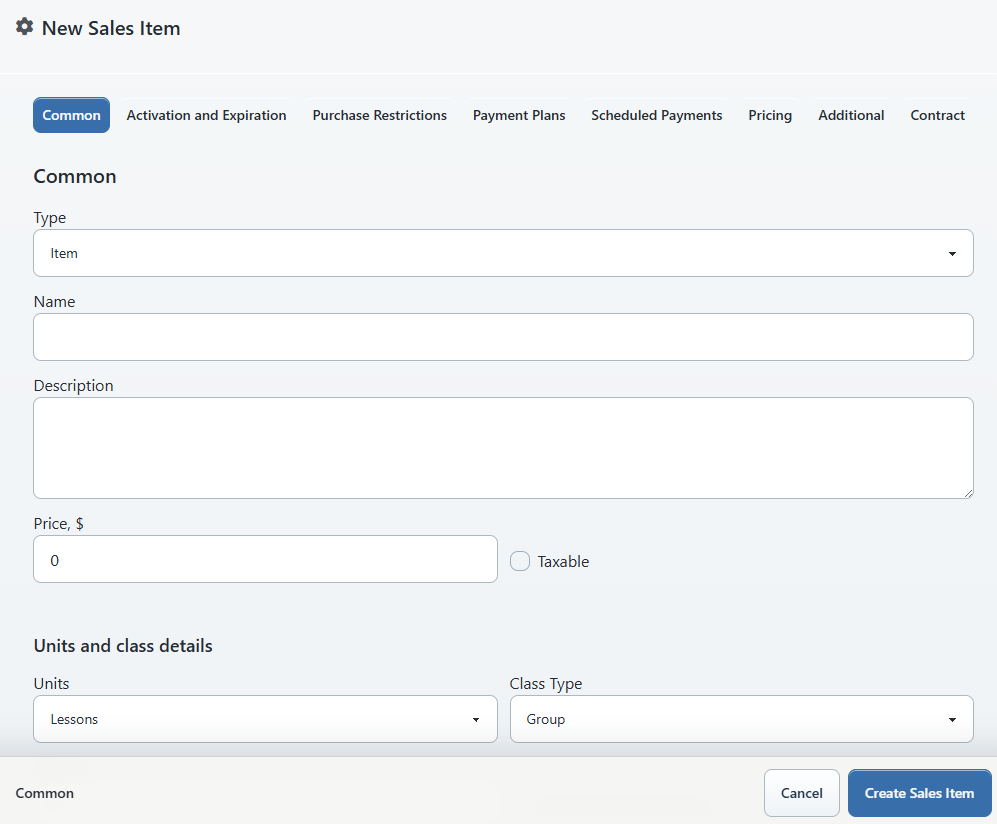
- Select Add New.
- On Common, select Type.
- Enter a clear Name and client-ready Description.
- Enter Price.
- Select Taxable only when the studio's approved tax treatment requires it.
- If the form shows Units and class details, choose Lessons, Hours, or Credits and the applicable Class Type.
- Enter the quantity the client receives. Use Unlimited lessons/hours only for a deliberately unlimited offer.
- Review the visible cancellation controls, including Cancellations allowed, Unlimited cancellations, Min hours to cancel, and the option to use the class rule.
For private or coaching offers, Lesson Length, minutes helps determine the displayed Total Hours. Confirm that the resulting hours match the offer you intend to sell.
Important: The create form tells you to save the item before assigning classes. Package Contents, payment plans, scheduled payments, and pricing tiers also require a saved Sales Item.
#Set activation and expiration
Open Activation and Expiration when that tab is available for the selected type.
- Choose Activate on.
- If you choose a fixed activation date, enter Activation Date.
- Under Expiration, choose when the expiration period begins, enter Expire After, and select Period.
- If Period is a fixed expiration date, enter Expiration Date.
- Leave After Expiration set to do nothing unless an approved auto-renewal workflow has been designed and tested.
- Enter Grace days for registrations only when clients may register for supported classes after the purchase expiration date.
Warning: Auto renewal can create another purchase and financial obligations. It cannot be enabled while the item has payment plans in the current setup. Do not combine renewal, scheduled payments, or recurring settings until the dates, counts, prices, contracts, and cancellation policy have been reviewed together.
#Keep the item private while testing
Open Purchase Restrictions and review these controls before the first save:
| Control | Safe setup guidance |
|---|---|
| Sale Start / Sale End | Define the permitted sale window. Leave a date blank only when the offer is intentionally open-ended. |
| Sell Online | Choose No until the client-facing catalog and checkout have been tested. No removes the item from every client catalog. |
| Sell Individually | Choose No when the item should be available only through a bundle or class assignment. |
| Sell To | Choose the intended client group. If using selected client types, select the applicable member categories. |
| Not Sell to Member Categories | Excludes selected categories even when other visibility rules match. |
| Sell As Product | Use only when this item should participate in product-style selling and the related inventory behavior is configured. |
| Use as Up Sell / Up Sell Item | Adds cart relationships that must be tested with add and remove actions. |
Some studios also see season-status restrictions. Treat these as additional eligibility rules, then test during each relevant season status.
#Set categories and limits
Open Additional and review the fields available for the selected type.
- Select Item Category for purchase grouping and reporting.
- Select Charge Category for the charge created by supported checkout flows.
- Review Available Quantity. Leave it unlimited for an unlimited offer; use
0only when the item should be unavailable. - Set Limit per customer when the offer has a purchase cap.
- Set List Order when the studio uses a deliberate catalog order.
- Review class-registration, tuition override, billing schedule, pricing-level, email-template, additional-item, recurring, and student-category fields only when they are part of the planned workflow.
Warning: Student Tuition Override, Billing Schedule, Add Student Registration Fee If Available, recurring settings, and student-category changes can affect enrollment and future billing. Do not use them as descriptive fields; each one has an operational consequence.
#Add a contract
Open Contract when it is available.
- Turn on Clients must agree to a contract only when checkout must collect approval.
- Select Contract Page and, if required, Second Contract Page.
- Open Signature and set Require Signature to Yes only when an electronic signature is required.
- Review the contract from the same Online Client checkout path the client will use.
Creating a new contract page from the Sales Item form can produce an empty page that still needs approved content. Do not publish the item until every required page has been completed and reviewed.
#Save and finish the item
- Select Create Sales Item.
- Confirm the message Sales item added and that the edit page opens.
- Return to Common and assign classes when the item should apply only to selected classes.
- For a package, open Package Contents, select an Item, enter Quantity, and add each intended component.
- Add any approved Payment Plans, Scheduled Payments, or Pricing rules.
- On Pricing, use Price Preview for a representative pricing level and member-category combination.
- Select Save Sales Item after changes made on the main form.
Warning: A payment plan describes an offered series of payments. Additional scheduled payments create future payment instructions when the item is purchased. Neither should be treated as proof that money has been collected.
#Confirm it worked
- Return to Settings > Sales Items.
- Search for the item and confirm its name, type, price, category, available quantity, Sell Online, and Visible state.
- Open the item again and confirm its assigned classes, package contents, restrictions, activation, expiration, pricing, payment choices, and contract.
- Build a staff Shopping Cart for a fictional client and verify eligibility, price, quantity, agreement, and payment choices. Keep Sell Online set to No when the item does not need to be visible for inventory setup.
- When Online Client sales are intended, change Sell Online only after testing, then view the catalog as both an eligible and an ineligible fictional client.
#Troubleshooting
#The item appears online before it is ready
Open Purchase Restrictions, set Sell Online to No, save, and confirm that it is removed from the client catalog. Also review sale dates, Sell Individually, member-category rules, and assigned-class behavior.
#Package Contents is missing
Confirm that Type is Package and save the Sales Item first. The package-content editor is available on an existing package.
#Payment Plans, Scheduled Payments, or Pricing says to save first
Create the base item, then reopen the corresponding tab. These child records need the saved Sales Item ID.
#Auto Renew cannot be enabled
Remove or redesign the item's payment plans first. The current save rules prevent auto renewal when payment plans already exist.
#The item is missing from Inventory
The Inventory selector uses active, visible Sales Items. Confirm the Sales Item is not archived. For a product that is not ready for public sale, use a controlled demo or a future sale window and test-only eligibility while its visible state is required for setup. Confirm from a normal fictional client that it cannot be bought before adding stock.
#The checkout price differs from the Common price
Review dynamic pricing, rates, payment plans, scheduled payments, tuition overrides, discounts, taxes, fees, and inventory-variant price overrides. Stop the test until every adjustment is understood.
#Related articles
- Membership concepts and lifecycle
- Create, assign, and verify Member Categories
- Set up and manage auto-renewing memberships
- Offer and create payment plans
- Sell, issue, transfer, and manage gift cards
- Sales, purchases, and inventory overview
- Manage inventory
- Configure Size Systems and verify size suggestions
- Sell an item with the staff Shopping Cart
- Review purchases
- Create a group class
- Assign Sales Items and pricing options to a class
- Buy items and use your cart