Finance
Respond to a failed scheduled payment
Warning: Do not retry from the status label alone. A processor can approve a transaction and then a local ledger write can fail, leaving the scheduled row in an error state even though money may have moved. Check the processor first, then the local payment and ledger.
The current Finance > Scheduled Payments page does not have a general Retry or Rerun action. Older instructions that show a circular-arrow retry control, a card selector on the global edit dialog, or an X action that “returns” a payment to the account do not describe the current interface.
#Before you begin
- Obtain the family, member ID, scheduled date, amount, masked payment method, purchase or charge, visible status, and full visible status detail.
- Expand the global date range far enough to include the original date. It defaults to the first day of the current month through the end of the following month.
- Have authorized access to the payment processor's transaction search. Record only a non-sensitive processor reference, status, time, and amount.
- Open Finance > Payment History, the account Ledger, Purchases, Scheduled Payments, and Cards and ACH in separate tabs when possible.
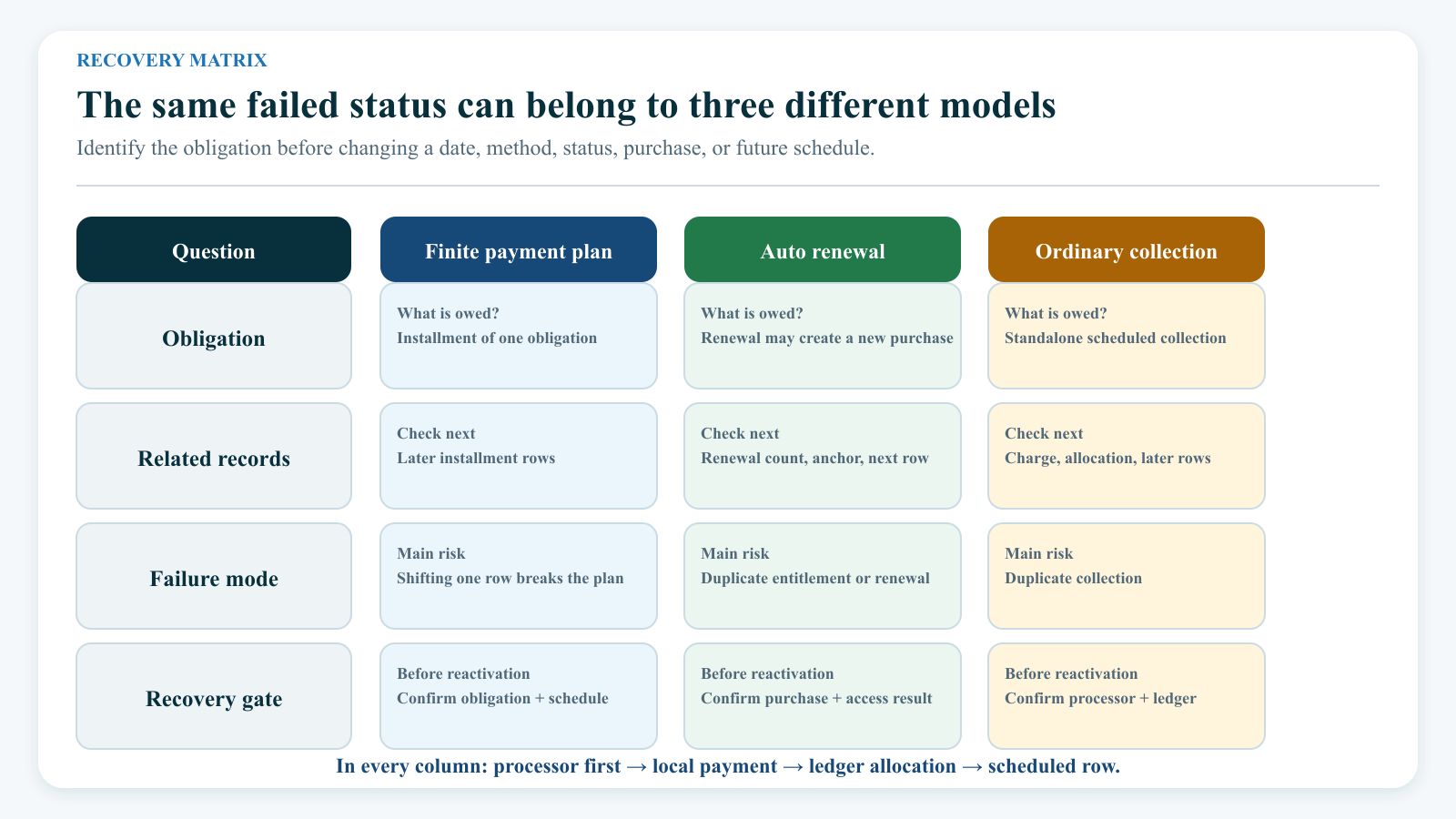
- Confirm whether the row belongs to a finite payment plan, an auto-renewing purchase, or an ordinary scheduled collection.
- Check every later scheduled row and any account hold before changing the failed row.
- Follow the studio's approval policy for another processor attempt, changing a saved method, charging to the account, changing access, waiving a fee, or linking a local payment.
Never ask a client to send a complete card number, bank account number, security code, or payment token by email, message, screenshot, or support ticket.
#Understand what the status proves
| Visible result | What the current list can mean | What it does not prove |
|---|---|---|
| Scheduled | The row is active and intended for a date. | That the daily task will still select it, especially if its date has passed. |
| Processing | The processor task claimed the row and began work. | That the processor approved, declined, or settled it. |
| Processing Error | A failed or declined state, or in one legacy-shaped case a token-backed completion state with no linked local payment. | That no external transaction succeeded. |
| Complete | The row has a completion state or a linked local payment ID. | That the processor settled funds or that the payment is allocated to the intended charge. |
| Paused | This individual row is inactive. | That later rows, a purchase, access, or an account hold changed. |
| On Hold | The row itself carries the on-hold status. | That every payment for the account is protected by a current hold. |
The visible Failed filter searches the ordinary failed and declined states. The list can also label a token-backed row Processing Error when its underlying status is a completion value but it has no linked payment. That variant is not included by the current Failed filter.
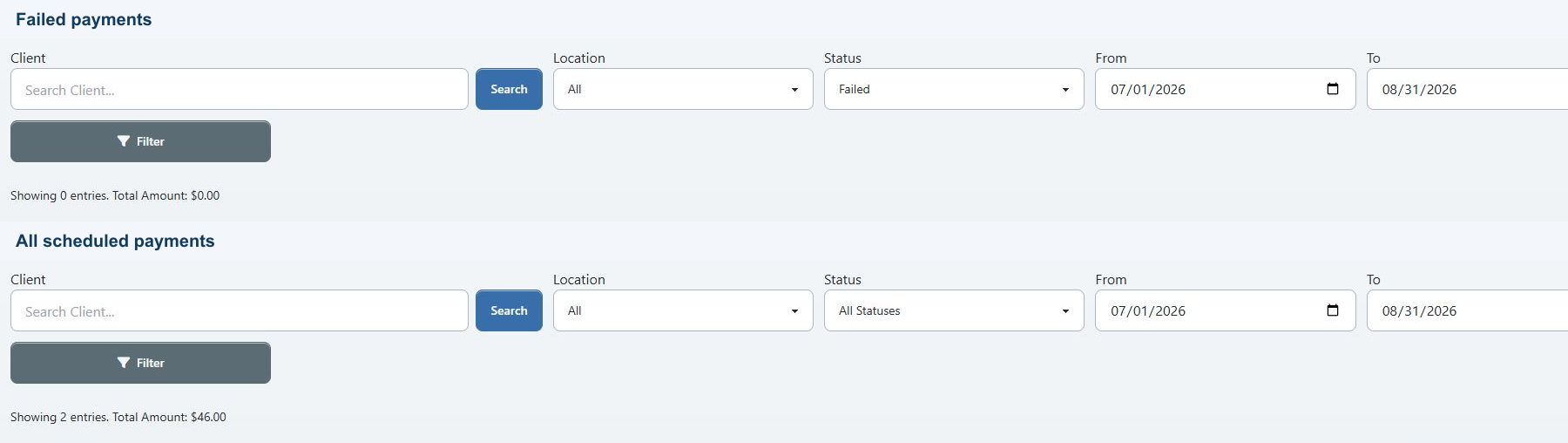
Important: If a known error disappears when you select Failed, select All Statuses, expand From, search for the client, and compare the exact date and amount.
#Find the row in both places
#Use the global list
- Open Finance > Scheduled Payments.
- Search for the client.
- Set Status to Failed.
- Set From before the original attempt date and To after it.
- Select Filter.
- If the row is absent, select All Statuses and filter again.
- Record the date, purchase, location, scheduled amount, paid amount, method, status, and status detail.
- Open the linked client account.
The global row's pencil action currently edits Amount, Payment Date, and, when eligible, Related Payment. It does not provide a saved-method selector. The row actions are Edit, Pause, and Delete; there is no global resume or retry action.
#Use the account list
- Open the family or student account.
- Select Scheduled Payments.
- Check Upcoming.
- Check History.
- Match the row by date, amount, purchase, method, and status detail.
A failed row dated today can appear under Upcoming. After that date passes, it normally appears under History. A completed row is treated as history even when its date is later.
The account row's pencil action can edit Apply to, Amount, Card/ACH, and Payment Date. It does not expose the global Related Payment field.
#Reconcile the processor and local records first
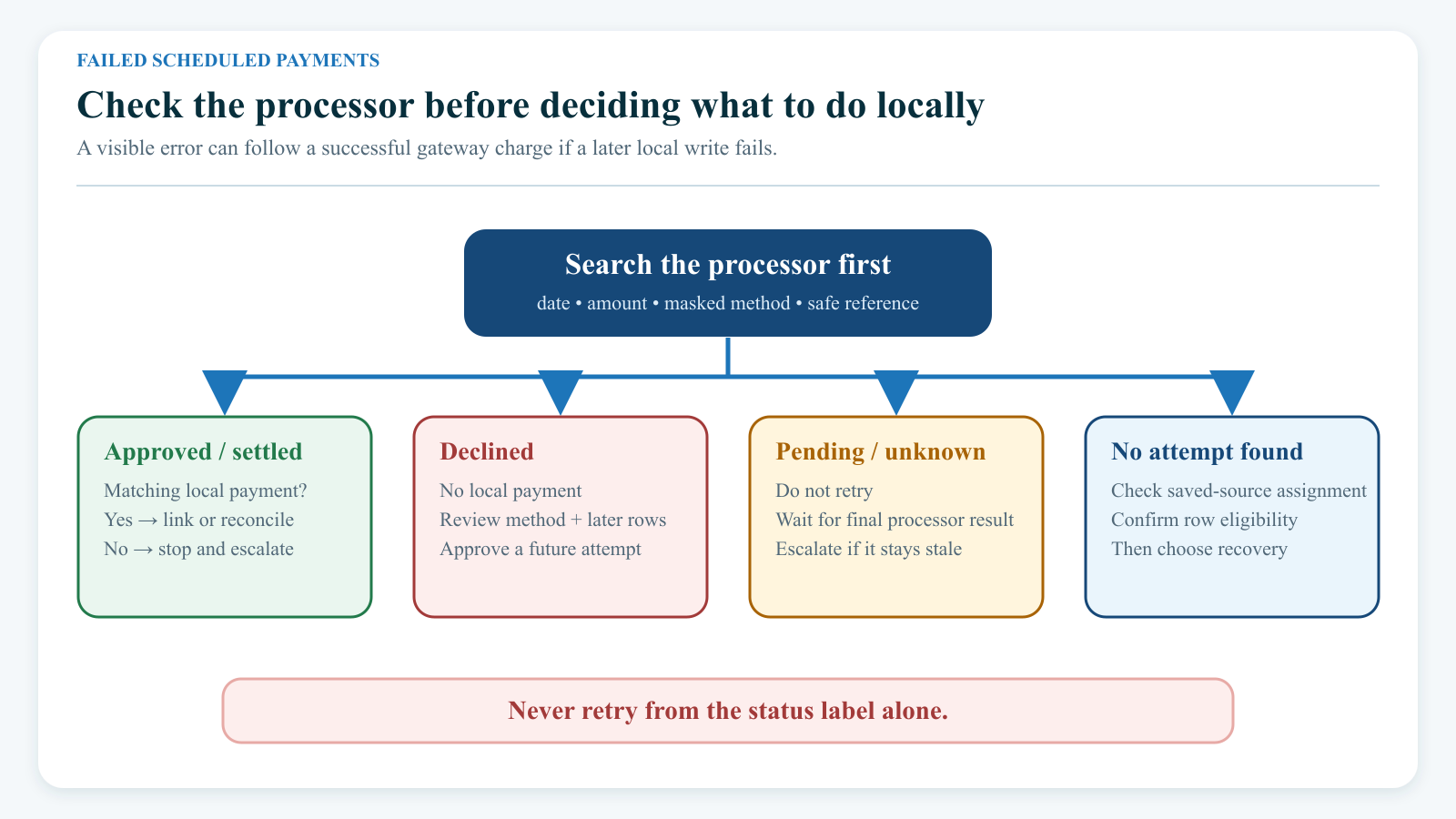
Use this order every time:
- Search the processor by the family, date, amount, masked method, and available non-sensitive reference.
- Determine whether the processor result is approved or settled, declined, pending or unknown, or no attempt found.
- Search Finance > Payment History for a matching local payment.
- Open the account Ledger and check whether that payment is applied to the intended charge.
- Compare the scheduled row's Paid amount, status, and detail.
- Choose a recovery branch only after all three layers are understood.
| Evidence | Safe next step |
|---|---|
| Processor approved or settled; matching local payment and allocation exist | Do not charge again. Reconcile the scheduled row, using Related Payment only when the exact existing payment should be linked. |
| Processor approved or settled; no local payment exists | Stop. Escalate for an approved missing-ledger recovery. Do not reactivate the scheduled row. |
| Processor declined; no local payment exists | Consider a controlled method replacement and future-date reactivation after reviewing the product branch and later rows. |
| Processor is pending, timed out, or unknown | Do not retry. Wait for a final result or escalate to the processor owner. |
| No processor attempt exists and the detail reports a missing or unavailable saved source | Correct the saved-source assignment, then use the controlled recovery decision. Do not assume a decline notification was sent. |
| Local payment exists but the processor does not show a successful collection | Treat this as a local-record discrepancy. Do not link it merely to make the schedule look complete. |
#Why an error can still follow an approval
The current processor call happens before the local payment, payment-to-charge allocation, recurring-purchase, convenience-fee, and completion writes finish. If one of those later operations fails, the error handler can mark the scheduled row failed after the processor has already approved the charge.
This is also why a stale Processing result is not a safe invitation to submit again. The normal processor selects active rows, not rows already marked Processing.
#Know when a decline notification is sent
A client notification is conditional, not guaranteed.
The current processor asks the Scheduled Triggers service to notify the client only after an actual saved-source gateway attempt is treated as unsuccessful. It does not request that notification when:
- the selected token record is unavailable;
- the token record has no usable processor token;
- the gateway succeeded but a later local write failed; or
- another exception bypasses the normal decline branch.
When the alternative-method setting is enabled, notification is requested only after both the primary and alternative attempts fail.
Even then, delivery requires:
- an enabled, currently active Credit Card Decline trigger, unless an enabled ACH Decline trigger is selected for an ACH method;
- a usable email or SMS provider;
- a valid account email or phone;
- an email template, and an SMS template when SMS is expected; and
- a running email queue for queued email delivery.
Email queueing is not delivery confirmation. SMS can also fail after the trigger runs. Review the trigger, provider, message history, and delivery evidence before telling a client that a notice was sent.
See Scheduled Triggers for setup and safety boundaries.
#Replace a saved method without exposing payment data
Adding a new method, making it the account default, or turning Auto Payment on does not automatically replace the method already stored on an existing scheduled row.
#Have the client add an eligible method
When client self-service is available:
- Ask the client to sign in to Online Client.
- Ask them to open Finance.
- Ask them to select Cards, Cards and Bank Accounts (ACH), or the equivalent studio label.
- Ask them to use the secure Add Card, Add Bank Account, or hosted processor flow.
- Ask them to confirm only the method type and last four digits with staff.
See View your account and make payments for the client-facing procedure.
#Assign the method to the failed row
- Open the family or student account's Scheduled Payments tab.
- Check History when the failed date is in the past.
- Select the pencil action for the exact failed row.
- In Card/ACH, select the approved new method by its masked label.
- Confirm Apply to and Amount have not changed unexpectedly.
- Set Payment Date only as part of an approved recovery plan.
- Select Save changes once.
- Reopen the row and confirm the new masked method and date.
Editing the method or date does not change a failed status back to Scheduled. It also changes only that row. Other installments and future renewal rows can retain the old saved-method ID.
If the expected method does not appear, confirm whether it belongs to the family account or student, whether it is active, whether it is valid for the configured processor and location, and whether the studio permits it for automatic payment. Do not copy a token ID into a request as a workaround.
#Understand the alternative-method setting
Settings > Payment Processor Settings can include Try alternative payment method if recurring payment failed.
When enabled, the current processor can make a second attempt automatically after the assigned method fails. It looks for another saved method that:
- belongs to the same saved-method member and, when present, the same processor account;
- is active;
- has Auto Payment enabled; and
- has a usable processor token.
It prefers a recently added eligible method. Despite the setting's recurring-payment wording, the current processing branch applies this fallback to any token-backed scheduled row it processes, including finite-plan and ordinary scheduled-payment rows.
Warning: Enabling this setting can cause two processor attempts on one scheduled row and can use a different authorized saved method. Confirm client authorization, processor behavior, and studio policy before enabling it.
If the alternative method succeeds:
- the local payment records the alternative method;
- the scheduled row completes;
- the status detail includes the first failure and a Token 2 result;
- no decline notification is requested; but
- the scheduled row's assigned method is not rewritten to the successful alternative.
An auto-renewal's next row is also created with the original assigned method, not the successful alternative. Therefore, the current list can continue to show the original method and a later row can try it first again. Verify the processor for both attempts and update every intended future row separately.
If both methods fail, the decline notification uses the original method's type and last four digits. A client who saw attempts on two methods can therefore receive wording that identifies only the first one.
See Payment Processor Settings before changing this studio-wide behavior.
#Decide whether to link an existing local payment
Use Related Payment only when a correct local payment already exists and should be associated with the failed scheduled row.
- Confirm the processor result and local payment are for the same family, amount, event, and intended charge.
- Confirm the payment is not already linked to another scheduled row.
- Confirm its charge allocation in the account ledger.
- Open Finance > Scheduled Payments.
- Select the pencil action for the failed row.
- If Related Payment appears, select the exact payment by amount and date.
- Select Save once.
- Confirm the linked Paid amount or payment association appears. A raw failed status can continue to display Processing Error.
- Reopen Payment History and the ledger to confirm nothing else changed.
The dropdown is offered only for a nonactive row with no current payment link. Its candidates are local payments that are not already linked to another scheduled-payment row.
Warning: Linking a Related Payment does not contact the processor, create a payment, move money, rebuild payment-to-charge allocations, or change the row's raw status. A linked failed row can match the Complete filter because it has a payment ID while its visible label remains Processing Error because the failed status takes precedence. Use the ledger—not either filter or label—to confirm the allocation.
The current candidate query also does not prove that a listed payment is unapplied to charges, despite the form's helper wording. Inspect the ledger before selecting it.
#Decide whether to reactivate the failed row
There is no dedicated safe retry button in the current interface.
The account Scheduled Payments tab does expose a status toggle, but it has an important oddity: every row except a Paused row shows a Pause action. On a failed row, the first selection changes it to Paused. Only then does the action change to Resume; selecting Resume changes it to active Scheduled status.
That two-step toggle is a technical reactivation path, not an immediate processor rerun. It does not:
- check the processor first;
- clear a linked payment;
- update the saved method;
- update the payment date;
- update the separate recurring anchor date;
- shift later rows;
- create or remove an account hold; or
- process money immediately.
The old failure text can remain visible after reactivation until another processing attempt replaces it.
#Controlled reactivation checklist
Use the two-step toggle only when an authorized finance owner has approved another automatic attempt.
- Confirm the processor did not approve or settle the original attempt.
- Confirm no correct local payment is linked to the row.
- Assign the intended saved method.
- Set an approved future Payment Date.
- Review the finite-plan, renewal, or ordinary-schedule branch below.
- Confirm an account hold will not suppress or conflict with the intended attempt.
- Select Pause on the failed row.
- Confirm the row says Paused.
- Select Resume.
- Confirm the row says Scheduled and retains the intended amount, date, method, and purchase.
- Do not submit a separate payment while waiting for the scheduled run.
Warning: Selecting Pause on the global Finance page can leave a row paused because that page has no resume action. Use the account view for any explicitly approved pause/resume workflow.
#Respect exact-date processing
In the current hosted code, the ordinary scheduled task runs daily at 05:30 in the application timezone, which is currently UTC. By default it selects only rows that are:
- active;
- unpaid;
- not suppressed by the applicable hold rule; and
- dated exactly on that run's target date.
The ordinary daily task does not automatically include overdue rows. An operator command has a separate include overdue option, but that is not a customer-facing button and can select many rows. It requires tenant safety authorization and a controlled operator procedure.
This has several consequences:
- Reactivating a row with yesterday's date does not make tomorrow's daily task collect it.
- Changing a row to today's date after the daily run has passed can leave it unprocessed.
- A skipped row does not move itself to the next date.
- A failed row remains excluded until its status is active again.
For a normal controlled recovery, choose a future date whose processing window has not passed. Have the system operator confirm the application timezone and scheduler health rather than assuming the studio's local midnight controls the run.
Important: Editing Payment Date does not update the row's separate recurring date when that column exists. This matters most for auto renewal, where a later recovery can still calculate access and the next renewal from the original recurring anchor.
#Review the product branch
#Finite payment plan or package installment
A finite plan usually has multiple scheduled rows created in advance.
- Failure changes the attempted row; it does not pause, delete, or reassign later rows.
- Later active rows can still process on their exact dates.
- Changing the failed row's method does not propagate to later installments.
- The original purchase, enrollment, or access is not automatically removed because one installment failed.
- Deleting the failed row removes that instruction; it does not erase the amount owed, refund a first payment, cancel the purchase, or create a replacement charge.
Before recovery, total the original obligation, payments already received, open charge balance, failed installment, and every later row. Decide whether the intended result is another electronic attempt, an approved separate payment, a local link, a payment-plan revision, or collection of the account balance.
See Offer and create payment plans.
#Auto-renewing purchase
For the current scheduled-payment renewal path, a successful due row creates the renewal purchase and charge, assigns supported future usage, and can create the next renewal row. A failed gateway attempt does none of those things.
Failure also does not automatically terminate the existing purchase, remove a Member Category, or change every access consumer. Existing expiration, category, enrollment, and access rules must be reviewed separately.
Late recovery needs extra review because:
- the renewal purchase can remain anchored to the original recurring date even after Payment Date is moved;
- the new purchase can therefore have an activation or expiration period that has already partly elapsed;
- the next row is created only after the renewal completes;
- the next row keeps the original saved-method ID; and
- alternative-method success does not promote that method to the next row.
Do not use the generic two-step reactivation until the membership owner has approved the intended activation, expiration, access, charge, and next-renewal dates.
See Membership concepts and lifecycle.
#Ordinary scheduled collection
An ordinary row can be tied to an existing charge, purchase, order, Sales Item, or only an account-balance label.
For a token-backed, charge-linked row, success normally creates a local payment and applies it to the related charge. Confirm both records.
For an approved Not assigned. Add to Account path, current behavior depends on the row's links:
- a row with a purchase, Sales Item, or charge link can be marked Complete without an electronic payment, while any existing charge remains owed;
- an auto-renewing purchase can create a new unpaid renewal charge and a next row without a token; but
- a bare account-balance schedule with no purchase, Sales Item, or charge link can fail because no usable payment source exists.
Warning: Not assigned. Add to Account is not a universal safe substitute for a payment method. Confirm the related purchase and charge, and verify the resulting ledger after use.
Do not select Delete as a way to “send” a failed payment to the account. The current delete action deletes the schedule row and does not create a payment, charge, processor transaction, or recovery record.
#Understand account holds
An account hold is separate from a failed status and from pausing one row.
In current processing, a dated hold suppresses qualifying purchase-linked scheduled rows whose payment dates fall on or after Start Date and before Resume Date. A blank Resume Date is open-ended. A payment dated on Resume Date is outside the hold interval.
Current limits are important:
- rows with no purchase link, including some charge-linked payment-plan rows, are not suppressed by this processor hold check;
- a suppressed row can continue to display Scheduled while the hold is active;
- the hold does not change the payment date or later cadence;
- removing the hold does not retry missed rows; and
- when a hold is removed, missed noncomplete rows inside the hold can be changed to On Hold rather than becoming active again.
Because the daily processor normally uses exact dates, a missed held row will not automatically catch up after the hold ends. Review each missed and future row, the purchase, access dates, and the account balance before removing or changing a hold.
Warning: Do not add a hold as a blanket response to one decline unless the studio's membership and finance policy calls for it. In the current processor, it does not reliably stop every kind of scheduled row.
#Confirm the recovery
After the approved processing window or reconciliation action:
- Check the processor for exactly the intended attempt or attempts and final status.
- Check Finance > Payment History for exactly one intended local payment, or no payment when the approved result was charge-to-account.
- Open the account Ledger and confirm the payment allocation or unpaid charge.
- Reopen the scheduled row and confirm status, paid amount, detail, method, and date.
- Review every later row for the intended method, amount, date, and active state.
- For renewal, confirm the new purchase, charge, activation, expiration, usage assignment, access, and next row.
- For a finite plan, recalculate the remaining obligation.
- Check the account hold and any missed rows.
- Confirm the client notification or manual follow-up only from delivery evidence.
- Preserve the non-sensitive processor reference and internal approval under studio policy.
Do not consider recovery complete while the processor, local payment, payment allocation, scheduled row, purchase, or remaining schedule disagree.
#Troubleshooting
#Failed shows no rows
Select All Statuses, move From before the original date, and search by client. A visible Processing Error variant is not included by the current Failed filter.
#The new card is saved, but the failed row still shows the old card
Default and Auto Payment settings do not rewrite existing scheduled rows. Open the account Scheduled Payments tab, edit the exact row, and select the new method. Repeat this review for later rows.
#The method and date were changed, but the row still says Processing Error
Editing does not reactivate the row. Use the controlled reactivation decision only after processor and ledger reconciliation.
#A resumed row did not process
Check whether its date had already passed, whether today's run had already occurred, whether a payment is already linked, whether the row is active, whether an applicable hold covers it, whether the scheduler ran, and whether scheduled payments are enabled for the studio. Do not create a duplicate row while the result is uncertain.
#The processor shows two attempts
Check whether the alternative-method setting was enabled and whether both attempts belong to the same scheduled row. Reconcile both results before any further action.
#The alternative method succeeded, but the scheduled row still displays the original method
That is consistent with the current implementation. The local payment uses the alternative method, while the scheduled row retains its original method ID. Verify Payment History and the processor; do not infer a second failure from the list label alone.
#The processor shows a charge, but the row says Processing Error
Stop. Check for a local payment, payment allocation, recurring purchase, convenience-fee charge, and processor settlement. Escalate as a possible post-processor local-write failure. Do not reactivate the row.
#Related Payment does not appear
The field is available only for a nonactive row with no payment link. A listed payment must also not already be linked to another scheduled row. Do not change status or unlink another row merely to expose the dropdown.
#A row missed during a hold
Removing the hold does not reschedule it. Review its status and date, every later row, the product's access dates, and the remaining balance. Use an approved recovery decision for each missed obligation.
#The global Pause action was selected by mistake
The global page has no Resume action. Open the account's Scheduled Payments tab, reconcile the row, and have an authorized finance owner decide whether it should remain paused or use the account Resume control.
#Related articles
- Scheduled payments and scheduled charges
- Offer and create payment plans
- Membership concepts and lifecycle
- Set up and manage auto-renewing memberships
- Place membership payments on hold and resume safely
- Cards and ACH
- Payment Processor Settings
- Scheduled Triggers
- Payment history and corrections
- Account ledger
- Finance overview
- View your account and make payments