Staff and scheduling
Configure instructor availability
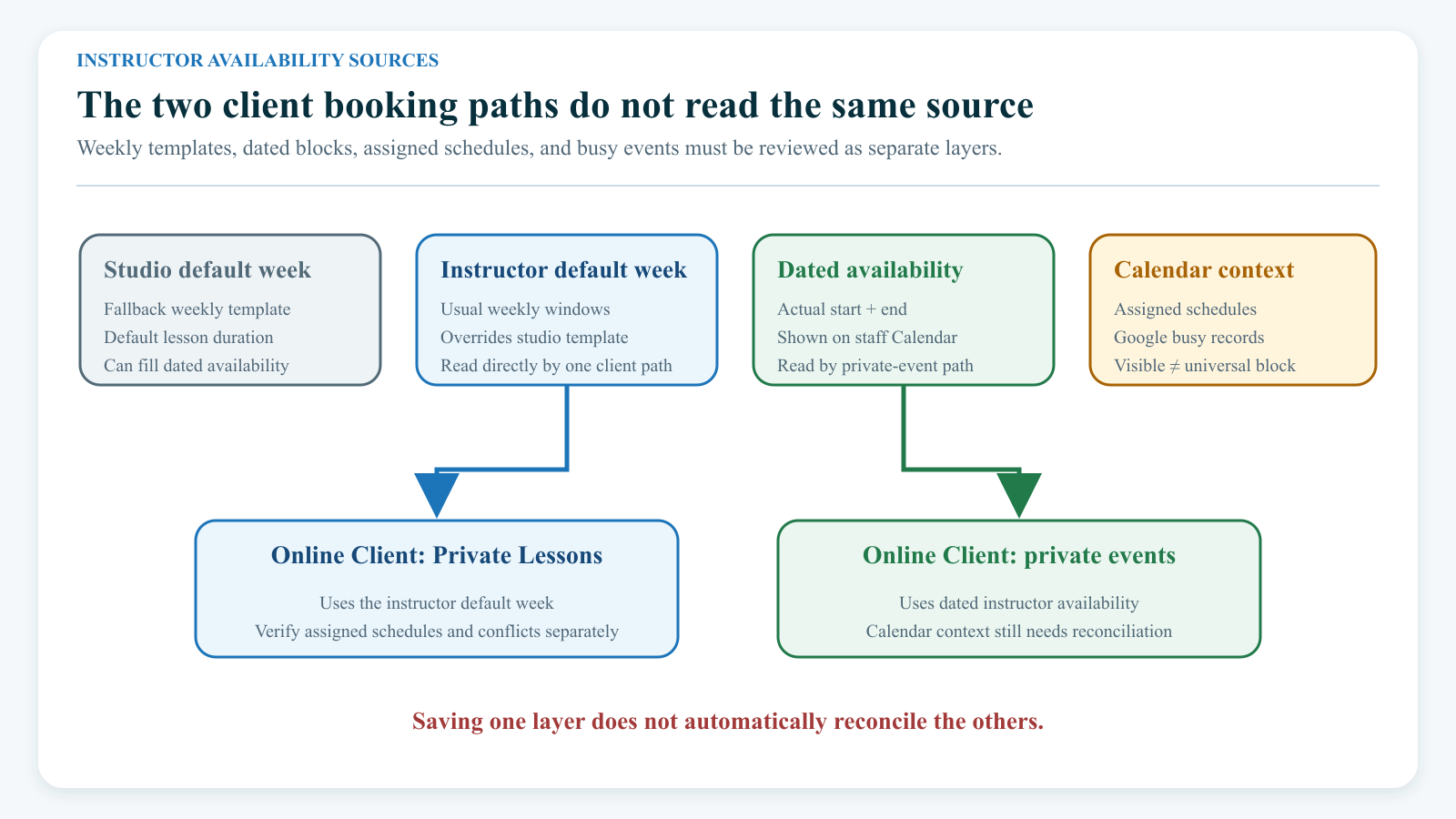
#Understand the four layers
| Layer | Where you manage or see it | What it currently does |
|---|---|---|
| Studio default week | Settings > Private Lessons | Provides the fallback weekly template and the default lesson duration. It can also fill dated availability ahead for active instructors. |
| Instructor default week | Staff > instructor > Default Availability | Stores that instructor's usual Monday-through-Sunday windows. It can override the studio week and is used directly by the Online Client Private Lessons scheduler. |
| Dated instructor availability | Staff > instructor > Calendar | Stores actual start and end dates. It is used by the Online Client private-event scheduling path and appears with assigned schedules on the staff calendar. |
| Calendar context | Instructor Calendar | Shows assigned schedules, dated availability, and any available Google busy records together. A visible schedule or Google busy block is not automatically removed from every booking path. |
Saving one layer does not automatically reconcile the others. A weekly template is not a schedule, purchase, payment, time-off record, or guarantee that a client can book.
#Before you begin
- Confirm which client workflow the studio publishes: Private Lessons, private-event scheduling, or both.
- Confirm the staff record belongs to the intended person, is not in the
clientlogin group, and is marked as an instructor. - Review Settings > Private Lessons, including the studio weekly template, default duration, and fill-ahead horizon.
- Ask the deployment owner to confirm the staff-write login-group allowlist. Do not infer write access from a visible tab or hidden menu alone.
- Confirm the studio time zone and make sure the device or browser used for editing is set to that same zone.
- Record the current weekly template and dated blocks before changing them. There is no customer-facing version history or bulk undo.
- Use a fictional instructor, class, client, and disposable future time for training or acceptance testing.
- Decide who owns ongoing review after scheduled fill-ahead runs, time off, schedule changes, and failed client bookings.
Warning: The current staff-write gate always permits administrator and office-administrator groups. Other authenticated groups can also be permitted by the deployment allowlist; when no allowlist is configured, the reviewed controller defaults to allowing authenticated users. It does not restrict an instructor to their own staff ID. Do not grant broad Staff access merely to create an informal self-service availability workflow.
#When the availability tabs appear
The Calendar and Default Availability tabs appear on a staff profile only when:
- the profile is not in the
clientlogin group; - the profile is marked as an instructor; and
- either the Private Lessons Scheduler or the Online Client private-events scheduler is enabled.
A signed-in instructor uses the same Staff profile surface as an administrator when the role can reach it. The current interface does not provide a separate My Availability page, and the reviewed mutation routes do not enforce own-record-only changes.
If a role should only propose changes, use an approved internal request process and have an authorized scheduler enter them. Do not share an administrator account.
#1. Check the time zone before editing
The instructor calendar does not display a time-zone label. It reads and writes browser-local wall-clock values without including an offset in the saved value.
- Open the device's date and time settings.
- Confirm its time zone matches the studio's Time Zone setting.
- Open the instructor Calendar and compare one known schedule with the studio's source schedule.
- If the time differs, stop before adding, moving, resizing, copying, or deleting availability.
- Record the browser zone, studio zone, date, expected time, and displayed time for support.
The application attempts to apply the studio time zone to a verified tenant database connection when that database supports it. That does not convert a remote instructor's browser-local entry into the studio's zone on this screen.
#2. Set the instructor's usual week
- Open Staff and select the intended instructor.
- Open Default Availability. On a narrow screen, use the staff-section list near the top of the profile.
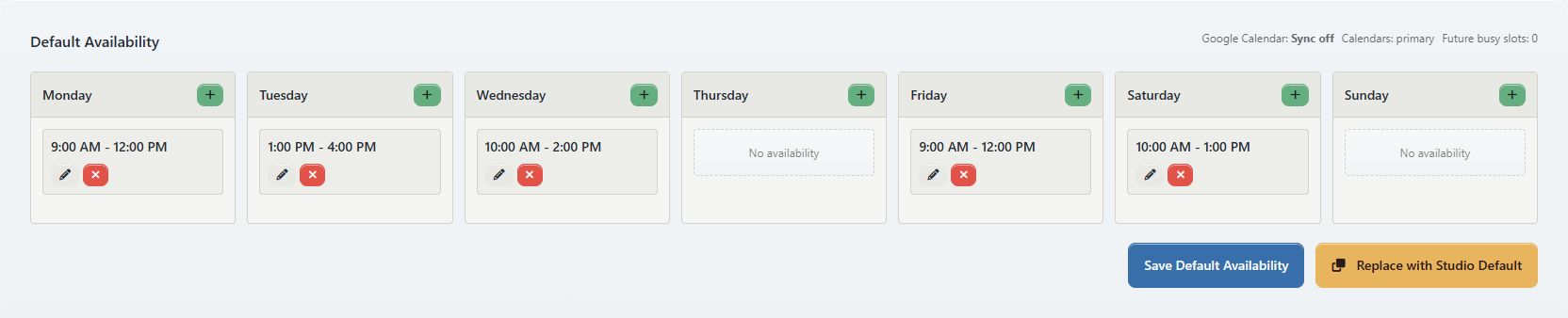
- Review the current Monday-through-Sunday cards.
- Select the green plus button for a day.
- Enter Start and End, then select Save Time.
- Repeat for every usual window.
- Use the pencil to correct a window or the remove button to remove it from the unsaved form.
- Check that every window is longer than or equal to the intended lesson duration.
- Check for duplicate, touching, or overlapping windows.
- Select Save Default Availability.
- Reopen the tab and confirm the complete saved week.
The editor requires both times and an end later than the start. It sorts the saved windows by start time, but the current staff save path does not remove exact duplicate windows or prevent overlaps.
Important: A blank instructor editor does not necessarily mean the instructor is unavailable. When the instructor has no usable saved weekly intervals, the reviewed scheduling and fill services can fall back to the studio default. The blank editor does not display that inherited week.
Warning: Saving Default Availability also writes the studio's current default lesson duration into the instructor availability record. There is no separate instructor-duration field on this tab. Saving can overwrite an older instructor-specific duration and change the times clients are offered. Record the expected duration before saving and verify it afterward in both client booking paths.
#Replace the week with the studio default
Use Replace with Studio Default when you want the instructor record to contain an explicit copy of the current studio week.
- Save or record any instructor-specific windows you may need to restore.
- Select Replace with Studio Default.
- Read the confirmation and continue only if the instructor should use that exact week.
- Reopen the tab and compare all seven days with Settings > Private Lessons.
This is a snapshot, not a live inheritance link. Later studio-default changes do not update an instructor row that already contains intervals. The replacement also discards unsaved changes in the browser.
#3. Decide whether dated availability is required
The weekly template and dated blocks serve different current workflows:
- The direct Online Client Private Lessons scheduler reads the instructor weekly template, falling back to the studio week. It does not use the dated blocks from the staff Calendar in the reviewed path.
- The Online Client private-event scheduler reads dated instructor availability. A weekly template must be copied or filled into dates before it can serve that path.
- The staff Calendar shows dated availability, schedules, and Google busy context. It does not make the weekly template recur merely because it is saved.
If the studio uses only direct Private Lessons, do not create thousands of dated blocks without an operational reason. If it uses private-event scheduling, maintain and verify the dated layer.
#4. Add and adjust dated availability on desktop
- Open Staff > instructor > Calendar on a desktop-width browser.
- Move to the intended week and confirm the date in the calendar heading.
- Review assigned schedules and any Google busy blocks.
- Under Click-to-add length, select the intended block length.
- Select an empty starting time in the calendar to add a block, or drag a New ... slot item to the intended time.
- Wait for Availability added. and confirm the block appears once.
- Drag an existing availability block to move it.
- Resize the bottom edge to change its end time.
- Wait for Availability moved. or Availability resized. and confirm the saved result.
- Select an availability block, then select Delete selected only when you intend to remove that exact dated row.
Assigned schedules open the Day View when selected. They cannot be moved from the instructor availability calendar. Google busy blocks are also read-only here.
The add and update endpoints reject only an exact duplicate with the same instructor, start, and end. They do not reject partial overlaps, nested blocks, or availability over a scheduled item.
Warning: Deleting availability is immediate after confirmation and has no undo. It does not delete a schedule, but it can remove a client booking window. Record the exact start and end before deletion.
#5. Copy the usual week into dates
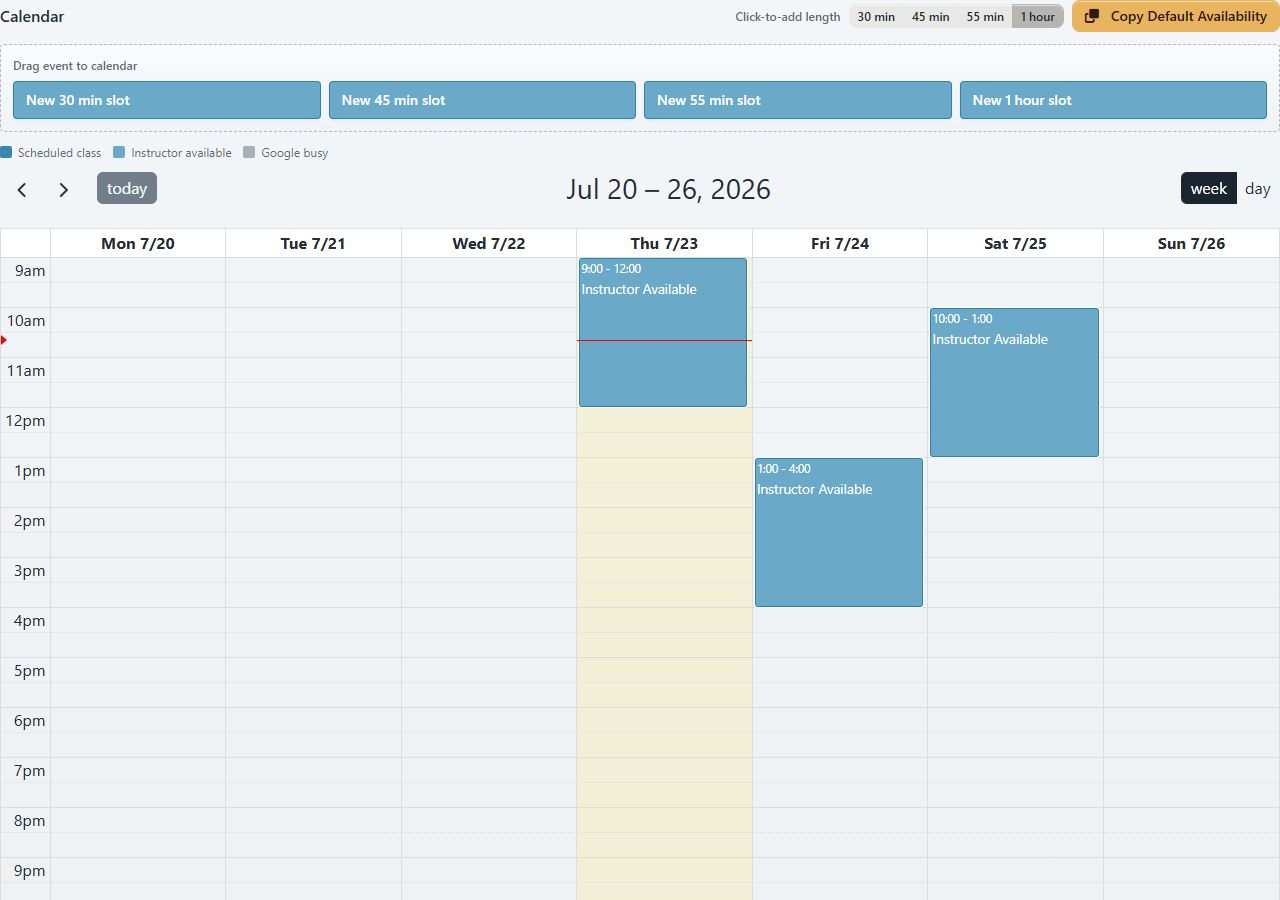
Use Copy Default Availability only after reviewing the visible week.
- Open the intended instructor Calendar.
- Move to the intended future week.
- Confirm the visible date range and the studio's configured first day of week.
- Review every existing dated availability block and assigned schedule in that range.
- Select Copy Default Availability.
- Confirm the prompt.
- Wait for Default availability copied into this week.
- Review every copied day, including the Sunday before or after the main range.
- Compare the result with the instructor weekly template or, when that template is empty, the studio default.
- Check for contained rows that disappeared, partially overlapping rows that remain, and schedules that still sit inside availability.
The current copy action materializes one Monday-through-Sunday week. It deletes dated availability rows that are fully contained within each copied default window, then inserts the default window. A partially overlapping row can remain. The action does not trim or split availability around assigned schedules and can copy past dates.
Warning: If the calendar is configured to start on Sunday or another day, the visible range and the Monday-based copy range can differ. Verify both boundary dates before and after copying. There is no preview or bulk undo.
#Fill availability ahead for all instructors
Settings > Private Lessons > Save and Fill Ahead is a separate studio-wide action. Its normal path fills missing exact blocks for active instructors across the selected horizon and falls back to the studio default when an instructor has no usable weekly template. The scheduled maintenance process can perform the same kind of fill ahead.
That fill path does not replace an exact existing row, but a different-sized or overlapping block is not an exact match and can still be inserted. Review the detailed private-lesson booking settings guide before using it.
#6. Manage availability on a phone
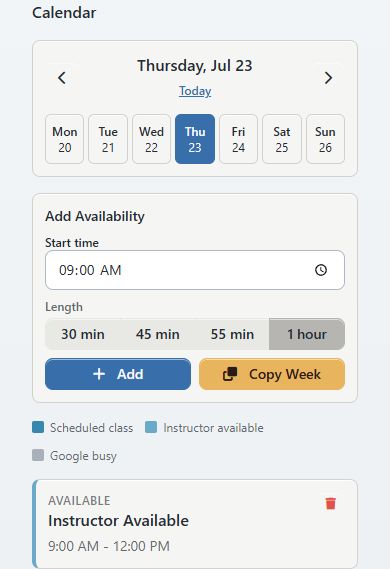
At widths up to the current mobile breakpoint, the instructor Calendar becomes a one-day agenda rather than the draggable week calendar.
- Open the staff profile and choose Calendar from the staff-section list.
- Use the day arrows or seven-day strip to choose a date.
- Under Add Availability, choose Start time and Length.
- Select Add.
- Use Copy Week only after checking the selected week's boundary dates.
- Open a schedule card with Open when you need the Day View.
- Use the trash control on an availability card only after confirming its time.
The mobile agenda can add, copy, and delete dated availability. It cannot drag, move, or resize a block. To correct a time, use desktop when possible. If desktop is unavailable, add the corrected block, verify it, and only then delete the incorrect block; check for overlap during the transition.
The Default Availability weekly editor also adapts to a narrow screen, but a desktop view is safer for comparing all seven days.
#7. Handle recurrence, exceptions, and time off
Treat the weekly template as a recurrence source and dated blocks as generated or manual instances. The current reviewed workflow has no dedicated one-date time-off or blackout record.
Deleting one generated dated block is not a durable exception when automated fill ahead remains active. A later fill can recreate the missing exact default block. Changing the weekly template can prevent future fill for that usual window, but it also changes every matching weekday offered by the direct Private Lessons scheduler and does not remove dated rows already created.
For planned time off:
- Record the affected dates, existing weekly template, dated rows, schedules, and booking paths.
- Decide whether the whole recurring window or only one date should change.
- Do not rely on one dated deletion as the only control.
- Coordinate the weekly change, existing dated-row cleanup, and automated fill behavior with the authorized scheduling owner or support contact.
- Verify the staff Calendar and each enabled client booking path after the next scheduled fill cycle.
- Restore the recurring template only after the exception has passed and recheck already materialized dates.
For a permanent schedule change, edit the instructor weekly template first, then reconcile dated weeks already filled. Saving the new template does not rewrite those existing dates by itself.
#How availability affects client booking
| Client path | Availability source | Conflict and duration behavior to verify |
|---|---|---|
| Private Lessons | Instructor weekly template; studio weekly fallback when the instructor has no usable intervals | Generates starts every 15 minutes, uses the instructor duration when stored, and subtracts assigned schedules. Dated staff-calendar availability is not consulted in the reviewed path. |
| Private-event scheduling | Dated instructor availability | Requires the instructor-to-class mapping when the expected mapping table is available, applies booking lead time and instructor duration, and can join exactly adjacent dated blocks. The reviewed start-time path does not subtract assigned schedules. |
| Instructor Calendar | Dated availability plus visual schedule context | Helps staff see conflicts but does not itself enforce that availability avoids schedules. |
| Google busy overlay | Imported busy records, when the optional tables and process exist | Appears as read-only context. The reviewed client scheduling paths do not subtract it, and this profile does not configure Google authorization or run synchronization. |
Warning: Do not assume a schedule or Google busy block makes the same time unbookable in every client workflow. Reconcile the instructor Calendar manually and run a disposable client test for the exact path the studio publishes.
The private-event add-to-cart action rechecks that the selected start still belongs to dated availability. Complete checkout timing and instructor-conflict behavior still require controlled verification. If a test creates a schedule, confirm its start, end, class, instructor, student, purchase link, and calendar result before removing the fixture.
#Verify the complete workflow
Use an isolated test tenant or an approved fictional fixture. Do not test with a real instructor's open hours or a time a client might select.
- Record the instructor ID, weekly intervals, stored lesson duration, dated rows, schedules, and enabled booking paths.
- Create one distinctive future weekly window that is at least one lesson long.
- Save and reopen Default Availability.
- Confirm the interval and intended duration persisted.
- Copy one carefully chosen future week when the dated path is required.
- Confirm the exact dates and times on desktop and mobile.
- Confirm that no copied block overlaps an assigned schedule or Google busy block unless the overlap is intentional for the test.
- Sign in directly as the fictional client; do not use impersonation for final acceptance.
- Test Private Lessons and private-event scheduling separately when both are enabled.
- Confirm the displayed instructor, date, 15-minute start choices, duration, lead time, and class mapping.
- Stop before final submission unless the cleanup plan covers cart, schedule, enrollment, purchase, notification, and payment side effects.
- If completing the test, submit once and reconcile the created schedule in the admin calendar and Private Lessons list.
- Remove or archive only the approved fixture records, then verify the client time is no longer offered.
- Check the same future week after the next fill-ahead cycle when testing an exception or deleted block.
#Recovery and troubleshooting
#Calendar or Default Availability is missing
Confirm that the profile is not a client-only record, is marked as an instructor, and at least one supported scheduler is enabled. Then review Staff access for the signed-in login group.
#I can view the week but cannot change it
Ask the deployment owner to review the staff-write allowlist and your login group. Do not use another person's credentials. A role can see the profile while its write controls are disabled.
#The instructor week is blank but clients see times
The client scheduler may be falling back to the studio default. Compare Settings > Private Lessons and decide whether to leave fallback behavior or create an explicit instructor snapshot with Replace with Studio Default.
#Saving changed the lesson length
Saving the instructor weekly template also stores the current studio default duration for that instructor. Record the observed length, compare it with Settings > Private Lessons, and retest both client booking paths. Do not keep editing availability until the intended duration is agreed.
#An exact duplicate is rejected
Refresh the calendar before retrying. The first request may have succeeded even if its response was interrupted. Compare instructor, start, end, and row count; do not create a slightly different overlapping block merely to bypass the rejection.
#Two availability blocks overlap
The current endpoints allow non-identical overlaps. Decide which exact row should remain, record both rows, and correct them one at a time. Recheck client start choices afterward.
#Copy Default Availability changed manual blocks
The copy action replaces dated rows fully contained within each copied default interval. It can leave partial overlaps. There is no bulk undo. Restore only from the recorded before-state, then verify every affected day and client path.
#A deleted time-off block came back
Scheduled fill ahead may have recreated a missing exact default block. Review the weekly source, fill-ahead horizon, and maintenance process with the scheduling owner. Do not repeatedly delete it without a stable exception plan.
#Copy Week used unexpected dates
The copy engine aligns to Monday even when the visible calendar begins on another day. Check the preceding Monday through following Sunday, then restore from the before-state. Avoid another copy until the date boundary is understood.
#Times appear offset
Stop making changes. Record the browser zone, operating-system zone, studio setting, displayed time, saved time, and affected ID. A repeated manual offset can compound the problem when another device uses the studio zone.
#Calendar tools could not load
The desktop calendar loads its calendar library from an external content-delivery service. Check the connection, content blocker, and browser policy, then reload once. The mobile agenda uses a different rendering path and may still load, but do not use it to bypass an unresolved time-zone or data problem.
#I cannot move or resize on mobile
That is a current mobile limitation. Use desktop. When an urgent correction must be made on mobile, add and verify the corrected block before deleting the wrong one.
#A schedule or Google busy time still appears bookable
The private-event start-time path and Google overlay do not provide the same conflict subtraction as direct Private Lessons. Remove or adjust dated availability only under the approved plan, then retest the client path. Escalate any completed conflicting booking before changing finance or enrollment records.
#The page expired or the save result is uncertain
Reload and sign in again, then inspect the weekly template or dated calendar before retrying. Submit once from a fresh page. This avoids creating a second block after a response or CSRF failure.
#I deleted the wrong block
Recreate the exact block manually from the recorded start and end. Do not use Copy Default Availability as a shortcut when the week contains manual exceptions, because copy can replace other contained rows.
#Current limits to plan around
- There is no dedicated own-record-only instructor availability page or mutation rule in the reviewed path.
- The current calendar does not label or convert between browser and studio time zones.
- Weekly and dated availability are separate sources used by different client schedulers.
- The staff write endpoints reject exact duplicates but do not prevent overlaps or availability over schedules.
- The private-event start-time path does not subtract assigned schedules in the reviewed controller.
- Google busy records are read-only context here, not a verified booking block; Google authorization and sync controls are not implemented on this tab.
- Copy aligns to Monday, replaces contained dated rows, leaves partial overlaps, and does not trim around schedules.
- Automated fill can recreate a deleted default block; no dedicated dated blackout or time-off exception editor was identified.
- Saving an instructor week overwrites its stored duration with the current studio default, and this tab has no independent duration field.
- There is no customer-facing preview, bulk undo, availability revision history, or safe one-click rollback.
- Desktop move and resize are unavailable on mobile.
- Complete private-event checkout duration and conflict behavior remain unverified with a controlled fixture.
#Protect staff and client privacy
- Treat instructor work patterns, recurring availability, time off, assigned classes, and Google calendar names as confidential staff information.
- Do not put medical, disciplinary, family, travel, or security details into availability labels or supporting notes.
- Give staff-profile access only to roles that need the complete profile, not merely one calendar task.
- Use fictional names, classes, dates, email addresses, schedules, and busy blocks in screenshots and videos.
- Crop contact details, login groups, browser tabs, calendar account names, client names, and unrelated schedules from captures.
- Store before-state exports, fixture IDs, and cleanup notes in the approved restricted documentation location.
- If a screenshot or test exposes real data, stop distribution and follow the studio's privacy-response process.
#Related articles
- Add and manage staff
- Manage class instructors and substitutes
- Set up Online Client private-lesson booking
- Review private lessons and the calendar
- Use calendar views and filters
- Find and change Global Settings safely
- Roles and permissions overview
- Review private lessons in the Online Client
- Use the Online Client calendar and private events