Finance
Review and reconcile auto payments
#Current processing boundary
The current Auto Payments page is a review screen. View List Only loads an eligibility preview. If you select Run Auto Payments, accept its confirmation, and continue, the inspected page displays this message:
Auto payment processing is not enabled on this screen yet. Use View List Only to review eligible families.
The current screen has no run endpoint and does not submit a processor request or create local payment records.
Important: Do not interpret the presence of Run Auto Payments as proof that batch collection is enabled. Use the studio's separately approved processor-enabled workflow when funds must be collected.
Warning: Never create a second collection attempt because a browser, local payment record, or scheduled-payment row is unclear. Check the processor first, then reconcile the local ledger. An uncertain result is not a failed result.
#Before you begin
- Confirm that the correct studio and finance role are in use.
- Confirm the intended Charge Category or that every category is genuinely in scope.
- Know the approximate number of accounts and total balance expected.
- Review the studio's convenience-fee policy before including a fee.
- Confirm that affected clients were notified and authorized according to studio policy and applicable requirements.
- Check whether any accounts are on hold, in dispute, or awaiting a payment-method update.
- Coordinate with other operators so the same balances are not collected through two workflows.
- Do not expose full card numbers, bank details, stored tokens, or processor credentials in notes, exports, or screenshots.
#What qualifies for the preview
The inspected preview starts with accounts and methods that meet all available conditions:
- the family account is active;
- the account is a top-level family record rather than a child record;
- a stored card or ACH token is active;
- Auto Payment is on for that stored method;
- the selected category has a positive unpaid charge balance.
If more than one eligible method exists for an account, the current query places the saved default method first where the schema supports a default flag, then returns one preview row for that family.
Important: Eligibility is not authorization or a processor result. The preview does not prove that a card is unexpired, an ACH account is usable, a processor customer is valid, sufficient funds exist, or a transaction will settle.
#Build the preview
- Open Finance > Auto Payments.
- Under Charge Category, select one of these scopes:
- All Categories for the account's total positive balance;
- No Category for charges without a category; or
- one named category for that category's positive balance.
- If Add Convenience Fee is available, select Yes only when the approved fee policy applies to this exact collection.
- Select View List Only.
The preview displays:
| Column | Meaning |
|---|---|
| ID | Family account ID |
| Family | Account name |
| Type | Saved method type, such as card or ACH |
| Description | Staff-entered payment-method label |
| Last 4 | Masked account identifier |
| Convenience Fee | Projected fee for this row, when enabled |
| Balance | Positive unpaid balance in the selected category scope |
| Total | Balance plus the projected convenience fee |
The summary shows the number of matched families and the projected total.
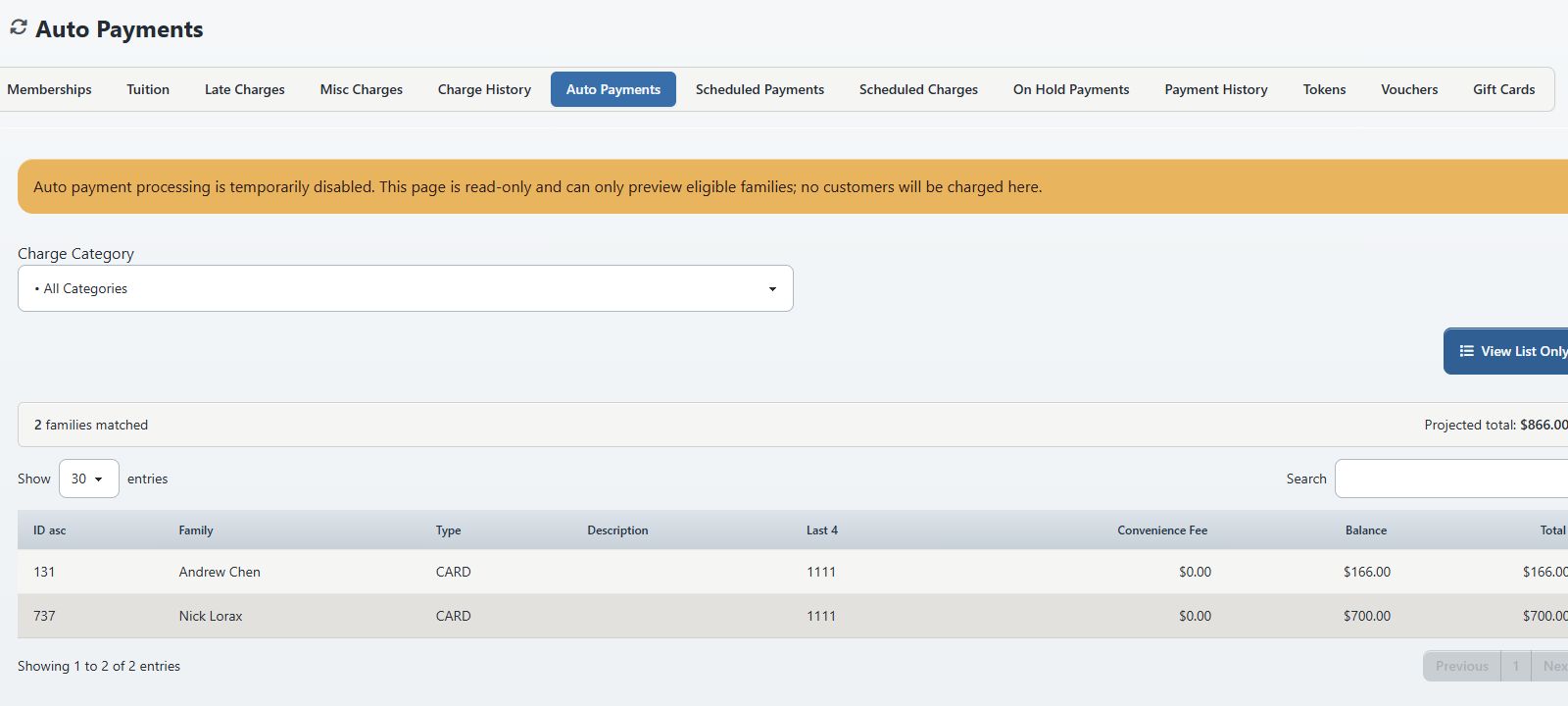
#How the projected fee is treated
When convenience fees are enabled, the preview can add the configured fee to card balances. ACH rows receive a projected fee only when the studio also permits the fee for check or bank-style methods.
The fee is a projection on this screen. It is not a created charge, a collected payment, or proof that the processor accepts the fee arrangement.
#Review the preview as an approval list
- Record the selected category, convenience-fee choice, row count, balance total, fee total, and projected total.
- Check several account ledgers against the displayed balance.
- Check one expected included account and one expected excluded account.
- Confirm that every displayed method is the intended card or ACH summary for the family.
- Investigate expired cards, unfamiliar descriptions, unexpected last-four values, or a missing default method.
- Check Finance > Scheduled Payments and Finance > On Hold Payments for accounts that should not be collected through the planned workflow.
- Identify zero, negative, disputed, recently paid, or duplicate-looking balances before any external collection.
Important: The preview is calculated from current ledgers. A payment, charge, allocation, category change, token change, or hold can make a saved preview stale. Generate a fresh list immediately before an approved collection workflow.
#About Run Auto Payments
On the current page:
- Run Auto Payments asks Run auto payments?
- Accepting that confirmation displays the not-enabled message.
- No transaction request is sent by the inspected implementation.
You do not need to select the run control to verify this boundary in production. The manual records it so operators do not assume processing occurred.
If a future release enables a processor-backed batch, the article must be reverified before publishing run steps. At minimum, the verified procedure will need to establish:
- the exact processor and merchant account;
- the source of each amount and fee;
- whether each row is recalculated at submission;
- how declines, timeouts, partial batches, and duplicate protection are reported;
- which local payment, charge, and allocation records are created;
- whether the batch can be safely resumed;
- how processor settlements are reconciled.
#Reconcile an approved external collection
Use this section when the preview is handed to an approved processor-enabled workflow outside the current page.
#Keep four layers separate
| Layer | What it proves |
|---|---|
| Preview | The accounts and projected amounts considered eligible at that moment |
| Processor result | Whether each request was approved, declined, failed, or left uncertain |
| Local payment and ledger | Whether the software recorded and allocated the result to the correct account |
| Settlement or deposit | Whether processed funds were ultimately settled to the merchant account |
No single layer proves all four.
#Reconciliation procedure
- Save the approved preview scope, count, balance, fee, total, and generation time.
- Record the authorized collection workflow and operator.
- For every attempted row, preserve the processor's non-sensitive reference, status, amount, and time.
- Separate approved, declined, failed, skipped, and uncertain results.
- Open Finance > Payment History and compare local payment rows with approved processor results.
- Open representative account ledgers and confirm payment amount, source, allocation, remaining balance, and any separate fee charge.
- Confirm that declined, failed, skipped, and uncertain attempts did not receive successful local payment records.
- Compare the approved processor total with the local recorded total.
- Later, compare processor settlement with the batch's approved transactions, fees, refunds, and adjustments.
Warning: A decline is not a payment. A local payment row is not proof of settlement. A processor approval without a local row is not permission to submit the card again.
#Handle an uncertain or partial result
- Stop all retries for the affected scope.
- Record the time window, operator, category, count, total, and exact message.
- Search the processor by non-sensitive transaction reference, account, amount, and time.
- Search Payment History and the account ledger by the same facts.
- Classify each row as confirmed processed, confirmed not processed, or unresolved.
- Correct the local record only after the processor result is known.
- Retry only rows confirmed not processed, using an approved recovery procedure.
Do not submit the full preview again to recover a partial batch. That can duplicate every successful row.
#Troubleshooting
#An expected family is missing
Check that the family and stored method are active, Auto Payment is on, the account is a top-level family record, and the selected category has a positive unpaid balance. Also check whether the balance is attached to a child or another family record.
#The wrong saved method appears
Open the account's Cards and ACH tab. Review the default choice, active status, autopay setting, description, and last four. A scheduled payment can retain its own method link, so verify the schedule separately.
#The balance differs from the ledger
Confirm the category scope and payment allocations. The preview subtracts amounts applied to charges. Unapplied account credit does not necessarily reduce the displayed balance until it is allocated.
#The convenience fee is missing or unexpected
Check the studio's fee settings, payment-method type, fee policy, and the Add Convenience Fee selection. Treat the displayed fee as projected until a verified processor workflow and resulting ledger records confirm it.
#Run Auto Payments says processing is not enabled
That is the current expected behavior. Return to View List Only and use the studio's approved collection workflow. Do not create a manual payment record unless independent evidence confirms that money was received.
#A processor request timed out
Do not retry. An HTTP or browser timeout does not establish that the processor rejected the request. Check the processor and local history before deciding whether any new attempt is safe.