Classes
Group Classes
#Before adding a class
Review the records the class will use:
- Settings > Categories for genre, level, program, location, billing schedule, and other category lists;
- Settings > Seasons for enrollment dates, visibility, fees, and waitlist behavior;
- Settings > Rooms for the physical or virtual location;
- Staff for instructor assignments;
- pricing, discounts, and sales items when the class charges or consumes a package.
Adding these first reduces duplicate categories and incomplete class records.
#Find a class
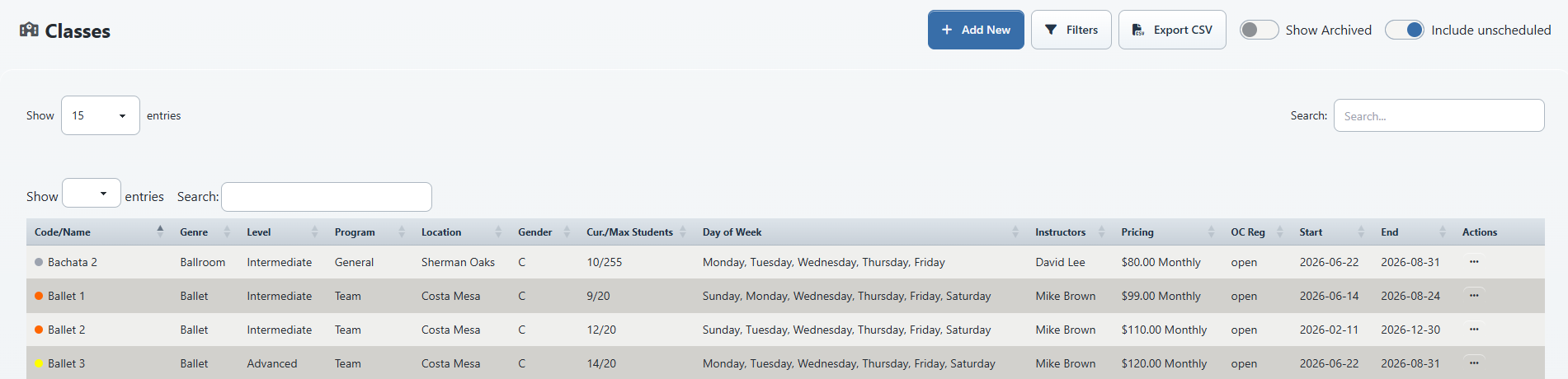
Go to Group Classes. The list provides:
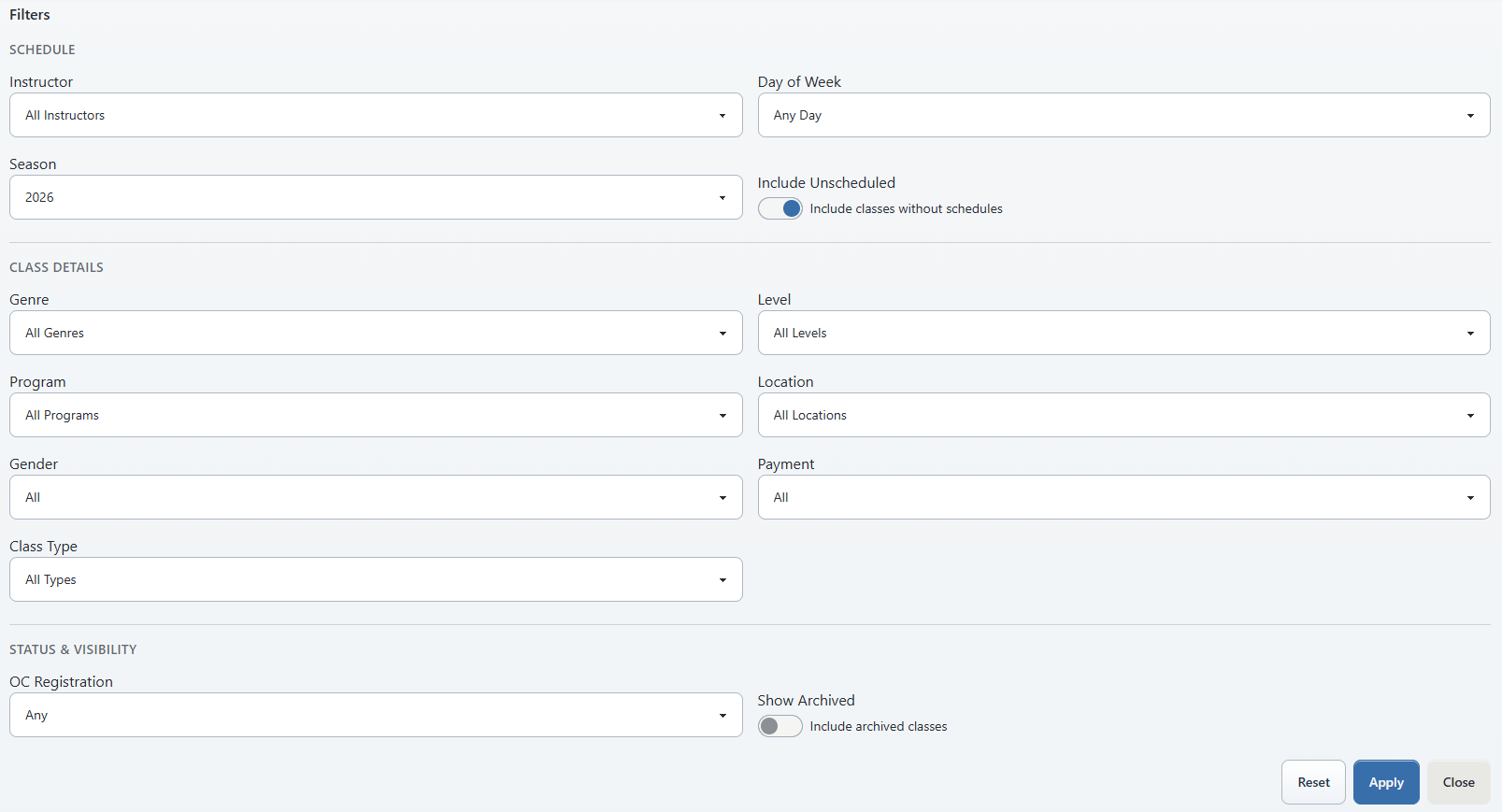
- Filters for narrowing the class set;
- Show Archived to switch from active classes to the archived-only view;
- Include unscheduled to include classes that do not yet have meeting schedules;
- an entries-per-page control;
- Search for a quick text match;
- Export CSV;
- a Classes PDF Report link for PDF/Excel-oriented reporting.
The visible table includes these columns in the verified administrator view:
| Column | Meaning |
|---|---|
| Code/Name | The identifying class code or display name. |
| Genre, Level, Program, Location | Classification used for filtering, registration, and reporting. |
| Gender | The class’s configured eligibility label, when used. |
| Cur./Max Students | Current enrollment compared with the configured capacity. |
| Day of Week | One or more scheduled meeting days. |
| Instructors | Assigned teaching staff. |
| Pricing | The displayed price or billing method summary. |
| OC Reg | Online Client registration state. |
| Start / End | Class date range. |
| Actions | Tasks available for that class and role. |
The list can load its rows after the page shell appears. If the headings appear but no classes are shown, allow the list to finish loading before changing filters.
#Add a class
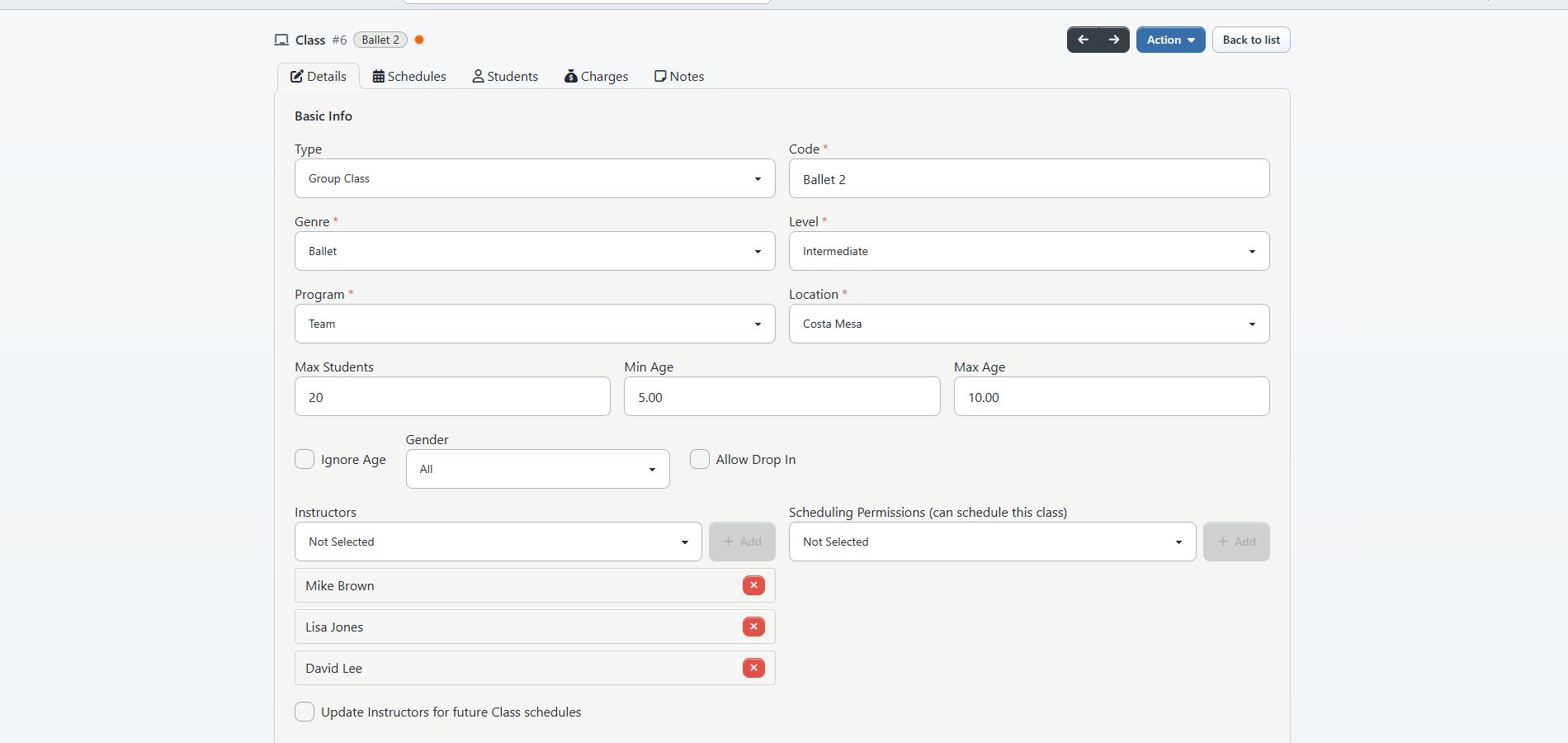
Select Add New. The complete class form is documented separately because its available fields and payment choices depend on studio settings.
At minimum, confirm the class’s identity, season, classifications, schedule, instructor, capacity, registration status, pricing method, and dates before publishing it to Online Client users.
#Confirm a class is ready
After saving, return to Group Classes and locate the row. Confirm:
- classifications are consistent with similar classes;
- enrollment is not already above capacity;
- all meeting days and instructors are correct;
- the pricing summary matches the intended billing method;
- OC Reg shows the intended state; and
- start and end dates fall within the intended season.
Then use the Online Client class catalog or calendar to verify what an eligible client actually sees.
#Archived and unscheduled classes
- An archived class is excluded from the active working list. Show Archived switches to archived rows only; it does not combine active and archived classes.
- An unscheduled class can exist without a meeting schedule and can be included or excluded with Include unscheduled.
Do not treat either state as deletion. Verify whether enrollments, history, purchases, or reports still refer to the class before changing its status.
#Related articles
- Your first 30 minutes
- Find and register for classes
- Edit a group class safely
- Clone a group class safely
- Assign Sales Items and pricing options to a class
- Archive and restore group classes
- Manage class capacity, waitlists, and drop-in registration
- Manage class instructors and substitutes
- Manage class routines
- Manage class notes
- Manage student measurements from a class
- Manage class videos and video meetings
- Seasons, categories, class details, enrollment, attendance, and class communication articles are also available from this section.