Finance
Account ledger
#Open a ledger
- Open Families or Students.
- Select the account.
- Select Ledger.
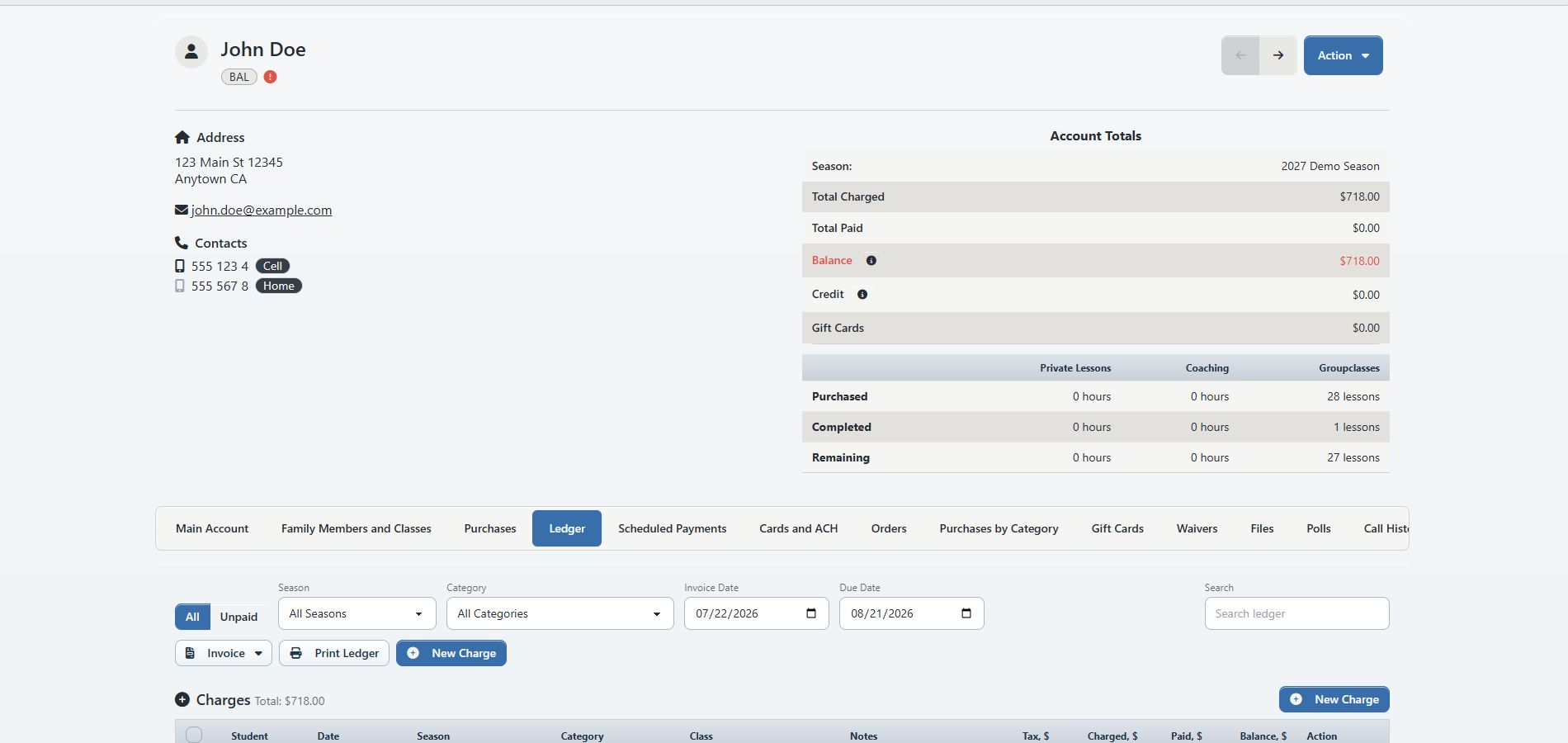
The header’s Account Totals summary helps you orient yourself, but the ledger tables are the source for individual charges and payments.
#Filter the ledger
The verified ledger included:
- All and Unpaid views;
- a Season filter;
- a charge Category filter;
- Invoice Date and Due Date fields used by invoice/statement actions;
- Search for ledger rows.
Set the filters before selecting charges or generating an invoice. A filtered view can hide older or already-paid activity without removing it from the account.
#Charges
The charge table can show:
- student;
- date;
- season;
- category;
- class;
- notes;
- tax;
- amount charged;
- amount paid;
- remaining balance;
- row actions.
Available actions depend on the charge state and permissions. The verified view included per-charge statement printing and invoice email actions.
#Payments
The payment section records money received or applied. It is distinct from charges: a charge creates an amount owed, while a payment records value received.
An administrator may see New Unapplied Payment. An unapplied payment is not yet matched to one or more charges. Review the account and studio policy before creating or applying one.
#Statements and invoices
The ledger can provide:
- an Invoice menu for selected or filtered activity;
- Print Ledger;
- per-charge statement printing;
- invoice email actions.
Before sending or printing, confirm:
- the correct account is open;
- season/category/status filters are intentional;
- invoice and due dates are correct;
- the selected charges match the intended statement;
- the account’s email address is current.
Warning: Emailing an invoice transmits account and financial information. Preview the recipient and contents before sending.
#Add a charge
The account header and ledger can both provide New Charge. A separate procedure will cover charge category, season, class, notes, tax, due dates, credits, and payment application.
Before adding a manual charge, check Charge History and the current ledger so you do not duplicate a global tuition, late-charge, checkout, or scheduled charge.
#Confirm a ledger task worked
After a finance action:
- reload or return to the Ledger tab;
- locate the new or changed row;
- confirm charged, paid, and balance columns;
- check Account Totals;
- if a payment was involved, confirm whether it is applied or unapplied;
- if an email was involved, use available delivery/history reporting rather than assuming that queuing equals delivery.
#Related finance areas
- Scheduled Payments — future collections, not completed payments.
- Cards and ACH — stored payment methods, not transaction history.
- Purchases — acquired products/packages, not the amount owed.
- Gift Cards — stored gift value.
- Finance > Charge History — generated charge sessions and maintenance.
- Finance > Payment History — payment records across accounts.