Settings > Group Permissions
Configure and verify Group Permissions
Group Permissions are an important part of access control, but the saved checkboxes are not the final proof of access. Studio settings, account state, staff flags, page-specific safeguards, and route enforcement can all affect the result. Test both the normal menu path and a direct saved link before assigning a role to real staff.
Important current boundary: Menu visibility and action authorization are related but not identical. An unchecked menu box can remove a normal navigation path without proving that every direct URL, API request, row action, or save operation is denied. Conversely, a page can load while a particular action is refused. Treat a role as approved only after the allowed and denied tasks have both been tested.
#Before you begin
- Confirm that you are in the correct studio. Group definitions and staff assignments are tenant-specific.
- Keep at least one known, separately tested administrator account signed in on another browser or device. Do not edit that recovery account's login group.
- Use your own named administrator account. Do not share an owner or administrator password to conduct the test.
- Write a task list for the proposed role. Include what the person must view, create, change, archive, restore, download, send, and approve.
- Identify sensitive tasks that must be denied, including finance, exports, messaging, staff records, settings, reports, impersonation, and payment actions.
- Prepare a fictional test staff account and fictional class, account, purchase, or message records needed for the test. Do not use a real person merely because the account already exists.
- Record the current group name, login-group key, status, Online Client/App setting, and selected permissions before changing an existing group.
- Choose a quiet test window when staff are not taking attendance, processing payments, changing schedules, or sending messages.
- Decide who approves access and who performs the independent verification. For sensitive roles, these should be different people when practical.
Warning: A permission change can expose personal, financial, payroll, communication, or configuration data. It can also interrupt daily work or prevent an administrator from correcting the role. Never experiment on the only working administrator group or on a real staff member's active session.
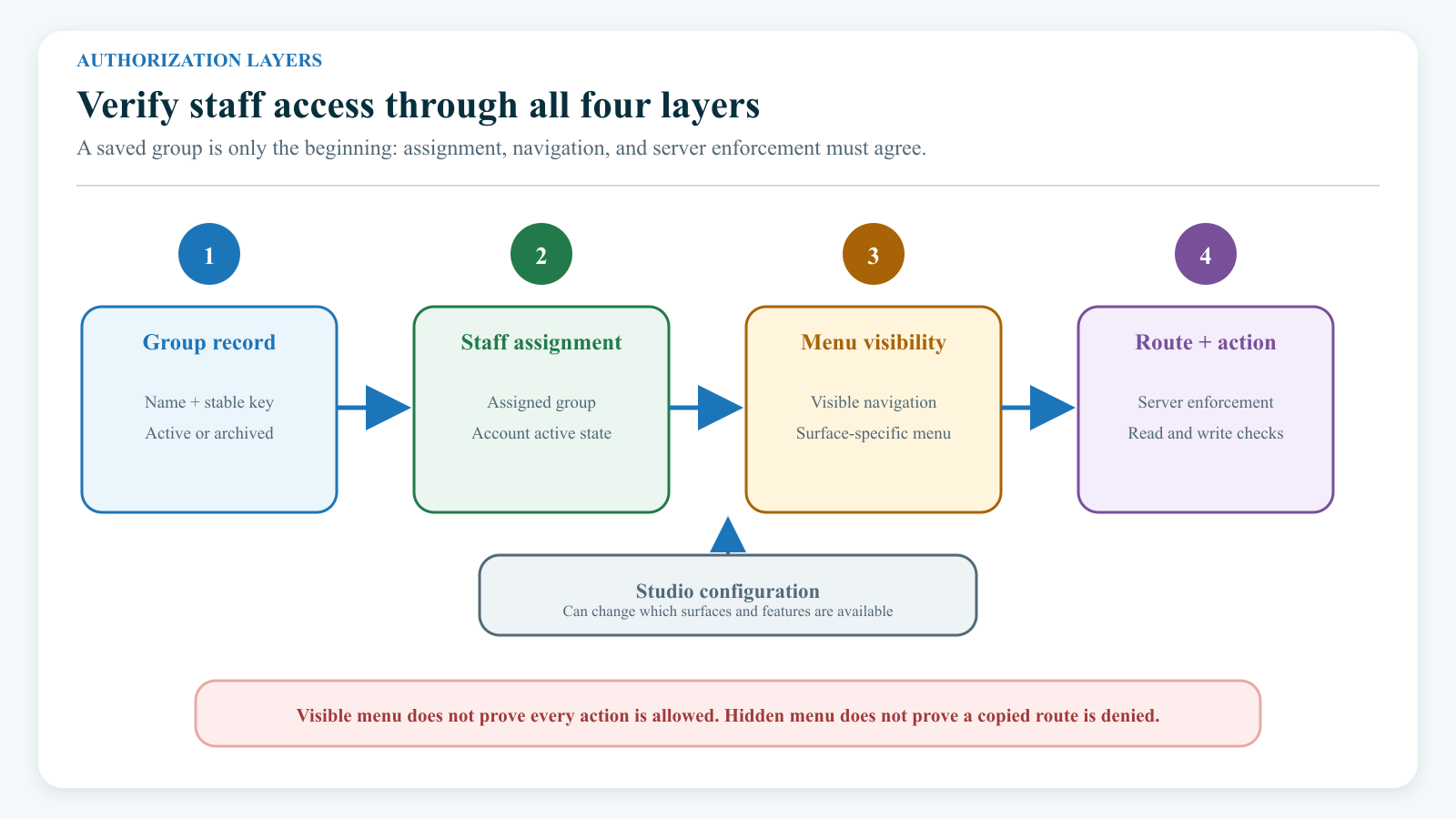
#Understand the four access layers
It is useful to evaluate a role as four separate layers.
| Layer | What it controls | What it does not prove |
|---|---|---|
| Login-group record | The group's name, stable login-group key, active/archived state, Online Client/App field, description, and saved permission matrix | That a particular account has been assigned to it, that an existing session ended, or that every login surface honors every field |
| Account assignment and state | Which login group a staff or account record uses, whether the account is active and unlocked, and whether a new login can begin | Which menus or actions the group can use after login |
| Menu visibility | Which normal sidebar destinations the group is offered | That a hidden page is blocked when opened from a bookmark, copied link, browser history, or direct request |
| Route and action enforcement | Whether a page, data request, button, save, archive, export, send, or other operation is accepted | That every related route uses the same rule or that an allowed page implies all child actions are allowed |
A fifth layer—studio configuration—can hide or disable a feature for everyone. Connected services, record state, class assignments, staff flags, and location or feature settings can also change what one person sees.
#Login groups are not instructor or payroll flags
The Login Group on a staff record is the role used for access decisions. It is separate from:
- Display as Instructor, which affects instructor identity, teaching-related tabs, and selectors;
- Display in Payroll, which affects payroll-related identity, tabs, and selectors; and
- Active, which controls the staff record's current account state and affects a new sign-in.
Examples:
- A person can be in an office login group without being displayed as an instructor.
- A person can be displayed as an instructor while using a restricted custom login group.
- A payroll flag does not grant permission to open finance or payroll administration pages.
- Removing an instructor or payroll flag does not revoke the login group's access.
- Archiving a login group does not remove instructor, payroll, class, schedule, rate, time, or history records.
Configure the login group for authorization. Configure the instructor and payroll flags for the person's operational role. Verify both.
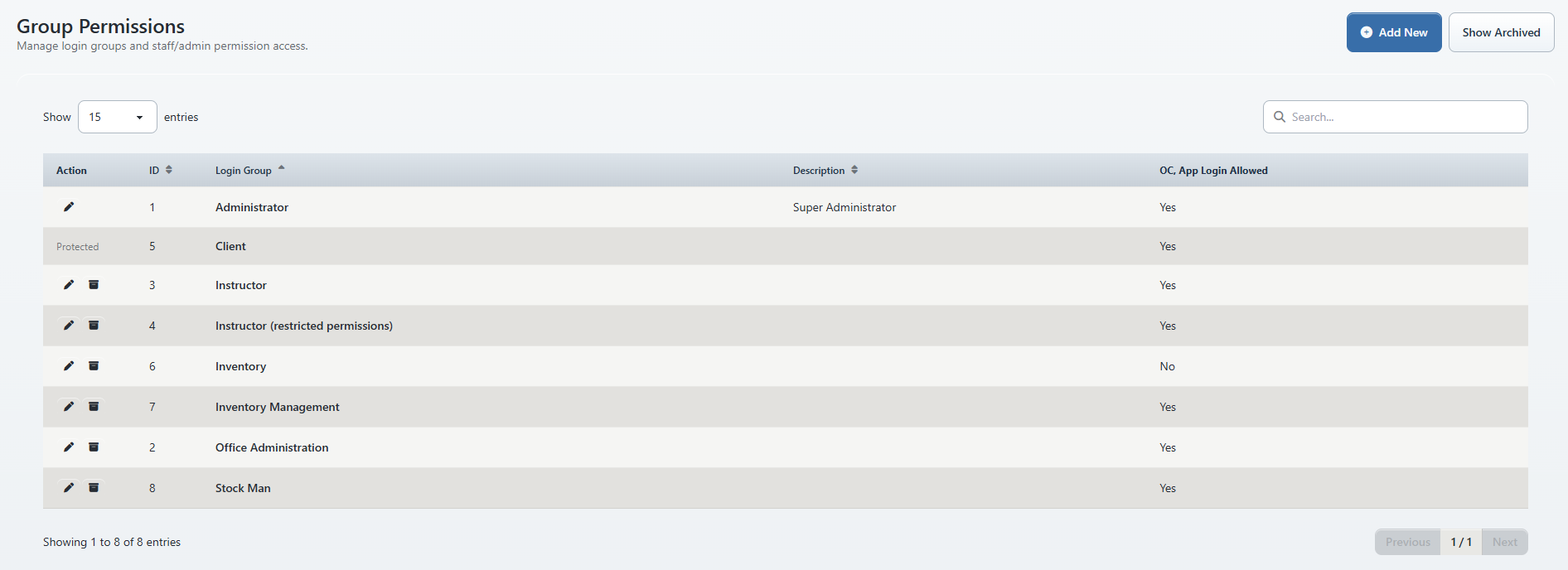
#Review the Group Permissions list
- Select Settings > Group Permissions.
- Confirm that the heading is Group Permissions and that you are in the intended studio.
- Review the Login Group, Description, and OC, App Login Allowed columns.
- Use Search to find a group by name or description.
- Change Show entries or move through pages when needed.
- Select Show Archived to inspect archived groups.
- Return with Hide Archived before making an active-role decision.
- Note rows marked Protected and rows that offer Edit, Archive, or Restore.
The active and archived views are separate. A group missing from the normal list may be archived rather than deleted.
The current screen does not show how many staff accounts use a group. Before editing or archiving an established group, use the Staff list and its login-group filters to identify assigned people. Preserve that assignment list in the change record.
If Show Archived displays rows that appear active, or a newly provisioned studio shows familiar-looking default rows that you cannot reconcile with Staff assignments, do not edit them. Record the studio, view, group IDs, and time, then ask the product or support owner to verify the tenant data source.
#Understand the group fields
| Field | Purpose | Safe guidance |
|---|---|---|
| Name | Human-readable label shown to administrators and in staff selectors | Use a task-based name such as Front Desk — Scheduling, not a person's name. Keep active names unique and unambiguous. |
| Login Group | Stable machine-readable key stored on staff or account records | Choose it carefully when creating the group. The current editor makes it read-only after creation. Do not try to repurpose an existing key for a different role. |
| Status | Active or archived group state | Active groups can be selected and used by current workflows. Archive is a lifecycle state, not a complete session-revocation or assignment-cleanup command. |
| Online Client/App Login | Records whether the group is intended to use Online Client or app login | Do not use this field as the sole proof that login is allowed or blocked. Test the exact Online Client and app surfaces in the deployed version. |
| Description | Administrative explanation of the role | State the purpose, intended staff population, and review owner. Do not put passwords, personal data, or confidential procedures here. |
| Permissions | Menu and action selections grouped by product area | Start from the approved task list, select only what is needed, and verify the resulting routes and actions. |
#Name and login-group key
When a group is created without an explicit Login Group value, the current save path derives a lowercase key from the name, replaces punctuation and spaces with underscores, and adds a numeric suffix if necessary. An explicitly entered key is normalized and must not duplicate another key.
Reserved administrator and client keys cannot be created as ordinary custom groups. Do not imitate them with confusing spelling, punctuation, or look-alike names.
Use a durable key such as front_desk_scheduling_test for a test role. Avoid department abbreviations that nobody will understand later. Once a role is approved and assigned, treat its key as permanent.
#Online Client/App Login
Historically, Online Client/App Login selected which active login groups could enter the client-facing experience. The current Group Permissions screen still stores and displays that choice.
However, the current Online Client login path reviewed for this article builds its allowed list from active login groups and does not read the stored Online Client/App Login value. The current staff login path separately allows active non-client groups and also does not use that field.
Therefore:
- do not assume No blocks Online Client or app access;
- do not assume Yes grants access when the group or account is archived, inactive, locked, or otherwise ineligible;
- test Online Client and every supported app with a disposable account;
- use account deactivation and an approved session-revocation process when access must end; and
- report any result that disagrees with the intended field value to the product or support owner.
Security warning: Until the deployed login surfaces have been verified, treat Online Client/App Login as an intended policy label rather than a certified enforcement control.
#Design a least-privilege role
Start with work, not with an existing person's title.
- List the exact daily and occasional tasks.
- Identify the records each task needs.
- Separate read tasks from create, edit, archive, restore, export, send, impersonate, and payment tasks.
- Mark every sensitive task that must be denied.
- Group staff only when their task lists are materially the same.
- Create a dedicated test group rather than weakening a broad production group during design.
- Add one capability at a time and retest.
- Record why every sensitive capability is needed.
- Set a review date and role owner.
Good role boundaries are specific enough to test:
| Vague role statement | Testable role statement |
|---|---|
| “Can help with classes” | Can view assigned group classes, open the daily schedule, and record attendance; cannot edit class pricing, archive classes, or open finance. |
| “Office access” | Can create and edit client accounts, enroll a fictional student, and view approved reports; cannot change Group Permissions, payment processors, payroll, or email delivery settings. |
| “Messaging access” | Can draft from approved templates and send to an approved fictional audience; cannot change SMTP settings, export the full student list, or view unrelated finance data. |
Do not grant administrator access simply to solve one missing button. Find the narrow menu or action permission, test it, and document the exception.
#Understand Menu and Permissions checkboxes
The editor organizes controls under Setup, Finance, Communications, Reports, People, and Classroom.
Within a module, you may see two kinds of controls:
- Menu controls select a main menu or submenu destination.
- Permissions controls represent actions such as List, Add New, Edit, Archive, Restore, Delete, or a module-specific operation.
The All control for a nested menu changes its displayed child items. Review the individual children after using it. Do not assume that All in one section grants or removes every action in the module.
Reports are represented by individual report selections and an aggregate report permission. The current save and load paths normalize these values, so enabling any report can also mark the report module as available. Test the Reports landing page and each approved report individually.
Some administrator permissions appear selected and disabled because administrator access is protected by current application rules. The critical Group Permissions route is also forced on when the Administrator group is saved.
Important: Not every checkbox has a complete one-to-one route mapping in the current application. Configuration defaults can also contribute access. Saving an unchecked box does not, by itself, certify denial.
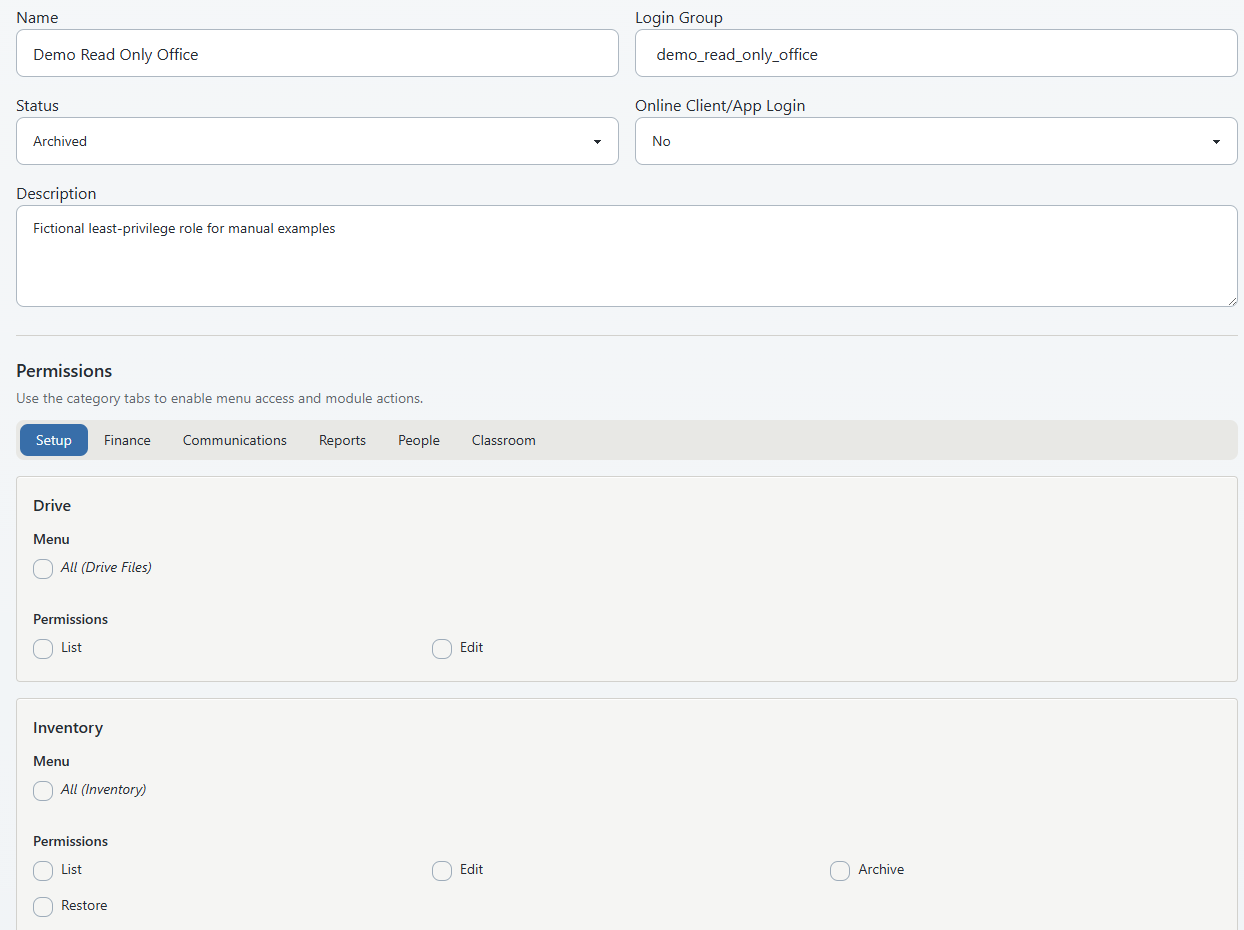
#Create a custom group
Create a test group before changing a widely assigned role.
- Select Settings > Group Permissions.
- Select Add New.
- Enter a unique, task-based Name. Include Test while the role is being evaluated.
- Enter a stable Login Group key, or leave it blank and record the generated key after saving.
- Leave Status as Active only when you are ready to assign the disposable test account. Otherwise create it as Archived and restore it for the test window.
- Set Online Client/App Login according to the intended policy, knowing that the exact login surface still must be tested.
- Enter a concise Description with the role purpose and review owner.
- Open each category tab.
- Select only the required menu items.
- Select only the required read and action permissions.
- Review Finance, Reports, Communications, People, Settings, exports, and impersonation carefully even when the role does not normally use them.
- Select Save once.
- Wait for the list to return.
- Search for the exact name and record the assigned ID and login-group key.
- Open Edit and confirm the saved values in every category.
If Save fails or the list does not return, search both active and archived views before submitting again. Do not create a second look-alike group until you know whether the first request was stored.
The screen has no draft, approval workflow, clone command, change reason, or version history. Keep the test role isolated from real staff until verification is complete.
#Edit an existing group safely
Editing a group changes the saved permission source used by every account assigned to that key.
- Identify all assigned staff accounts.
- Preserve the current identity fields and every selected menu and permission value.
- Record the approved change, owner, tester, and rollback decision.
- Confirm that the recovery administrator is still signed in separately.
- Select Edit on the correct row.
- Confirm the group ID, name, and read-only login-group key.
- Change only the approved values.
- Review all six category tabs, including settings you did not intend to change.
- Select Save once.
- Reopen the same group and compare it with the approved change.
- Sign the test account out and back in.
- Run the full allowed-and-denied role test.
- Roll back immediately if an unexpected sensitive route or action is allowed.
For a material redesign, create and test a new group, move one fictional or internal pilot account, and then migrate approved staff deliberately. This gives you a clearer rollback than overwriting a role used by many people.
Warning: Do not change the login group of the administrator who is making the change. Do not use the only administrator account as the role-test account.
#Assign the group to a test staff account
- Open Staff in the administrator session.
- Find the approved fictional test staff account.
- Confirm that the record contains no real contact, payroll, schedule, message, or file data.
- Open the profile and set Login Group to the new group.
- Set Display as Instructor and Display in Payroll only when those operational identities are part of the test.
- Keep the account inactive until its username, password, group, and test plan are ready.
- Activate the account for the controlled test window.
- Save and reopen the profile.
- Confirm the displayed login group and flags.
- Sign in as the test account in a separate private browser or browser profile.
Changing the staff assignment does not change the group definition. Changing instructor or payroll flags does not change the permission matrix.
Use a clearly fictional, non-deliverable address in the documentation-only domain approved for the demo. Do not enter a real mobile number, payment method, payroll rate, or connected-service identity.
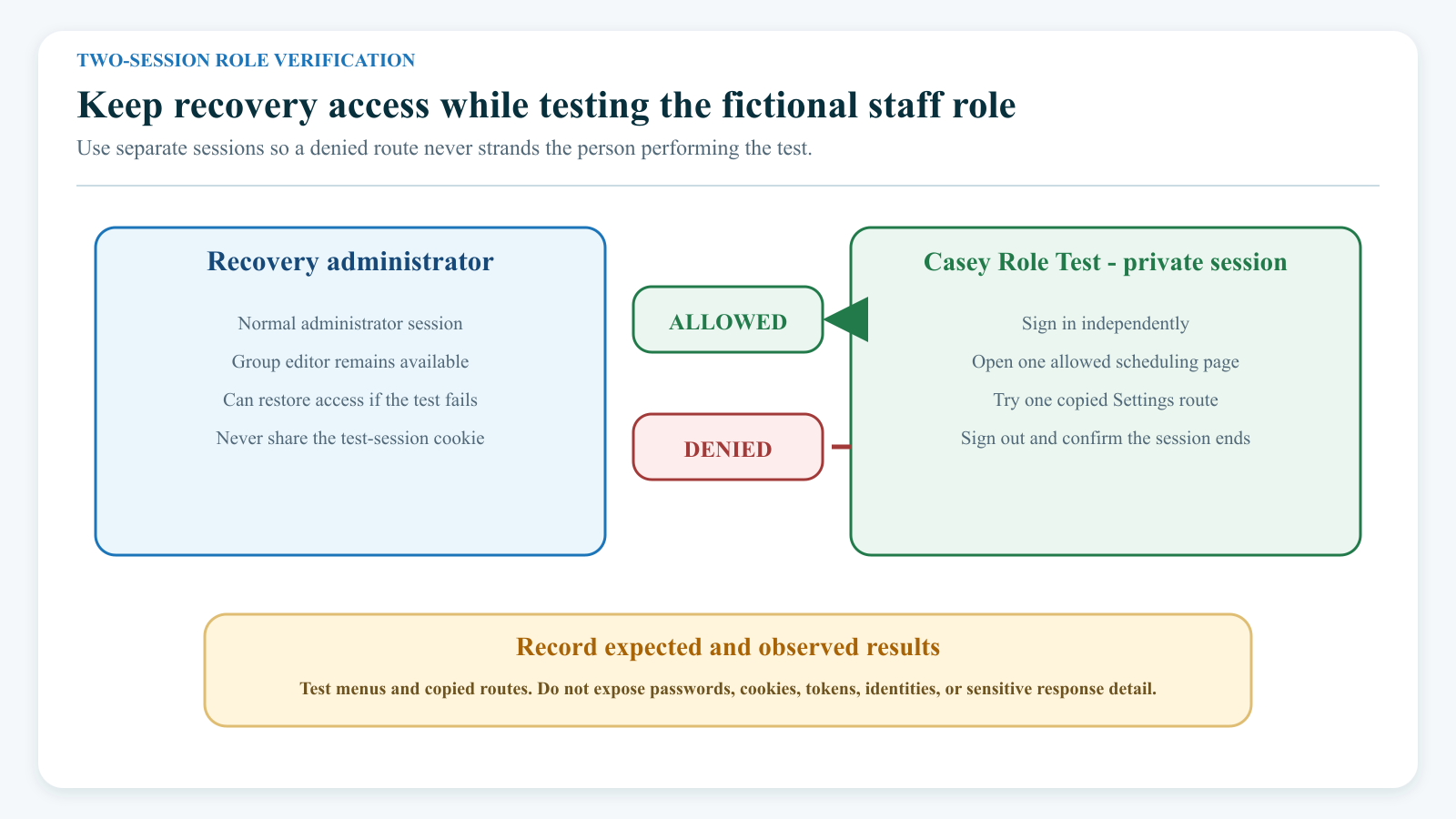
#Verify the role with two sessions
Keep these sessions separate throughout the test:
- Recovery session: a known administrator account that is not being edited; and
- Role session: the fictional staff account assigned to the proposed group.
Do not use “Login As Client” or another impersonation shortcut as the only proof of a staff role. A true login in a separate browser is more representative of the role's menu, session, and direct-route behavior.
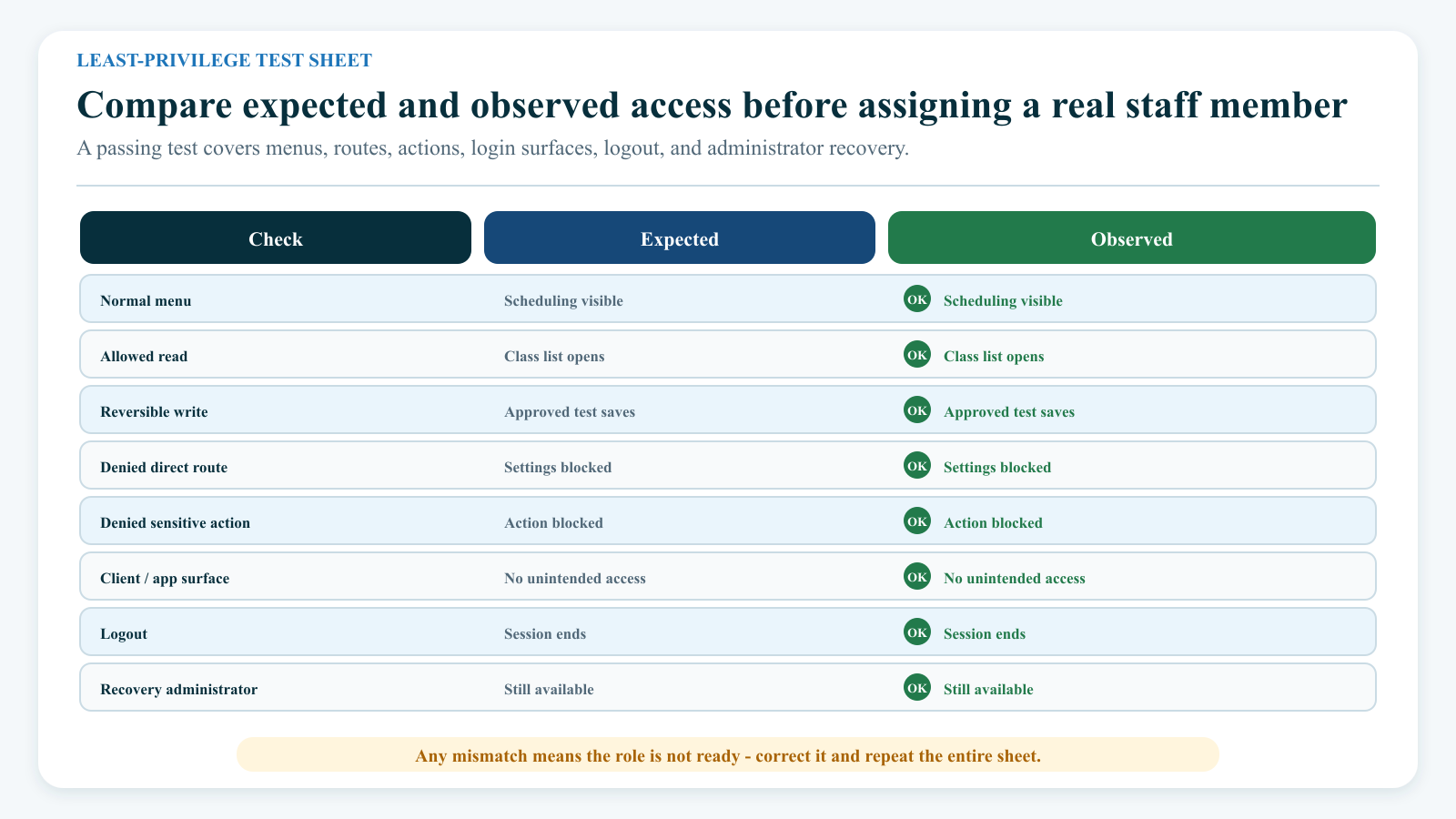
#Build the role test sheet
For every row, record the expected result before testing.
| Area | Path or action | Expected | Observed | Evidence |
|---|---|---|---|---|
| Sign-in | Begin a fresh staff login | Allow | Date, browser, account ID | |
| Menu | Open an approved destination normally | Allow | Page and route | |
| Read | View one fictional record | Allow | Record ID | |
| Write | Make and reverse one harmless fictional change | Allow | Before/after | |
| Sensitive page | Open a copied direct link | Deny | Status, redirect, or message | |
| Sensitive action | Attempt a safe disposable action | Deny | Button state and server response | |
| Online Client/App | Begin the exact intended or prohibited login | Allow or deny | Surface and result | |
| Sign-out | End the role session | Allow | Return destination |
Never record passwords, session cookies, password-reset links, card data, personal data, or full private URLs in the evidence.
#Test the normal navigation path
- Sign in as the test account.
- Confirm the account name and login group in the account control.
- Capture the complete sidebar for internal comparison.
- Open every menu destination the role needs.
- Expand parent menus and confirm only the expected children appear.
- Open one fictional record in each approved area.
- Confirm that expected buttons and tabs are present.
- Complete one reversible, harmless update on a fictional record when the role requires write access.
- Reverse that update and confirm the original state.
#Test direct routes and individual actions
A hidden menu item is only the first check.
- In the recovery session, copy the route for a page the test role must not use.
- Remove record identifiers or choose a fictional record before sharing the route.
- Paste the route into the role session.
- Confirm that the role receives the intended denial, safe redirect, or unavailable result.
- Repeat with a related data endpoint when it can be tested safely.
- Open an otherwise allowed page and check a sensitive child action, such as Edit, Archive, Export, Send, or a finance operation.
- Use only a disposable fixture if a request must be submitted. Never test a denied mutation against a real record.
- Record both the visible UI result and the server result.
Test at least one direct route from each sensitive family relevant to the role:
- Group Permissions and other Settings;
- finance, payment, ledger, and payroll;
- staff profiles and credential actions;
- reports and exports;
- messaging recipients, templates, delivery settings, and send actions;
- client impersonation; and
- class, enrollment, attendance, or schedule changes outside the role's responsibility.
If a hidden destination opens or a denied action succeeds, stop the rollout. Keep the evidence private, return to the recovery administrator, and ask the product or support owner to correct the enforcement. Do not compensate by removing unrelated access or sharing a different account.
#Confirm the Online Client and app boundary
When the role is intended to enter Online Client or a staff app, test that surface separately from the administration login.
- Record whether Online Client/App Login is set to Yes or No.
- Sign the disposable account out of every existing test session.
- Open the studio's Online Client login page in a fresh private session.
- Attempt one correct login with the disposable credentials.
- Record whether the login was allowed and which area opened.
- Sign out.
- Repeat in every supported app or app section included in the studio's rollout.
- Compare the observed result with the intended policy.
Do not infer app behavior from a browser-only check. Do not infer Online Client behavior from a successful administration login.
If No still allows access, deactivate the disposable account after the test and escalate the result. Do not assign that group to real staff on the assumption that the field will block the client surface.
#Archive a group
Archive changes the group's status. It does not delete the group, remove it from every historical record, reassign its staff, clear its permission data, or guarantee that already-open sessions end.
Before archiving:
- Identify every staff account assigned to the group.
- Reassign each active person to a tested replacement group or deactivate the account.
- Review future class, schedule, instructor, payroll, Time Clock, messaging, file, approval, and integration responsibilities.
- Ask assigned users to sign out on all devices.
- Arrange explicit session revocation with the deployment or support owner when access must end immediately.
- Preserve the group identity, permissions, assignments, reason, approver, and rollback plan.
- Verify the recovery administrator and replacement role.
To archive:
- Open the active Group Permissions list.
- Search for the exact group.
- Confirm the ID, name, login-group key, and replacement plan.
- Select the Archive action once.
- Wait for the list to refresh.
- Select Show Archived.
- Search for the same group and confirm that it is present.
- Open Staff and use the archived-group assignment filter to find any account still attached to an archived or missing group.
- In a fresh private session, confirm that a new administration login for the archived custom group is rejected.
- Check whether any older signed-in session remains usable and escalate when it must be revoked.
Warning: The current list sends Archive immediately; it does not present a separate confirmation dialog. Verify the row before selecting the action.
The built-in administrator row and the Client group are protected from archive/restore actions in the current interface. Do not try to bypass a Protected label through a copied request or database change.
#Restore a group
Restore changes the same group back to active and preserves its ID, key, description, and saved permission matrix.
- Select Settings > Group Permissions.
- Select Show Archived.
- Search for the exact group and verify its ID and key.
- Review why it was archived.
- Review the saved permissions against the current task list and current software.
- Confirm that the group name, owner, and Online Client/App policy are still appropriate.
- Select Restore once.
- Return to the active list and reopen Edit.
- Run the complete role test with a fictional account before assigning real staff.
- Reassign people deliberately; restore does not do this automatically.
Restoring an old group does not prove that its route mappings still match the current interface. New menus and actions can be added between reviews, while old permissions can become incomplete or overly broad.
#Protected groups and lockout prevention
The current interface treats these cases specially:
- the Client group does not offer edit, archive, or restore actions;
- the primary administrator record cannot be archived or restored;
- the Administrator group's active and Online Client/App values are kept enabled; and
- critical Group Permissions access is preserved for administrator/administrator-named access even when its saved matrix drifts.
These safeguards reduce some lockout risks. They do not replace a recovery plan.
#Keep an access-recovery procedure
Maintain all of the following:
- two separately named administrator accounts controlled by approved people;
- tested password recovery for each account;
- a secure, current studio URL and tenant identifier;
- a support or deployment contact who can review tenant data and revoke sessions;
- the last approved role matrix and assignment list;
- a record of the most recent permission change; and
- a scheduled role-review date.
Before a sensitive change, keep the recovery account signed in. After saving, verify that it can still open Settings > Group Permissions, load the list, open Edit, and save an approved no-op or test change when that step is authorized.
If access is lost:
- stop making changes;
- keep any working administrator session open;
- try the separately tested recovery account;
- record the studio, group, account ID, route, time, and displayed result;
- do not create a look-alike administrator group or alter tenant data manually; and
- contact the approved support or deployment owner for a controlled recovery.
#Understand downstream effects
| Change | Likely downstream effect | What still needs separate handling |
|---|---|---|
| Add a group | Makes a new role available for assignment when active | No staff account is created or assigned automatically |
| Edit permissions | Changes intended navigation and actions for accounts using the group | Existing browser state, page-specific rules, caches, and direct routes still need testing |
| Change a staff assignment | Changes the role intended for that account | Instructor/payroll flags, classes, rates, Time Clock, sessions, messages, and files are not changed automatically |
| Archive a group | Removes it from active group use and blocks new administration login where active-group checks apply | Assigned staff records remain; open sessions may remain; Online Client/App behavior needs exact-surface verification |
| Restore a group | Makes the same saved role active again | Staff are not reassigned and old permissions are not re-certified |
| Set Online Client/App to No | Stores the intended login policy | Current browser client login reviewed here does not enforce that value; apps remain unverified |
| Clear instructor/payroll flags | Changes operational identity and related UI | Does not revoke the login group's permissions |
| Deactivate a staff account | Blocks a new sign-in where active account state is checked | Does not necessarily revoke an existing session or rotate external/shared credentials |
Group changes can affect staff list labels, account editors, menu construction, reports, Settings, finance, classroom work, communications, and Online Client entry. They do not rewrite historical transactions, attendance, schedules, messages, files, payroll records, or audit evidence.
#Review roles on a schedule
Review every production group:
- before first assignment;
- after a software release that adds or changes menus, reports, or actions;
- after a job-duty change;
- after staff onboarding, transfer, or departure;
- after a security incident or unexpected access report;
- when an integration is enabled;
- before a major registration or billing period; and
- at a regular interval chosen by the studio.
For each review, retain:
- group ID, name, and key;
- active/archived and Online Client/App values;
- approved task list;
- selected menus and actions;
- assigned staff account IDs;
- allowed and denied test results;
- reviewer and approver;
- date and software version or interface date; and
- remediation and retest results.
The current Group Permissions screen does not provide a customer-visible revision history, change diff, approval workflow, change reason, or assignment count. Keep this evidence in the studio's protected access-control record.
#Confirm it worked
Do not approve the role until all of these are true:
- the group has a unique, task-based name and stable key;
- its status and intended Online Client/App policy are recorded;
- every permission category has been reviewed;
- assigned staff accounts are known;
- a disposable staff account can begin a fresh login only when intended;
- required menus, pages, data, and reversible actions work;
- out-of-scope menu items are absent;
- copied direct links to sensitive pages are denied;
- sensitive child actions are denied by the server, not merely hidden;
- Online Client and each supported app produce the intended result;
- the recovery administrator still works;
- all fictional changes have been reversed or retained only as approved demo data; and
- the test sheet has an owner and review date.
#Troubleshooting
#Group Permissions is missing from Settings
Your login group may not be intended to manage access. Use a known owner or administrator account. Do not borrow another person's credentials. If you believe your role should manage groups, test the direct path only under an approved security review; a hidden menu does not by itself determine whether the route is protected.
#The list opens, but Add New or Edit is missing
The current list can be readable to an authenticated account even when management actions are unavailable. This is a view-only state, not proof that the account can save changes. Ask an administrator to review the exact role and direct-route result.
#Save reports that the name or login group already exists
Search active and archived groups. Compare both the visible name and the stable key. Restore or deliberately rename the correct existing record when appropriate; do not create a confusing spelling variation merely to bypass uniqueness checks.
#The saved boxes changed after reload
Confirm that you reopened the same group ID. Review nested All controls and individual report selections. The current load/save path normalizes report permissions, and administrator-effective permissions can appear selected by design. Preserve the before/after evidence and escalate any unrelated change.
#Show Archived appears to contain active groups
Do not archive, restore, or edit those rows until the tenant data is verified. Capture the group IDs, visible state, studio, and time without exposing staff data, then ask the product or support owner to compare the filtered list with the tenant's actual group records.
#The menu did not change
Confirm the staff account is assigned to the expected login group. Sign out and start a fresh session. Reload the application rather than relying on an already-open sidebar. Then compare the saved matrix, feature settings, and route result.
#A hidden direct link still opens
Stop the role rollout. Record the group, route name or safe URL, account ID, time, and result without exposing private data. Test whether the sensitive action itself is also accepted only with a disposable record and explicit approval. Ask the product or support owner to correct and verify route enforcement.
#A page opens, but Save or another action is denied
Page access and action access can be separate. Record the exact button, method, response, group, and fictional record. Enable only the narrow required action after review; do not grant broad module or administrator access as a shortcut.
#Online Client/App Login is No, but the account can enter
This matches an unresolved current boundary in the reviewed browser login path. Deactivate the disposable account, preserve the evidence, and contact the product or support owner. Do not rely on the field alone for a production access decision.
#Archiving did not remove the people assigned to the group
Archive changes the group record, not the staff records. Use the Staff filter for archived group assignments, then reassign or deactivate each account according to the approved plan.
#A person remains active in an old browser after archive, reassignment, password reset, or deactivation
The existing session was not necessarily revoked. Ask the person to sign out and contact the deployment or support owner when termination must be immediate. Rotate any shared or external credentials separately.
#The administrator cannot return to Group Permissions
Keep any working administrator session open, use the separate recovery administrator, and stop further role changes. Contact the approved support or deployment owner with the tenant, account, group, route, and time. Do not edit the tenant database or create a counterfeit administrator key as an improvised recovery.
#Related articles
- Roles and permissions overview
- Add and manage staff
- Staff sign-in, profile, password, theme, and logout
- Dashboard and navigation
- Settings overview
- Customize the dashboard, search, and review alerts
- Staff and Time Clock
- Choose message recipients and send safely
- Create and manage email signatures
- Archive, restore, and merge client or family accounts safely
- DSM feature availability