Settings, accounts, Online Client, and reports
Configure, collect, and reconcile Referral Sources
Current report boundary: Reports > How did you hear labels its main total as families, but the reviewed current query counts matching member records and does not limit the population to primary client accounts. Its optional schedule and purchase columns also have narrower technical definitions than their labels imply. Reconcile a controlled sample before publishing a family-level conversion rate.
#Understand what a Referral Source records
A Referral Source is one active category value, such as Client referral, Online search, or Community event, saved on a member record. In the normal family workflow it belongs on the primary account, not on every related student.
It is a single self-reported attribution value. It does not store a campaign date, advertising cost, referring person's identity, first and last touch, consent to receive marketing, or proof that the source caused a purchase.
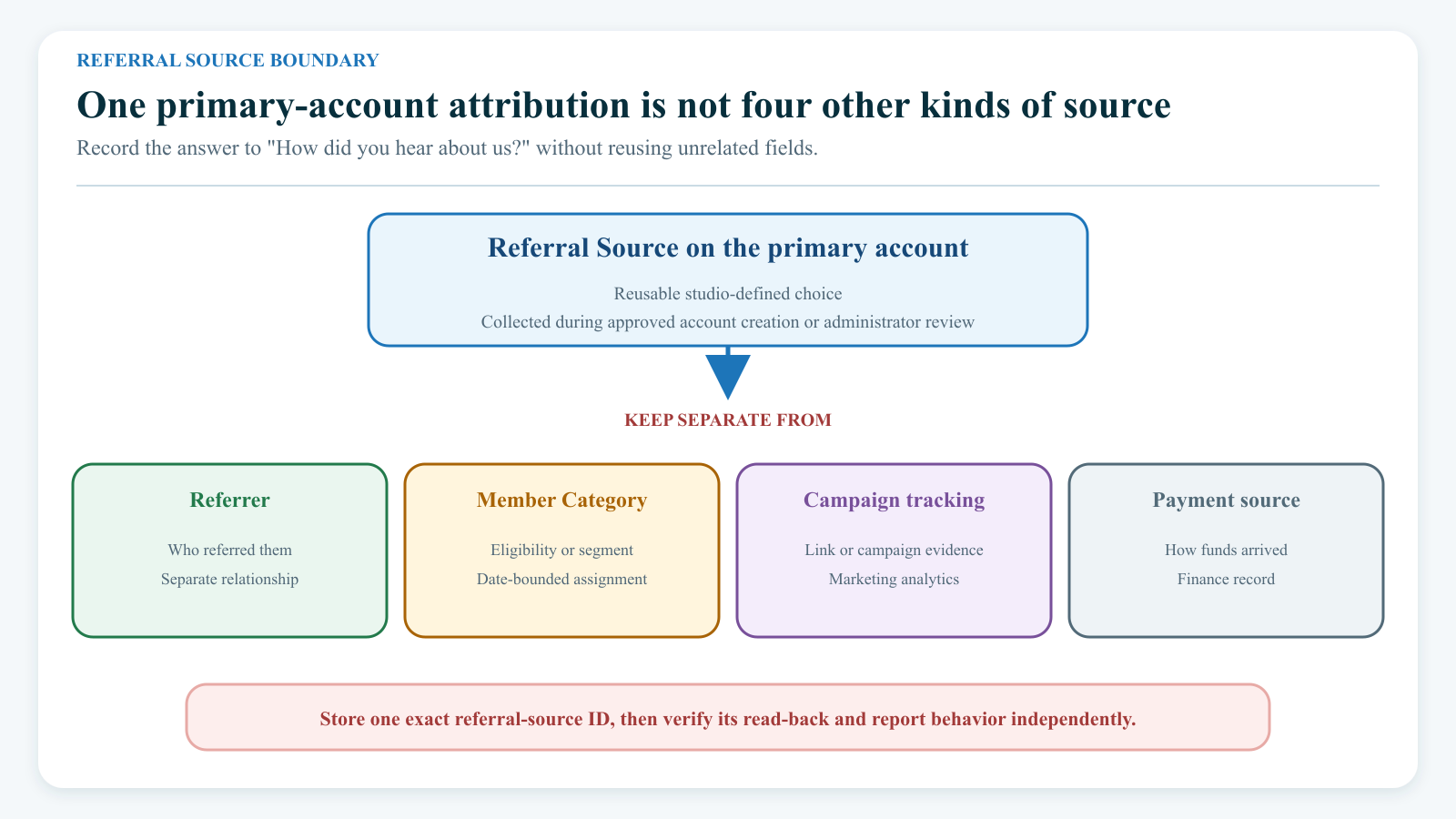
#Keep similarly named features separate
| Feature | What it records | Do not treat it as |
|---|---|---|
| How did you hear about us? / Referral Source | One category ID on an account or member record | A named referrer, a Member Category, or marketing consent |
| Referrer | A link to a specific existing account | A general channel such as search or social media |
| Member Category | A dated classification used by supported eligibility, pricing, content, messaging, and report workflows | Acquisition source |
| Campaign or link analytics | Visits, forms, tags, or campaign parameters outside this field | The client's confirmed answer in the studio record |
| Payment, ledger, or Revenue Explorer Source | The origin or classification of a financial record | Referral attribution |
| Sales to Not Registered Clients > How Heard | A source stored with a separate anonymous-purchase record | The primary account's saved source |
The setting Save the same referrer for all related students concerns the named Referrer relationship. It does not copy How did you hear about us? to each child.
#Before you begin
- Decide the business question the source list should answer.
- Inventory active and archived choices under Settings > Categories before adding anything.
- Define each proposed source in plain language and assign one owner to the list.
- Prefer durable channels over temporary wording. Record campaign detail in an approved analytics system when one category is not enough.
- Choose one fictional primary account that should receive a source and one that should remain Not Set.
- Prepare a signed-out account-creation check, a signed-in Edit Account check, and an administrator read-back.
- Record the starting values of
MEMBERS_HOWHEAR_ENABLEDandOC_REQ_HOWHEARbefore changing either setting. - Decide how you will preserve existing attribution before a rename, archive, move, or cleanup.
Warning: Renaming an existing source changes the label displayed for every current and historical record that still points to that source ID. Archiving prevents routine new selection but does not remove saved references. Neither action includes a dependency preview, approval step, revision history, or one-step undo.
Privacy note: Referral attribution can reveal a person's relationship, community, location, or behavior. Use broad operational choices and the minimum information needed. Do not create source names that contain a client's name, health information, protected characteristic, private group, or confidential partner detail.
#Design a useful source list
Use mutually understandable choices that staff and clients can select without guessing.
| Better choice | Why it is durable | Choice to avoid | Why it causes trouble |
|---|---|---|---|
| Client referral | Captures word of mouth without identifying another client | Referred by Jordan Smith | Puts personal information in a shared category label |
| Online search | Describes discovery through a search engine | Google April 2026 ad set 17 | Mixes channel, vendor, campaign, and date in one long-lived list |
| Social media | Gives a stable high-level channel | Facebook / Instagram / TikTok | A combined label cannot support a platform comparison |
| Community event | Can remain useful across seasons | Summer Fair booth | Becomes ambiguous when the event repeats |
| Walk-in or passing by | Describes physical discovery | Local | Different staff can interpret “local” differently |
| Other / Not sure | Gives a truthful fallback | Misc | Does not tell the person what belongs there |
If platform-level reporting is genuinely required, create separate, clearly defined choices and keep them stable. Do not change from broad channels to detailed campaign codes halfway through a reporting period and then compare the results as if the definitions had not changed.
Avoid near-duplicates such as Friend, Friend referral, and Referred by a friend. Capitalization and punctuation do not make them different sources, and the settings page does not prevent duplicate names.
Write a small source dictionary outside the category name itself:
- exact name and category ID;
- meaning and examples;
- order value;
- active-from and retired-on dates in the studio's change record;
- replacement source, when retired; and
- staff owner and review date.
#Add a Referral Source
- Open Settings > Categories.
- In Top Category, select How Hear Items or the studio's configured equivalent for How did you hear choices.
- Search active records for the proposed name and close variations.
- Select Show Archived and search again.
- Select New Category.
- Confirm that Top Category is still the referral-source group.
- Enter the approved Name.
- Enter an Order value when available. Leave gaps such as 10, 20, and 30 for later additions.
- Select Add once.
- Return to the same Top Category and confirm the new row's ID, name, order, and active state.
Referral Sources do not use Member Category icons. If icon controls appear, recheck Top Category before saving.
The source becomes eligible for active category-driven lists; it does not add a source to existing accounts. Some report filters show only source IDs already used by at least one member record, so a new zero-use source may not appear there yet.
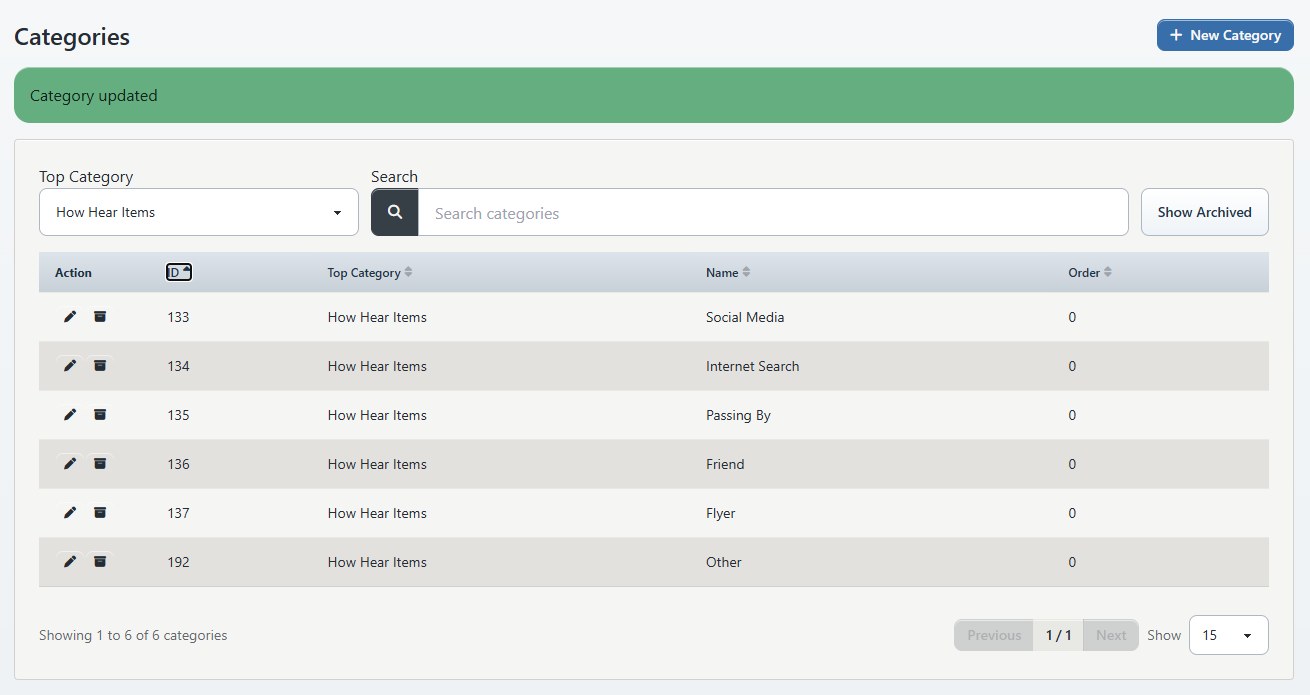
#If the referral Top Category is unclear
Studio data can label the root How Hear Items, How did you hear, or another configured equivalent. Do not choose a top category merely because its name contains “source.”
Use this verification sequence:
- Note the candidate root and one active child value.
- Open the standard Online Client account-creation form.
- Confirm that the child value appears under How did you hear about us?.
- Open an approved fictional primary account in the administrator area and confirm the same value is available there.
- If the two workflows disagree, stop and ask the product or support owner to verify the tenant's referral-source root mapping.
Do not move existing category records among possible roots as a trial. A parent change can remove a source from one collector while historical member records continue to point to its ID.
#Enable collection and decide whether it is required
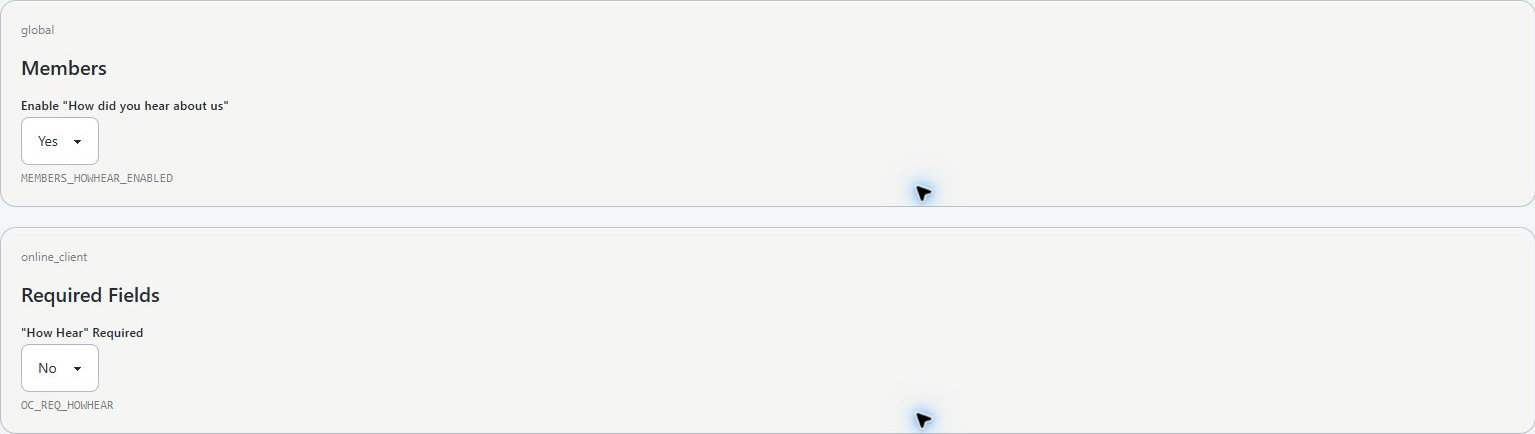
The source values and the field controls are separate.
- Open Settings > Global Settings.
- Search for
MEMBERS_HOWHEAR_ENABLED. - Confirm the description refers to enabling How did you hear about us.
- Record the current value, then enable it if the approved workflow requires the field.
- Open Settings > Online Client, or search across settings, for
OC_REQ_HOWHEAR. - Decide whether the Online Client must choose a source.
- Turn on Show changed only and confirm only the approved fields changed.
- Select Save changes once.
- Reload and confirm both saved values.
- Test every collection surface listed below.
Enabling the field controls visibility. Requiring it controls whether supported forms accept an empty or placeholder choice. A required field does not repair older Not Set accounts and does not prove every alternate registration path persists the selection.
If no active referral values are available, do not make the field required. A client can otherwise be asked to choose from only a placeholder or an incomplete list.
#Collect the source on a new primary account
#Administrator-created account
- Open Families or Students.
- Search active and archived records to avoid a duplicate.
- Select Add Guardian, Add Student, or Add Member, according to the studio's mode.
- Confirm that this is a new main client account, not Add Family Member.
- Under Common, find How did you hear about us?.
- Start typing the approved source name.
- Select the exact result from the suggestion list.
- Complete the rest of the account and select Save once.
- Reopen the account at Main Account > Common.
- Confirm the saved source label.
Do not type a label and leave it without selecting a result. The visible text and hidden category ID can otherwise disagree. The saved ID, not unselected display text, is the authoritative value.
The current administrator form normally shows this field only for a primary client account. It is not expected for a related child or staff login.
#Online Client account creation
- Open the studio's signed-out Online Client page.
- Select Create Account.
- Confirm How did you hear about us? appears when the feature is enabled.
- Choose one active source. If the field is required, confirm the placeholder cannot be submitted.
- Finish creating the fictional primary account.
- Sign in and open the account menu.
- Select Edit Account.
- Confirm the selected source appears after the account reloads.
- Ask an authorized administrator to open the same primary account and verify the value under Main Account > Common.
Standard account registration writes the source to the primary member record. Related students created in the same registration are separate records and do not need duplicate source values for the normal family-level model.

#Signed-in Online Client profile
When the field is enabled, a signed-in client can see it under the account menu's Edit Account page.
- Sign in as the approved fictional client.
- Open Edit Account.
- Choose an active source from How did you hear about us?.
- Select Save.
- Confirm Profile updated successfully.
- Reload and verify the selected value.
- Confirm the same value in the administrator account view.
Changing the field edits attribution on the same record. The current model does not preserve the former source, change date, actor, or reason as a referral-history row.
#Treat alternate registration paths as unverified collectors
Two current surfaces need special care:
- Quick Registration can display and require How did you hear about us?, but the reviewed new-member save path does not write that submitted value to the member record.
- The signed-out guest-cart lead-in can display and validate the source, but it stores the choice only in temporary session metadata and the reviewed sign-in handoff clears that metadata. Persistence to the resulting account or purchase was not confirmed.
Do not count either path as successful source collection merely because the form accepted the choice. Open the resulting primary account and verify its saved source. Until the product behavior is corrected and tested, use standard account creation or an authorized post-registration correction for attribution that must be retained.
#Correct the source on an existing account
- Open Families or Students.
- Search for and open the exact primary account.
- Confirm the account ID, family relationship, and client login group.
- Open Main Account > Common.
- Preserve the current source ID/label and the approved correction reason in the studio's change process.
- Search for the replacement source and select the exact result.
- Select Save once.
- Wait for the success message, reopen Common, and verify the value.
- Run the relevant people filter and report again.
Correct the primary account rather than copying a source to every child. If a related person has an unexpected source value from older data, preserve the family before-state and ask the data owner whether that row should be cleared or retained for historical reasons.
Changing a source does not change the account's DATE_ADDED. A report filtered by the original registration date can therefore move the record from one source row to another without showing when the attribution was edited.
#Use the Families or Students Source filter
The people list provides a useful record-level check before an aggregate report.
- Open Families or Students.
- Open the list filters if they are collapsed.
- Under Source, choose the intended referral value.
- Review active/archive and family/student list settings separately.
- Open a sample result and confirm the source under Main Account > Common.
- Repeat with one expected-excluded account.
The Source filter compares the member record's saved source ID. Its option list is built from IDs already used on member records, so an unused new source will not appear. An archived but still-used source can remain visible because the existing references still resolve to its category record.
The people list is a review tool, not a referral export confirmed by this article. Do not assume that a generic family spreadsheet contains the source unless you inspect the generated columns.
#Run the How did you hear report
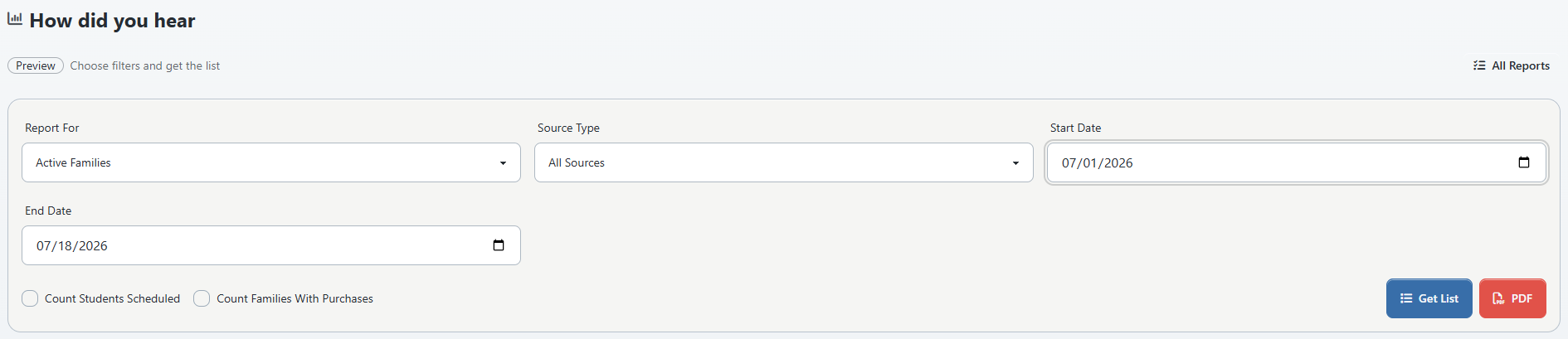
- Open Reports > How did you hear.
- Under Report For, choose Active Families, Not Active Families, or All Families.
- Under Source Type, choose All Sources or a used source shown in the list.
- Enter Start Date and End Date. Both are required.
- Decide whether to turn on Count Students Scheduled.
- Decide whether to turn on Count Families With Purchases.
- Select Get List.
- Review the source rows and grand total.
- Sort the visible table or change the number of entries shown as needed.
- Reconcile at least one source against the people-list filter and exact account records.
The date range uses each member record's Date Added when that column is available. It is not a purchase-date, enrollment-date, schedule-date, or source-assignment-date filter.
#Interpret the current columns accurately
| Report label | Reviewed current definition | Safe interpretation |
|---|---|---|
| Source | Current category name joined from the member's saved category ID; missing references become Not Set | Present-day label for the saved ID, not a historical name snapshot |
| Families / Total Families | Count of distinct matching member IDs | Matching member records; verify family-head scope before calling it unique families |
| Scheduled / Scheduled Students | For each matching member, count distinct active class IDs in the enrollment relationship and sum them | Active member-class relationships by distinct class per member, not unique students or dated visits |
| With Purchases / Families With Purchases | Count matching member IDs that have at least one purchase relationship | Member records with any purchase; purchase date and status are not limited by this report's registration-date range |
| Grand total | Sum of the report's matching member-record totals | Report population after member date/status/source filters |
The current Active Families and Not Active Families choices apply the saved active status directly to each member row. The reviewed query does not reconstruct family activity from a primary account plus related people, and it does not limit the population to PARENT_ID = 0 client records. This differs from the former report behavior.
Before publishing a percentage:
- export or record the report filters and retrieval time;
- identify the intended population, such as primary client accounts added during the period;
- compare several report totals with exact member IDs;
- exclude or separately explain related-student and non-client rows if present;
- label schedule and purchase columns with their actual definitions; and
- retain Not Set as a data-quality measure rather than silently redistributing it.
#Create the PDF
Select PDF to open a printable summary using the current filters. The PDF contains the aggregate source rows, optional counts, status label, date range, and grand total. It does not provide the underlying account names or IDs.
The How did you hear page does not currently offer an Excel or CSV export. Keep the PDF in an approved location, give it a meaningful period and filter description, and delete temporary copies according to the studio's retention policy.
Opening PDF runs the report separately. Confirm its filter labels and totals match the on-screen list before sharing it.
#Review anonymous-sale attribution separately
Reports > Sales to Not Registered Clients can show How Heard on ungrouped anonymous-purchase rows and can include it in its PDF or Excel output. That value comes from the separate anonymous-purchase record, not from the member account used by Reports > How did you hear.
- Leave Group by Item off when source, buyer, email, and purchase date are required.
- Treat the export as personal and financial data.
- Do not add its source counts to account-source counts without checking for overlap.
- A later account creation or sign-in does not automatically prove the anonymous source was transferred to that account.
- Archiving or renaming a category can change whether and how the saved source ID resolves in this report.
If your current Online Client sends signed-out shoppers to sign in or create an account before checkout, verify whether new anonymous-purchase rows are still created before using this report as a current acquisition source.
#Rename, reorder, move, archive, or restore a source
#Rename only when the meaning remains the same
- Preserve the category ID, current name, order, status, and report totals.
- Confirm the new label is only a clearer version of the same definition.
- Open Settings > Categories and choose the referral-source Top Category.
- Select Edit on the exact ID.
- Change Name and select Save.
- Verify account creation, profile, administrator account, people filter, report, and anonymous-sale report where relevant.
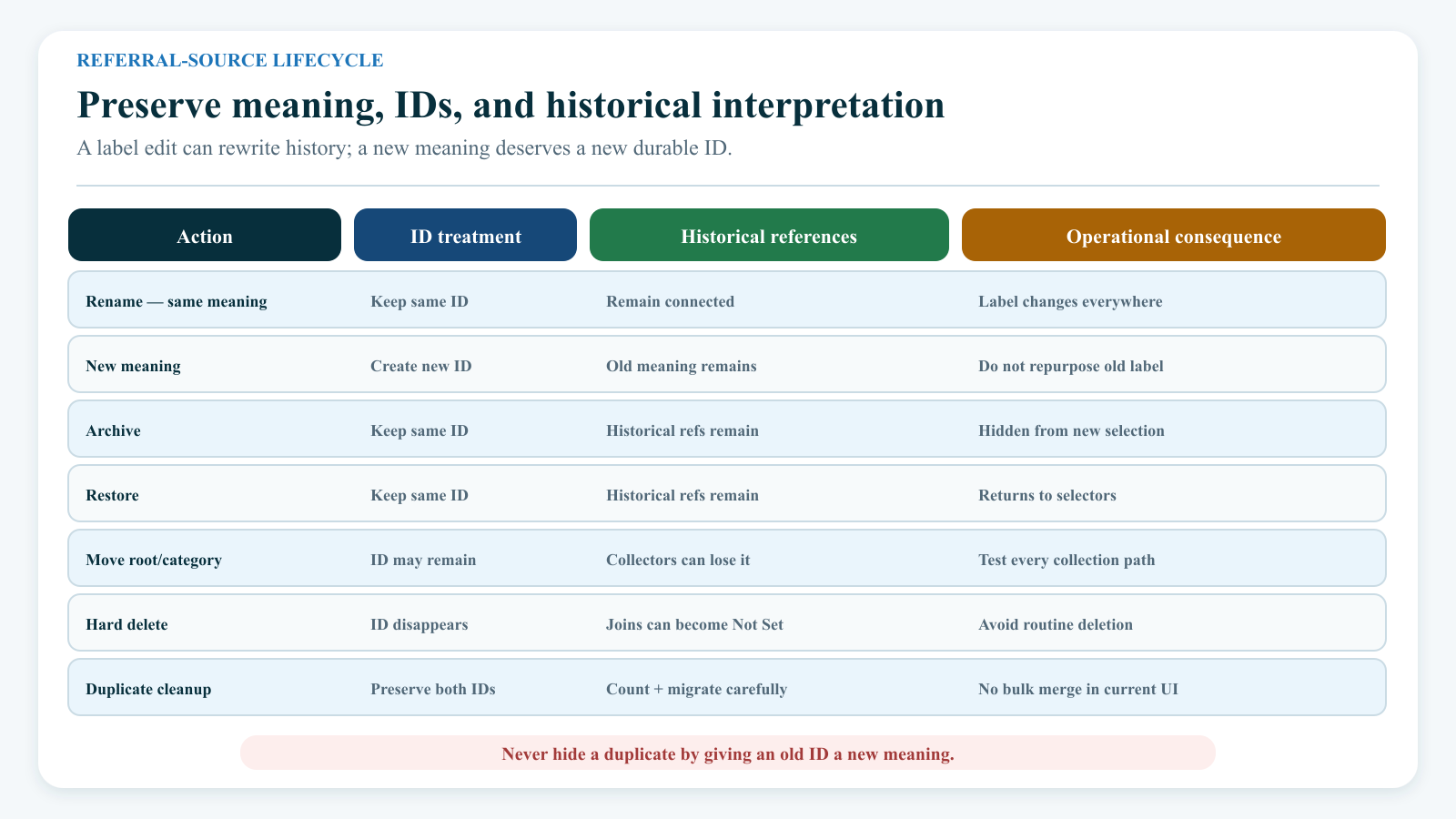
Because records store the ID rather than a copy of the label, all resolved historical rows now show the new name. If Community event and Partner referral are different meanings, create a new source instead of renaming one into the other.
Changing Order affects supported option-list order; it does not change saved accounts or report totals.
#Do not move a used source casually
Changing Top Category can make the source disappear from active registration/profile choices while existing account and report rows still hold its ID. If a source was created under the wrong root before anyone used it, verify zero use and correct it. If it has references, preserve them and use an approved migration plan rather than moving it as a quick fix.
#Archive a retired source
- Stop new campaign materials or staff instructions that use the source.
- Preserve its ID, definition, current references, and final reporting period.
- Create and test a replacement source when one is needed.
- Correct only records that are genuinely misclassified; do not rewrite valid historical attribution merely to empty the old source.
- Under Settings > Categories, select the referral-source Top Category.
- Select the row's Archive action.
- Confirm it no longer appears for new standard registration/profile selection.
- Confirm old account and report references still display as intended.
Archive is not deletion or reassignment. The current interface does not show a dependency count or ask for confirmation before changing the status.
#Restore an archived source
- Open Settings > Categories.
- Select the referral-source Top Category.
- Select Show Archived.
- Search by exact name or ID.
- Select Restore on the intended row.
- Verify the same ID is active and appears once in each collector.
- Recheck the source order and reporting definition before staff use it again.
The current archived view can include both active and archived rows. Read the row action and ID carefully instead of assuming every displayed item is archived.
#Do not hard-delete a source
No supported Delete action was found on the current category page. Do not remove a source directly from the database. Member and anonymous-purchase rows can retain its numeric ID; without the category row, reports can display those references as Not Set and the original label becomes harder to recover.
#Manage attribution quality
#Treat Not Set as useful information
Not Set can represent:
- an older account created before collection was enabled;
- a client who skipped an optional field;
- a quick-registration or guest-cart choice that was not persisted;
- a related student that correctly has no family-level source;
- a source ID whose category row is missing;
- an account imported without a valid mapping; or
- a report population that includes records outside primary client accounts.
Do not bulk-fill Not Set with the most common source. Investigate a sample, separate technical gaps from legitimately unknown attribution, and leave uncertainty visible.
#Do not infer consent
A client selecting Social media or Client referral has not consented to email, SMS, testimonial use, public acknowledgement, or sharing their identity with a partner. Review the studio's communication consent and privacy process separately.
#Keep the collection question neutral
Present the choices without suggesting a “better” answer. If Other / Not sure is needed, include it rather than forcing a client to choose an inaccurate channel. The current field does not provide a companion explanation box, so do not promise that clients can add detail.
#Review on a schedule
At least once per reporting cycle:
- compare active choices with the source dictionary;
- find duplicates and ambiguous labels;
- sample Not Set accounts by creation path;
- confirm standard account creation and profile read-back;
- inspect report family/member scope;
- compare anonymous-sale attribution separately;
- archive only sources that should no longer be selected; and
- record definition changes beside the reported trend.
#Recover from common problems
#A source was renamed incorrectly
Edit the same category ID and restore the prior name from the protected before-state. Reopen the report and a saved account. Because labels resolve from the current category row, correcting the same ID restores its displayed name for existing references.
#A source was archived by mistake
Use Show Archived, identify the exact ID, and select Restore. Reload account creation, Online Client profile, administrator lookup, and report filters. Do not create a replacement duplicate first.
#A source was moved to the wrong Top Category
Preserve the category ID and current references, then return it to the verified referral-source root only after product/data-owner approval. Test every collector. If records were created while it was under the wrong root, inspect those workflows for unintended use.
#Two source choices mean the same thing
Choose a survivor based on the approved dictionary. Stop new use of the duplicate, preserve both IDs and counts, and correct demonstrably misclassified accounts. No current bulk source-reassignment or merge action was found. Ask support or the data owner for a controlled migration when many records are affected; do not repurpose one label to hide the duplicate.
#The field is missing
Check the correct studio and record type, then:
- confirm
MEMBERS_HOWHEAR_ENABLEDis enabled; - confirm the source Top Category exists and is active;
- confirm at least one child source is active;
- reload the page after settings changes;
- test a primary client account rather than a related child or staff record; and
- compare standard registration with the administrator account view.
If the Online Client list works but the administrator lookup does not, or the reverse, the tenant's root mapping can be inconsistent. Stop changing category parents and ask support to reconcile the configured root.
#The required form accepts no useful choice
Turn off the required setting through an approved change if clients otherwise cannot continue. Restore or create the approved active choices, then test the placeholder and one real option before requiring the field again.
#A typed administrator value did not save
The text lookup requires an exact suggestion selection. Reopen the account, select the source from results, save, and read it back. Do not keep resubmitting typed display text.
#A new source is missing from the report filter
The report page builds its filter choices from source IDs already present on member records. Use All Sources for the first genuine record, then reload the report. In a demo tenant, an approved fictional primary account can establish the controlled fixture. Do not create fake production attribution just to populate a filter.
#Not Set is unexpectedly large
Compare primary accounts with related students, standard registration with Quick Registration and guest-cart handoffs, active with archived records, and current category IDs with missing references. The current report's broader member population can make Not Set larger than a primary-account review.
#Schedule or purchase totals look too high
Remember that the report date range applies to member Date Added, not to schedules or purchases. Scheduled sums distinct class IDs per matching member; With Purchases flags any purchase for a matching member without the same period/status restriction. Reconcile exact records before using either as a conversion metric.
#The report differs from an older PDF
Compare release, population, family/member scope, account status rule, source names/IDs, Date Added range, and optional metric definitions. The former report explicitly limited its base rows to active primary client accounts; the reviewed current query does not. Treat the difference as a product-verification issue, not evidence that the older total is automatically correct.
#An account merge changed attribution
The reviewed merge service can copy a source account's how-heard value only when the surviving account's value is empty. It does not reconcile two different populated sources, and the archived/source record can retain its own value. Reopen the survivor and source records, preserve both IDs, and apply the approved correction to the survivor deliberately.
#Confirm the complete workflow
Before declaring Referral Sources ready:
- Active and archived source choices were inventoried by ID.
- Every active choice has one documented meaning and unique name.
- The field-enabled and required settings were saved and read back.
- A standard signed-out account creation saved the selected source.
- The signed-in Edit Account page showed the same value.
- An administrator confirmed it under Main Account > Common.
- A required placeholder was rejected and an optional blank behaved as intended.
- A related student did not receive an unexplained duplicate source.
- Quick Registration and guest-cart results were treated as unverified until account read-back.
- The Families/Students Source filter included the expected account and excluded a control account.
- The report's member-record, Date Added, schedule, and purchase definitions were recorded beside the result.
- Not Set was reviewed rather than guessed away.
- The PDF was checked for matching filters and stored in an approved location.
- Rename, archive, restore, duplicate cleanup, and rollback owners are documented.
#Related articles
- Create and maintain categories
- Find and change Global Settings safely
- Add a family and student
- Edit account and family details
- Archive, restore, and merge accounts safely
- Client follow-up, retention, and contact reports
- Reports overview
- Prepare the Online Client for launch
- Roles and permissions
- Online Client: Create an account
- Online Client: Manage your account and family