Finance
Run late charges or miscellaneous charges safely
#Choose the right page
| Page | Start with | Typical result |
|---|---|---|
| Late Charges | A positive balance in a selected billing category and period | One fixed or percentage-based fee per matched family account |
| Misc Charges | A selected audience such as all accounts, selected classes, a season, or categories | One fixed charge per matched family or student |
Neither page collects money. Each one creates charges that increase account balances.
Warning: Both pages can add charges to many accounts. There is no duplicate-charge safeguard in the inspected run paths. Preview immediately before the run, select the final button once, and reconcile the resulting charge session before doing anything else.
#Before you begin
- Confirm the studio, operator, approved reason, charge amount, charge date, and charge category.
- Decide whether the charge belongs to each family account or to each student.
- Know the expected audience, approximate row count, and approximate total.
- Search Finance > Charge History and representative account ledgers for an earlier run with the same date, amount, category, and description.
- Confirm that no other staff member is preparing or running the same batch.
- Use a short, recognizable description that will make a duplicate easy to identify.
- Decide deliberately whether Apply Credit Automatically should be selected. It is selected by default on the current pages.
- Include at least one expected match and one expected exclusion in your review sample.
Important: The live menu and current implementation were inspected for this draft. No preview, charge run, credit allocation, session deletion, or other financial mutation was performed.
#Run late charges
#Understand the two categories
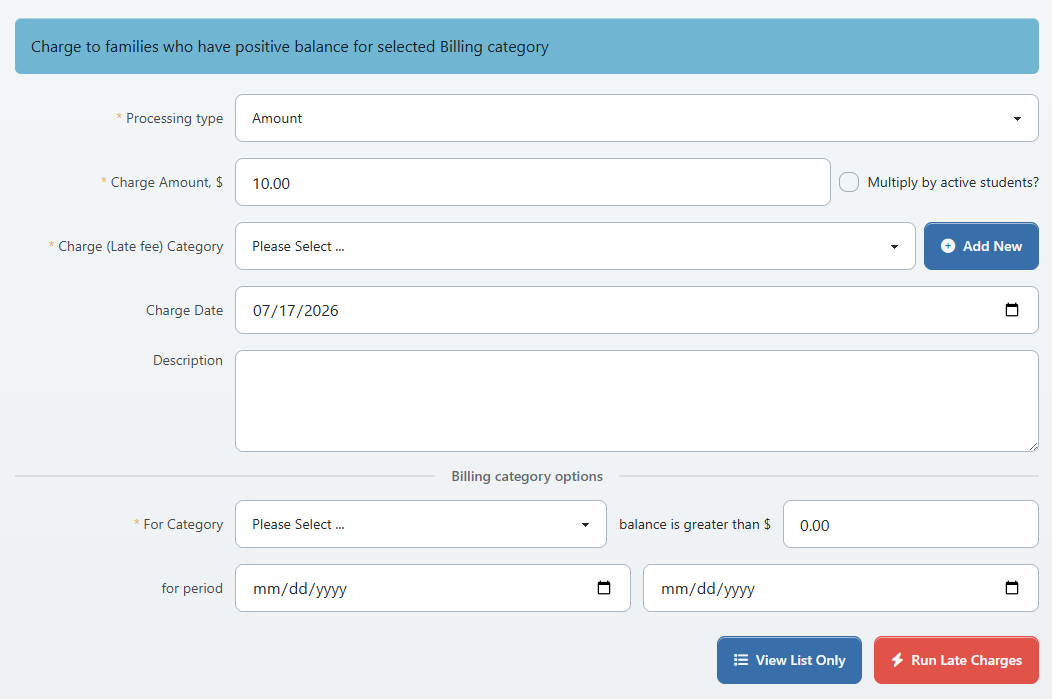
The Late Charges page uses two category choices for different purposes:
- Charge (Late fee) Category is assigned to the new fee.
- For Category identifies the existing charges whose unpaid balance determines eligibility.
Do not use the late-fee category in both places unless that is the studio's explicit policy. Doing so can make prior late fees part of a later eligibility calculation.
#Build the eligibility preview
- Open Finance > Late Charges.
- Under Processing type, select Amount or Percentage.
- For Amount, enter the fixed fee. Select Multiply by active students? only when the approved policy charges the fixed amount once for each active student in the family.
- For Percentage, enter the approved percentage. The projected fee is calculated from the matched account balance.
- Select the Charge (Late fee) Category for the new charge.
- Confirm Charge Date.
- Enter a clear Description.
- Under Billing category options, select For Category.
- Enter the minimum balance in balance is greater than.
- Set the start and end dates under for period. These dates limit the existing charges used to calculate the balance.
- Review Apply Credit Automatically.
- Select View List Only.
The preview lists each matched Family, the selected billing Category, the outstanding Balance, and the projected Charge. It also shows the number of matched families and the projected total.
Important: A fixed fee with Multiply by active students? selected uses the number of active students connected to the family. When no active child count can be found, the inspected calculation falls back to one. Review every multiplied amount rather than assuming the count is correct.
Important: The minimum-balance comparison currently includes a balance equal to the entered threshold within a small rounding tolerance. If the policy means strictly greater than a threshold, include an equal-balance test account in controlled verification before publication.
#Review the late-charge preview
- Record the processing type, amount or percentage, student-multiplier choice, both categories, date period, threshold, charge date, description, and credit choice.
- Record the matched-family count and projected total.
- Confirm that several displayed balances agree with their account ledgers for the same billing category and period.
- Confirm the projected fixed or percentage fee for each sample.
- Check an account below the threshold, an account with no balance in the category, and an account outside the date period.
- Search for a prior fee with the same charge date, category, amount, or description.
- Resolve every unexpected or duplicate-looking row before continuing.
The preview is not a frozen batch. The run recalculates eligibility from current records. If a payment, credit allocation, charge, or account relationship changes, load a new preview.
#Create the late-charge batch
Proceed only when the immediate preview matches the approved scope.
- Confirm that all fields still match the recorded preview.
- Confirm that another operator has not already run the batch.
- Select Run Late Charges once.
- Review the confirmation Run late charges?
- Accept the confirmation once.
- Wait for the result without refreshing, navigating away, or selecting the button again.
- Record the displayed created count and total.
When supported by the studio's schema, the run creates a charge session named Auto Charge - Late and links each new family charge to it.
Important: The current service can commit successful rows even when another row fails. The page's success notice displays only the created count and total; it does not display the returned row-level errors. A lower count is not permission to rerun the full batch.
#Run miscellaneous charges
#Define the target carefully
The Misc Charges page separates two decisions:
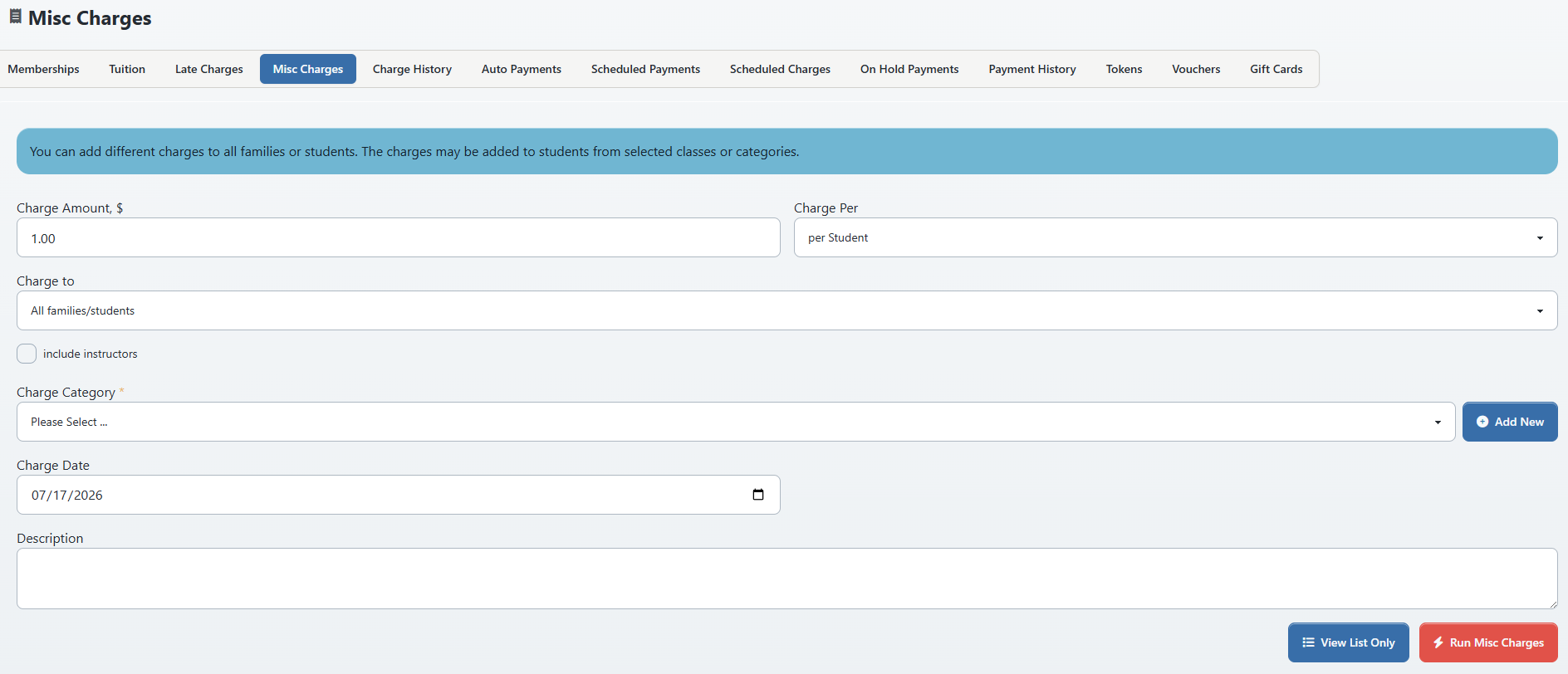
- Charge Per controls whether a row is created for each Student or each Family.
- Charge to controls which records are eligible.
Available target choices are:
| Charge to | Current selection behavior |
|---|---|
| All families/students | Uses the broad family or student audience for the selected Charge Per choice. |
| Families/students who are active in selected Classes | Requires one or more classes and uses active class relationships where supported. |
| Students who are active in selected Season | Requires a season and uses schedule or class-season relationships available to the studio. |
| Students in Categories | Requires one or more member categories and uses active category relationships and their active date windows where supported. |
Warning: The current broad All families/students query does not apply an explicit active-member status filter. Its preview is the control that protects against charging archived or otherwise unintended records. Do not run a broad batch until every unexpected account type has been investigated.
Selecting include instructors broadens the target. Leave it clear unless instructors are explicitly part of the approved charge population.
#Build the miscellaneous-charge preview
- Open Finance > Misc Charges.
- Enter Charge Amount.
- Select Charge Per: per Student or per Family.
- Select Charge to.
- Leave include instructors clear unless the approved audience includes them.
- For a class target, select every intended Class and no others.
- For a category target, select every intended Category and no others.
- For a season target, select the intended Season.
- Select the new charge's Charge Category.
- Confirm Charge Date.
- Enter a concise Description.
- Review Apply Credit Automatically.
- Select View List Only.
The preview shows Target, Category, Date, Amount, and Notes, followed by the matched-target count and total.
#Review the miscellaneous-charge preview
- Record every input, the matched-target count, and the total.
- Confirm whether a family with several students produces one family row or several student rows as intended.
- Check an expected account from every selected class or category.
- Check a person whose enrollment or category relationship is inactive or outside its active dates.
- Check an instructor, an archived account, and a family with no matching student where those cases exist.
- Confirm the category, charge date, amount, and description on several rows.
- Search account ledgers and Charge History for a prior run with matching details.
If the count is unexpectedly close to the studio's entire database, stop and revisit Charge Per and Charge to before continuing.
#Create the miscellaneous-charge batch
- Load a fresh preview with the final choices.
- Confirm that the count and total match the approved scope.
- Select Run Misc Charges once.
- Review the confirmation Run misc charges?
- Accept the confirmation once.
- Wait for the result without refreshing or submitting again.
- Record the displayed created count and total.
When supported, the run creates a charge session named Auto Charge and links the new charges to it. Student-level rows are linked to the student and, when known, the family account. Family-level rows are linked to the family account.
As with late charges, successful rows can remain committed when another row fails. Reconcile the result; do not rerun the original audience to fill a difference.
#Confirm either batch
- Open Finance > Charge History.
- Find the newest Auto Charge - Late or Auto Charge session.
- Compare its charge count and total with the approved preview and the displayed run result.
- Open ledgers for representative included accounts.
- Confirm the charge date, category, description, student or family association, amount, paid amount, and balance.
- Open an expected excluded account and confirm that no charge was created.
- If Apply Credit Automatically was intended, confirm the actual charge allocation and remaining unapplied credit on the ledger.
- Record any mismatch before starting another batch.
Important: In the inspected run services, Apply Credit Automatically is stored on each charge when that field exists. The run code did not itself demonstrate a payment-to-charge allocation. Treat the checkbox as an instruction that still requires ledger confirmation.
#If the page stalls or the result is wrong
- Do not submit the batch again.
- Record the time, operator, inputs, preview count and total, and any browser message.
- Check Charge History for a new session.
- Search several expected account ledgers by charge date, category, description, and amount.
- Determine whether the result is complete, partial, or absent.
- Have an authorized finance administrator choose a correction method.
Warning: Deleting a charge session is destructive and can leave payment records as unapplied credit. It is not a general undo button. Follow the approved correction procedure in Run tuition safely before deleting any batch session.
#Troubleshooting
#The late-charge preview is empty
Check For Category, the date period, minimum balance, and account ledger. A payment or credit allocation may have reduced the selected-category balance. An empty preview is not a reason to select Run Late Charges.
#The late fee is higher than expected
Check Processing type, percentage, Multiply by active students?, and the family member relationships. Compare the balance and multiplier with the account record.
#The miscellaneous-charge preview is empty
Confirm that the selected classes, season, or categories contain matching students and that active relationship records exist. Confirm whether Charge Per is set to family or student.
#An archived or unintended account appears
Do not run the batch. Narrow the selected audience where possible and preserve the unexpected account ID as a verification case. A broad target currently requires manual audience review.
#The created count is lower than the preview
Do not rerun. Compare the charge session and ledgers with the preview list to identify exactly which rows are absent. Preserve the run time and response details for support because row-level errors may not be visible in the success notice.
#Credit did not apply
Review the charge's Paid and Balance values and the account's unapplied payments. Use the explicit credit-allocation workflow only after the batch itself is reconciled; do not create a second payment.