Online Client
Online Client navigation and account menu
Your studio controls which features appear and can customize some labels. It is normal for another studio’s menu to look different.
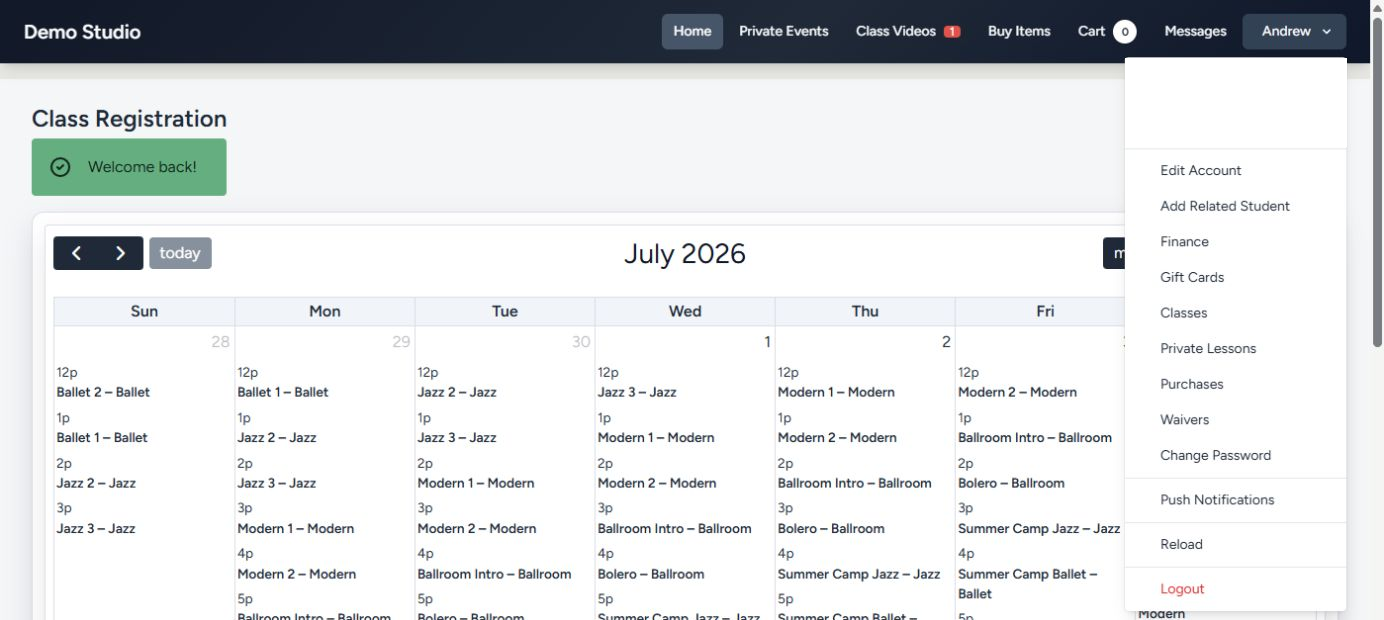
#Main navigation
The signed-in a test studio menu included:
- Home — the class registration calendar in this studio configuration;
- Private Events — available private-event scheduling;
- Class Videos — videos the account is allowed to view;
- Buy Items — products, packages, memberships, and other configured Sales Items;
- Cart — pending selections, with an item-count badge;
- Messages — messages shared through the Online Client area.
Some studios can show other items, hide unused items, or use different labels.
#The account menu
Select your name to open account-related destinations. Depending on studio settings and your account, these can include:
| Item | Purpose |
|---|---|
| Edit Account | Update allowed profile and contact fields. |
| Add Related Student | Add a family/student relationship when permitted. |
| Finance | Review ledger information and available payment actions. |
| Gift Cards | View or redeem supported gift cards. |
| Classes | Review the account’s class relationships. |
| Private Lessons | Review, book, reschedule, or cancel supported lessons. |
| Purchases | Review purchased items, packages, or entitlements. |
| Waivers | Review and complete available agreements and files. |
| Change Password | Change the Online Client password. |
| Push Notifications | Manage supported browser notification preferences. |
| Logout | End the Online Client session. |
Visibility is conditional. For example, a studio that does not use private lessons, gift cards, videos, or online payments may hide those destinations.
#Cart count
The number next to Cart shows pending cart items. It does not mean that enrollment or payment is complete. Open the cart and finish checkout to submit the transaction.
#Administrator impersonation
Studio administrators can temporarily view an account as the client. When this happens, a banner identifies the session as an impersonated client view.
If you see that banner during normal use and you are not working with studio support, sign out and open your normal Online Client link again.
#Guest versus signed-in navigation
People who are not signed in see a smaller public menu. Public class browsing and the signed-in Classes destination are not always the same page:
- public visitors can browse the available class catalog;
- signed-in clients can see account-specific classes and eligibility;
- the studio can require sign-in before registration, payment, or account actions.
#If an item is missing
- Confirm you are signed into the correct studio and account.
- Open your account menu again after the page finishes loading.
- Check whether the task belongs under Home, Classes, Finance, or Purchases rather than the top menu.
- Contact the studio if the feature is still unavailable. The studio controls availability and permissions.