Finance
Create and send statements and invoices
The current interface calls several actions Invoice, PDF Invoice, or Email Invoice. They generate the same kind of live account statement. They do not create a numbered invoice record with a saved issue status, payment status, or immutable revision.
#Choose the right output
| Need | Start here | Result |
|---|---|---|
| A statement for one account | Family or student account > Ledger > Invoice | A filtered or selected-charge PDF, or an email with that PDF attached |
| A complete account activity record | Family or student account > Ledger > Print Ledger | A PDF with charge and payment tables; no due date and no email action |
| A statement for one charge | The charge row's print or email action | A statement containing that charge |
| A list of accounts that currently owe money | Reports > Client Statements > Show Report | An on-screen list of matching positive-balance parent accounts |
| A printable batch | Reports > Client Statements > PDF | One combined PDF containing every account matched by the report filters |
| Proof of one recorded payment | The payment row's Receipt PDF or Email Receipt action | A receipt for that local payment record, not a statement |
Creating any of these PDFs is read-only. It does not add a charge, collect a payment, apply credit, mark an account paid, or record that a client received the file.
#Understand the balance before sending
A statement is built from charges and the payments applied to those charges. Its summary normally shows:
- Charges/Debits - the included charge amounts;
- Payments/Credits - amounts applied to those included charges; and
- Balance - included charges minus their applied amounts, with no negative balance shown.
An unapplied payment or account credit is not the same as an applied payment. It may not reduce the statement balance even though value exists on the account. A scheduled or pending payment is also not a completed payment and is not deducted merely because an instruction exists.
Important: Before sending a collection statement, check for unapplied credit and pending or recently processed payments. The batch report selects accounts from charge balances and can still include a family that has separate unapplied credit.
The statement is generated from current ledger data at the moment the PDF is created. If a charge or payment application changes later, a newly generated statement can differ from the earlier attachment.
#Before you begin
- Confirm that you are in the correct studio.
- Open the parent or account-holder record used for family billing.
- Confirm the account-holder name, postal address, phone numbers, and email address.
- Reconcile the relevant charges, applied payments, unapplied credit, and scheduled activity on the Ledger.
- Decide whether the client needs all matching charges, unpaid charges, or an exact selection.
- Decide the charge start date, season, category, and due date.
- Confirm that studio branding, contact details, and statement footer text are current.
- Use a fictional account for the first test and open a PDF before using any email action.
Warning: A statement can contain a name, postal address, phone numbers, internal client ID, student names, enrolled classes, charge notes, balances, payment references, and studio contact details. Treat the PDF and email as confidential financial records.
#Open the correct account
- Open Families or Students.
- Select the account-holder record.
- Select Ledger.
- Compare the account header with the family and email address you intend to contact.
The statement recipient and address block come from the record being used. A child record is not automatically a copy of the entire parent ledger. For family billing, begin with the parent or account-holder record unless you intentionally want only activity associated with a child.
#Set the single-account scope
The ledger controls do not all have the same effect on a statement.
| Ledger control | Effect on an all/filtered statement | Effect on a selected-charge statement |
|---|---|---|
| All / Unpaid | Unpaid keeps charges with a remaining applied balance; All includes paid and unpaid matching charges. | Explicit charge selection takes priority. |
| Season | Limits charges to the selected season. | Explicit charge selection takes priority. |
| Category | Limits charges to the selected charge category. | Explicit charge selection takes priority. |
| Invoice Date | Acts as a charge start date: charges on or after that date are included. It is not the document's issue date. | Ignored when exact charge IDs are selected. |
| Due Date | Used by the email action. For a PDF, enter the due date again in the Invoice dialog. | Same behavior. |
| Search | Filters the on-screen tables only. It is not passed into the statement generator. | It can help locate rows, but only checked charge IDs determine the selection. |
Changing a filter can clear the current selection. After setting filters, check the intended rows and review the checked set again.
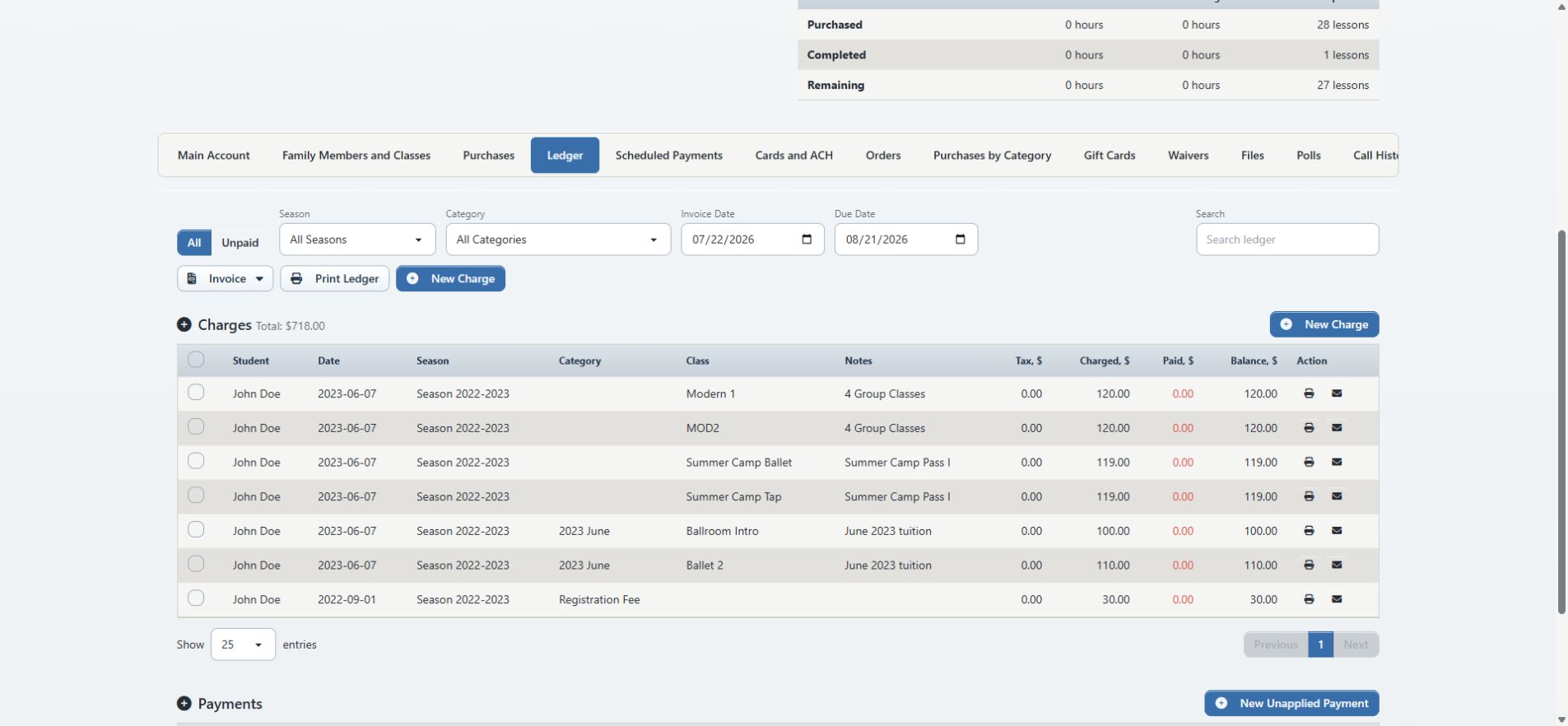
#Date details that matter
- The Invoice Date field on the account ledger is currently a lower charge-date boundary. It does not print as the statement date.
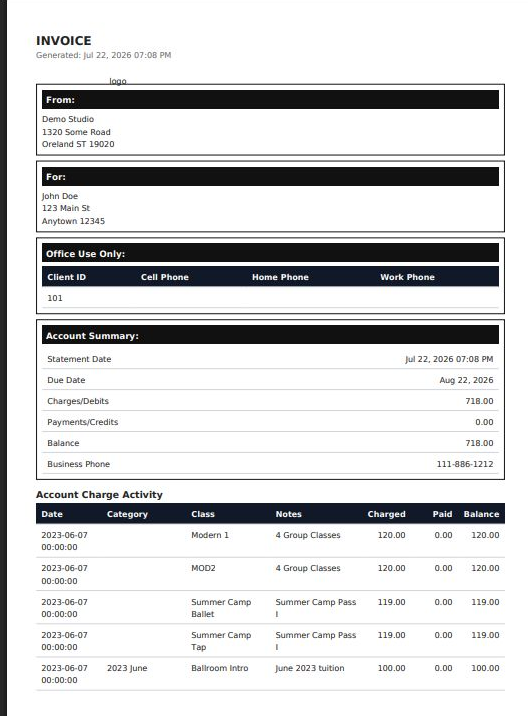
- A single-account PDF prints its actual generation date and time as the statement date.
- The ledger's PDF action opens an Invoice dialog with its own Due Date field. The toolbar due date is not automatically copied into that dialog in the current interface.
- Leaving the PDF dialog's due date blank uses the studio's configured default due-date rule.
- The ledger email action uses the toolbar Due Date, which initially appears 30 days from the current date in the inspected interface.
- A due date is descriptive. Generating a statement does not create a late fee, schedule a payment, or alter when a charge is legally due.
#Preview a PDF for one account
Use this path before sending an email.
- Set All or Unpaid, Season, Category, and Invoice Date.
- Open Invoice.
- Select PDF Invoice.
- In the Invoice dialog, enter the intended Due Date.
- Select Process.
- Allow the new browser tab if a pop-up is blocked.
- Review every page of the PDF.
- Compare the charge rows and totals with the ledger using the same scope.
- Use the browser's save or print control only after the PDF is correct.
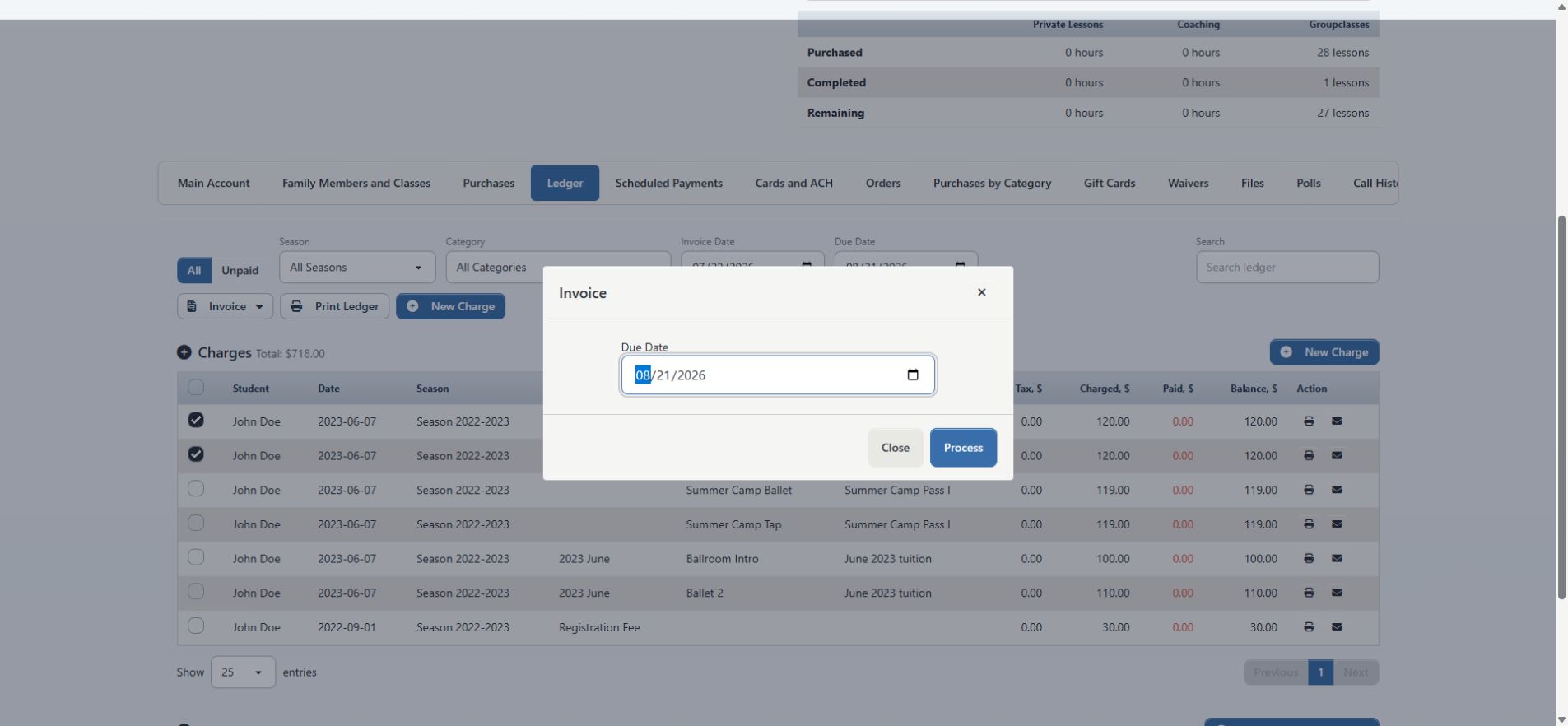
The PDF opens inline with a timestamped statement filename. Opening it does not save a permanent copy inside the account.
#Review the PDF
Confirm all of the following:
- statement title and studio identity;
- account-holder name and address;
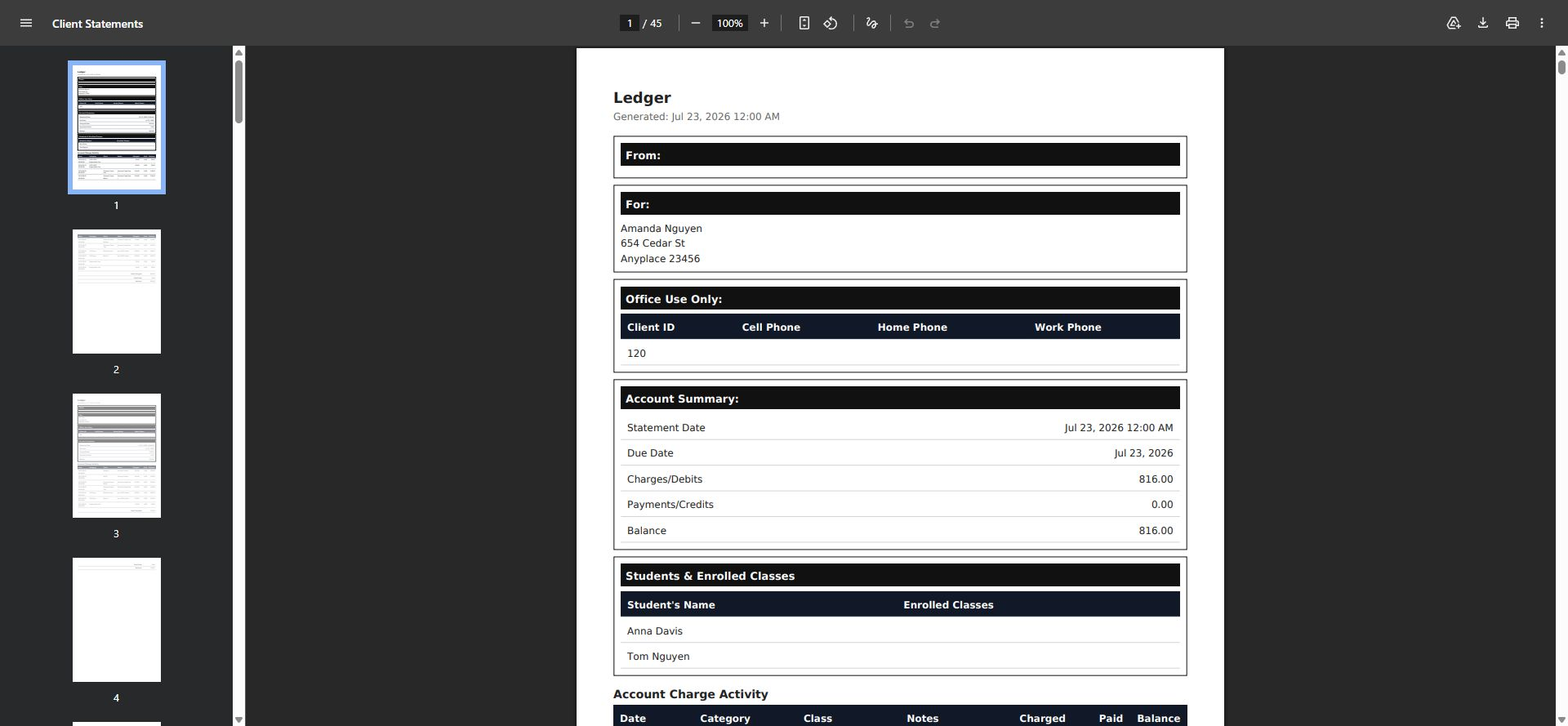
- client ID and phone information in the current Office Use Only block;
- statement and due dates;
- student and enrolled-class information;
- charge dates, categories, classes, notes, charged amounts, applied amounts, and balances;
- the relationship between Total Charged, Total Paid, and Balance;
- any separate payment section enabled by studio settings;
- footer text and payment instructions; and
- that no internal note contains information that should not be shared.
If any field is wrong, close the PDF and correct the source record or statement setting. Do not edit a downloaded PDF as a substitute for correcting the account.
#Create a statement for selected charges
Use an exact selection when a client should receive only particular charges.
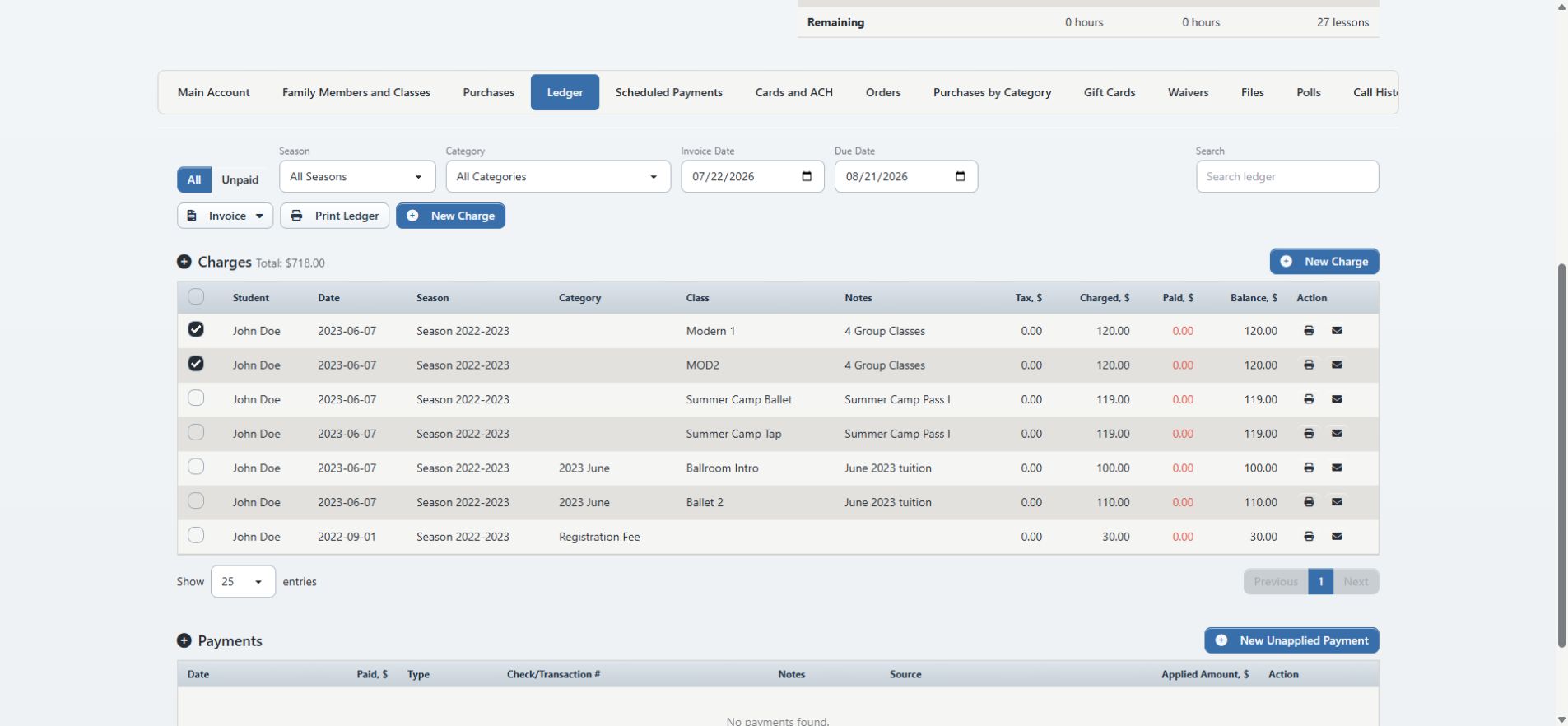
- Set filters to make the charges easy to find.
- Check each intended charge row.
- Open Invoice.
- Select PDF for Selected Charges.
- Enter the due date in the Invoice dialog.
- Select Process.
- Confirm that every selected charge, and no unintended charge, appears.
- Recalculate the displayed totals against those rows.
You can also use a charge row's print action to create a one-charge statement.
An explicit charge selection overrides the season, category, unpaid, and charge-start filters in the statement builder. This helps preserve the chosen rows, but it also means an older or paid charge can appear when it was selected intentionally or accidentally.
#Email a statement for one account
Emailing is a delivery action. Complete the PDF review first.
- Return to the account's Ledger.
- Recheck the scope and toolbar Due Date.
- To send all matching charges, open Invoice > Email Invoice.
- To send exact charges, check them and open Invoice > Email Invoice for Selected Charges.
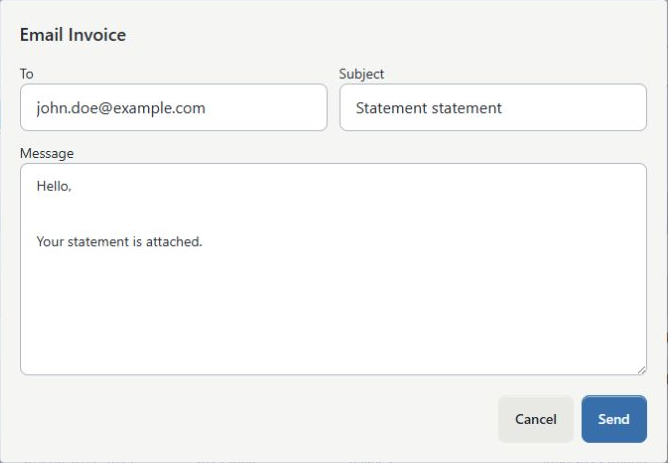
- In To, confirm the entire email address. The account address is only a default and can be replaced.
- Review the Subject.
- Review the Message and remove internal instructions or private notes.
- Confirm once more that the opened account and recipient belong together.
- Select Send once.
- Wait for the success or error result before closing the page or trying again.
The email contains the entered message and a file named statement.pdf. The PDF is freshly generated from the selected account and scope at send time.
The sender address comes from the studio's email configuration. If the studio sender is missing or its domain is rejected by the provider, the statement is not sent and the interface returns an error.
Important: Email sent means the configured mail service accepted the send operation. It does not prove that the recipient's mailbox delivered, displayed, or read the message.
The system attempts to record the recipient, subject, body, time, and sent or failed status in message history. The history entry is not an archived copy of the attached PDF. Use delivery status, when available, to distinguish submitted, delivered, bounced, and other outcomes.
#Create a batch with Client Statements
The current report is a batch PDF workflow, not a bulk-email screen.
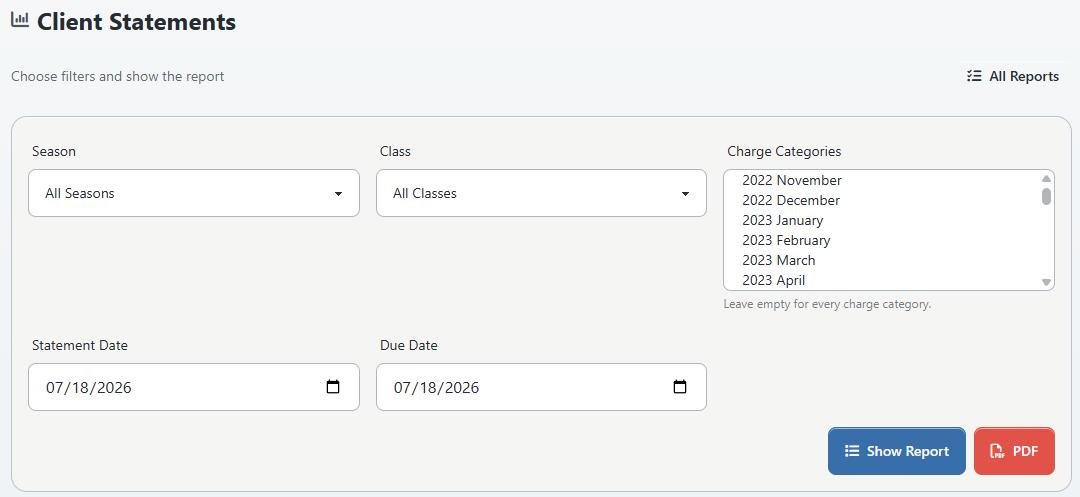
- Open Reports > Client Statements.
- Choose a Season, or leave All Seasons.
- Choose a Class, or leave All Classes.
- Choose one or more Charge Categories, or leave the list empty for all categories.
- Enter the Statement Date.
- Enter the Due Date.
- Select Show Report.
- Review the parent ID, parent name, students, and balance for every returned account.
- Select the row's PDF link to inspect one family.
- Open that family's ledger and reconcile its charges, applied payments, and unapplied credit.
- After the sample and the complete list are correct, select the red PDF button.
- Review the combined file before saving, printing, or distributing it.
Selecting the report's PDF button includes every account matched by the filters. The current page has no checkboxes for excluding individual rows. Narrow the filters or use the per-account workflow when only particular families should be included.
#How the batch filters work now
| Report control | Current behavior |
|---|---|
| Season | Restricts the balances used to find accounts and the charge rows in the combined statements. |
| Class | Selects parent accounts whose child is enrolled in the class. It does not restrict each statement to charges from that class. |
| Charge Categories | Restricts both account selection and included charge rows to those categories. |
| Statement Date | Controls the displayed date in the combined batch PDF. |
| Due Date | Controls the displayed due date. |
| Positive balance | Only active parent/client accounts with a charge balance greater than zero are returned. Zero-balance and credit-balance accounts are omitted. |
The report balance is based on charges minus amounts applied to them. It does not net a separate unapplied payment against the result.
#Single-row PDF versus combined PDF
The PDF link in a preview row is convenient for checking one account, but it currently uses the single-account generator. It carries the selected season, charge categories, and due date. The report's Statement Date is not honored by that single-row generator; the PDF shows its generation date and time instead.
Use the combined PDF when an exact batch statement date matters, and verify the date before distribution.
#Current batch delivery limitation
The inspected Client Statements page exposes Show Report, per-row PDF links, and a combined PDF button. It does not expose Email Statements. To email a statement in the current interface, use the intended family's Ledger and send it individually after preview.
Do not treat an older help video or retired screen that shows a batch-email button as proof that the action is available now.
#Let clients download their own statement
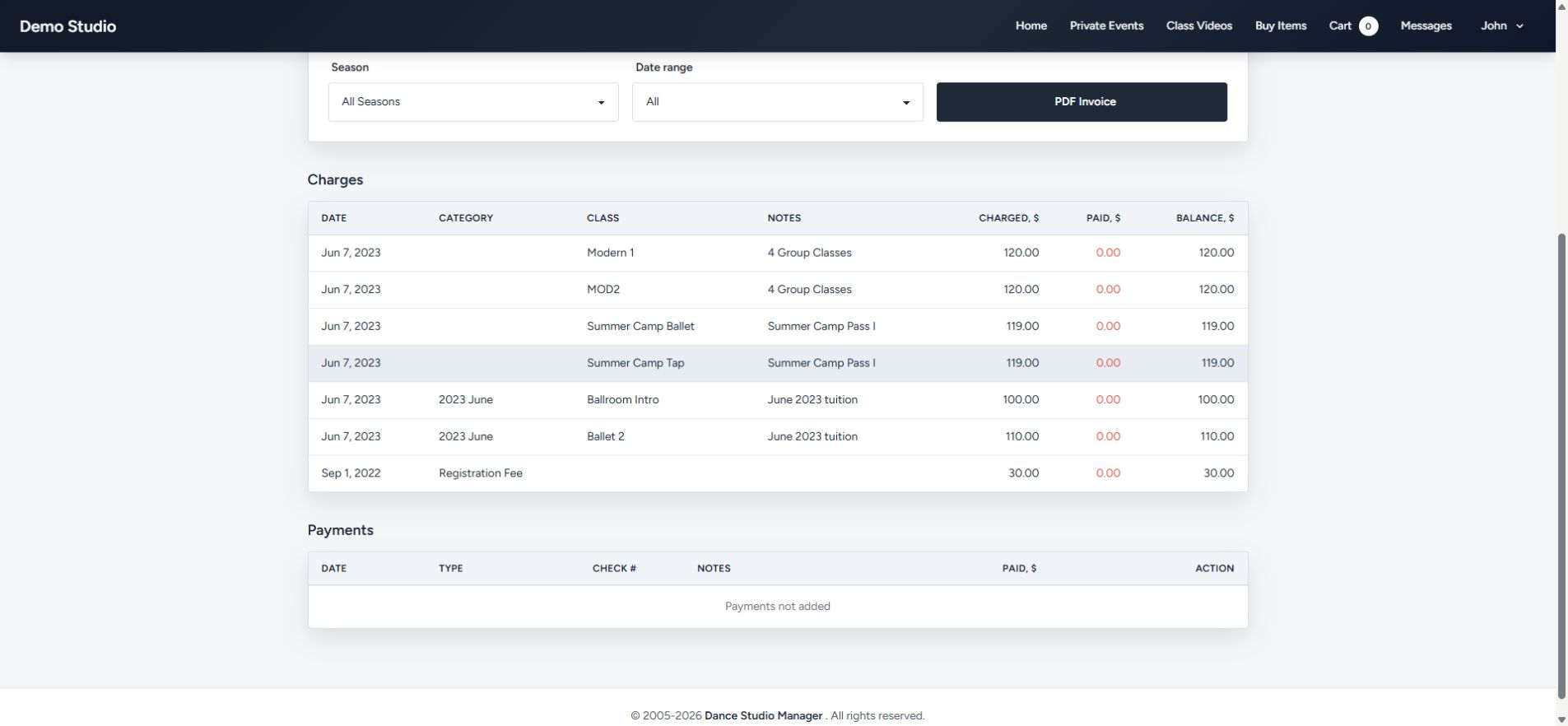
Studios can optionally show PDF Invoice in the Online Client Finance > Ledger page.
When enabled, a signed-in client can:
- open Finance > Ledger;
- choose All Seasons or one season;
- choose All, Last Month, or Last Year; and
- select PDF Invoice.
The Online Client receives only the statement for the member ID in the signed-in client session. The studio can hide the entire ledger or only the PDF invoice control.
In the current date-range implementation, Last Month means from the first day of the previous month forward, and Last Year means from January 1 of the previous year forward. Neither option supplies an ending date. Explain this scope if a client expects only one completed calendar period.
The Online Client action creates a PDF only. It does not email the file, create a payment, or confirm that a balance is collectible.
#Statement appearance and studio settings
The generated statement can use studio-level settings for its title, logo, due-date display and emphasis, summary emphasis, optional payment section, charge and payment start dates, footer text, and paper size.
These settings affect every later statement that uses them. Test changes with a fictional account before publishing or sending another batch.
Some controls documented in older help material are not visibly honored by every current PDF path. In particular, older description-layout choices and batch/single-account defaults should be confirmed in the generated file rather than assumed from the setting name.
#Files, retention, and privacy
- Statement PDFs open in a new browser tab and can enter browser history, recent-file lists, print queues, download folders, backups, and shared-device caches.
- The emailed attachment is a point-in-time file, but DSM does not keep that attachment as a permanent invoice revision in message history.
- Use the studio's approved secure storage and retention policy if an exact copy must be preserved.
- Give saved files a controlled name that identifies the account and statement date without exposing unnecessary information.
- Do not place statement files in a public link, ordinary shared folder, or unencrypted message.
- Do not include full card numbers, bank details, security codes, payment tokens, passwords, or processor credentials in charge notes, email text, screenshots, or support requests.
- Use synthetic accounts and reserved test-domain addresses for screenshots, videos, and training.
If you print a batch, collect every page immediately. A single combined PDF can contain information for many unrelated families.
#Reconcile after generation or delivery
#After creating a PDF
- Record the exact filters and generation time when the file will be used operationally.
- Compare at least one statement with the same account ledger.
- Confirm the number of accounts in a batch and scan the first and last pages.
- Check for unapplied credit and recent payments before requesting money.
- Save the approved file only under the studio's retention policy.
#After emailing
- Check Message History for the account and recipient.
- Review available delivery state rather than relying only on the send message.
- If delivery is pending or unclear, wait and investigate before sending a duplicate.
- If it bounces, correct the address with the client's authorization, regenerate the current statement, and send once.
- Record any separate follow-up according to studio policy.
Sending a statement does not reconcile the ledger. Continue to use the ledger, payment history, unapplied-payments review, and processor evidence for financial confirmation.
#Current limitations to account for
- The words invoice and statement refer to the same generated statement workflow in the inspected ledger. There is no separate numbered invoice entity or invoice lifecycle.
- PDFs are generated from current data and are not saved as immutable account documents.
- A statement can render no more than 100 charge rows in the current ledger service. For a scope with more than 100 matching charges, totals can cover a wider set than the rows printed. Narrow the scope and escalate for a verified export before sending.
- The account ledger's Search filter is not part of statement generation.
- The account ledger's Invoice Date is a charge start date, not an issue date.
- Selected charge IDs override the season, category, unpaid, and start-date filters.
- The account PDF dialog has a separate due-date input; the toolbar value is not automatically copied into it.
- The Client Statements Class filter selects families by enrollment but does not limit statement line items to the class.
- The preview row's PDF does not honor the report's selected Statement Date.
- The current Client Statements page has no batch-email control or per-row exclusion checkboxes.
- Unapplied payments, scheduled payments, and pending processor activity are not automatically netted into charge balances.
- Message history records the communication details, not a retrievable copy of the attached statement PDF.
#Troubleshooting
#The statement has no charges
Confirm that you opened the parent/account-holder record, then review Season, Category, Unpaid, and Invoice Date. A studio-level statement start date can also exclude older rows. For an exact statement, clear the selection and select the intended charges again.
#The statement total differs from the ledger header
Make the scopes identical. The ledger header can represent a broader account view, while the statement can be limited by season, category, unpaid state, start date, or selected charge IDs. Check whether unapplied credit, pending scheduled activity, or a payment without a charge application explains the difference.
#The statement shows a balance even though the account has credit
The balance is calculated from included charges and their applied payments. Review Unapplied Payments and Credits. Apply or otherwise resolve credit only through the approved finance workflow; do not add a false payment or edit the PDF.
#Older charges are missing
The ledger's Invoice Date is a lower boundary, and studio statement settings can define another charge start date. Also check the 100-row limit. Narrow by season or category and verify the resulting rows and totals.
#A batch account is missing
The Client Statements report returns active parent/client accounts with a positive filtered charge balance. Check the account's parent/status fields, season, class enrollment, categories, and applied charge balance. Zero and credit balances are intentionally omitted by the current query.
#The class-filtered statement includes other classes
That is the current class-filter behavior: it chooses families by a child's enrollment. It does not limit line items to that class. Use season/category scope or a per-account exact selection, then preview.
#The date differs between a preview-row PDF and the batch
The single-row link uses the current generation time. The combined batch uses the report's Statement Date. Use the appropriate output and verify the displayed date.
#The PDF does not open
Allow the new tab for the studio site and try once more. If the report returns no accounts, review the filters before generating an empty batch. Do not repeatedly select an email action while troubleshooting a PDF.
#Email is unavailable or forbidden
Emailing requires an authorized account-management role as well as the appropriate route permission. Ask a studio administrator to review the staff login group rather than sharing another user's credentials.
#The sender-address error appears
The studio sender email is missing, invalid, or rejected by the mail provider. Correct and verify the studio email configuration before retrying. Do not substitute a staff member's personal address in client financial correspondence.
#The email says sent but the client did not receive it
Check Message History and delivery status, then confirm the address, bounce state, suppression state, spam filtering, and sender-domain configuration. Do not send repeated copies until you know whether the first submission was delivered.
#The email went to the wrong address
Email cannot be recalled reliably.
- Stop further sends.
- Preserve the message-history and delivery evidence.
- Follow the studio's privacy or incident-response procedure.
- Contact the unintended recipient only through the approved process.
- Correct the account address without deleting financial history.
- Regenerate the current statement and send a clearly identified correction to the authorized recipient when approved.
#The wrong charges or due date were sent
Do not delete legitimate charges or alter payments merely to make a replacement statement look right. Record what was sent, correct the source data or scope, regenerate the PDF, label the follow-up as a corrected statement, and reconcile both versions under studio policy.