People
Add a family and student
#Before you begin
- Search Families and Students, including archived records, for the person's name, email address, and phone number.
- Decide whether you are creating a new main account or adding someone to an existing family. This choice controls the family relationship and where financial records appear.
- Have the person's first and last name and at least one phone number or email address available.
- If login fields appear, decide who should receive the username and temporary password through an approved secure channel.
- Review any pricing level, billing schedule, discount, account category, and billing-status choices before changing their defaults.
The add label depends on the studio's member mode. It can appear as Add Guardian, Add Student, or Add Member. A combined-mode studio can also show an I am choice on a new main account.

Warning: Saving a new main account can send configured registration notifications to the studio and the client. Confirm the contact details, username, and notification settings before selecting Save. Do not put a password in a screenshot, note, or ordinary message.
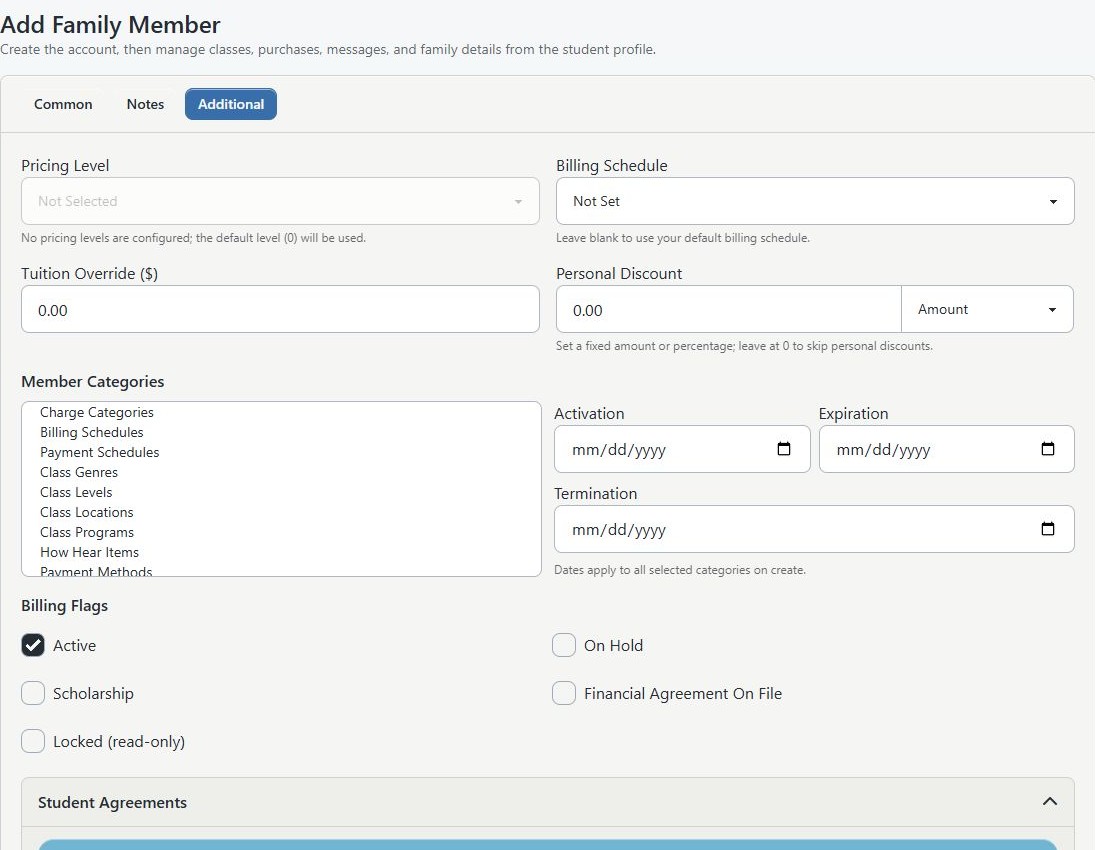
Warning: Tuition Override, Personal Discount, On Hold, Scholarship, Financial Agreement On File, and Locked can affect billing, access, or staff interpretation of the account. Leave them at the approved default unless the change is intentional.
#Create a new main account
- Open Families or Students.
- Search active and archived records one more time to avoid a duplicate account.
- Select Add Guardian, Add Student, or Add Member, according to the label shown by your studio.
- If I am appears, select the role that describes the new main account.
- In Common, enter the username and password fields if they are required by the studio's login settings.
- Review Group and keep the person in the approved client-facing group unless a different group is authorized.
- Enter the person's name and at least one phone number or email address.
- Complete the remaining identity, birth date, contact, address, referral, and custom fields that your studio requires.
- Open Notes and add only operational information the studio is authorized to keep. Staff Alert, medications, and medical instructions can expose sensitive information to permitted staff.
- Open Additional and review pricing, billing, categories, discounts, and billing flags. Change only the fields required for this account.
- Select Save once.
Important: The current Student Agreements panel shows placeholder consent choices and persists the selected identifiers. It is not proof that a client signed a waiver. Confirm signed or pending records in the account's Waivers tab.
#Add someone to an existing family
Use this path when the main family account already exists.
- Open Families or Students.
- Open the existing main account.
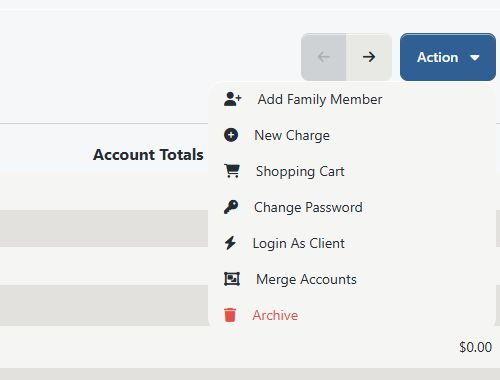
- Select Action > Add Family Member.
- Confirm the page title is Add Family Member before entering information.
- Complete the person's name, contact, login, notes, and additional fields that apply.
- If the form offers second-guardian fields, enter both names only when the second person should also be created.
- Review the family relationship, financial defaults, and account flags.
- Select Save once.
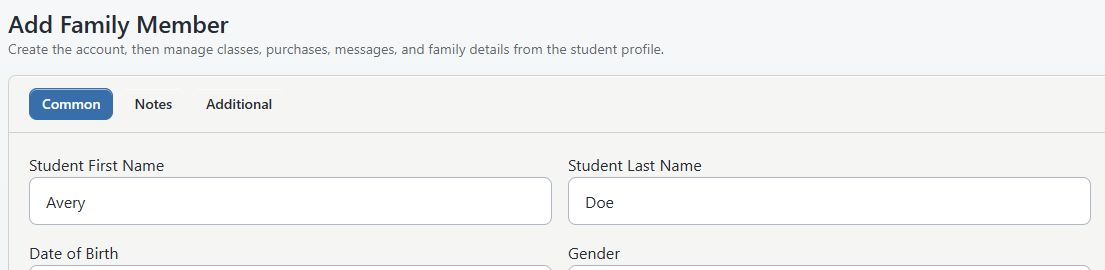
Adding the person from the existing account preserves the family relationship. Creating a separate main account and trying to connect it later can split classes, purchases, messages, payment methods, and history.
#What happens next
- A new main account opens as its own family or student record.
- A person added with Action > Add Family Member is linked to the existing family, and the workflow returns to that family's details.
- If both second-guardian name fields were completed, the current save path attempts to create that additional person as well.
- The save path attempts to attach the selected categories and account flags. Reopen the account and confirm them because optional post-create writes can fail independently.
- A new main account can trigger configured client and administrator registration messages.
Creating the person does not enroll them in a class. Complete that separately from the class's Students page.
#Confirm it worked
- Return to Families or Students and search for the new person.
- Open the account and confirm the spelling, role, contact information, status, and family relationship.
- If a second guardian was entered, confirm that both people were created and attached to the intended family.
- Review categories, pricing, billing, and account flags on the saved account.
- Open Waivers if an agreement was expected and confirm its actual status.
- If the client should sign in, confirm the username and use Action > Login As Client only for an authorized visibility check. Do not accept agreements or complete payments while impersonating the client.
#Troubleshooting
#The form says a required field is missing
Confirm the first name, last name, and at least one phone number or email address. The studio can also require referral information, username, password, or custom fields.
#The username is already in use
Search active and archived accounts before choosing a new username. A matching username can indicate that the family already has an account.
#The password is rejected
Use at least six characters and enter the same value in the password confirmation field. Additional studio login rules can apply.
#The new person is in the wrong family
Stop before adding classes or financial activity. Confirm which record should be the main account, then use the studio's approved relationship or merge procedure. Do not create more duplicate records as a workaround.
#A second guardian or category is missing
The current save path can create the main person even if an optional second-guardian or category operation does not finish. Reopen the account and verify each expected record individually before continuing.
#No registration message arrived
Do not create the account again. Confirm the saved account first, then review its email address, notification configuration, message history, and delivery logs available to your role.
#Related articles
- Configure, collect, and reconcile Referral Sources
- Create, use, and retire studio locations safely
- Edit account and family details
- Archive, restore, and merge accounts safely
- Families and students
- Manage student enrollment
- Account ledger
- Roles and permissions
- Online Client navigation and account menu