People and Accounts
Edit account and family details
Current implementation boundary: The administrator page has several independent save paths. Common, Notes, Photo, Additional, Files, password reset, and family-member actions do not form one all-or-nothing profile update. Save and verify one area at a time.
#Before you begin
- Search Families and Students, including archived records, for the person's name, email addresses, phone numbers, and likely spelling variations.
- Open the record and confirm its account ID, primary-versus-related-person relationship, archive state, and family members before editing.
- Confirm the request and the staff member's authority. Identity, health, login, access, and financial-default changes deserve stronger verification than a spelling correction.
- Record the requested change, approver, and expected result in the studio's approved change log. The editable profile notes are not a durable audit log.
- Ask whether the client is currently registering, checking out, editing the profile, or changing a password. Avoid simultaneous edits.
- For a sensitive or broad correction, record the current values you need for comparison without copying passwords, medical details, full documents, or unrelated personal data.
Warning: Do not create a replacement account to correct a name, email address, phone number, password, or family detail. A duplicate can split enrollments, purchases, charges, payments, saved payment methods, waivers, messages, files, and history.
Privacy warning: A profile can contain a home address, birth date, health information, photos, files, and login details. Use only the minimum information the studio needs, and follow the studio's retention and consent policy.
#Open the correct profile

For a primary family or account record:
- Open Families or Students.
- Search for and open the correct record.
- Select Main Account.
- Choose the relevant subtab: Common, Photo, Notes, or Additional.
For a related person:
- Open the primary account.
- Select Family Members and Classes.
- Find the person by name and account ID.
- Select Edit on that person's card.
- Confirm the person's name and ID in the profile header before saving.
A related person's profile shows an Account Details button that returns to the primary account. Its Relation field describes the relationship, but changing that label does not move the person to another account.
#Update Common details
The Common subtab is the main identity and contact form. Its exact fields depend on member mode, settings, database columns, the person's relationship, and the signed-in staff member's authority.
- Review the displayed username and login group before changing identity fields.
- Correct the first and last name. Both are required when the name is submitted.
- Update only the identity details that are needed, such as nickname, birth date, gender, second-guardian display fields, or company.
- Review the full address, including the optional second line, city, state, postal code, and country.
- Update the phone numbers and their notes. If Primary Phone appears, select the number the studio should treat as primary.
- Update Email 1 and Email 2, when shown. Review Email Confirmed separately.
- If How did you hear about us? is shown, choose a value from its search results. Do not merely type a label and leave it unselected.
- If changing Referrer, search for and select the actual account. Verify the selected person's identity rather than relying on a shared name.
- Complete the visible studio-defined custom fields and Primary Location, when used.
- Select Save once.
- Wait for the page to return and report Student updated, then reopen Common and verify every changed value.
The success message uses “Student” even when the selected record is a primary family account.
#Understand required fields and validation
The current staff form always marks first and last name as required. It also applies these checks when applicable:
- email values must use a valid email format;
- birth date and registration date values must be valid dates;
- gender must be one of the displayed choices;
- phone numbers are reduced to digits and must have exactly the length required by the studio's configured phone format;
- numeric profile, billing, discount, and rate fields must contain permitted values;
- How did you hear about us? and Primary Location can be marked required by studio settings; and
- custom fields 1 and 2 accept no more than 255 characters on the current staff update path.
The Online Client can have a different required-field policy. Its registration/profile configuration supports more required contact fields and as many as ten custom fields, while the current staff Common page exposes only custom fields 1 and 2. Do not assume that a staff save proves every Online Client requirement is complete.
#Use custom fields consistently
A custom field can appear as a one-line entry, a notes-style entry, or a Yes/No choice, with a studio-defined label.
- Follow the meaning defined by the studio; do not repurpose a field for a convenient one-off note.
- Treat a notes-style custom field as a 255-character staff field even though the box looks larger.
- Remember that a custom field can also appear in Online Client account editing. Do not store staff-only secrets or judgments in it.
- If the Online Client uses custom fields 3 through 10, review those in the client-facing workflow or approved data tool; they are not present on this staff form.
#Handle Guardian 2 fields carefully
Guardian 2 First Name and Guardian 2 Last Name on the primary account are profile fields. They are not a safe substitute for Action > Add Family Member, and they do not prove that a separate related-person record exists or was updated.
After changing those fields, open Family Members and Classes and verify the actual family roster. Add or edit a separate guardian through the family-member workflow when the studio needs that person to have an individual record.
#Understand referrer propagation
When THE_SAME_REFERRER_FOR_RELATED_STUDENTS is enabled, changing the referrer on a primary account attempts to copy it to direct related people that do not already have a referrer. It does not replace an existing child referrer.
After saving, open each affected person's Common subtab and verify the result. A failure while updating one related person can be skipped while other changes remain saved.
#Protect client access while editing identity
Username, email, confirmation state, login group, and password are access controls as well as profile data.
#Username and email
The current Online Client sign-in can look up an active account by username, primary email, secondary email, and other supported email columns. Password recovery can also use the saved username or primary email.
Before changing a username or email:
- Search active and archived accounts for the proposed value.
- Confirm which person owns the address and can receive recovery messages.
- Tell the authorized account owner which sign-in value will change, without asking for the current password.
- Save and verify the profile.
- Test a fresh sign-in or approved recovery flow with the account owner.
Important: The current staff update path validates format but does not enforce unique username or email values. A duplicate can make sign-in or recovery ambiguous. Search first and escalate a conflict instead of experimenting with passwords.
#Email Confirmed
Setting Email Confirmed to No can block a new Online Client sign-in with a message asking the client to confirm the email address. Changing the email address does not itself prove ownership, send a confirmation message, or select Yes automatically on this staff path.
Follow the studio's approved confirmation process. Do not mark an address confirmed merely to bypass a login problem.
#Login Group
Only an administrator or a staff member with Change Login Group authority should be able to change this field. A login-group change can alter staff-area and Online Client access. Never change a client to a staff group as a password workaround.
If a person legitimately needs a staff role, use the staff-account procedure, review the group permissions, and test with the least-privileged role. A client, guardian, student, instructor, and payroll role can share personal details without being interchangeable security identities.
#Reset a client's password
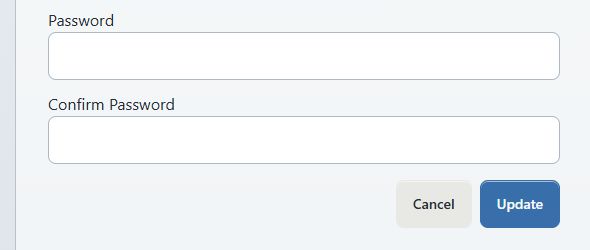
Prefer client self-service password change or recovery when it is available. It lets the client choose a password without disclosing it to staff.
When an authorized administrator must set a temporary password:
- Open the primary account.
- Select Action > Change Password.
- Confirm the member ID on the page.
- Enter a unique temporary password of at least six characters, preferably a longer generated password or passphrase.
- Enter it again in Confirm Password.
- Select Update.
- Confirm the page reports Password updated.
- Transfer the temporary password through the studio's approved password manager or secure handoff method.
- Ask the client to sign in from a fresh private window and change it immediately.
The staff reset does not ask for the old password and does not automatically email the new one. Do not put a password in profile notes, email, text message, a support ticket, a screenshot, or a recording.
Security warning: The reviewed reset path does not explicitly revoke already-open Online Client sessions. If compromise is suspected, archive the account only when operationally appropriate, ask the client to sign out on all devices, preserve incident evidence, and contact the deployment administrator or support contact for session revocation.
#Use Login As Client only for a visibility check
When permitted, Action > Login As Client opens the Online Client as the selected primary account and displays an impersonation banner.
Use it to confirm names, related people, menu visibility, and non-sensitive profile presentation. Do not submit payments, accept agreements, change the password, delete the account, or send messages unless that exact action is authorized and documented. A normal fresh client sign-in is still required to verify credentials and confirmation behavior.
#Update Notes safely
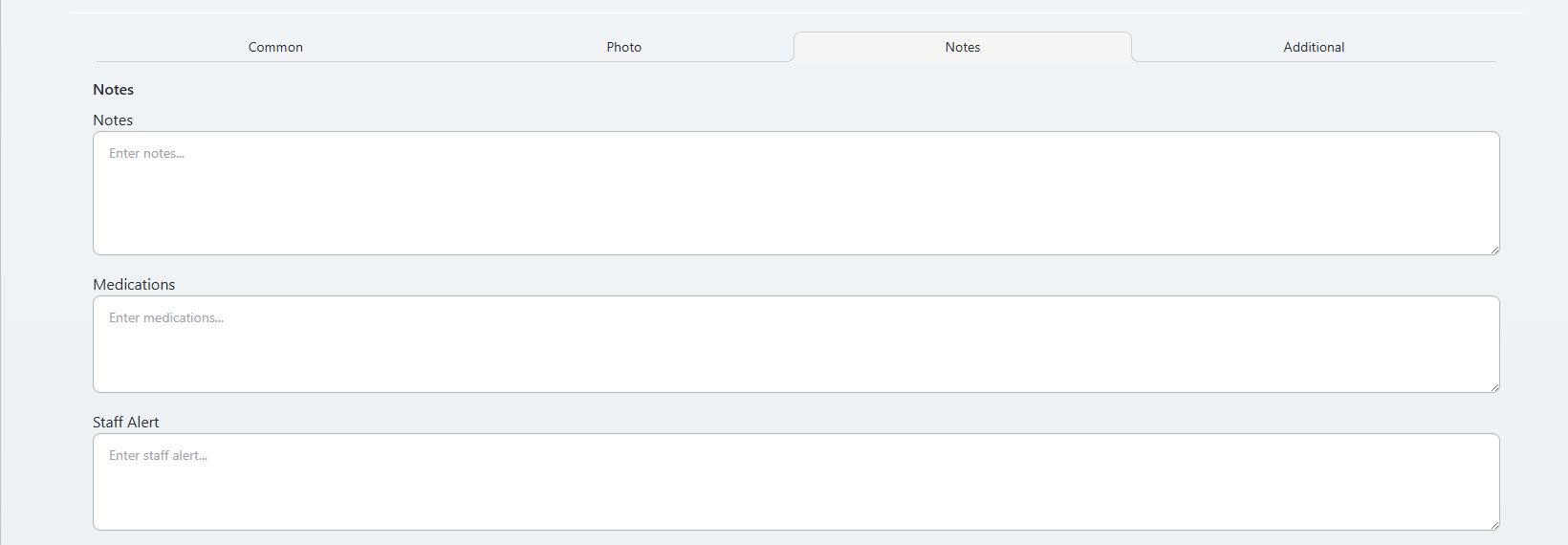
The Notes subtab contains three separate fields:
| Field | Intended use | Visibility caution |
|---|---|---|
| Notes | Minimum operational information needed for the account | The Online Client profile can expose and edit this same account-notes field. Do not treat it as staff-only. |
| Medications | Current, necessary health or safety information under the studio's policy | It can appear to clients and on authorized staff/family/roster surfaces when enabled. Restrict access and review retention. |
| Staff Alert | A short, action-oriented alert for permitted staff | It is stored with account comments and can appear in profile summaries, search, reports, schedules, or rosters depending on configuration. |
To update notes:
- Open Main Account > Notes on the exact person whose record should hold the information.
- Remove obsolete or excessive information before adding anything.
- Use neutral, factual language and the minimum detail needed for an authorized action.
- Select Save Notes once.
- After the alert says Notes saved, reload the page and verify the stored text.
Do not store passwords, payment details, processor references, government identifiers, legal documents, diagnoses, private family disputes, or unverified allegations in these fields.
The displayed “Last updated” line is generated by the current page. No durable field-level notes history was identified in the reviewed save path. Keep required approvals and change history in the studio's approved audit system.
#Add, replace, or remove a profile photo

Use a photo only when the studio has a documented purpose and the person or guardian has provided the required consent.
To add or replace a photo:
- Open Main Account > Photo on the correct person's profile.
- Keep a recoverable copy of the approved source image until the new photo is confirmed.
- Select a JPEG, PNG, or WebP image no larger than 5 MB.
- Select Upload.
- Confirm the page reports Photo uploaded and the correct image appears in the header and Photo subtab.
To remove it:
- Select Delete Photo.
- Confirm Delete current photo? only after checking the account ID.
- Confirm the page reports Photo deleted and the image no longer appears.
Replacing a photo removes other stored photo extensions before writing the new file. If storage fails, the old image may not remain available. Keep the approved source until verification and do not upload identity documents, medical images, payment images, or unrelated people.
#Manage account files
The primary account's Files tab is a separate account-file store. It is not the same as the Drive Folder ID field or the Online Client's external Drive integration.
#Upload a file
- Open Files on the correct primary account.
- Select a file no larger than 10 MB.
- Leave visibility as Private unless a documented use specifically requires Public.
- Select Upload.
- Confirm the file appears with the expected name, size, and modified time.
- Use Download to verify the stored file when the content is important.
The account-file path is tied to the member ID. Archive and merge do not automatically move it to another account.
#Change visibility or delete a file
- The eye control switches a file between private and public storage.
- Open deliberately downloads the file rather than rendering an untrusted upload inside the application.
- The trash control asks Delete this file? and then removes it from the account store.
Warning: “Public” is a storage visibility, not a promise that only the intended client can see the file. Keep confidential files private, use the approved secure document channel, and test the exact audience before sharing a link.
Deletion has no customer-facing undo. Download an approved retention copy first when required.
#Review Additional details
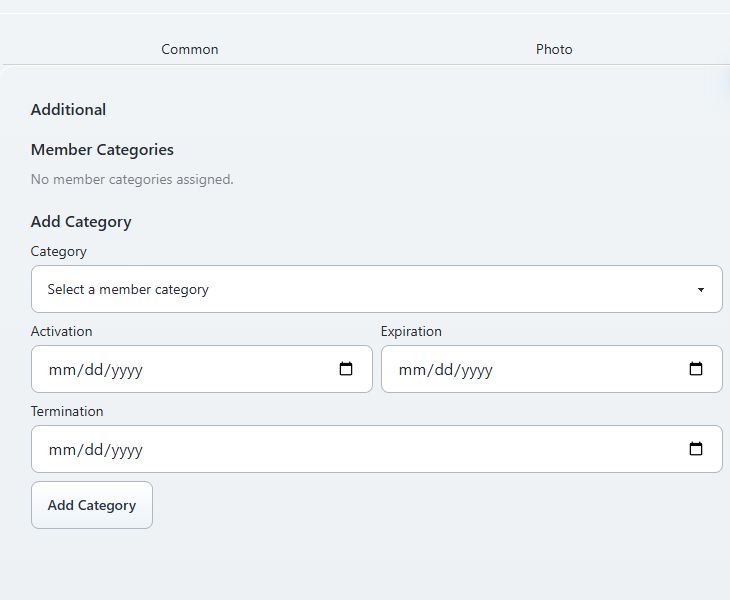
The Additional subtab combines member categories with profile, billing, access, and optional staff fields. Categories and the profile form have separate save buttons.
#Add or update a member category
- Confirm that the category is a Member Category, not a class, charge, purchase, or content category.
- Under Add Category, select the category.
- Enter Activation, Expiration, and Termination dates when the studio's policy requires them.
- Select Add Category.
- Confirm the category appears in the assigned list and in the account header.
To change dates on an assigned category, edit its dates and select Save Category. To remove it, select Remove Category, then verify that it disappears from the active list.
Blank dates can receive system defaults; the current service uses the save date as activation and a far-future expiration where those columns exist. Enter intentional dates and verify them instead of relying on a blank-field assumption.
Member categories can affect discounts, class eligibility, early enrollment, videos, questions, scheduled triggers, reports, and other configured rules. Test an affected workflow after a category change. Removing a category usually makes the assignment inactive where the tenant schema supports status; it does not necessarily erase the historical row.
#Review financial and access-sensitive fields
The profile form can include:
| Field | Effect to review |
|---|---|
| Pricing Level | Can influence pricing rules that consult the member's level. |
| Billing Schedule | Can influence tuition and future billing selection. It does not create a scheduled charge or payment by itself. |
| Tuition Override | Can replace a calculated tuition amount in supported billing workflows. |
| Personal Discount | Can reduce supported charges by a fixed amount or percentage. |
| Financial Agreement | An operational yes/no flag. It is not a signed waiver, signature, or proof of consent. |
| Account Locked | A stored account flag. Do not rely on it as the only Online Client revocation control without a fresh sign-in test. |
| Supervisor, 1st Instructor, 2nd Instructor, or Class Level | Optional assignment and classification fields used by supported studio workflows. |
| Relation | The related person's relationship label. It does not change the parent account. |
| Drive Folder ID | An administrator-only external integration identifier. It is not the local Files tab. |
| Color Label | A six-character hexadecimal display label used by supported views. |
| Registration Date | An editable profile date that can affect reports and interpretation; it is not immutable audit evidence. |
Change only the approved fields, select Save, and then reopen Additional. For a pricing, tuition, discount, billing-schedule, or category change, review a non-mutating price preview or the next approved billing test before a live batch.
If staff-only fields such as Display as instructor, Display in Payroll, hourly rates, or time-clock pricing appear, use the dedicated staff-management procedure. Do not turn a client profile into a staff account from this page as an incidental edit.
#Add, edit, archive, or restore a family member
#Add a related person
- Open the primary account.
- Select Action > Add Family Member. The form opens in a new browser tab.
- Confirm the page title is Add Family Member and the parent account ID is correct.
- Complete the new person's information using the Add a family and student procedure.
- Save once, return to the original account tab, and reload Family Members and Classes.
- Confirm the new person's name, ID, relationship, and active status.
Adding a person does not enroll them in a class or transfer history from another account.
#Edit a related person
- Open Family Members and Classes.
- Select Edit on the correct person's card.
- Update that person's Common, Photo, Notes, or Additional details.
- Select Account Details to return to the primary account.
- Reload the family tab and verify the summary.
#Make a related person inactive
The current family card uses Archive rather than Remove or Unlink.
- Confirm the person's name, ID, classes, purchases, future schedules, and financial links.
- Select Archive.
- Read Are you sure you want to move member to archive?
- Continue only when the person should become inactive.
- Reload the family tab with archived records shown and confirm the result.
Archiving a related person does not detach the family relationship, erase history, cancel future classes or payments, move purchases, or resolve a duplicate. Restore makes the selected related record active again, but it does not reverse other changes made while the record was inactive.
If the person belongs to the wrong family or is a duplicate, stop and use an approved relationship or merge review. Do not archive and recreate the person as a shortcut.
#Understand edit, archive, merge, and deletion
| Need | Correct starting point | What it does not do |
|---|---|---|
| Correct identity, contact, notes, photo, category, or supported defaults | Edit the existing profile | It does not create a new person, reparent a related person, or rewrite historical transaction snapshots. |
| Add a person to an existing household | Action > Add Family Member | It does not transfer an existing person or their history from another account. |
| Make a primary account or related person inactive | Archive after operational review | It does not erase, unlink, merge, cancel, or satisfy a permanent-deletion request. |
| Return a staff-archived record to active status | Restore after checking downstream records | It does not recreate deleted files, photos, payment methods, login identity, or changed schedules. |
| Consolidate records that truly represent the same person or household | Follow Archive, restore, and merge accounts safely | Merge does not automatically move every profile field, file, photo, custom field, or unsupported record. |
| Fulfill a privacy deletion or erasure request | Follow the studio's approved privacy and support process | Editing, archive, and merge are not erasure tools. |
#Confirm the complete result
After the final save:
- Return to Families and Students and search for the person by the updated and previous identity values.
- Confirm there is still one intended primary account and the correct family roster.
- Open the primary account and each changed related person by ID.
- Recheck Common, Notes, Photo, Additional, and Files separately.
- Confirm category dates, relationship labels, archive states, and account-header badges.
- Review Family Members and Classes, Purchases, Ledger, Scheduled Payments, Cards and ACH, Waivers, Messages, and Files when the change could affect them.
- For an access change, test a new normal Online Client sign-in. Use impersonation only as a separate visibility check.
- For a financial-default or category change, use an approved preview or fictional transaction before the next live batch.
- Update the studio's change record with the result and any follow-up.
No ordinary profile edit was found to send the client an automatic “profile changed” notification. Tell the authorized account owner about a sign-in-value change through the approved channel.
#Troubleshooting and recovery
#The form says a field is invalid
Correct the highlighted value rather than removing unrelated data. Check first and last name, email format, date format, the configured phone-digit length, numeric fields, and the selected lookup value. A notes-style custom field on this staff page still has a 255-character limit.
#The page reports an error after some values changed
Reopen the profile before trying again. The current update service is not one transaction across the member row, referrer propagation, and time-clock pricing. An early write can remain even when a later operation fails and the page returns an error.
Record what persisted, avoid repeated submission, and escalate before changing financial, staff, or family relationships.
#Notes says saved, but the text is missing
Reload Notes and compare all three fields. The current asynchronous control can treat a redirected error response as success. Do not rely on the alert or its displayed timestamp as proof.
#A username or email now conflicts with another account
Stop password resets and sign-in experiments. Identify both account IDs, review active and archived records, and restore the intended unique value. Use the merge procedure only if the records are confirmed duplicates.
#The client cannot sign in after an edit
Check the exact username and email, active state, Email Confirmed, login group, password-reset result, and duplicate identities. Test in a fresh private window. Do not mark an address confirmed or change login group merely to bypass the error.
#A family member is under the wrong account
Do not change Relation, archive and recreate, or perform a reverse merge. Preserve both IDs and the current family structure, then follow the approved merge/relationship procedure.
#The previous photo disappeared during replacement
Keep the approved source image and upload it again only after confirming the correct member ID and supported file type. Escalate a storage failure rather than trying unrelated formats on a live profile.
#A category is missing or has unexpected dates
Reopen Additional, confirm the exact member ID and category type, and inspect the assigned category's activation, expiration, termination, and active state. Do not add the same category repeatedly. Review dependent eligibility, discount, content, and trigger rules.
#A file is missing after archive or merge
Files are associated with a member ID and are outside several account consolidation paths. Search the source and survivor IDs without changing visibility or uploading a second copy, then follow the studio's approved retention and recovery process.
#Related articles
- Families and students
- Record calls and manage client follow-up
- Configure, collect, and reconcile Referral Sources
- Create, use, and retire studio locations safely
- Add a family and student
- Archive, restore, and merge accounts safely
- Categories
- Create, assign, and verify Member Categories
- Manage poll questions and review answers
- Create and manage email signatures
- Manage student measurements from a class
- Roles and permissions
- Account ledger
- Online Client: Manage your account and family
- Online Client: Sign in and manage your password
- Online Client: Confirm email and use a Create Password link