Students > account > Call History
Record calls and manage client follow-up
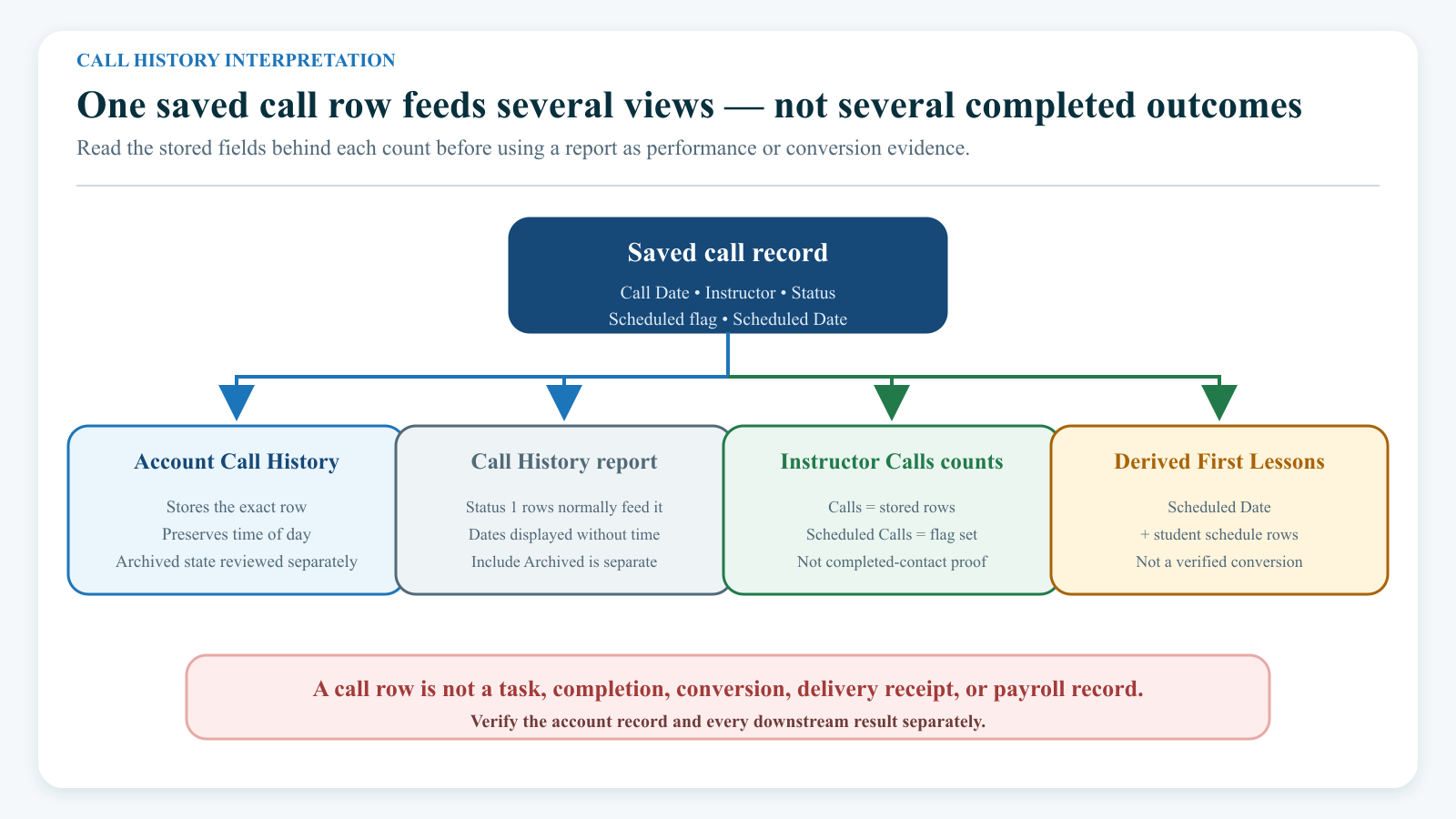
Call History is a staff record. It does not place a phone call, send a message, create a calendar event, create a staff task, notify the assigned instructor, or prove that a follow-up happened.
Important current report boundary: In the reviewed build, saving a new call does not set the record's internal status. The current a test studio table defaults that status to
0, while the normal Call History and Instructor Calls reports select status1. A newly saved call can therefore appear on the account but be missing from the normal reports. When reconciling, run Reports > Call History again with Include Archived Calls selected. This is a current product gap, not proof that the call was intentionally archived.
#Before you begin
- Confirm that you are in the correct studio and the correct person's account.
- Decide whether the record belongs to the primary family account or to one specific student. The current account tab does not automatically combine the whole family's calls.
- Confirm that your role can both view the account and save a Call History record. Report and Messaging access are separate.
- Agree on a short list of call codes and their meanings. The software does not provide or enforce a code list.
- Decide what may be written in call notes and how long the studio keeps them.
- Use the minimum personal information needed for the operational purpose.
- Never put card or bank details, passwords, access tokens, highly sensitive health details, identity-document numbers, or unneeded information about a minor in Call History.
- If a later action must be reliably assigned, reminded, escalated, or marked complete, use the studio's approved task system in addition to the Call History record.
- If the contact will be an email or supported text message, prepare that separately in Messaging. Saving a call never sends it.
Warning: The current account tab has no visible edit, archive, delete, undo, or completion action for a saved call. Review the account, date, and notes before selecting Save.
#Understand what Call History records
Call History stores a communication record against the exact account that is open. The account table displays the record ID, date, caller, instructor, code, call notes, scheduled date, and scheduled notes.
| Field | Current behavior | Safe use |
|---|---|---|
| Phone | Offers up to three phone values from the open account, including their phone notes. The selected value is stored when the table supports it, but the current account table, studio-wide report, and Excel export do not display it afterward. | Use it as capture context only. Put a safe label such as primary phone or guardian mobile in the notes when that distinction matters; do not repeat the full number. |
| Caller | Free text, up to 64 characters. The form suggests examples such as a parent, student, or Front Desk. If it is left blank, the current save service can use the signed-in user's name. | Record who initiated or participated in the call according to one studio-wide convention. Do not use this field as the staff assignment field. |
| Instructor | Defaults to Me for the signed-in staff member. The form otherwise offers only Not Selected; it does not offer a full staff list. When no instructor ID is submitted, the current save service falls back to the signed-in user's ID. The stored ID drives instructor filters and totals. | Leave Me selected when you are responsible for this record. Do not rely on Not Selected to create an unassigned row. If another staff member owns the follow-up, name that owner in Scheduled Notes and use an approved task handoff. |
| Code | Optional free text, up to 64 characters. Examples in the form include LM, NA, 1st, and 2nd. | Use a short approved code with one documented meaning. Do not assume another staff member interprets an abbreviation the same way. |
| Call Date | Required by the current form and initially set to the current date and time. | Correct it to when the interaction actually occurred. The account table retains a date-time value; the studio-wide report and export currently display only the date. |
| Call Notes | Optional free text. | Record the purpose, result, agreed action, and safe cross-reference. Keep opinion and speculation out of the record. |
| Scheduled Call | When selected, the form requires a Scheduled Date and reveals Scheduled Notes. | Treat this as a historical flag and proposed date, not as a reminder or task. |
| Scheduled Date | Stored with the call and displayed only for a scheduled record. | Record the agreed follow-up date and time. The Call History report's Start and End Date filters do not filter this field; they filter Call Date. |
| Scheduled Notes | Optional free text. | State the next action, owner, contact channel, and any prerequisite. Do not assume the Instructor field will notify anyone. |
| ID | Generated after save and displayed in the account table and reports. | Use it when recording a correction or linking a later follow-up to the original record. |
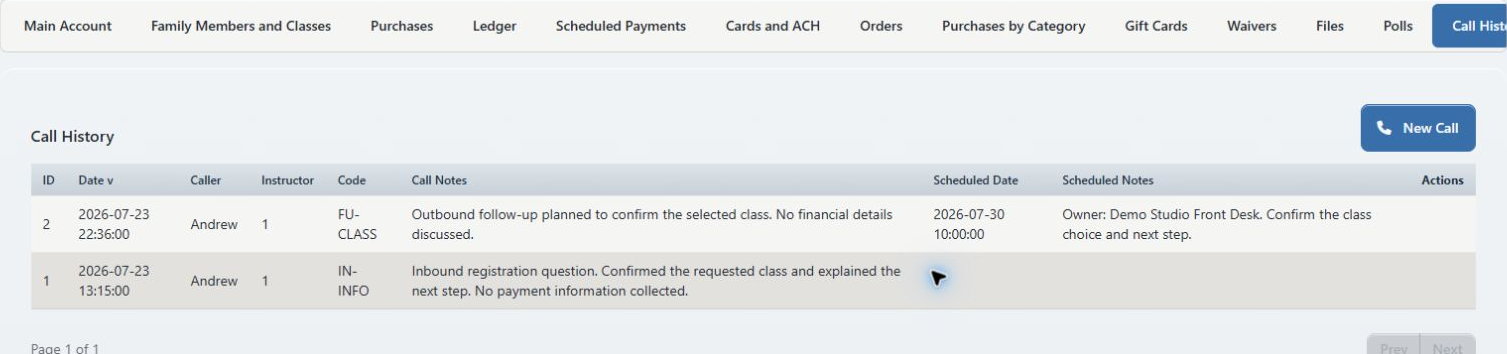
#More options
The form also has More options > Type, Subject, and Outcome.
- Type offers Inbound, Outbound, and Voicemail and can supply the stored Code when the ordinary Code field is empty.
- Subject and Outcome can be combined into Call Notes when the ordinary Call Notes field is empty.
- If Call Notes already contains text, the current mapping may not retain Subject in the stored call note.
- Outcome can also become Scheduled Notes when a separate Scheduled Notes value is not supplied.
Until those combinations are verified in your studio, put important information directly in Code, Call Notes, and Scheduled Notes. Do not divide a critical record across fields whose stored result you have not reopened and confirmed.
#Choose a consistent call-code convention
Codes make a list easier to scan only when everyone uses the same definitions. A simple starting set could be:
| Example code | Suggested meaning |
|---|---|
| IN-INFO | Inbound information request |
| OUT-FU | Outbound follow-up |
| VM | Voicemail left or received; explain direction in notes |
| NA | No answer |
| REG | Registration-related conversation |
| BILL | Billing-related conversation without sensitive payment details |
| CANCEL | Cancellation-related conversation |
| CORR | Correction to an earlier Call History record |
These are examples, not built-in values. Keep the approved code list short, write it into the studio's procedure, and review it before using counts for performance reporting.
Avoid codes such as 1st or 2nd unless the studio has documented whether they mean attempt number, first lesson, first conversation, or something else.
#Record a completed call
- Select Students.
- Search for the family or student using more than one identifier when names are similar.
- Open the intended account.
- Read the account name, family relationship, active or archived state, and account ID before continuing.
- Select the Call History tab.
- Review the newest records so you do not duplicate an interaction or contradict an existing commitment.
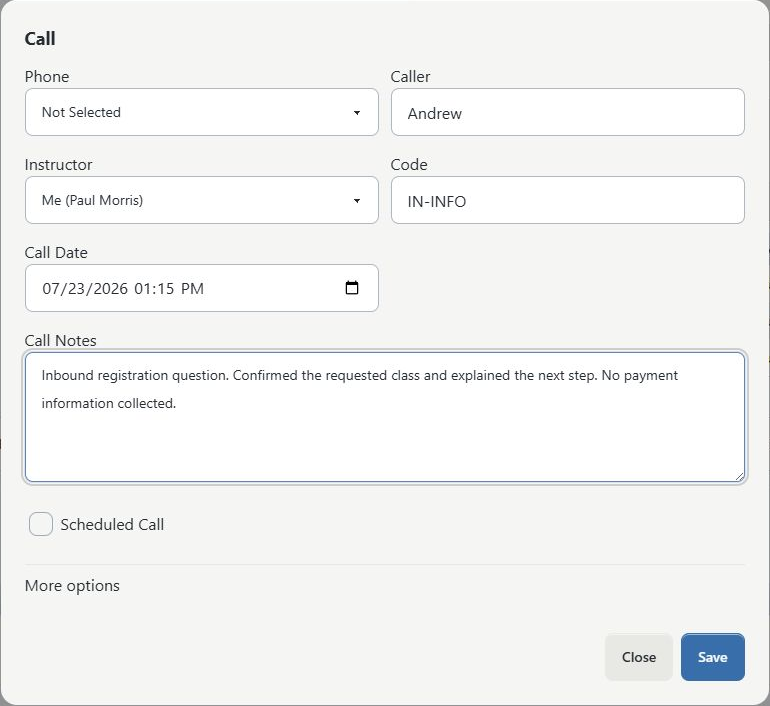
- Select New Call.
- Under Phone, select the account phone used, or leave Not Selected when no stored number applies.
- Under Caller, enter the person or source according to the studio's convention.
- Under Instructor, leave Me selected when you are responsible for this record.
- Enter an approved Code.
- Confirm Call Date and correct the time when entering the record later.
- Enter concise, factual Call Notes.
- Leave Scheduled Call cleared when no later call is required.
- Review the account name behind the modal, the date, the code, and the notes.
- Select Save once.
- Wait for the form to close and the Call History table to refresh.
- Confirm the new row and record its ID when the interaction needs an audit cross-reference.
#A useful note pattern
Use a pattern that another authorized staff member can understand without guessing:
Inbound registration question. Confirmed the requested class and explained the next step. Client will review the Online Client account. No payment information collected. No follow-up call requested.
For voicemail or no answer:
Outbound follow-up; no answer. Left a brief voicemail with the studio's public callback number. No account, schedule, or financial details disclosed.
Avoid subjective labels such as difficult, unreliable, or problem family. Record observable facts, the studio's response, and the next operational action.
#Schedule a later call
- Follow the completed-call steps through Call Notes.
- Select Scheduled Call.
- Enter the agreed Scheduled Date and time.
- Under Scheduled Notes, state the reason for the later call.
- Name the follow-up owner in Scheduled Notes when it is not the staff member selected under Instructor.
- State what must be checked first, such as a registration result, balance review, or staff decision.
- Record the approved contact channel when it matters.
- Add the follow-up to the studio's real task or reminder system when missing it would matter.
- Review the date, time zone, owner, and notes.
- Select Save once.
- Confirm the scheduled date and notes in the refreshed account row.
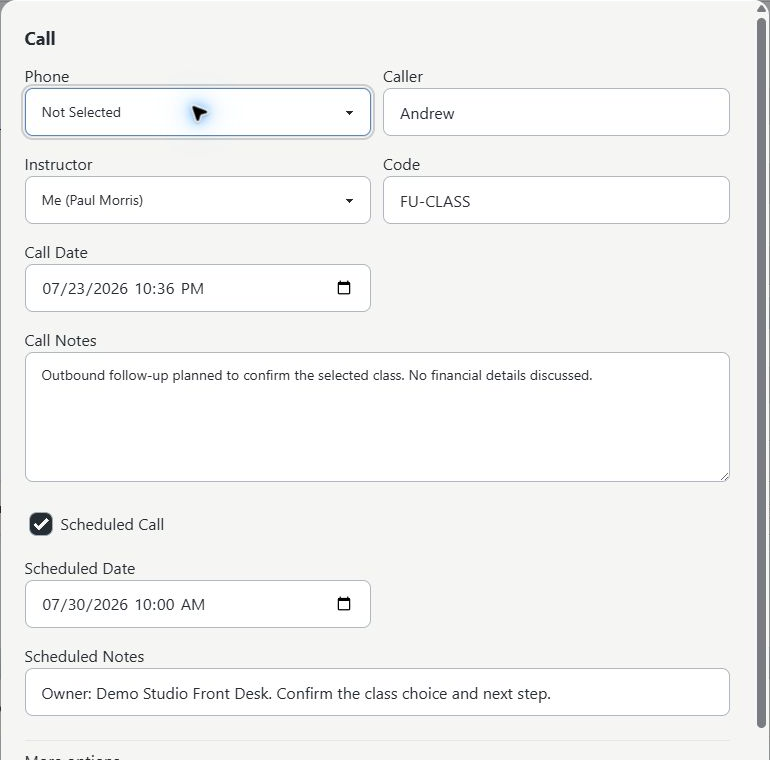
Important: A Scheduled Call does not notify the Instructor, appear on the Calendar, create a dashboard alert, or become complete after the date passes. The original row remains marked scheduled.
#Complete a follow-up safely
The current Call History tab does not have a Complete action. Preserve the original record and add the result as a new call:
- Open the exact account used by the original record.
- Select Call History.
- Find the original scheduled row and record its ID.
- Review the agreed action, date, and account context.
- Perform the approved contact or review.
- Select New Call.
- Record the new call's actual date, direction, result, and next action.
- In Call Notes, refer to the original record by ID, for example Follow-up to Call #123.
- If another follow-up is needed, select Scheduled Call and record a new date and owner.
- Save once and confirm the new row.
- Complete or reschedule the separate operational task that was used as the reminder.
The earlier row will still appear in Scheduled Calls Only results. Do not interpret that filter as a list of unfinished work.

#Send a message after a call
Saving Call History does not send or queue email, SMS, push notification, or an Online Client message. It also does not create a row in Message History.
When an approved written message is needed:
- Save and verify the call record first when the call itself must be documented.
- Open the same account's Messages tab, or open the appropriate Messaging workflow.
- Reconfirm the recipient, communication permission, address or number, and message content.
- Send only through the studio's approved channel and with the required Messaging permission.
- Verify the local Message History and, when required, delivery evidence separately.
- Add a safe message ID or subject cross-reference to a later call note when the records need to be connected.
Do not paste a full email thread or text conversation into Call Notes. Keep each system's record focused and avoid multiplying sensitive content.
#Review one account's history
The account tab is best for understanding one person's sequence of calls.
- Open the account and select Call History.
- Confirm that the table is sorted by Date descending when you want the newest records first.
- Review the record ID, Call Date, Caller, Instructor, Code, Call Notes, Scheduled Date, and Scheduled Notes.
- Use the pagination controls when the account has more than 10 rows.
- Select a sortable heading when another order helps the review.
- Return to newest-first order before ending the review.
The current account tab does not have a text search or an All page-size option. It requests 10 rows at a time; the feed caps one request at 200 rows, but pagination can continue through the account's history. For a longer or cross-account review, use the report and retain the original account as the authority for context.
#Family and student scope
The current account tab requests rows for the exact person ID that is open. It does not automatically add calls recorded on that person's parent, children, or siblings.
- Put a family-wide administrative conversation on the primary account when that matches studio policy.
- Put a student-specific conversation on that student's account when future staff need it beside that student.
- Before saying a family has no history, check the primary account and the relevant students.
- Do not create duplicate call rows on every family member merely to make them easier to find.
This differs from the retired legacy list, which could include direct children when the primary account was selected.
#Use Reports > Call History
Use the studio-wide report to review calls across accounts or prepare a controlled spreadsheet.
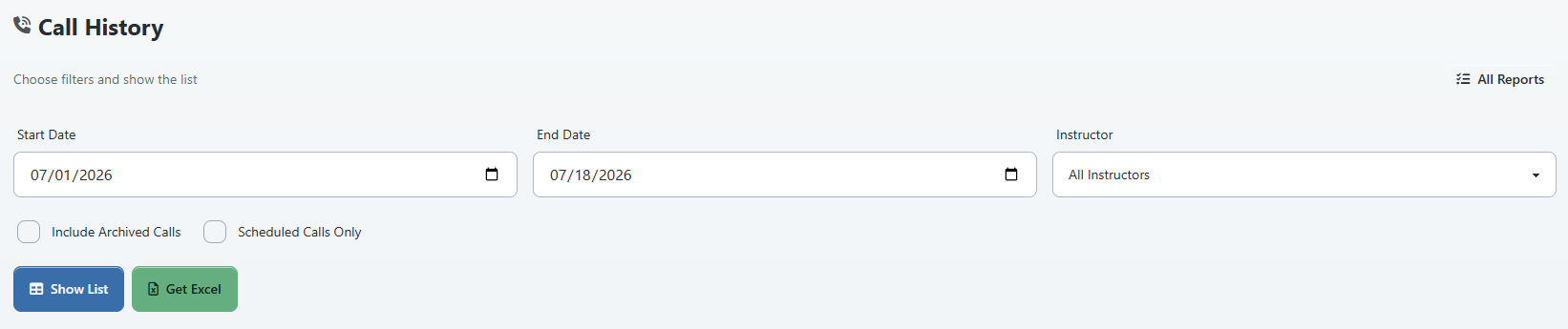
- Select Reports > Call History.
- Confirm Start Date and End Date. The page initially proposes the current day and the preceding 29 days.
- Select an Instructor, or leave All Instructors selected.
- Select Scheduled Calls Only only when you want rows whose scheduled flag is set.
- For reconciliation, select Include Archived Calls so status-
0records are not silently excluded. - Select Show List.
- Read the date range, instructor scope, status flags, and total call count above the table.
- Open a sample client's account from the Client link and compare the original row.
- Sort or page the on-screen list only after confirming the population.
- Select Get Excel only when an export is necessary and authorized.
#Understand the report filters
| Filter or control | What it currently means | Common mistake |
|---|---|---|
| Start Date / End Date | Filters Call Date, through the end of the selected End Date | Treating it as a Scheduled Date or due-date filter |
| Instructor | Filters the stored Instructor ID | Assuming Caller or the person named in Scheduled Notes is used |
| Include Archived Calls | Includes call rows whose internal status is not -1 when that status column exists |
Assuming it refers to archived client accounts |
| Scheduled Calls Only | Includes rows whose scheduled flag is 1 |
Treating every row as currently due or incomplete |
| Show List | Loads all matching rows, then the browser sorts and pages them | Assuming page size reduces the export or server query |
| Get Excel | Downloads all rows matching the current filters | Assuming it exports only the visible page |
If the dates are entered in reverse order, the report currently swaps them. An invalid date can be ignored instead of producing a clear validation message, so verify the range shown above the results.
#Find follow-ups due in a period
The report has no Scheduled Date range filter. Its date range always applies to Call Date.
To conduct a controlled review:
- Set a Call Date range wide enough to include the calls that may have scheduled follow-ups.
- Select Scheduled Calls Only.
- Select Include Archived Calls during reconciliation.
- Select Show List.
- Review or export the Scheduled Date column.
- Filter Scheduled Date in an approved spreadsheet or task process.
- Open each account before contacting the person.
- Compare later call rows to determine whether the follow-up already happened.
This process is a workaround, not a completion queue. A scheduled row remains scheduled after a later call is logged.
#Protect the Excel export
The export can contain client names, call notes, scheduled notes, staff names, and record IDs. It does not include the stored Phone field, but the remaining content can still be sensitive.
- Export only the required date and instructor scope.
- Store the file in an approved location.
- Do not email it to a personal account or place it in an unapproved shared folder.
- Review formulas, filters, and hidden rows before sharing a transformed copy.
- Delete temporary copies according to studio policy.
- Record who created the export, why, the filter scope, and who received it.
The current report and Excel output format Call Date and Scheduled Date as date only. Use the account row when the time of day matters.
#Use Reports > Instructor Calls cautiously
Reports > Instructor Calls summarizes active-status call rows by the stored Instructor over a Call Date range. It can show:
- Instructor;
- Calls;
- Scheduled Calls; and
- First Lessons.
The report initially uses the current day and preceding 29 days and can be filtered to one instructor. Excel and PDF exports are available.
Do not use it as payroll, productivity, conversion, or completed-follow-up evidence without a separate reviewed definition:
- Calls counts stored rows, not connected or completed phone calls.
- Scheduled Calls counts rows whose scheduled flag is set, not follow-ups completed.
- The report excludes status-
0calls and has no Include Archived Calls control. - First Lessons is calculated from a call's Scheduled Date and existing student schedule rows; it is not a direct link to an explicitly marked first lesson or a verified conversion outcome.
- The current new-call form cannot select another staff member, and the save fallback can attribute a blank selection to the signed-in user.
#Confirm the record and downstream result
For an important interaction, verify each layer separately:
| Layer | What to confirm |
|---|---|
| Account | Correct primary or student account and correct new record ID |
| Call record | Date, Caller, Instructor, Code, Call Notes, scheduled flag, date, and notes |
| Follow-up | Separate task owner, due date, and completion state when required |
| Message | Correct recipient, content, local history, and delivery evidence when a message was sent |
| Report | Expected row appears with the intended date/instructor filters; repeat with Include Archived Calls |
| Export | Expected filter scope and row count; protected storage and approved recipient |
| Later result | New result row links to the original record ID; separate task is completed or rescheduled |
Do not use the presence of one layer as proof of another. A saved call is not a delivered message, a scheduled flag is not a task, and a report count is not a completed-contact count.
#Permissions and privacy
#Access is layered
The reviewed current policy allows administrator, owner, office-administrator, and instructor groups to view a student account when the studio matches. Saving the account-tab call uses an additional route-permission check. Reports use report-specific permissions. Messaging and export availability are separate again.
The Group Permissions editor contains a Call History module, but its current legacy-to-route mapping does not clearly govern every account-tab and report route. Verify the real role matrix with fictional data:
- Can the role open Students?
- Can it open the intended account and Call History tab?
- Can it save a new fictional call?
- Can it view Reports > Call History?
- Can it export?
- Can it open Reports > Instructor Calls?
- Can it send through Messaging?
- Can it open another studio's URL or a direct record URL? The correct result is denial.
Do not broaden a role to all Reports, Students, or Messaging merely to make one Call History step work. Ask the product owner to approve the narrowest current route set.
#Treat notes as shared staff data
The inspected Online Client pages do not display Call History, and the current member policy excludes client logins from the administrative call-history API. That does not make Call Notes a safe place for unrestricted sensitive information.
Authorized studio staff, exports, support processes, backups, account merges, and future product changes can expose or relocate the record. Write every note as if another authorized staff member and the affected client could later review it.
#Protect minors and third parties
- Record a minor's information only when necessary for the studio's legitimate operation.
- Keep unrelated family conflict, hearsay, and third-party details out of the record.
- Do not infer consent, custody, identity, or authority from the person who called.
- Follow the studio's verification procedure before discussing schedules, balances, health information, or account access.
- Record a safe verification result, not secret answers or document numbers.
- Escalate legal, safeguarding, threat, discrimination, or emergency matters through the studio's approved process; Call History alone is not an incident-management system.
#Retention and correction
The current screen has no customer-facing retention setting, purge, redaction, edit, archive, or delete workflow. Establish a studio policy and an approved support process before using Call History for regulated or highly sensitive records.
#Account archive and merge interactions
Archiving a family or student account does not, in the reviewed archive workflow, mark its individual call rows archived. The Call History report's Include Archived Calls option refers to the call row's internal status, not the client account's active or archived state.
When accounts are merged, the current merge service can reassign supported Call History rows from the source ID to the survivor when Merge message and call history is included. It does not create a combined narrative, detect duplicates, reconcile family-versus-student meaning, or add a visible per-call merge note.
Before a merge:
- Export or inventory both accounts' call IDs under approved privacy controls.
- Identify which records are family-wide and which are student-specific.
- Review the complete merge plan and the current checkbox limitation described in the merge guide.
- After the merge, reconcile IDs, account ownership, messages, follow-ups, and reports.
- Preserve the merge review record outside Call History.
Never merge accounts merely to put calls on a more convenient page.
#Troubleshooting and recovery
#The call was saved on the wrong account
Do not create an account merge and do not alter the database as a routine correction.
- Record the incorrect call ID and account ID.
- Stop if the notes exposed sensitive information to staff who should not see that account.
- Notify the authorized privacy or support owner.
- Add a concise correction on the correct account only when policy allows, using code CORR and referencing the original ID without copying unnecessary sensitive text.
- Use the approved support correction or retention process for the original row.
#The date or notes are wrong
The current tab has no visible edit action. Add a correction row that references the original call ID, states the corrected fact, and explains that the earlier row remains unchanged. Escalate sensitive or legally material mistakes rather than layering an ambiguous correction.
#Save failed or the form did not close
- Copy only the safe operational notes to an approved temporary location if necessary.
- Close the modal or reload the account.
- Review the newest Call History rows before selecting Save again.
- If the row exists, do not resubmit.
- If it does not exist, confirm the correct account and retry once.
- Record the time and error message for support if the failure repeats.
#The new row appears on the account but not in Reports
- Widen the Call Date range.
- Select All Instructors.
- Select Include Archived Calls.
- Clear Scheduled Calls Only unless it is required.
- Select Show List again.
- Compare the record ID with the account row.
The current status-default mismatch is a known reason for this result.
#A follow-up due today is missing
The report dates filter Call Date, not Scheduled Date. Widen the Call Date range, select Scheduled Calls Only and Include Archived Calls, then inspect Scheduled Date in the list or controlled export. Check the separate task system as the operational authority.
#A completed follow-up still appears as scheduled
That is expected in the current design. There is no completion update. Confirm that a later call row records the result and that the separate task is complete.
#The phone selected earlier is not visible
The current account table and reports omit the stored Phone field. Check the account's current phone fields and the call's notes; do not assume the current number is the one used historically. Do not expose or query database values outside an approved support process.
#The expected staff member is absent from the Instructor list
The new-call form currently offers only Me and Not Selected, and a blank instructor can fall back to the signed-in user's ID during save. The report selector uses active instructor/staff records and can omit an archived or differently configured staff record. Record the owner in Scheduled Notes and use the approved task handoff; do not impersonate another staff member.
#Report order looks wrong across years
The report sends actual dates in ascending order but displays and browser-sorts them as MM/DD/YYYY text. Sorting the displayed Date column can produce a misleading order when multiple years are present. Compare record IDs and account rows or sort an approved export using a real date value.
#More options did not appear in the saved row
Use the main Code, Call Notes, and Scheduled Notes fields for the correction. The current mapping of Type, Subject, Outcome, and ordinary notes is conditional. Do not assume a value was stored when it is absent after refresh.
#Call History is visible even though an old setting is off
The retired product used an Allow Call History setting. The current account template does not consult that setting and displays the tab unconditionally for an account the role can view. Use permissions and an approved product decision; do not treat the old setting as current enforcement.
#Current boundaries to plan around
The following points are confirmed from current source and the read-only a test studio schema, but still need controlled browser verification where noted:
- New rows are append-only in the current account interface; there is no visible edit, archive, delete, undo, or complete action.
- A scheduled flag and date do not create a task, reminder, alert, calendar event, or notification.
- The account tab is exact-person scope, not family scope.
- The selected Phone value is stored but not displayed in the current account list, report, or Excel export.
- The normal report filters Call Date, not Scheduled Date.
- The report and export drop the time of day from displayed dates.
- A later call does not clear the earlier Scheduled Call flag.
- The current demo table defaults new rows to status
0, while normal Call History and Instructor Calls reporting expects status1. - The Call History report can include status-
0rows with Include Archived Calls; Instructor Calls cannot. - Account archive and call-row archive are separate concepts.
- A merge can reassign call ownership without a per-row merge journal.
- Call recording and Messaging are separate; neither confirms the other.
- Permission behavior is split between account policy, generic route permission, report permission, and Messaging permission.
- Retired behavior included a setting gate, a family-inclusive list, a full instructor selector, and edit/archive/delete actions; those are not present in the inspected current account workflow.
#Related articles
- Families and students
- Edit account and family details
- Archive, restore, and merge accounts safely
- Messaging
- Manage message templates, history, and delivery
- Choose message recipients and send safely
- Client follow-up, retention, and contact reports
- Staff hours and payroll reports
- Roles and permissions