People
Families and students
#Families versus students
- Families focuses on the household or guardian-level account.
- Students focuses on the individual who takes classes or receives services.
In child or combined studio mode, both views can appear. Adult mode can omit the Families menu. The underlying record structure and exact labels can vary with the studio’s mode and settings.
#Find an account
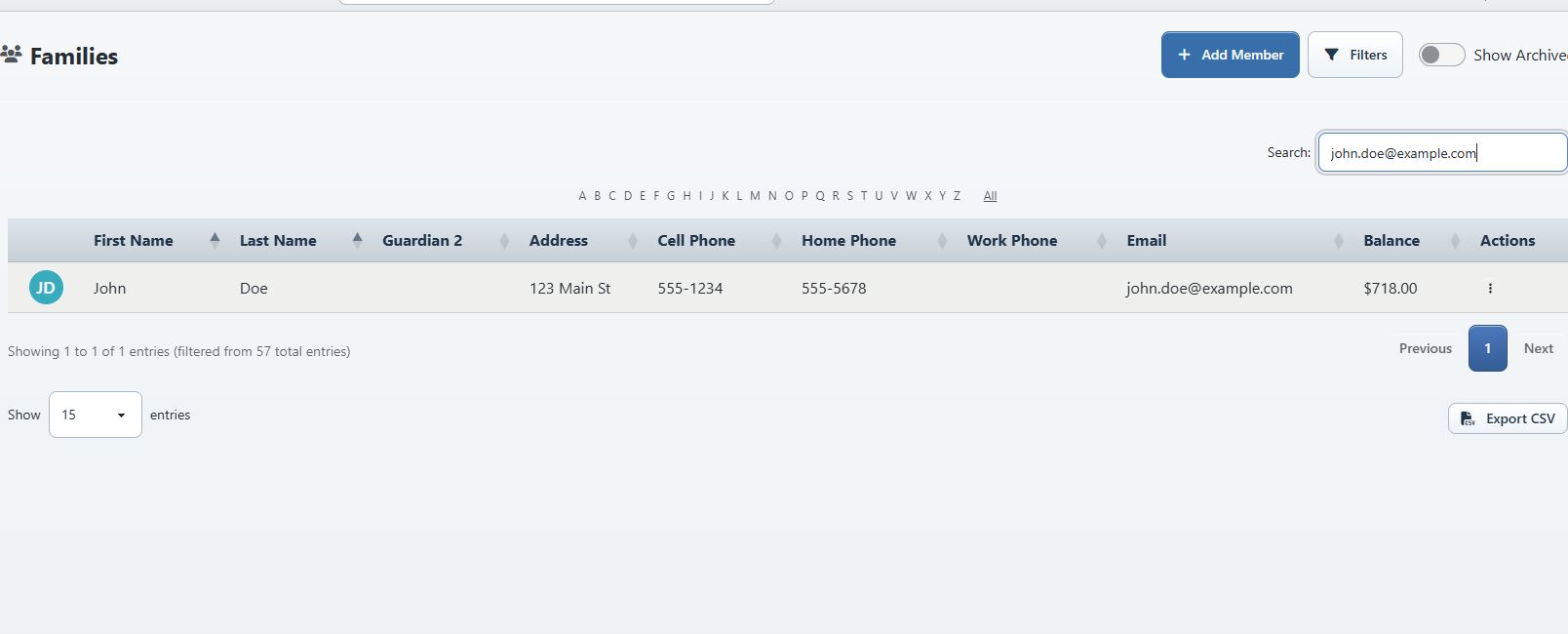
Open Families or Students. The list can provide:
- family/student mode;
- filters and search;
- archived-record visibility;
- CSV export;
- quick actions such as login as client, new charge, make payment, messages, waivers, and files when permitted.
Select the appropriate record to open its account detail.
#Understand the account header
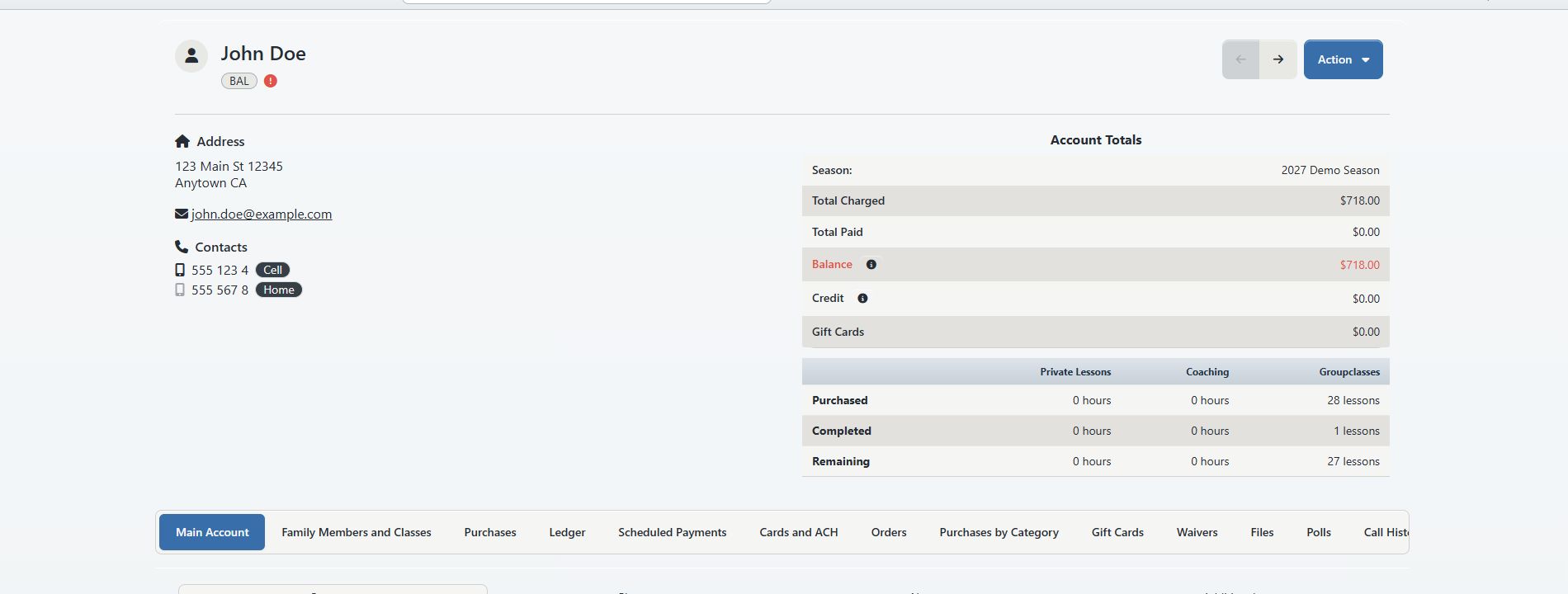
The verified account view showed:
- the person’s name and account categories;
- previous/next record navigation;
- an Action menu;
- contact/address information;
- account totals for the selected season;
- purchased, completed, and remaining service totals by purchase category.
#Account totals
The summary can include:
- total charged;
- total paid;
- balance;
- credit;
- gift-card value.
These totals are a summary. Use the Ledger, Purchases, Scheduled Payments, Cards and ACH, and Gift Cards tabs for the underlying detail.
#Account tabs
The full administrator account used for verification displayed:
| Tab | Purpose |
|---|---|
| Main Account | Identity, contact, photo, notes, additional fields, and optional prerequisites. |
| Family Members and Classes | Related people and their class relationships. |
| Purchases | Items, packages, memberships, or entitlements acquired by the account. |
| Ledger | Charges, payments, balances, statements, and related actions. |
| Scheduled Payments | Future payment instructions and their status. |
| Cards and ACH | Stored payment methods, defaults, and autopay controls when enabled. |
| Orders | Completed order records. |
| Purchases by Category | Purchase usage grouped by category when enabled. |
| Gift Cards | Gift-card records and balances. |
| Waivers | Pending, signed, ignored, or requested agreement records. |
| Files | Account documents when file storage is available. |
| Polls | Questions and recorded responses. |
| Call History | Logged calls and follow-up history. |
| Messages | Messages associated with the account. |
| Calendar | Relevant schedule activity. |
| Default Availability | Recurring availability used by supported scheduling features. |
The tab set is conditional. Payment configuration, settings, integrations, the person’s role, and the signed-in staff member’s permissions can all change it.
#The Action menu
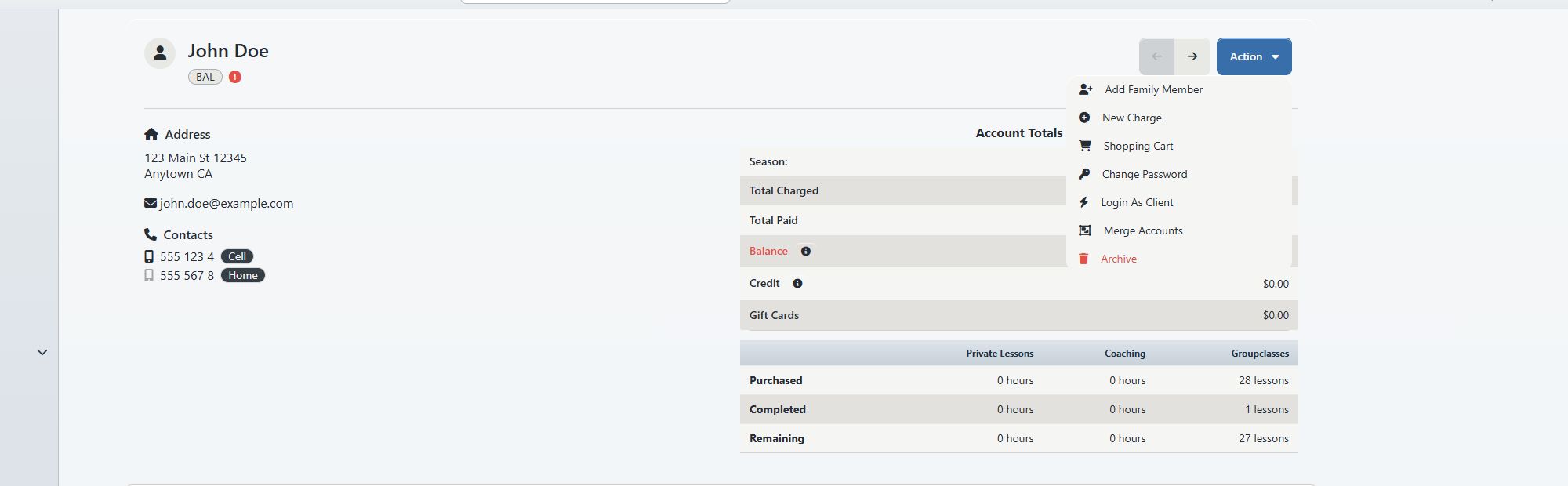
Depending on permissions and account state, the menu can include:
- Add Family Member
- New Charge
- Make Payment
- Shopping Cart
- Change Password
- Login As Client
- Merge Accounts
- Archive or Restore
Warning: Merge and archive actions affect how records are found and related. They deserve separate procedures and should not be used as casual cleanup tools.
#View the account as the client
Use Action > Login As Client to verify what the selected account can see in the Online Client area. The client view displays an impersonation banner.
Use impersonation to check visibility and explain a client’s screen. Avoid completing payments, changing credentials, accepting agreements, or sending messages unless that exact action is intended and authorized.
#Archive rather than duplicate
Before creating a new account, search both active and archived records. Duplicate accounts split classes, purchases, payment methods, messages, and history. If duplicate accounts already exist, review the merge workflow rather than manually recreating data.
#Related articles
- Add a family and student
- Edit account and family details
- Record calls and manage client follow-up
- Configure, collect, and reconcile Referral Sources
- Archive, restore, and merge accounts safely
- Manage student measurements from a class
- Manage class prerequisites and student completion
- Account ledger
- Online Client navigation and account menu