Settings
Find and change Global Settings safely
#Before you begin
- Identify the workflow you want to change and the exact result you expect.
- Record the current on-screen description, setting ID, and value.
- Choose a fictional record and a separate role or client account for verification.
- Coordinate changes to registration, finance, payments, permissions, communications, or integrations with the people responsible for those workflows.
- Finish or cancel other admin work before testing a broad setting change.
Warning: A Global Setting can affect many existing records and users at once. It may change navigation, list columns, registration eligibility, prices, fees, calendar behavior, finance, messages, reports, or external services. The settings screen does not provide a customer-facing change history or one-step rollback.
Warning: Some categories contain passwords, processor credentials, API keys, mail settings, or other secrets. Do not copy them into notes, support tickets, screenshots, or this manual. A password control reports only whether a value is set and accepts a replacement value.
#Understand the settings screen
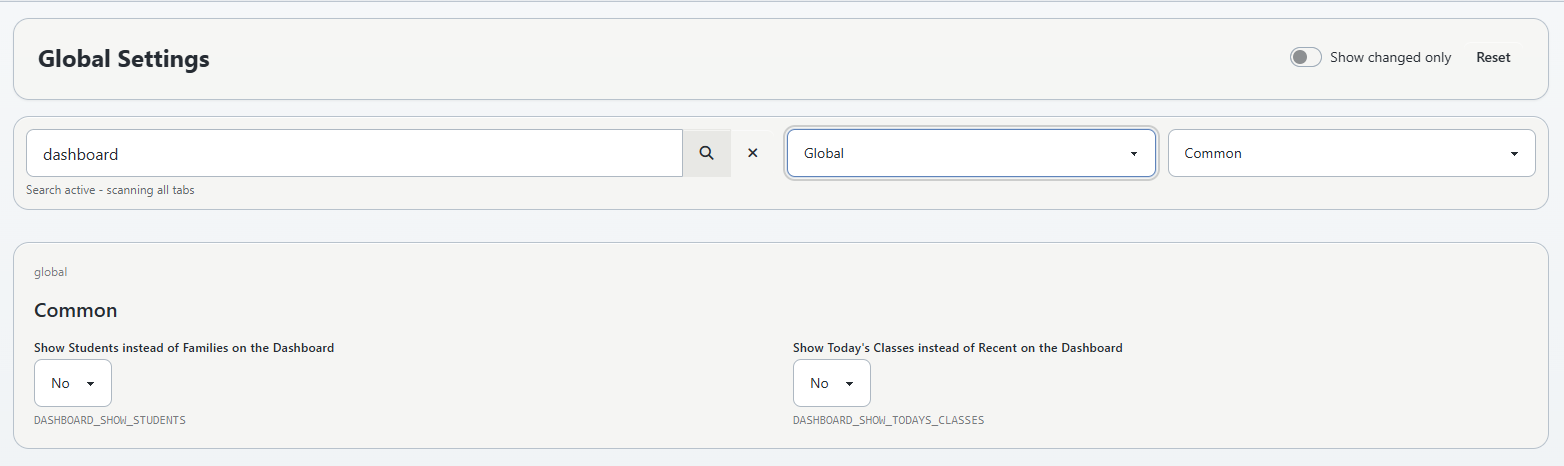
The page title is Global Settings, but the screen contains multiple setting tabs. The menu path selects the starting tab:
- Settings > Global Settings opens the Global tab;
- Settings > Online Client opens the Online Client tab; and
- Settings > Payment Processors opens the payment-processor tab.
The available tabs, categories, descriptions, values, controls, and read-only states come from the current studio's settings data. Do not expect another studio to have an identical list.
| Control | What it does |
|---|---|
| Search field | Searches setting ID, description, and current value. While a search is active, matching fields can appear from every tab. |
| Tab list | Limits normal browsing to one setting tab, such as Global or Online Client. |
| Category list | Limits the selected tab to a category. Common is preferred when it exists. |
| Show changed only | Hides fields that have not been changed during the current page session. |
| Changed / Original | Identifies an unsaved edit and shows its starting display value. |
| Read-only | Identifies a field that cannot be saved from this screen. |
| Reset | Restores all unsaved edits on the page to the values loaded when the page opened. It does not undo an earlier save. |
| Save changes | Submits the writable fields and returns a saved-settings message. |
The setting ID appears below each control in code-style text. Include that ID when reporting a settings problem; descriptions can be similar or customized.
#Find a setting
- Select Settings > Global Settings.
- To browse, choose a tab and category.
- To search across tabs, enter part of the visible description or the full setting ID in Enter ID, description or value....
- Read the field's description, ID, current value, and control type.
- Confirm that the field belongs to the workflow you intend to change.
Search results show a tab label for context. Clear the search before returning to category browsing.
Important: Search can match a current value as well as a description or ID. A result is not proof that its setting controls the workflow you had in mind. Confirm the ID and verify the downstream page.
#Change one setting safely
- Record the field's starting value.
- Make the smallest change that can prove the intended result.
- Look for the Changed indicator beside the field.
- Turn on Show changed only and confirm that only the intended edits remain.
- If an unintended field appears, restore it manually or select Reset to discard every unsaved edit on the page.
- Select Save changes.
- Confirm the success message.
- Reload the settings screen and verify the stored value.
- Open the affected workflow in a separate test account or role.
- Test both an expected-success case and one meaningful alternate case.
The success message reports how many setting rows were changed. An unchanged submitted value may not be counted as an affected row.
#Work with the available control types
| Control type | Safe-use guidance |
|---|---|
| Yes/No or other list | Choose an available value. An Unknown value can appear when stored data does not match the current option list; record it before replacing it. |
| Text, email, or URL | Preserve required formatting. Test links and delivery addresses outside a real customer send. |
| Number | Use the unit named in the description. Do not assume a blank, zero, percentage, day, minute, or currency value has the same meaning. |
| Checkbox/toggle | Verify both enabled and disabled behavior; related settings may still be required. |
| Text area | Review formatting and client-facing wording at the destination where it is rendered. |
| Password | Leave blank to keep the current stored value. Entering a new value replaces it when the form is saved. |
| File | Review the stated file restrictions and the destination where the uploaded asset appears. |
| Weekly availability | Expand each weekday, add non-overlapping Start and End ranges, and fix any Needs attention warning before saving. |
Important: A selectable value can be technically valid without being operationally correct. Payment methods, categories, seasons, locations, templates, and external services can depend on records outside the settings screen.
#Review several related settings
When a workflow requires a small group of settings:
- Search for the first field by ID or description.
- Change the approved values without saving yet.
- Repeat for the other fields.
- Select Show changed only.
- Compare every changed field with the approved worksheet.
- Save the group once.
- Verify the complete workflow rather than checking each field in isolation.
Keep the group narrow. For example, changing a class-list display group together is easier to test than combining class display, registration, payment, and messaging changes in one save.
#Reset unsaved changes
Select Reset when you want to return every edited field on the current page to the values that were loaded when the page opened.
Reset also clears new password entries, selected files, the active search, and Show changed only. It does not send a request to restore values that were already saved.
Important: After saving, reopening the page establishes a new starting point. To reverse a saved setting, you must deliberately restore its earlier value and save again.
#Use the Emailer test carefully
When the Emailer category is available, the page can show SMTP readiness, missing expected setting keys, and a test-email control.
Warning: Send Test Email can deliver a real message through the configured studio mailer. It is not a harmless preview. Use an approved internal recipient, confirm the displayed destination, and follow the studio's messaging safety rules.
If SMTP is incomplete, the test reports that it is not configured. If no target is entered, the current implementation can fall back to the studio email or configured From address.
#What happens next
Saving updates writable active setting rows that match the submitted IDs or names. Read-only rows are not changed through the normal form.
After a save, Dance Studio Manager clears cached branding, Online Client home, and feature-flag data. A change to supported branding keys can also regenerate the studio branding stylesheet. Other workflows read the new value when their page or service is loaded.
Saving a setting does not repair missing records, connect an external service, reprocess old transactions, or prove that every role can use the feature.
#Confirm it worked
- Reopen Settings > Global Settings and confirm the saved value.
- Open the affected admin page as the intended staff role.
- When client behavior can change, test both a signed-out visitor and a signed-in fictional client.
- Confirm a normal record and one alternate state, such as a hidden item, ineligible student, read-only role, or disabled method.
- Check downstream records, not only the interface. For example, a payment setting should be verified against the resulting order, charge, payment, receipt, and processor response in an approved test.
- Record the result and review date with the setting ID.
#Troubleshooting
#The setting is not in the expected category
Search by its full ID or a distinctive word from its description. Search scans across tabs. If no result appears, the row may be inactive, absent from this studio's settings table, or unavailable to the current role.
#A field is read-only
Do not try to bypass the disabled control. Record the setting ID and ask an owner, administrator, or Dance Studio Manager support contact to confirm its intended management path.
#Save reports zero settings changed
The submitted values may match what is already stored, the target row may be read-only or inactive, or the intended row may use a different ID or name. Reload and compare the field before repeating the save.
#The saved setting did not change the workflow
Confirm the correct studio, field ID, status, role, dates, categories, and record eligibility. Then review related feature settings and external prerequisites. A menu or settings flag is often only one part of the workflow.
#Reset did not restore an earlier saved value
Reset only discards edits made since the page loaded. Enter the earlier recorded value and select Save changes to reverse a previous save.
#The page shows different fields than this article
That is expected for a data-driven settings screen. Use the current on-screen description and ID for the studio you are managing, and document the difference before applying instructions written for another studio.
#Related articles
- Settings overview
- Create, use, and retire studio locations safely
- Configure, collect, and reconcile Referral Sources
- Prepare the Online Client for launch
- Assign Sales Items and pricing options to a class
- Set up rooms and Online Client room booking
- Roles and permissions overview
- Create and publish a season
- Feature availability