Dashboard
Customize the dashboard, search, and review alerts
These three tools have different scopes:
| Tool | What it changes or reveals | Scope |
|---|---|---|
| Dashboard customization | Which permitted cards and widgets are shown, and their order | Your staff account in the current studio |
| Global Search | Current matching members, classes, and instructors | Current studio; results depend on the Search ability |
| Alert read status | Whether an alert is counted as read or unread | Shared by all staff in the current studio |
Important: Marking an alert as read is not a private dismissal. It changes the shared alert record for everyone who can use the studio's alert center.
#Before you begin
- Sign in with your own staff account. Do not customize a shared administrator login on behalf of several people.
- Confirm that you are working in the correct studio. Dashboard preferences are stored with your staff record inside that studio.
- Ask an administrator to review your permission group if Global Search, the alert bell, a widget, or a destination page is missing.
- Treat search suggestions, dashboard metrics, and alert messages as private studio information. They can reveal names, activity, account indicators, balances, purchases, registrations, and class notes.
- Do not use Mark all as read as a cleanup experiment. It affects every unread alert in the studio, not just your current page or filter.
#Customize your dashboard
The dashboard separates its available content into two groups:
- Top cards are the smaller summary cards across the top of the page.
- Widgets are the larger information panels below the cards.
The current catalog can include the following items when your role is allowed to use the related area:
| Top cards | Widgets |
|---|---|
| Families or the studio's configured primary account label | Alerts |
| Calendar | Finance |
| Classes | Clients At Risk |
| Purchases | Recent Classes |
| Latest Students | |
| Active Students | |
| Taught Hours | |
| Get Started | |
| First Lessons |
The list you see is authoritative for your account. A widget can be absent because your role cannot use its related page, because the widget is hidden, or because the feature is unavailable in the studio.
#Show, hide, or reorder dashboard items
- Open Dashboard.
- Select Customize dashboard.
- Under Top cards or Widgets, turn an item on to show it or off to hide it.
- Use the up and down arrow buttons to change its position within that group.
- Select Save.
- Wait for the dashboard to reload.
- Confirm that the item is visible and in the intended position.
There is no drag-and-drop requirement. The arrow controls establish the saved order and also work when the dashboard is displayed in a single column on a narrow screen.
Changes made inside the customization panel remain a draft until you select Save. Closing the panel or leaving the page without saving does not provide a separate confirmation prompt.
#Hide one widget from its options menu
Each displayed card or widget has a Widget options button represented by an ellipsis.
- Open the item's Widget options menu.
- Select Hide.
- Wait for the page to reload.
This shortcut saves immediately; it does not wait for the main customization panel's Save button. To restore the item, open Customize dashboard, turn the item on, and save.
#Expand a widget temporarily
Open Widget options and select Expand to make a larger insight widget span the desktop widget area. The option changes to Shrink while the widget is expanded.
The size change is temporary:
- it is not saved to your staff account;
- it returns to the configured size after a page reload;
- it does not create additional space on mobile, where widgets already use one column; and
- it may not visibly change a Top card, because the top-card grid does not use the expanded size setting.
Use Customize dashboard for persistent visibility and order changes. Treat Expand as a current-page viewing aid.
#Reset the dashboard
- Open Customize dashboard.
- Select Reset.
- Wait for the dashboard to reload.
- Review both the visible items and their order.
Reset removes your saved dashboard layout and restores the product defaults for the widgets available to your role. It also removes compatible older dashboard-order preferences from your staff record. It does not reset unrelated preferences such as a saved side-menu order.
There is no confirmation dialog and no undo button. If you reset by mistake, arrange the items again and select Save.
#Who sees a saved layout?
A saved layout belongs to the signed-in staff member in the current studio. It is stored on that person's tenant member record, rather than only in the current browser.
As a result:
- the layout should follow the same staff account to another supported browser or device;
- another staff member's dashboard is not changed;
- the same person can have a different saved layout in another studio; and
- clearing ordinary browser storage should not remove the saved order or hidden-item list.
The Reset action also clears one obsolete browser-storage key left by an older dashboard, but the current saved layout comes from the staff record.
#Use Global Search
Global Search appears in the administrator top bar when the signed-in permission group has the Search ability.
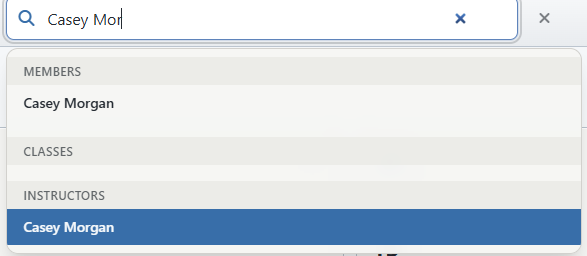
#Find a record
- Select the top-bar Search field.
- Enter at least two characters.
- Wait briefly for the grouped suggestions.
- Select a result, or use the keyboard to highlight one and press Enter.
Current results are grouped as Members, Classes, and Instructors. The Members group can contain the family, parent, or student records represented in the studio's member data. Instructors are separated from the Members group when the stored role fields identify them as instructors.
Search can match more than the text shown in a suggestion:
- a member's first name, last name, nickname, username, primary or secondary email, exact numeric ID, and configured phone fields;
- a two-word first-and-last or last-and-first name;
- a class code, class name or category name, or exact numeric class ID; and
- an instructor's member fields.
The suggestion itself normally shows the record's name or class label, plus any enabled member-status icons. It does not display the matched email or phone text in the standard top-bar result row.
The top-bar search returns up to 30 mixed results, divided across the three groups. If a broad search does not show the intended record, enter more of the name or code.
#Keyboard controls
| Key | Result |
|---|---|
| Down Arrow / Up Arrow | Move through all visible suggestions, wrapping at the beginning or end |
| Home / End | Move to the first or last suggestion |
| Enter | Open the highlighted result |
| Escape | Close the result panel |
Select the Clear search button to remove the term and results. Clicking outside the component also closes the panel. Focusing the field again reopens the existing result set when it is still available on the current page.
There is no documented global keyboard shortcut that moves focus into Search.
#What Global Search does not include
The top-bar control does not currently provide:
- a switch to include archived records;
- full-text searching inside notes, messages, purchases, payments, or reports;
- a complete search-results page beyond the capped suggestions; or
- search history that follows you between pages.
By default, archived or inactive members and classes are excluded. The underlying search service supports an archive option for other callers, but the top-bar control does not expose it.
#Result access and stale records
Search permission and destination-page permission are separate checks. A result can be returned because your group can search even when your group cannot open every profile or section linked by that result. If selecting a result produces a permission message, return to the dashboard and ask an administrator to review the destination permission; do not use another person's login.
Suggestions are generated from the current studio database at the time of the request. A record that was archived or deleted after the suggestion was loaded can lead to an unavailable page. Clear the search and run it again. If the refreshed search no longer returns the item, treat the earlier suggestion as stale.
Privacy note: Global Search is not a public directory. A permission group with Search can query names by email, phone digits, username, and ID even though those matched values are not all shown in the suggestion. Grant the Search ability only to staff who should be able to locate studio records.
#Empty and error behavior
Search waits until the term contains at least two characters. For a one-character term, it shows no result panel.
The current interface also closes the panel when there are no matches or when the request fails. It does not display a separate No results or Search failed message. If an expected record does not appear:
- Confirm that the term contains at least two characters.
- Try a more specific name, code, or exact numeric ID.
- Clear the field and try again.
- Refresh the page if other administrator features are also failing.
- Check the record's active/archive status and your permission group.
#Review alerts
The top-bar bell opens the full Alerts page. The badge shows the current studio-wide unread count and displays 99+ when the count is greater than 99. It is a navigation link, not a dropdown menu.
The dashboard's Alerts widget can show a short list of recent unread alerts. Selecting a message opens its resolved destination when DSM recognizes the alert type. Select View alerts for the complete history.
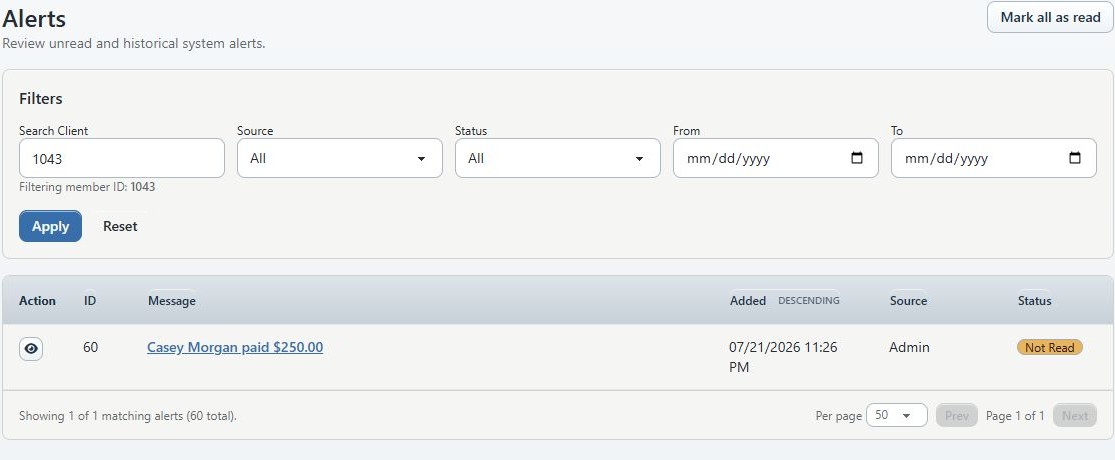
#Understand an alert row
| Column or control | Meaning |
|---|---|
| Action | The eye button changes a Not Read alert to Read. It is disabled for an already-read row. |
| ID | Internal alert record number. |
| Message | Stored activity summary and a link to the related page when one can be resolved. |
| Added | Alert creation date and time in the displayed studio application format. |
| Source | Online Client, Admin, Mobile APP, Mobile APP Admin, WP plugin, or Unknown. |
| Status | Not Read or Read. |
Some older class-registration alerts stored a long list of schedule dates inside the message. The current list can replace that date list with a short detail such as Added to 3 schedules while retaining the original alert record internally.
#Filter and sort alerts
Use the filter panel to narrow the table by:
- Search Client;
- Source;
- Status;
- inclusive From date; and
- inclusive To date.
Enter at least two characters in Search Client, then select the intended active member suggestion. The suggestion can include the person's name, member ID, and email address, so do not expose this dropdown during a public screen share.
Select Apply after changing filters. Select Reset to restore all sources, all statuses, no client or date restriction, newest-added sorting, and the first page.
Select the ID, Message, Added, Source, or Status column heading to sort. Select it again to reverse the direction. The page initially sorts newest alerts first and shows 50 rows; the available page sizes are 25, 50, and 100.
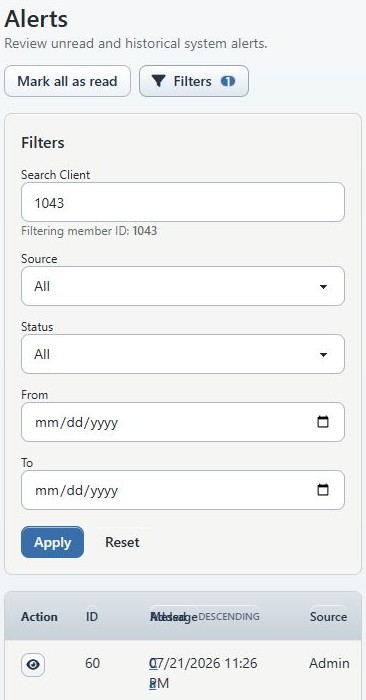
On a narrow screen, select Filters to open the filter panel. The alert table remains a table and can scroll horizontally.
#Open the related record
Select an alert's message to open its destination. Current recognized destinations include:
| Alert activity | Typical destination |
|---|---|
| New member | Member/student profile, main account area |
| New student or class registration | Family area of the related account |
| New payment | Related account ledger |
| New purchase by a member | Related account purchases |
| Anonymous purchase | Sales-to-not-registered-clients report |
| New class note | Related class notes |
| Room booking | Related account orders |
| Unknown or unsupported type | Alerts page |
The system chooses a parent/family account when the alert or member record supplies one. The link is a shortcut, not proof that the destination still exists or that your role can open it.
Opening the message does not automatically mark the alert as read. Review the destination, return to Alerts, and use the eye action when the item no longer needs to remain unread.
#Mark one alert as read
- Review the alert message and, when appropriate, open its destination.
- Return to the Alerts page.
- In Action, select the eye button for that row.
- Confirm that the success notice appears.
- Confirm that the row changes to Read or leaves the current view when the Status filter is Not Read.
- Confirm that the bell count decreases.
The alert remains in history. Use the Read status filter to find it later. There is no current action to restore it to Not Read.
#Mark all alerts as read
Warning: Mark all as read changes every unread alert in the current studio. It is not limited to the current client, source, date range, status filter, page, or visible rows.
- Coordinate with other staff who use the shared unread queue.
- Review any filters only as an aid; do not assume they constrain this action.
- Select Mark all as read.
- Confirm that the success notice appears and the bell count becomes zero.
- Reset filters or select Read if you need to confirm that the records remain in history.
There is no confirmation dialog, undo action, or per-user copy of the unread state.
#What marking read changes
Marking one or all alerts as read updates only the alert's shared status and unread count. It does not:
- reverse or approve a payment;
- cancel a purchase or registration;
- change a class note, room booking, or account record;
- notify the client;
- remove the alert from history; or
- record which staff member reviewed the alert.
Current alert history does not show a read date, reader, comment, or handoff owner. Studios that need an auditable follow-up process should record the action in the appropriate account or operational workflow before changing the shared alert status.
#Confirm everything works as expected
#Dashboard
- Note the current visible cards and widgets.
- Make one low-risk visibility or order change on your own account.
- Save and confirm the reload.
- Sign in to the same account in another supported browser and confirm the saved layout.
- Sign in as a different fictional staff account and confirm that its layout did not change.
#Global Search
- Search for a fictional active member using part of the name.
- Confirm that the expected group and label appear.
- Open the result and confirm that the tenant slug and destination record are correct.
- Repeat with a fictional class code and instructor.
- Confirm with a limited test role that restricted destination pages remain restricted.
#Alerts
- Use a synthetic unread alert created for testing.
- Confirm that it appears in the bell count, dashboard widget when enabled, and alert center.
- Open the destination and confirm that opening alone does not change status.
- Mark it as read and confirm the shared count and history.
- Check with a second fictional alert-enabled staff account to confirm that the status is shared.
Do not perform these checks with real payments, registrations, notes, or client identities merely to create documentation evidence.
#Troubleshooting
#My saved dashboard change disappeared
Confirm that you selected Save and allowed the page to reload. Expand is deliberately temporary and will disappear after reload. If visibility or order changes repeatedly fail to persist, ask support to check whether your staff member record can store dashboard options. The current interface does not show a specific warning when that storage write fails.
#A colleague does not see my dashboard arrangement
That is expected. Layouts belong to individual staff accounts. The colleague must customize and save their own dashboard.
#A widget is not listed in Customize dashboard
The server removes widgets whose related routes are not permitted for the current role. Compare the staff member's group permissions with the area represented by the widget. Do not broaden access merely to make the dashboard look the same for everyone.
#Expand did not change the card
Expand is most visible for a larger widget in the two-column desktop section. Top cards and the single-column mobile layout may not visibly change. It is never saved after reload.
#Global Search is missing
The permission group needs the Search ability. Menu access or a broad administrator-like route permission does not necessarily supply that top-bar ability. Ask an administrator to review the effective group configuration.
#Search closed without showing a message
The current control closes for a term shorter than two characters, no matches, or a failed request. Try a more specific term, clear and retry, then refresh the page. If several administrator requests fail together, stop and report the problem rather than assuming the record was deleted.
#A search result or alert link is forbidden or unavailable
The result service creates a destination link but does not guarantee that your role can open it or that the referenced record still exists. Refresh the source list. If the result remains but the destination is blocked, ask an administrator to review the destination permission. If it disappears, the earlier result was likely stale or the record is no longer active.
#The alert bell is missing
Your group may not have Alerts access. The default alert-center access verified in focused tests covered administrator-like and office-administrator groups; instructor access was denied. A studio's customized permission matrix can change the effective result.
#The bell count looks out of date
The bell fetches its unread total when the page loads and updates after read actions performed on the current Alerts page. It does not continuously poll. Refresh the page after another staff member changes alert status. If the count request fails, the bell remains usable as a link but can temporarily show no badge.
#Mark all as read changed more alerts than I expected
That action is studio-wide and ignores the list filters. Filter by Read to confirm that the records still exist. There is no user-facing bulk undo; coordinate with the team before using it again.
#No alerts appear even though the page loads
Reset the filters first. A studio with no alert table or no matching records returns the normal empty state, No alerts match the current filters. If expected new activity is absent after resetting, report the example activity and time to support without recreating a real charge or registration.