Shopping
Buy items and use your cart
#Before you begin
- Sign in when the item is restricted to clients or must be assigned to a family member.
- Confirm the intended student, location, size or color, package, and quantity.
- Review active dates, restrictions, included uses, expiration, and payment choices on the item page.
- Ask the studio before buying a second package when you are unsure whether an existing purchase still has remaining value.
Your studio can rename Buy Items, hide it, show different items to guests and signed-in clients, or offer packages on a separate page.
#Browse available items
- Select Buy Items or the studio's customized shopping label.
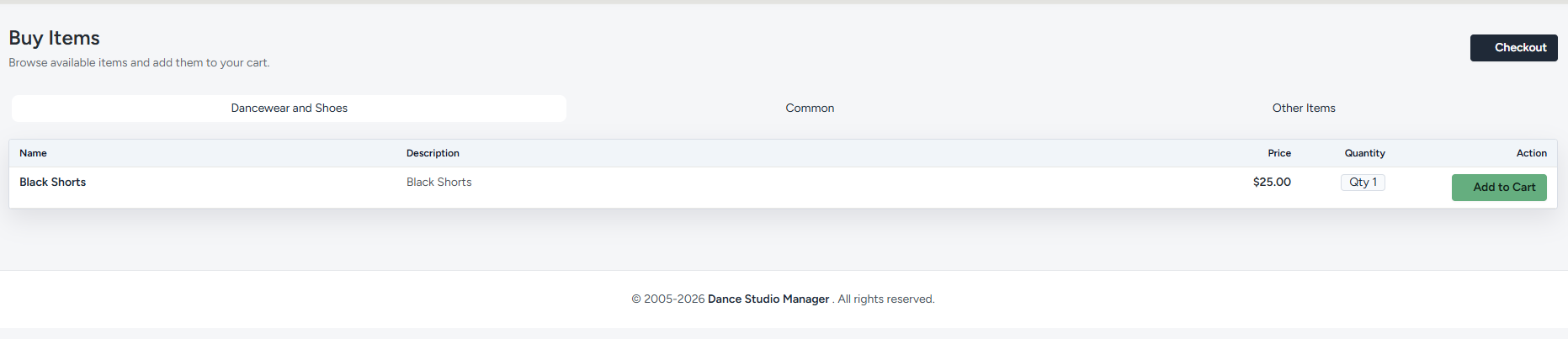
- Select a category tab, such as Dancewear and Shoes, Common, or Other Items. The labels depend on the studio's available catalog.
- Review the table's Name, Description, Price, Quantity, and Action columns.
- Select the item name to open its details.
- Review its price, available quantity, purchase quantity, description, and any You may also like items.
An item can be unavailable because of its sale dates, stock, location, client or student eligibility, purchase limits, or studio settings.
#Choose the correct item
The catalog can contain several kinds of offers:
| Offer | What to review |
|---|---|
| Product | Size, color, other variant, quantity, and location stock. |
| Package | Included classes or lessons, quantity, activation, expiration, and eligible student. |
| Gift card product | Fixed or allowed custom amount and intended recipient. |
| Subscription | Recurring amount, schedule, start, and any remaining-payment count or cancellation terms. |
| Class-related item | Class, season, student eligibility, registration fees, and whether another pricing choice is available. |
Select the add-to-cart action only after the item and its options are correct.
#Shop before signing in
Some studios allow guests to add public products to an anonymous cart. When you continue toward checkout, the site will ask you to sign in or create an account. Supported cart details are carried into the signed-in session.
After signing in, review the cart again. Eligibility, student assignment, fees, availability, or pricing can change when the site knows which account is purchasing.
#Review your cart
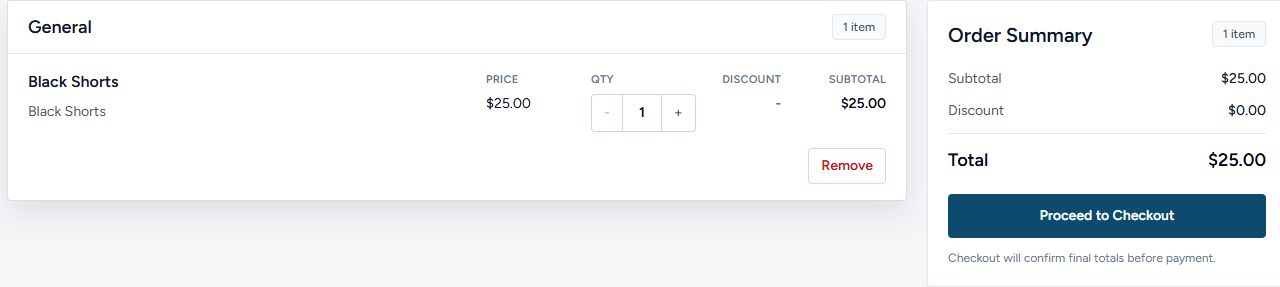
Open Cart and check each group of items.
- Confirm the family member or student attached to the item.
- Confirm the item, class, package, or product variant.
- Review quantity and remove any duplicate or unintended line.
- Review required registration fees, tax, convenience fees, discounts, account balance notices, and recommended additions.
- Review any payment-plan quote without assuming it is already active.
- Continue to Checkout only when the displayed items and totals make sense.

Important: A cart reserves neither a class space nor physical inventory permanently unless the page explicitly says otherwise. Complete checkout promptly, and review availability again if the cart has been open for a long time.
#Discounts, gift cards, and payment choices
Some values and choices are entered during checkout rather than on the cart page. Coupons, vouchers, gift-card value, account credit, payment plans, tax, and convenience fees can depend on the complete order and studio configuration.
Do not use the cart subtotal alone as the final amount. Review the complete order summary before submitting checkout.
#Confirm the cart is ready
Before continuing, verify:
- every line belongs to the intended account and student;
- all product variants and quantities are correct;
- package uses and restrictions match the intended activity;
- the class and season are correct;
- required fees and visible discounts are understood; and
- there is no duplicate item left from an earlier attempt.
#Troubleshooting
#Buy Items or an expected product is missing
The studio may have disabled public shopping, restricted the item to signed-in clients, used a different section title, or limited the item by date, location, stock, category, or eligibility.
#The cart changed after sign-in
Signed-in eligibility and family assignment can add requirements or remove an unavailable choice. Review every line and ask the studio about any item that disappeared rather than building a second account.
#A package cannot be assigned to the intended student
Check its age, category, class, purchase, location, and other eligibility restrictions. Confirm that you selected the correct student and that an existing package does not already provide the needed uses.
#The total changed at checkout
Checkout can apply account credit, gift cards, coupons, vouchers, tax, required fees, convenience fees, or a payment plan using the complete order. Review the line-by-line order summary before completing it.
#The page appeared to stall after an action
Do not repeatedly add the item or submit checkout. Reload the cart first and check for duplicate lines. After a checkout attempt, also review purchases and finance before trying again.