Finance
Sell, issue, transfer, and manage gift cards
Current implementation boundary: The Online Client checkout and staff Shopping Cart do not create identical gift-card records. A direct entry under Finance > Gift Cards is not a sale. Complete the verification checklist for the studio's exact data version and release before advertising gift cards or delivering a code.
#Understand the five parts of the lifecycle
| Part | What it represents | Where to review it |
|---|---|---|
| Gift Card Sales Item | The offer clients or staff can add to a cart, including its fixed or entered value and selling restrictions | Settings > Sales Items |
| Sale | The order, purchase, charge, payment, processor result, and receipt | Purchases, account ledger, Finance > Payment History, and processor records |
| Gift-card record | The code, original amount, buyer, intended member, dates, record status, and linkage used to calculate stored value | Finance > Gift Cards |
| Claim or transfer | The code becoming associated with a member; the current data calls this transferred and the client table labels it Redeemed |
Online Client Gift Cards and the Finance assignment filter |
| Use | Some or all available value being applied to a later order | Checkout confirmation, gift-card balance, order charges, and payment allocations |
These events are related but not interchangeable:
- Active is the record's archive status. It does not prove the activation date has arrived.
- Redeemed currently means claimed or transferred to a member. It does not mean all value has been spent.
- Amount is the original face value recorded for the card.
- Available is the remaining value calculated by the current surface. It can depend on a linked charge or a stored available-balance field.
- A completed payment proves money was recorded for a sale. It does not, by itself, prove a usable gift-card record was created.
Warning: Treat every gift-card code as a bearer credential. Anyone who can read a working code may be able to claim it. Use fictional codes in screenshots, mask codes in routine support material, and never put a live code in an ordinary email or public support ticket.
#Before you begin
- Define whether you are setting up a product, selling a card, issuing value without a sale, assigning a recipient, correcting a record, or applying value.
- Confirm the staff role has the right access:
- Settings > Sales Items permission to create or change the product;
- Shopping Cart permission and payment authority for a staff-assisted sale; and
- Finance and gift-card mutation permission to add, edit, archive, or restore a card record.
- Approve a policy for:
- minimum and maximum value;
- tax treatment;
- delayed activation;
- expiration, dormancy, and unclaimed-property requirements;
- refunds, voids, replacements, and lost or exposed codes;
- who may issue complimentary or migrated value; and
- how accounting reconciles sold value with later use.
- Configure a processor and Online Client catalog/cart settings when clients will buy online.
- Create fictional buyer and recipient accounts for testing. Use a processor test mode or an approved no-payment-due scenario.
The software does not decide which gift-card policy is legal for the studio. Obtain local accounting and legal guidance before setting an expiration date or changing sold value.
#Create the gift-card product
The Sales Item defines what can be sold. It is not an individual gift card.
- Open Settings > Sales Items.
- Select Add New.
- Set Type to Gift Card.
- Enter a client-ready Name and Description.
- Choose the pricing model:
- enter a price greater than zero for a fixed-value product; or
- enter
0when the Online Client should be asked to choose an amount.
- Select the appropriate purchase and charge categories.
- Under Purchase Restrictions, keep Sell Online set to No while testing.
- Review Sell Individually, sale start and end dates, eligible client types, exclusions, available quantity, per-customer limits, tax, contracts, and any related-item settings.
- Save the Sales Item.
- Test the item in a staff cart and, if applicable, through the complete Online Client checkout before enabling Sell Online.
For a zero-price Gift Card Sales Item, the current Online Client form requires an entered amount of at least 1 in the studio currency. The server requires a positive amount, but no gift-card-specific maximum was found in the inspected path. Enforce the studio's approved maximum through procedure until it is verified as a system rule.
Important: The Gift Card type does not currently receive the Sales Item Activation and Expiration tab. The individual card record, rather than the product, carries activation and expiration dates. The inspected Online Client purchase path activates a new card immediately and does not collect a recipient or future activation date.
#Choose the correct creation path
| Path | What current source confirms | Do not assume |
|---|---|---|
| Online Client sale | Creates the order and purchase; creates a gift-card record when the required storage is available; sets buyer and member to the purchasing account; marks it claimed; activates it on the purchase date; attempts to link the sale charge and payment | It sends the card to another person, supports delayed activation, or always completes every linkage after a partial checkout |
| Staff Shopping Cart sale | Requires the card to be checked out separately; asks staff for code, amount, and activation date; can create the purchase, charge, and payment records and store code/date on the purchase when supported | It creates the separate Finance > Gift Cards record; no such creation step was found in the current staff checkout service |
| Finance > Gift Cards > Add New | Creates a gift-card record directly with code, amount, buyer, intended member, dates, and active/archived status | It collects payment or creates an order, purchase, charge, receipt, processor transaction, transfer, or reliable spendable balance |
Use the Online Client path only after an end-to-end test. Treat the staff sale as incomplete until the matching Finance record and balance are confirmed. Use direct creation only for an approved migration, complimentary issue, or correction whose accounting treatment is documented.
#Sell through the Online Client
#Prepare the product
- Confirm the Gift Card Sales Item has the intended fixed value or zero-price choose-amount setup.
- Confirm Sell Online, Sell Individually, sale dates, quantity, and client eligibility.
- Confirm Buy Items, the cart, checkout, and the intended payment method are available to the fictional client.
- Confirm the studio can safely reconcile a purchase, charge, payment, gift-card record, and later use.
#Run a controlled sale
- Sign in as the fictional buyer.
- Open Buy Items and select the gift-card product.
- For a choose-amount product, enter the approved value.
- Confirm the quantity and add the card to the cart.
- Review the item, value, tax or fees, and order total.
- Complete checkout once using the approved test path.
- Wait for the confirmation. Do not repeat an uncertain submission.
The current checkout creates a new code when one was not supplied, checks generated codes for a collision, and derives face value from the server-calculated checkout line. When the studio's data version supports the fields, the resulting card is linked to the order, purchase, Sales Item, sale charge, and payment.
The current path also sets the buyer and member to the purchasing account, sets the claim/transfer flag, and uses the current date as activation. It is therefore a self-owned card, not a recipient-gifting workflow.
No expiration date is written by this purchase path unless a studio-specific integration supplies one or staff later make an approved edit. The inspected card-creation method also requires a signed-in member ID. Anonymous or guest gift-card sales are therefore not verified, even when the public Sales Item catalog is enabled.
#Verify before delivering the code
Confirm all of the following:
- The checkout confirmation has one order and the expected total.
- Purchases shows one Gift Card purchase for the buyer.
- The account ledger shows the expected sale charge, payment, and allocation.
- Finance > Payment History and the processor agree when an electronic payment was used.
- Finance > Gift Cards contains one matching card with the same amount and buyer.
- The card has a nonzero spendable balance in a controlled checkout.
- Applying part of the value reduces the balance once and leaves the correct remainder.
- Reopening or replaying the original order does not create a duplicate card.
Known verification need: Some studio data versions store an order link on the card. The inspected purchase and usage paths can interpret that field differently. A later-order redemption must be tested on the studio's actual data version before gift-card sales are treated as production-ready.
#Sell through the staff Shopping Cart
The current staff cart exposes a Gift Card sale flow, but the inspected checkout service does not create the separate Finance gift-card record. Use this path only under a controlled procedure that includes post-checkout verification.
- Open Shopping Cart.
- Select the correct Client, Student, and Location.
- Find the Gift Card Sales Item and select Add to cart.
- In Add Gift Card to Cart, enter:
- a studio-approved unique Gift Card Code;
- the Gift Card Amount; and
- the Activation Date.
- Select Add to cart.
- Confirm the gift card is the only type of item in the cart. Current validation prevents a gift card from being checked out with other item types.
- Review the code, value, activation date, quantity, discounts, tax, and total.
- Continue to checkout and select the approved payment method.
- Submit once and reconcile the result.
The staff modal requires a code but does not perform the Finance page's direct issuance. Current source confirms that code and activation date can be stored with the purchase when supported. It does not confirm creation of the separate card record used by Finance and checkout.
The inspected staff form and checkout validation permit a zero amount. Studio procedure must require and recheck a positive approved value; do not treat the input's minimum as a gift-card policy.
Stop condition: If payment or the sale purchase exists but no matching card appears under Finance > Gift Cards, do not hand out the code, do not run checkout again, and do not automatically add an unrelated direct record. Capture the order, purchase, charge, payment, code, amount, and time; then follow the approved recovery procedure.
#Issue a card directly in Finance
Use direct creation only when no sale is intended or when an authorized correction plan specifically requires it.
- Open Finance > Gift Cards.
- Select Add New.
- For Card Code:
- leave it blank to generate an 18-character code; or
- enter an approved code that has been checked for uniqueness.
- Enter Amount.
- Search for and select Buyer when the value belongs to or was authorized by a known account.
- Search for and select For Member only when there is an intended recipient.
- Enter Activation Date and Expiration Date according to the approved policy.
- Leave Record Status as Active, or choose Archived when creating a record that must not be active.
- Review the purpose and accounting authorization.
- Select Save Gift Card once.
- Find the new row and perform the direct-record verification below.
The expiration date cannot precede the activation date. Buyer and member text must be selected from the family search results. The search returns active client records and excludes obvious staff/instructor login groups.
The Finance endpoint accepts an amount of zero. Entering a zero-value card is not blocked by the current validation, so require a documented reason or a positive approved value.
#Direct-record verification
Before sharing the code, confirm:
- exactly one record exists;
- the code is unique;
- the buyer and intended member are correct;
- dates and record status are correct;
- the issuing reason and accounting approval are documented;
- Amount and Available have been reconciled;
- the recipient can claim the code only when intended; and
- a controlled partial use reduces the stored balance and cannot be repeated for the original amount.
Warning: Direct creation does not add a sale charge or payment linkage. In the current Finance list, a card without a linked charge can show 0.00 available and appear completed, even when its Amount is positive. On data versions without a separate available-balance field, later checkout may also be unable to persist the reduced balance. Never assume a directly issued record is safely spendable until a controlled claim and partial-use test proves it.
#Review the Finance gift-card list
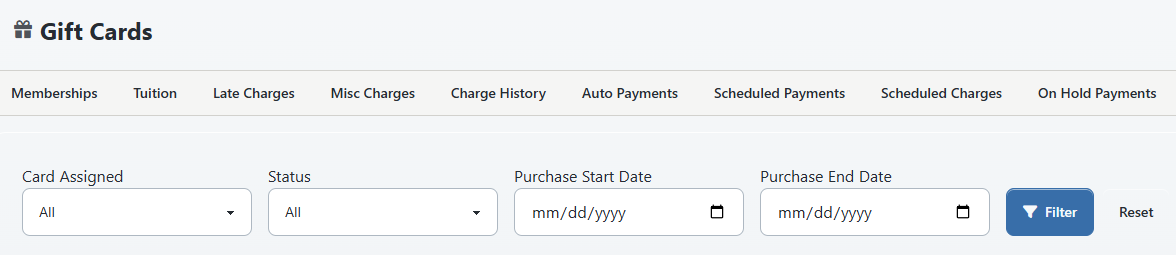
Open Finance > Gift Cards and use these filters:
- Card Assigned:
- Assigned means a member is present and the transferred/claimed flag is set;
- Unassigned means the transferred/claimed flag is not set, even when For Member already contains a name.
- Status:
- outstanding means the current calculated available value is greater than zero;
- completed means it is zero.
- Purchase Start Date and Purchase End Date filter the record's added date.
- Show Archived switches the list to archived records in the current implementation; it does not add archived rows to the active list.
The table can show ID, Card Code, Amount, Available, Buyer, For Member, Purchased, Activation, and Expiration.
Use multiple identifiers before changing a card. A code alone is sensitive; a name alone can match several accounts; an amount alone is not unique.
#Assign, claim, and transfer value
#What For Member does
Selecting For Member on the Finance form stores an intended member ID. It does not set the current transferred/claimed flag. The card can therefore continue to appear as Unassigned.
The current Finance page has no separate Transfer action. Changing For Member is not proof that the recipient can see or spend the value, and it does not send a notification.
#Client claim behavior
The current source includes Gift Cards > Redeem Gift Card in the signed-in account menu. Entering a code there assigns the card to the signed-in member and marks it transferred/claimed. Some deployed or contained releases can instead show that redemption is temporarily unavailable; follow the notice displayed by the studio's current release.
Important limitations:
- The account-page claim path treats possession of an unclaimed code as authority. The inspected service does not verify that the signed-in member matches the previously selected For Member.
- That account-page service does not apply the same activation, expiration, and status checks used by the checkout code-entry path.
- The checkout code-entry path does check active status and dates, but it can treat a card with any member already stored as already redeemed.
- The account-page claim update is not conditioned on the card still being unclaimed at the instant it is saved. Do not assume simultaneous claim attempts are safely serialized.
Because the two claim paths do not use identical rules, do not treat a future activation date or intended-member selection as a security embargo. Deliver the code only at the intended time and test the exact client path the studio plans to support.
#Visibility after claim
The Online Client Gift Cards page can show active cards bought by the account family and cards transferred to an active family member after their activation date. The buyer can still see a bought card under broader conditions than a recipient.
The page's Redeemed label means claimed/transferred, not fully spent. Its Available value can fall back to a stored available field or the original amount. Checkout uses a separate eligibility and balance path, so a listed card is not guaranteed to be selectable or to show the same remaining value.
At checkout, eligible cards are generally active, transferred to the checkout member, within activation/expiration dates, and above zero available value. Selected gift cards reduce the amount due before another payment. The applied amount cannot exceed the order total, so value may remain.
#Edit a gift card
- Find the exact card under Finance > Gift Cards.
- Select the pencil action.
- Compare the code, amount, buyer, intended member, activation, expiration, and status with the sale and account records.
- Make only the authorized correction.
- Select Save Gift Card once.
- Reload the list and reconcile the purchase, ledger, client view, checkout eligibility, and remaining value.
Editing is available even for a transferred card. Use extra care:
- changing the code can invalidate a code already delivered;
- changing Amount does not automatically prove the linked charge, payment, or remaining value was corrected;
- the Finance save path does not enforce code uniqueness;
- clearing Buyer or For Member in the form does not reliably clear an existing stored ID in the inspected service; and
- changing Record Status is not a refund, processor void, balance adjustment, or transfer reversal.
Preserve the old value, reason, approver, affected order and account, and post-change verification in the studio's audit process.
#Archive or reactivate a card
The archive/restore action is shown only when the card is not marked transferred.
#Archive
- Confirm the exact unclaimed card.
- Select the archive action.
- Turn on Show Archived and confirm the card appears there.
- Recheck the client view and any pending communication.
Archiving changes the card record's status. It does not refund the sale, void a payment, remove a charge, expire the value, or reverse an external processor transaction.
#Reactivate
- Turn on Show Archived.
- Find the exact card and select the restore action.
- Return to the active list and confirm the card.
- Recheck dates, assignment, balance, purchase, and ledger before returning it to use.
Restoring changes status to active. It does not recreate missing financial linkages, reset available value, or unclaim the card.
If a transferred card must be contained, the normal archive button is hidden. Do not change unrelated fields to force an archive. Restrict disclosure, preserve evidence, and escalate through the approved financial correction process.
#Verify the complete lifecycle
Use a synthetic card and stop before production rollout until every result passes.
- Product: The correct fixed or choose-amount item appears only to eligible clients and only during the sale window.
- Sale: One checkout creates one order, one expected purchase, the right charge, and the right payment result.
- Card: One card exists with the expected code, original amount, buyer, member, dates, status, and source linkage.
- Claim: The intended account can claim it at the intended time; another fictional account cannot take it under the approved policy.
- Visibility: Buyer and recipient views match the policy without exposing real codes.
- First use: A partial amount reduces the order total and appears on confirmation.
- Remaining value: Finance, Online Client, checkout, ledger, and report views reconcile to the same usable remainder or have a documented reason for a display difference.
- Replay: Refreshing confirmation, retrying the callback, or returning to checkout does not create a duplicate card or apply value twice.
- Final use: The remainder reaches zero and the card is no longer offered as spendable.
- Recovery: Staff can identify the original sale, every use, and the correct response to a missing or exposed code without repeating checkout.
#Recover from common problems
#The sale was charged but no Finance card exists
Do not submit checkout again. Record the order ID, purchase ID, charge ID, payment ID, processor reference, code, amount, account, and time. Confirm whether the staff Shopping Cart path was used. Escalate for an approved linked correction; do not casually create a direct card that cannot be tied to the sale.
#A card exists but no payment exists
Determine whether it was a direct complimentary issue, migration, abandoned checkout, or partial failure. Do not mark it paid or create a payment merely to make the records look complete. Follow the approved accounting decision.
#Available is zero but Amount is positive
Check the originating charge, its current amount, a stored available-balance field, gift-card payment links, and prior uses. A direct card without a sale charge can show zero in the Finance list. Do not increase Amount as a display repair.
#The card appears Unassigned even though For Member has a name
The intended-member field and transferred/claimed flag are separate. Confirm whether the recipient actually claimed the code. Do not edit the amount or status to force assignment.
#The client sees a card but cannot select it at checkout
Compare member assignment, transferred status, activation and expiration dates, record status, remaining balance, and the exact account holder used for checkout. The client list and checkout use different filters. Do not create a duplicate card.
#A future or expired card behaves unexpectedly
Stop using the code and preserve the visible result. The account-page claim path and checkout path do not enforce dates identically. Contain the code and escalate before changing dates or status.
#Two cards have the same code
Stop distributing both codes. The Finance create/edit path does not enforce uniqueness. Review every purchase, assignment, and use before replacing a code. Notify affected clients through an approved secure channel.
#A code was exposed
Treat it like exposed stored value. Record the incident, identify the owner and current balance, restrict further disclosure, check for claim/use activity, and follow the approved replacement and notification procedure. Do not include the full code in screenshots or ordinary messages.
#A transferred card cannot be archived
This is the current action boundary. Do not change the member or transferred data indirectly. Escalate with the card ID, safely masked code, owner, balance, sale, and reason for containment.
#Current gaps and unsafe assumptions
Do not make these promises until the studio's exact release has passed controlled testing:
- a staff Shopping Cart gift-card sale automatically creates the Finance gift-card record;
- a public or anonymous gift-card purchase creates a card without a signed-in member;
- assigning For Member completes a transfer or notifies the recipient;
- a future activation date prevents early claiming on every client path;
- the account-page list and checkout use identical family, date, status, and available-balance rules;
- Redeemed means the value was spent;
- a positive Amount means the card has a positive Available balance;
- a directly issued card can safely persist partial use without a linked charge or available-balance field;
- code uniqueness is enforced when Finance creates or edits a record;
- changing amount, status, owner, or code also corrects the ledger and processor;
- archiving refunds or voids a sale;
- a successful processor response guarantees every local purchase, card, and linkage was created;
- refreshing or retrying after a partial result is harmless; or
- two simultaneous claims for the same code are safely locked to one account.
#Related articles
- Create a Sales Item
- Sell an item with the staff Shopping Cart
- Review purchases
- Review an account ledger
- Review payment history and make corrections
- Memberships, vouchers, and gift cards
- Review and reconcile one-time vouchers
- Review purchases and use gift cards
- Understand your order result
- Why features and menus can differ