Finance
Scheduled payments and scheduled charges
#Do not confuse the two lists
| Destination | Record represents | It does not prove |
|---|---|---|
| Scheduled Payments | An instruction to record or initiate a payment on a date | That funds were collected, approved, or settled |
| Scheduled Charges | A pending instruction to create a ledger charge when its date and status condition are met | That the charge already exists on the account |
A scheduled payment concerns money expected to be received. A scheduled charge concerns an amount that may become owed.
Warning: Editing, pausing, deleting, or linking a scheduled payment can change future billing behavior. Confirm the originating purchase, membership, payment plan, processor method, and account ledger before changing it.
#Before you begin
- Confirm the family account and the purchase, charge, order, or membership behind the schedule.
- Know whether you are investigating a future instruction, a processor attempt, or a completed local payment.
- Set a date range that includes the event. The default range can exclude an older failed or completed instruction.
- Review the account ledger and Payment History before retrying or recreating anything.
- Confirm the saved card or ACH method and any account hold.
- Use the studio's approved policy for failed payments, membership holds, and schedule deletion.
- Record the existing date, amount, method, status, and related record before a mutation.
#Review Scheduled Payments
#Set the filters
- Open Finance > Scheduled Payments.
- Enter a client name or account detail in Client when narrowing to one family.
- Select Location if the studio uses location assignments.
- Select Status:
- All Statuses;
- Active;
- Complete;
- Paused; or
- Failed.
- Set From and To.
- Select Filter.
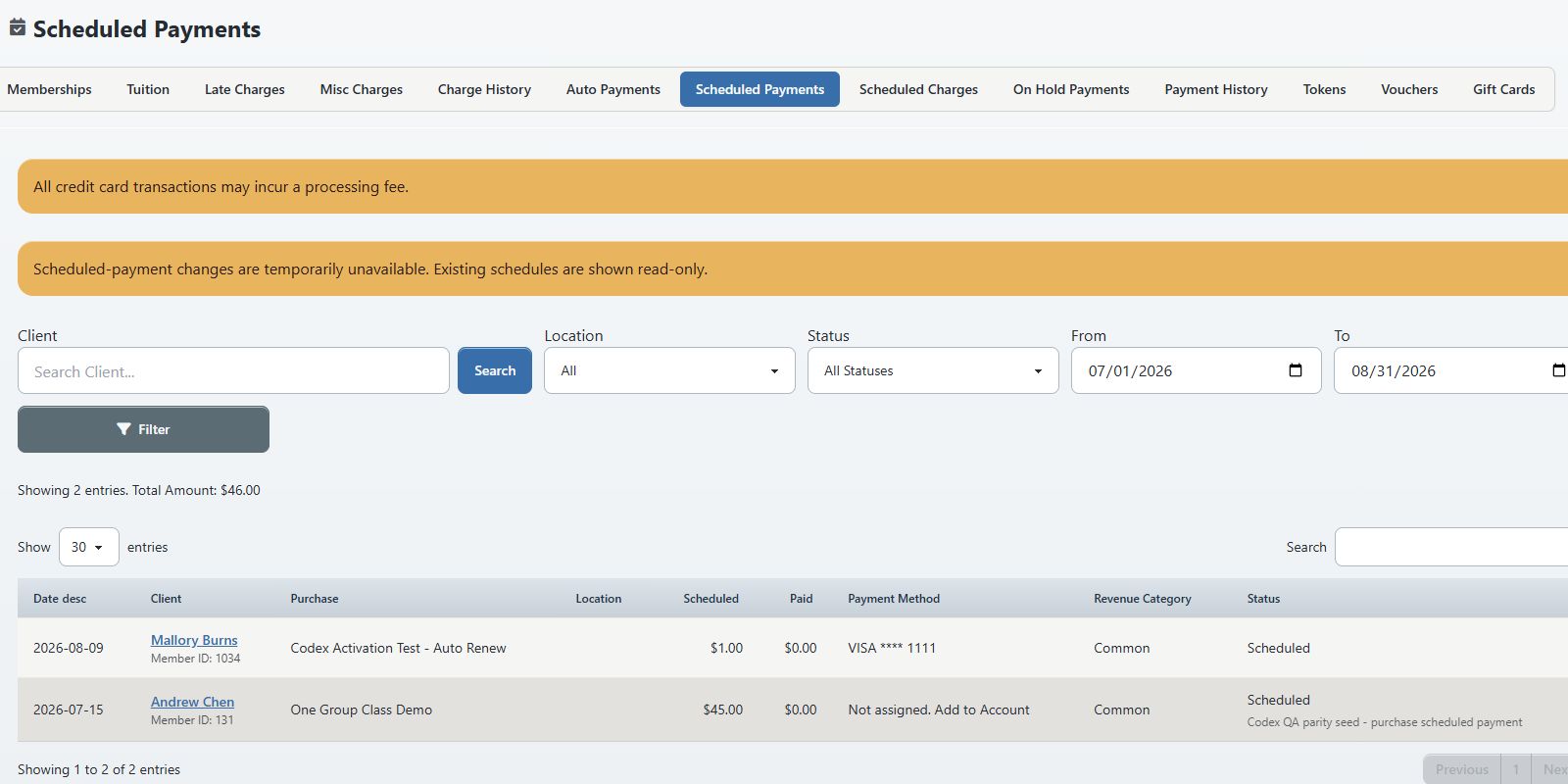
The current default From date is the first day of the current month. The default To date is the end of the following month.
Important: An older processing error will not appear if it falls before From. Expand the range before concluding that a failed or completed schedule is missing.
#Read the list
The page shows:
| Column | What to check |
|---|---|
| Date | Scheduled payment date |
| Client | Family and member ID |
| Purchase | Related Sales Item, order, charge, or Account Balance fallback |
| Location | Payment or account location when available |
| Scheduled | Instruction amount |
| Paid | Linked local payment amount, when one exists |
| Payment Method | Saved method summary or Not assigned. Add to Account |
| Revenue Category | Category derived from the related purchase, Sales Item, or charge |
| Status | Normalized status and any available detail |
The summary displays the number of rows and the sum of scheduled amounts in the current filtered result.
#Interpret statuses
The current list can display these normalized labels:
| Label | Meaning for review |
|---|---|
| Scheduled | A future or active instruction; not yet proof of payment |
| Processing | Work may be in progress; check the processor before taking another action |
| Complete | A payment link or completion state exists; reconcile the amount and processor result |
| Paused | The individual instruction is not active |
| On Hold | The account or schedule is in a hold state |
| Terminated | The schedule is no longer intended to continue |
| Processing Error | The processor-oriented instruction has an error or decline state and no linked payment |
The visible Failed filter finds the underlying error and decline states that the table labels Processing Error.
Important: A Complete label can be based on a linked local payment or a completion status. Confirm the ledger and processor result rather than treating the label alone as proof of settlement.
#Change a scheduled payment
The current global list exposes Edit, Pause, and Delete actions. Availability and authorization can vary.
#Edit the amount or date
- Find the exact row by client, purchase, date, amount, and status.
- Select the pencil action.
- Review Amount and Payment Date.
- If Related Payment appears, review whether an existing unapplied payment should be linked. Not assigned means no local payment is linked through this field.
- Confirm that the change will not break the cadence or terms of the originating purchase or membership.
- Select Save once.
- Reload the filtered list and confirm the new values.
- Open the account ledger and originating purchase to confirm that the surrounding records still agree.
Important: Linking a Related Payment associates an existing local payment with the scheduled entry. It does not charge a card, debit a bank account, or create new money received.
Warning: Moving a recurring instruction to an arbitrary date can affect future cadence or renewal behavior. The current edit form does not explain every product-specific recurrence rule. Use an approved membership or payment-plan procedure before changing a recurring date.
#Pause an instruction
- Record the row's current status, date, amount, method, and originating item.
- Confirm whether the request is to pause one instruction or place the broader account or membership on hold.
- Select the pause action only for the intended row.
- Reload the list and filter for Paused to confirm the status.
- Check the account record and Finance > On Hold Payments when the request concerns a dated account hold.
The current global-list pause action is distinct from the separate On Hold Payments workflow. Do not assume that pausing one row creates a hold period, changes membership access, or adjusts later renewal dates.
#Delete an instruction
- Confirm that the scheduled payment is not the only record preserving a purchase or membership obligation.
- Check for a processor transaction, linked local payment, account charge, and later schedule rows.
- Select the delete action for the exact row.
- Review Delete this scheduled payment?
- Accept once.
- Confirm that the row is gone and that the ledger and purchase remain correct.
Warning: Deleting a scheduled payment removes a future instruction. It does not refund a processed transaction, remove an account charge, cancel a processor-side recurring agreement, or terminate a membership by itself.
#Investigate a failed scheduled payment
- Set Status to Failed.
- Expand From far enough to include the expected attempt date.
- Find the row by family, purchase, amount, and date.
- Record Processing Error detail, payment method, scheduled amount, and any paid amount.
- Open the account's Cards and ACH tab and check the saved method's active, expiration, default, and autopay state.
- Check the processor for the attempt and its non-sensitive reference.
- Check Payment History and the ledger for a successful or uncertain local result.
- Follow the approved recovery procedure for that processor and originating product.
Warning: The current global Scheduled Payments page does not expose a rerun control. Do not recreate or resubmit a payment merely because older help material describes a retry icon. First establish whether the processor attempted or approved the original transaction.
If the instruction belongs to an auto-renewing membership, also verify the membership, purchase, later schedule rows, and account access. If it belongs to a finite package or payment plan, verify the remaining obligation separately. The correct recovery can differ.
#Review Scheduled Charges
#What appears on the page
Open Finance > Scheduled Charges. The current page is a read-only list of pending records that have not yet been linked to a created charge.
The list can show:
| Column | Meaning |
|---|---|
| Family | Account expected to receive the charge |
| Charge Date | Date when the pending instruction becomes due |
| Lesson | Class code and lesson start when available |
| Lesson Status | Student's current attendance or cancellation status |
| Category | Category intended for the future charge |
| Amount | Amount intended for the future charge |
| Ready | Whether the current status matches the rule's required status |
The page currently has no filters or row actions.
#Understand Ready
- Yes means the pending record has no specific status requirement or the current lesson status matches the expected status.
- Waiting for status means the condition does not currently match.
Important: Ready: Yes does not mean that a charge exists. It means the pending record currently satisfies its status condition. Confirm the ledger and charge history after the charge date.
Supported status labels can include Scheduled, Attended, Waiting, Early Cancel, Late Cancel, No Show, Cancelled, Cancelled (Hidden), and Exception. The applicable condition comes from the rule that created the pending record.
#Confirm a scheduled charge after its due date
- Record the family, charge date, lesson, expected status, category, and amount.
- After the due-date processing window, open the family ledger.
- Search for a charge with the matching date, category, amount, student, and lesson context.
- Check Charge History when the studio groups these records in a session.
- Confirm that a waiting or nonmatching instruction did not create a charge.
Do not manually add the same fee until you know that scheduled-charge processing did not create it. A delayed job or page refresh can make a premature manual charge a duplicate.
#Troubleshooting
#A scheduled payment is missing
Expand the date range and select All Statuses. Search by client and check the originating purchase or account's Scheduled Payments tab. Confirm that you are in the correct studio and location.
#The status says Complete but no funds settled
Compare the linked payment, processor result, and settlement. A completed local record can still require processor or accounting review. Do not create a second local payment to force the balance to look correct.
#Pause did not create an account hold
Pausing a row and creating a dated hold are separate actions. Review Finance > On Hold Payments and the studio's membership-hold procedure.
#A method says Not assigned. Add to Account
The scheduled row does not have a saved token summary available. Determine whether the intended outcome is a local account obligation or an electronic collection. Do not assign a method or create a payment until the product terms and client authorization are clear.
#A scheduled charge says Waiting
Compare Lesson Status with the status named in Ready. If the attendance record is wrong, correct the attendance through its approved workflow; do not alter financial records merely to force the fee.
#A charge is missing after the scheduled date
Confirm the date, status condition, account ledger, and background-processing window. Preserve the scheduled-charge row before manually creating anything. Escalate with the family ID, lesson, scheduled-charge ID, date, category, and amount.