Group Classes lifecycle
Archive and restore group classes
Archiving a class is a status change, not a complete class-cancellation or unpublishing workflow. It does not automatically close Online Client registration, cancel or delete schedules, change enrollments, reverse charges or purchases, stop scheduled payments, send messages, or remove the class from every calendar and report. Prepare those areas separately, then verify them after the archive.
Important: In the Group Classes list, the row-menu Archive and Restore actions take effect as soon as they are selected. That list path has no confirmation window or success message. The class-detail Action > Archive Class or Restore Class path does ask a browser confirmation question, but it performs the same status-only change after confirmation. Confirm the exact class code and ID before using either path.
#Understand what Archive does
The class record has an active or archived status. The current actions change only that status:
| Action | What it does | What it does not prove |
|---|---|---|
| Row-menu Archive | Immediately changes the class from active to archived and moves it to the archived-only Group Classes view | That future meetings are canceled, registration is closed, students were removed, billing stopped safely, clients were notified, or every client/report surface is hidden |
| Row-menu Restore | Immediately changes the class from archived to active and returns it to the active Group Classes view | That registration, schedules, enrollments, pricing, capacity, Sales Items, or communications are ready to resume |
| Class-detail Archive Class or Restore Class | Asks for browser confirmation, then makes the same status-only change and reloads the class page | That the confirmation includes an impact preview or that any dependency was reconciled |
| Close OC Registration | Controls the class's configured Online Client registration state | That schedules are canceled or that all previously enrolled clients stop seeing the class |
| Cancel or edit a schedule | Changes an individual meeting occurrence according to the schedule workflow | That the class record or every other occurrence is archived |
| Change an enrollment status | Changes one student's class relationship | That the class, the student's schedule rows, or financial records were removed |
| Reverse or credit a charge | Corrects an approved financial record through a finance workflow | That the class or enrollment was canceled |
Use Archive when the class definition and history should remain but the class should no longer be part of normal active-class work. For example, it may be appropriate after a completed program has been reconciled. Do not use it as a substitute for a documented cancellation, transfer, refund, or schedule-removal process.
#Before you archive a class
Choose one person to coordinate the change. The coordinator should be able to obtain confirmation from class operations, enrollment, finance, and client-support staff when those responsibilities are split among roles.
#Record the before state
Create an approved protected change record containing:
- the studio, class ID, class code, class name, and season;
- the reason for archiving, approver, responsible staff member, and intended effective time;
- the current Online Client registration state and any category or invitation restrictions;
- every past and future schedule count, date range, status, room, and instructor;
- active, waiting, eligible, drop-in, declined, and archived enrollment counts;
- the pricing method, assigned Sales Items, billing schedule, registration fee, and price overrides;
- open purchases, existing charges, payment allocations, scheduled payments, credits, and the result of the latest tuition preview;
- class notes, routines, videos, waivers, measurements, and other records that must remain available;
- the client and administrative pages that must be checked after the change; and
- the communication plan, including who must be told and how delivery will be confirmed.
Use an approved export or protected worksheet when the studio requires a durable before-state record. The Group Classes CSV follows the current list mode, so export the active row before archiving and the archived row afterward if both states are needed. Protect the files because the class list can contain instructor, enrollment, pricing, and registration information.
#Close registration deliberately
If no new registration should be accepted:
- Open the class's Edit Details page.
- Set its Online Client registration option to the studio's closed state.
- Save the class.
- Return to Group Classes and confirm the OC Reg value.
- Test the class catalog, class detail, registration page, and client calendar with an eligible fictional account.
- Check the cart for an existing uncompleted selection if the studio's policy requires it.
Do this before archiving. Some current Online Client paths can still return an archived class or its active schedules, depending on the tenant configuration and the page being used. An archived flag by itself is not a reliable registration lock.
#Decide what to do with future schedules
Archiving leaves schedule rows unchanged. Review the class's Schedules tab and decide, occurrence by occurrence, whether the meetings should:
- continue for already-enrolled students;
- be canceled but retained in history;
- be edited to new dates, times, rooms, or instructors; or
- be removed only through an approved, separately reviewed deletion procedure.
Do not delete future schedules merely to make a calendar look empty. Schedule deletion can remove related student, instructor, room, and booking rows and may have other downstream consequences. See Manage class schedules before changing an established series.
#Reconcile enrollment and communication
Archiving does not change any student's class or schedule status. Decide how active, waiting, eligible, and drop-in records should be handled. Complete any approved transfer, waitlist, or cancellation work separately and verify both the class roster and each affected fictional or authorized account.
Archive also sends no automatic cancellation or status-change message. Send the approved message through the studio's communication workflow, preserve the recipient criteria, and verify delivery independently. Do not infer that a client was notified because the class disappeared from an administrative list.
#Reconcile finance before the change
The active-class status is used by several current tuition and targeting queries. Archiving can remove a class from a later tuition preview or run, while charges, purchases, allocations, credits, and scheduled payments that already exist remain unchanged.
Before archiving:
- Run an approved preview for the next tuition period without committing charges.
- Record whether the class and its students are included.
- Review existing charges, purchases, payment plans, and scheduled payments separately.
- Decide whether a refund, credit, reversal, expiration, or payment-plan change is required.
- Complete those changes only through the appropriate finance workflow and approval process.
- Plan a second preview immediately after the archive.
Never promise that Archive stops all future billing. It changes one input used by some tuition calculations; it does not cancel independent payment records or correct past finance activity.
#Archive a group class
- Open Group Classes.
- Make sure Show Archived is off so the list is showing active classes.
- Turn on Include unscheduled if the class may not have a schedule.
- Clear Search and any restrictive classification, instructor, day, registration, class-type, or season filters.
- Locate the exact class. Confirm its code, name, season, date range, instructor, and OC Reg state against the approved change record. If the row could be confused with another class, open Edit Details in a separate tab and confirm its ID from the page URL before returning to the list.
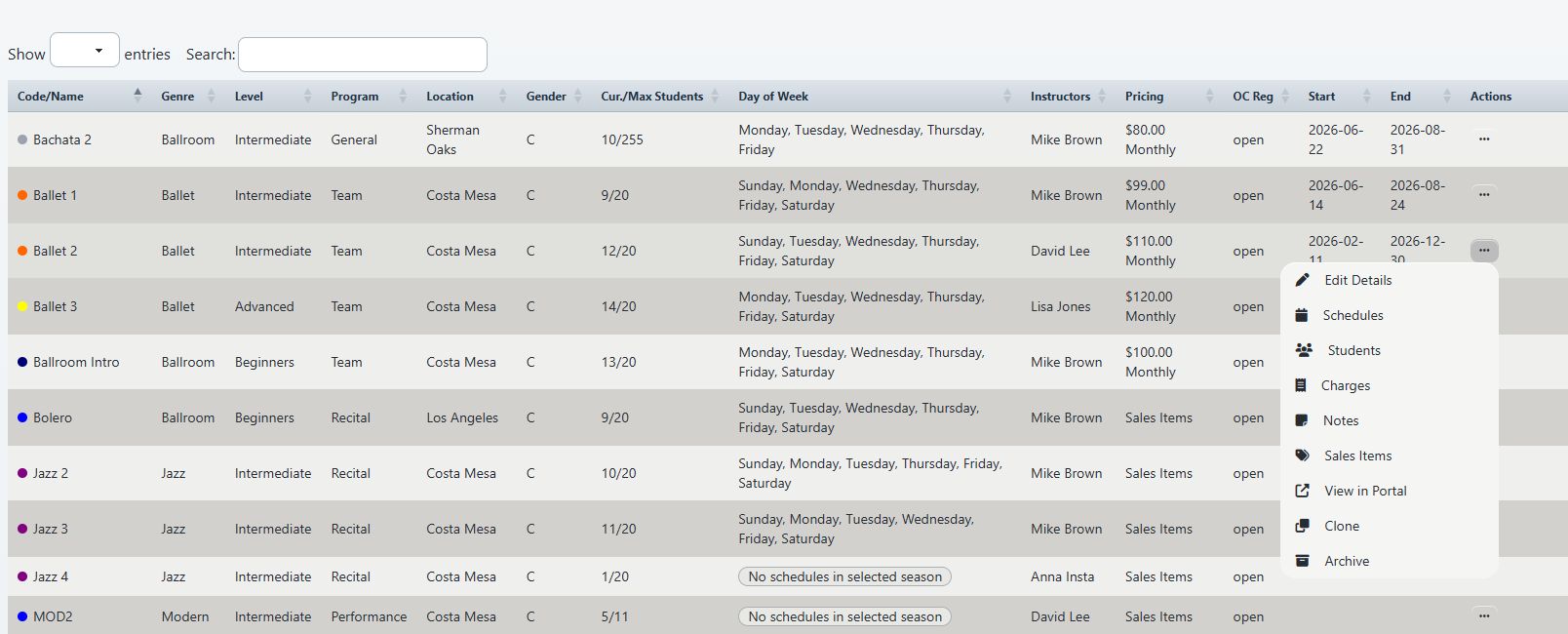
- In the class row, open the three-dot Quick actions menu.
- Select Archive once. The action is immediate; no confirmation question appears.
- Wait for the list to reload. The row should disappear from the active view.
- Turn on Show Archived.
- Locate the same code in the archived view. Open Edit Details in a separate tab and confirm the ID when a second class could have the same visible label.
- Record the completion time and the archived-view evidence in the protected change record.
Do not select Archive a second time because the row did not immediately appear in the archived view. First let the list finish loading, then clear the filters described below and verify the state.
#Find an archived class
On the current Group Classes page, Show Archived switches from active classes to archived classes. It does not add archived rows to the active rows, even though the Filters panel currently describes the option as Include archived classes.
When the expected class is missing:
- Turn on Show Archived.
- Turn on Include unscheduled.
- Clear Search.
- Select Filters, then select Reset.
- Check whether the class list is locked to a current season. Clear the season when the interface allows it, or ask an authorized administrator to review the class-list season setting.
- Search by the exact class code rather than a broad name. The Group Classes search does not currently search the class ID.
- Check the next page if the archived result set is longer than one page.
The top and Filters-panel archive switches control the same archived-only mode. The CSV export also follows that mode and the other current filters.
An archived row retains its normal action links in the current list, including Edit Details, Schedules, Students, Charges, Notes, Sales Items, View in Portal, and Clone, when the staff role can use them. Archive is not an access lock and does not make those records private.
#Verify the result after archiving
Treat the archived row as proof of only one fact: the class status changed. Verify every required downstream result separately.
#Verify the class and administrative calendar
- Confirm the exact row is absent from the active Group Classes view and present in the archived view.
- Open Edit Details and confirm that the class identity, registration setting, pricing, capacity, and other values did not change unexpectedly.
- Open Schedules and confirm that the expected schedule rows still exist with their intended statuses.
- Review the administrative Calendar for past and future dates.
- If the studio enables its archived-class calendar setting, past schedules for archived classes can remain visible there. Future schedules for archived classes are still hidden from that administrative feed.
This Calendar behavior does not mean that the same schedules are hidden everywhere.
#Verify the Online Client and kiosk separately
Use a fictional eligible account and, when relevant, a fictional already-enrolled account.
- Search the Online Client class catalog.
- Try the saved class-detail link.
- Review the registration page without completing a purchase.
- Review the client calendar on every affected future date.
- Review My Classes or the client schedule for an already-enrolled student.
- If the studio uses kiosk check-in, verify the class on the kiosk's today list.
Current client areas do not all use the class status in the same way. The class catalog and detail behavior can be configured to allow archived status, the client calendar is primarily schedule-status driven, and an enrolled client's class schedule can remain available because its enrollment and schedule rows were not changed. The current kiosk today list does require an active class. Verify the actual tenant result instead of generalizing from one page.
If the class remains available for an action that should be closed, do not experiment with a real account. Confirm that registration is closed, review the season and schedule states, preserve the exact URL and time, and contact support or engineering with the evidence.
#Verify enrollment, tuition, and finance
- Open Students and compare every status count with the before-state record.
- Check an affected fictional student's class and schedule pages.
- Run the planned post-archive tuition preview and compare it with the baseline.
- Confirm every existing purchase, charge, allocation, credit, and scheduled payment that should remain.
- Complete any approved correction through its own workflow; do not edit finance records merely to force the preview to match an expectation.
The usual tuition candidate paths require an active class, so the archived class can disappear from a later tuition calculation. That exclusion is not proof that an existing scheduled payment was canceled or that a credit was issued.
#Verify reports and exports
Report behavior varies by report:
- some class, roll-sheet, student, and note reports use active classes or active-only class selectors;
- some reports, such as reports with an Include archived classes option, can return archived schedules when that option is selected; and
- finance and historical reports can continue to show purchases, charges, payments, or other records linked to the archived class.
Run each operationally required report with the same dates and filters used before the archive. Do not use absence from one active-class selector as proof that the class history or financial records were deleted.
#Know the downstream boundaries
| Area | Confirmed result of Archive | Required follow-up |
|---|---|---|
| Group Classes list | The class moves from the active-only list to the archived-only list | Verify the exact code in both modes and, when needed, confirm the ID from Edit Details |
| Class details and tabs | The record and its related pages remain; current archived rows keep their action links | Review access, values, and records; archive is not a privacy boundary |
| Schedules | Schedule rows and their statuses are not changed | Decide whether future occurrences continue, are canceled, edited, or handled through an approved deletion plan |
| Administrative Calendar | Archived schedules are normally hidden; an optional setting can retain past archived schedules, but not future ones | Check the studio setting and the actual past/future dates |
| Online Client catalog and detail | Visibility is not reliably removed in every current configuration | Close registration first and test catalog, detail, and registration with fictional accounts |
| Online Client calendar and My Classes | Active schedule and enrollment rows can remain visible because these paths do not consistently require an active class | Test an eligible account and an enrolled account independently |
| Kiosk check-in | The current today list filters to active classes | Verify the kiosk separately when it is operationally important |
| Class enrollments | Class and schedule enrollment rows are not changed | Reconcile every student status and transfer/cancellation separately |
| Tuition | Several candidate calculations require an active class, so later previews can exclude it | Compare pre- and post-archive previews; never skip finance review |
| Charges, purchases, payments, and credits | Existing records are not reversed or deleted | Reconcile and correct them through their purpose-built workflows |
| Reports | Results vary between active-only, include-archived, and historical-data behavior | Test each required report and preserve filter context |
| Messages and notifications | Archive creates no customer communication or delivery record | Send and verify approved communication separately |
| Audit and recovery | The current action stores no archive reason or customer-visible lifecycle journal | Keep the protected change record and verified before state |
#Restore a group class
Restore only after reviewing why the class was archived and what was changed around it. The class can return to tuition selection or other active-class workflows even when registration remains closed.
- Open Group Classes.
- Turn on Show Archived.
- Turn on Include unscheduled, then clear Search and restrictive filters if needed.
- Locate the exact class code. If similar rows exist, open Edit Details in a separate tab and match its ID to the archive record before returning to the list.
- Review the protected archive record, future schedules, enrollment states, pricing, Sales Items, capacity, season, registration setting, and finance plan.
- In the row, open the three-dot Quick actions menu.
- Select Restore once. The action is immediate; no confirmation question appears.
- Wait for the row to disappear from the archived view.
- Turn off Show Archived to return to active classes.
- Locate the same code in the active view and confirm its ID from Edit Details when needed.
- Record the restoration time, approver, and active-view evidence.
Restoring the class changes only its status. It does not reopen registration, reactivate a canceled schedule, re-enroll a student, recreate a deleted row, reverse a credit, or resend a message. Conversely, anything that was left active during the archived period can still be active after restoration.
#Verify the restored class before using it
Do not announce or bill the restored class until the verification is complete.
- Open Edit Details and review identity, season, classification, registration, eligibility, capacity, pricing, waivers, and dates.
- Open Schedules and verify every future occurrence, status, instructor, room, and capacity.
- Open Students and confirm the intended enrollment and schedule states.
- Review assigned Sales Items, prices, class charges, purchases, and payment plans.
- Run a fresh tuition preview. Restoration can make the class eligible for active-class tuition queries again.
- Review the administrative Calendar, Online Client catalog, class detail, registration page, client calendar, My Classes, and kiosk as applicable.
- Run the required operational reports with the intended archived-class options.
- Send any approved reopening communication separately and verify delivery.
Reopen Online Client registration only after all other launch checks pass. See Launch a class for Online Client registration.
#Recover from a mistaken action
#Archive was selected by mistake
- Stop other class changes.
- Turn on Show Archived and locate the exact class.
- Record the archive time and the likely exposure window.
- Select Restore once when authorized.
- Verify the class in the active view.
- Check the administrative Calendar, kiosk, tuition previews or runs, scheduled jobs, and any staff work that occurred during the archived period.
- Verify Online Client registration and client visibility, even if the archived period was brief.
The class's related rows were not automatically removed, but a timed process or staff member may have acted differently while the class was archived. Restoration does not reconstruct those missed actions.
#Restore was selected by mistake
- Stop edits and record the restoration time.
- Check whether the class became visible or actionable to clients.
- Review new enrollment, cart, purchase, charge, and schedule activity created during the active window.
- Close registration if it should not be available.
- Re-archive only after confirming the exact class and receiving approval.
- Reconcile any activity discovered during the window through its own workflow.
There is no archive-reason or restore-reason field in the current action and no lifecycle history on the Group Classes page. The studio's protected change record is therefore essential for incident review.
#Protect access and privacy
- Give Archive and Restore only to staff who are responsible for class lifecycle decisions.
- Review Group Permissions rather than assuming a job title determines access. Current default mappings can give broad Group Classes access to instructor roles, while tenant-specific permission data can differ.
- Do not share another staff member's login or use a copied action URL to work around a missing control.
- Remember that archived rows and their class tabs can still contain instructor names, student counts, notes, pricing, purchases, and other operational information.
- Treat CSV, report, screenshot, and video copies according to the same retention and access rules as the active record.
- Do not use Archive to conceal an incident, finance discrepancy, safeguarding record, or legal hold. Preserve required evidence in the approved protected system.
- Use only fictional accounts and classes for training and media production.
#Troubleshooting
#Archive or Restore is missing from the row menu
Confirm that you are in the correct active or archived list. Archive appears for an active class; Restore appears for an archived class. If the action is still missing, ask an administrator to review your Group Classes route permissions. Do not use another person's login or a direct request.
#Show Archived appears to mix or hide the wrong records
The current switch is an archived-only view, not an additive filter. Turn it off for active classes and on for archived classes. The phrase Include archived classes in the expanded Filters panel does not describe the actual query behavior.
#The archived class cannot be found
Turn on Show Archived and Include unscheduled, clear Search, reset Filters, clear the season when allowed, and check the next page. Search by exact code; the list search does not currently search the class ID. If neither active nor archived view contains it, preserve the filters, time, and expected ID and contact support.
#The class row disappeared but there was no confirmation
That is the current success pattern: the action reloads the list without a success message. Verify the exact code in the opposite list mode and confirm the ID through Edit Details when needed. Do not infer success from disappearance alone because another filter or loading error can produce the same appearance.
#The browser says Archive failed or Restore failed
Do not immediately repeat the action. Reload, check both active and archived modes, verify the exact code, and confirm the ID through Edit Details when needed. Record the time, studio, class ID, current filters, and message. The request may have failed before the change, or the list may have failed after it; state verification is safer than repetition.
#The class still appears in Online Client
Confirm that the class's registration state is closed. Then check the class catalog, saved detail URL, registration page, client calendar, and My Classes separately. Review the season and schedule status. Preserve the exact account type, URL, date, and action shown and contact support or engineering; do not test checkout with a real client.
#The future class vanished from the administrative Calendar but remains in the client calendar
That can occur because the administrative feed and Online Client feed apply class status differently. Do not change dates or delete schedules merely to make the pages match. Close registration, decide the intended schedule status, and have support review the client visibility evidence.
#Tuition changed after archive or restore
Stop before committing the next tuition run. Compare the before and after previews, class and enrollment statuses, billing schedule, price overrides, schedule window, and existing scheduled payments. Archive can exclude a class from active-class tuition candidates, and Restore can include it again, while existing finance records remain. Follow Run tuition safely.
#A report no longer offers the class
Many report selectors use active classes. Look for an Include archived classes option or an appropriate historical finance report. Record the report name, dates, filters, and expected class ID. Do not restore a class solely to make one report selector list it without first assessing the tuition, registration, and client-visibility effects.
#The class was restored but registration or schedules are still closed
That is expected when those records were changed separately before archiving. Review and reactivate each approved dependency through its own workflow. Restore does not undo schedule, enrollment, registration, or finance changes.
#Related articles
- Group Classes
- Create a group class
- Edit a group class safely
- Clone a group class safely
- Manage class schedules
- Manage student enrollment
- Attendance and rosters
- Launch a class for Online Client registration
- Manage class charges and pricing overrides
- Manage class notes
- Run tuition safely
- Reports overview
- Roles and permissions
- Feature availability