Finance
Review and manage cards and ACH
#What a saved method is
The software stores a token and masked payment-method details supplied by the configured payment gateway. Staff should normally see only information such as method type, description, expiration, account reference, and last four digits.
A saved method is not a payment. Marking it Default or turning Autopay on does not collect money.
Warning: Never copy, photograph, paste, or enter a full card number, bank account number, security code, gateway token, or processor credential into notes, messages, support tickets, exports, or manual screenshots.
#Before you begin
- Confirm the correct family account and studio.
- Confirm that online payments and the intended card or ACH method are enabled for the configured gateway.
- Know whether the task is to review, add, relabel, set a default, change autopay eligibility, inspect recurring instructions, or remove a saved method.
- Review Scheduled Payments and recurring instructions before changing or removing a method.
- Record only the method type, description, expiration, and last four when an audit note is needed.
- Obtain client authorization and follow the studio's payment-data policy.
#Find a method across the studio
- Open Finance > Cards and ACH.
- Enter an exact Last 4 value when known.
- Select an Auto Payment filter: All, On, or Off.
- Select Token Status: All Statuses, Active, or Archived.
- Select Member Status: Active, Archived, or All.
- Select Filter Results.
Note: The current menu says Cards and ACH, while the destination's page heading can say Tokens. Both refer to this studio-wide saved-method list.
The studio-wide list can show:
- Client;
- Account ID;
- Type;
- Expire;
- Last 4;
- Description;
- Auto Payment;
- Date Added; and
- Token Status.
You can also use the table's Search field and column sorting to narrow the displayed rows.
This page is read-only in the inspected implementation. It is useful for audits, expiring-method follow-up, autopay review, and locating the owning account.
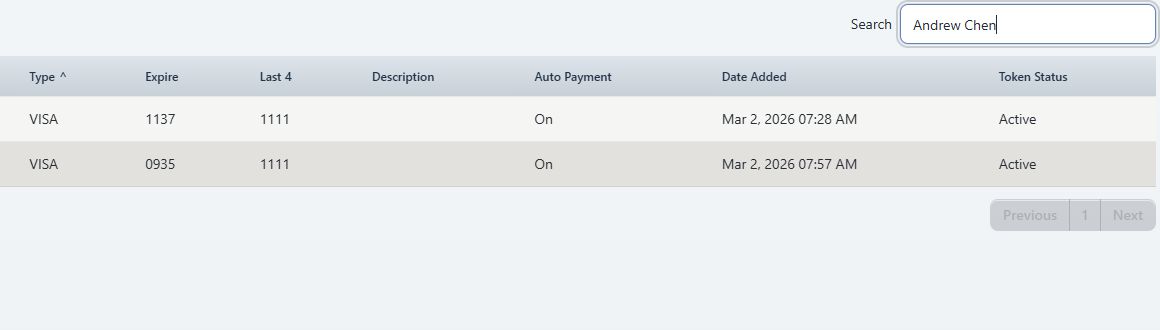
Important: Account ID and Last 4 are masked identifiers, but they still belong to payment records. Use fictional values in screenshots and share exports only with authorized staff.
#Open the account controls
- Open Families or Students.
- Find the intended account.
- Select the account to open its detail.
- Select Cards and ACH.
Depending on the gateway and settings, the account tab can provide:
| Control | Purpose |
|---|---|
| Make Payment | Opens the configured payment workflow; separate verification is required before processing |
| Add Card | Saves a card through the gateway-specific secure flow |
| Add Bank Account | Saves an ACH method when ACH and the gateway support it |
| Default | Chooses the account's preferred saved method |
| Description | Gives staff a recognizable label for the method |
| Autopay | Marks the method eligible for autopay-oriented selection |
| Recurring | Displays recurring instructions associated with the token where supported |
| Remove | Requests removal of the local saved-method record, subject to dependency checks |
The buttons shown depend on gateway configuration, ACH availability, payment permissions, and studio settings. When online payments are disabled, the page can show Online payments are disabled and disable payment actions.
#Set the default method
- Confirm the account and identify the intended method by type, description, expiration, and last four.
- Review the method's active state and any scheduled or recurring use.
- Select its Default radio control.
- Wait for the list to reload.
- Confirm that only the intended method is selected as default.
- Reopen the studio-wide Cards and ACH list if an independent summary check is needed.
The inspected action clears the default flag for the account's other saved methods, then marks the selected method as default.
Important: Changing the default does not rewrite every already-created scheduled payment. A scheduled row can retain a specific token link. Check the account's Scheduled Payments tab separately.
#Turn Autopay on or off
- Identify the exact method.
- Confirm whether the change concerns general autopay eligibility or a particular scheduled payment.
- Select the Autopay control to change On to Off, or Off to On.
- Wait for the table to reload.
- Confirm the new label.
- Review future scheduled payments and any approved auto-payment preview.
The current action changes the local saved method's autopay flag. It does not charge the method, cancel a processor agreement, or prove that future schedules now use that method.
Warning: Turning autopay off on a token is not a substitute for pausing a scheduled payment, placing an account on hold, or terminating a membership. Complete each required workflow explicitly.
#Change the description
- Select the current description in the account grid.
- Enter a short staff-facing label, such as a fictional identifier and method role.
- Press Enter or leave the field to save.
- Confirm the new label after the list reloads.
Do not put full payment details, access credentials, health information, or unrelated client notes in the description.
#Review recurring use
- Select Recurring for the intended method.
- Review Schedule, Start, Next, Remaining, Item, Amount, and Status.
- Compare the recurring row with the account purchase, scheduled payments, and processor records.
The current account grid can expose Enable or Disable for supported recurring records. Do not change a recurring status until the studio has verified whether that action changes only the local recurring record or also affects the processor agreement.
Important: A method can participate in both scheduled-payment records and a separate recurring-payment model. Review both before replacement or removal.
#Remove a saved method
Removing a method has narrower effects than many users expect.
#Check dependencies first
- Open Recurring and record any active instructions.
- Open the account's Scheduled Payments tab and find rows using the same method.
- Check active purchases, payment plans, memberships, and holds that expect the method.
- Decide how each future obligation will be handled.
- Confirm the replacement method where one is required.
#Remove the local method
- Select Remove for the exact method.
- Review Remove this payment method?
- Accept once.
- Wait for the grid to reload.
- Confirm that the method is absent.
- Review scheduled and recurring records again.
The current token service blocks removal when it finds certain scheduled-payment links, including active or paused numeric status records. In schemas where it cannot evaluate status, it can block removal for any scheduled-payment link.
Important: That check is not a complete dependency audit. The inspected removal action deletes the local token record and does not visibly cancel a processor-side recurring agreement. A successful local removal does not prove that every future processor instruction was stopped.
Warning: Removing a method does not refund prior payments, void authorizations, delete payment history, cancel charges, terminate a membership, or collect a remaining balance.
#Add a card or bank account
The secure form varies by processor. Some gateways use an embedded hosted field, redirect, setup intent, or processor tokenization. The software can hide card or ACH actions that the configured gateway does not support.
- Confirm that the account and gateway are correct.
- Select Add Card or Add Bank Account.
- Complete only the gateway's approved secure fields.
- Review optional Default and Autopay choices if shown.
- Submit once.
- Confirm the new method by type, expiration, description, and last four.
- Confirm its default and autopay state deliberately.
Warning: Never use real payment credentials to create documentation or test screenshots. Use the processor's approved test environment or purpose-built fictional token fixtures.
#Confirm a change
Use the checks that match the action:
- the account Cards and ACH grid shows the intended method and flags;
- Finance > Cards and ACH shows the corresponding active, archived, or autopay summary;
- scheduled payments reference the correct method or are intentionally unassigned;
- recurring instructions have the approved status;
- an auto-payment preview includes or excludes the account as intended;
- the processor shows the expected customer and method state when the action is meant to affect it.
Do not run a payment merely to test whether a saved method is present.
#Troubleshooting
#Cards and ACH is missing
The payment system can be disabled, the role may lack permission, or the account tab can be hidden by settings. Confirm the studio's payment configuration and login group.
#Add Card or Add Bank Account is disabled
The gateway may be disabled or may not support that method. ACH also requires ACH to be enabled. Do not enter payment details into a generic form as a workaround.
#An expired method is still active
Active token status and card expiration are separate fields. Contact the client through the approved process, add a replacement securely, update schedules if required, and remove the old method only after dependencies are resolved.
#The wrong method appears in an auto-payment preview
Review Default, Autopay, active status, and the account's other tokens. Then regenerate the preview. Do not process the list until the intended method appears.
#Remove says the method is linked to scheduled payments
Return to the account's Scheduled Payments tab. Resolve or reassign the relevant future instructions through the approved workflow, then review the dependency again. Do not delete schedule records merely to force token removal.
#Remove succeeds but a recurring processor agreement still exists
Stop and check the processor. The local removal path is not proof of processor cancellation. Preserve the token summary, recurring ID, account ID, and time without exposing the full token or credentials.