Finance and Online Client checkout
Review and reconcile one-time vouchers
Current implementation boundary: Dance Studio Manager does not currently verify a submitted code against an imported issuer list, a code pattern, a participating child, or a birth-date record. If the code is nonblank and has never appeared in the studio's voucher table, applying it creates a new Applied voucher for the studio-wide amount. Do not enable this feature as a general public discount unless the studio has a separate, approved way to validate codes and resolve misuse.
#Distinguish vouchers from other value
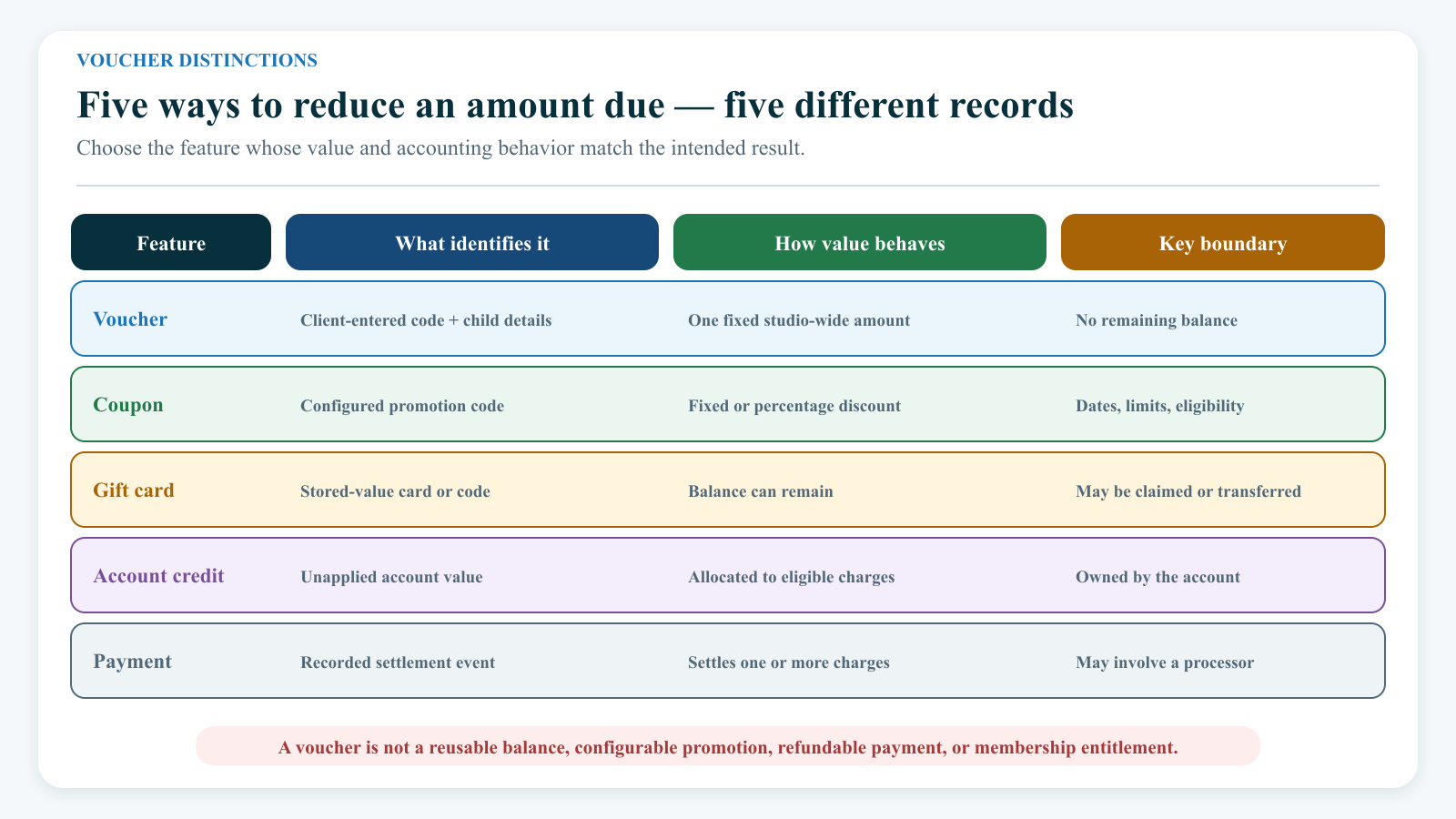
These controls can all lower the amount due, but they are not interchangeable.
| Feature | What identifies it | How value behaves | Where to manage or review it |
|---|---|---|---|
| Voucher | A client-entered code plus child name and birth date | One fixed studio-wide amount; one voucher record is intended for one completed use; no remaining balance | Voucher settings, Online Client checkout, and Finance > Vouchers |
| Coupon | A configured coupon record and code | Percentage or fixed discount with its own dates, limits, and eligibility | Coupon settings, cart, and coupon usage records |
| Gift card | A stored-value card/code record | Can retain a balance and may be claimed or transferred | Gift-card Sales Items, Finance gift cards, client gift cards, and checkout |
| Account credit | An unapplied payment or credit balance owned by an account | Can be allocated to eligible charges according to the credit workflow | Account ledger, unapplied payments, allocations, and checkout |
| Payment | A recorded cash, check, card, bank, or other payment event | Settles charges and may involve a processor | Ledger, Payment History, allocations, and processor records |
Do not issue a voucher when the intended result is a refundable payment, a reusable balance, a membership entitlement, or a configurable promotion.
#Understand the current voucher states
| Status | What it means in the current list | What it does not prove |
|---|---|---|
| Applied | The client submitted an unused code and the software created a pending voucher row | That an issuer approved the code, the entered child details match an account, checkout was completed, or money was collected |
| Used | Checkout later attempted to mark the pending row used and attach an order or charge reference | That every order, charge, payment, class, tax, and processor record is correct |
| Archived | A stored status used by the Finance filter | That value was refunded, voided, restored, or communicated; the current Finance page has no archive or restore action |
The record is created at Apply Voucher, before checkout. Closing the browser or abandoning checkout can therefore leave an Applied row that prevents the same code from being entered again.
#Before you enable vouchers
- Identify the external voucher program and the staff member responsible for validating its codes.
- Confirm that every valid voucher has the same value. The current setting supplies one amount for all codes.
- Define an accepted code format and a secure verification source outside the client form.
- Decide which purchases qualify and how tax, discounts, fees, refunds, cancellations, and abandoned carts will be handled.
- Confirm whether accepting a partial amount is allowed. The current server can cap a voucher at the remaining merchandise subtotal and still mark the code used after checkout; it does not preserve unused value.
- Decide who may view the child's name and birth date in Finance > Vouchers.
- Prepare a fictional client, child identity, one reserved code, a cart whose merchandise subtotal exceeds the configured value, and a disabled or test payment path.
- Record the current settings and existing matching voucher rows before changing or testing anything.
Do not use a real government, charity, insurer, school, or partner-program code in a shared demo, screenshot, video, support ticket, or ordinary message.
#Configure the fixed voucher amount
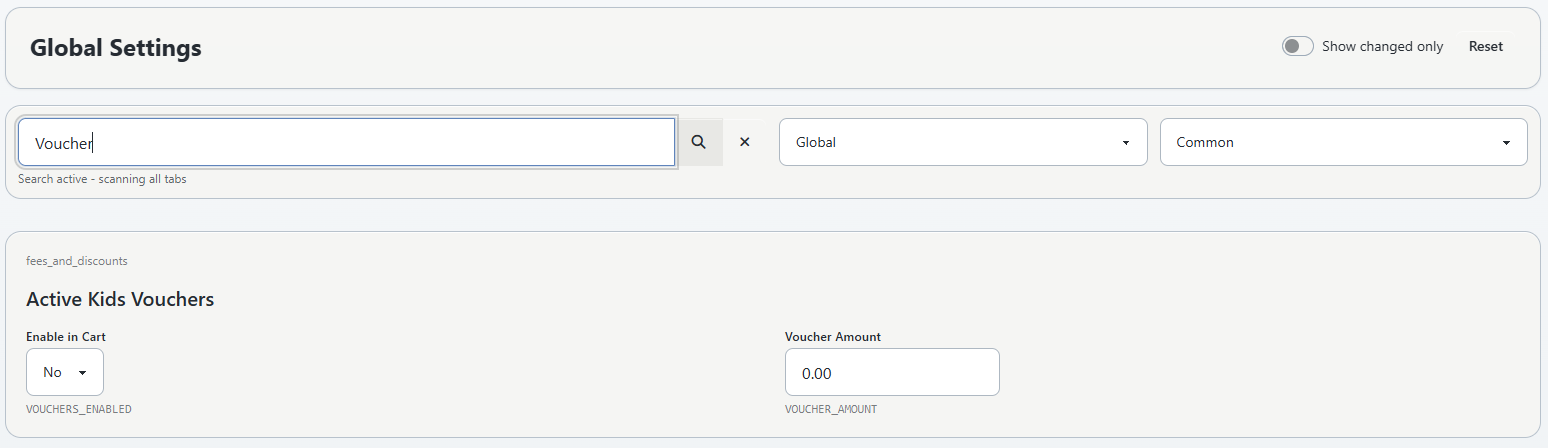
The current settings may appear under an Active Kids Vouchers group. That on-screen label is a configuration name, not a statement that the feature is limited to one activity or jurisdiction.
- Open Settings > Global Settings.
- Search for
voucher. - Record the current values of Enable in Cart and Voucher Amount.
- Enter the one approved positive amount. Do not include a currency symbol or explanatory text in the numeric value.
- Leave Enable in Cart off while preparing the test.
- Save, reload, and confirm the amount survived.
- Turn on Enable in Cart only for the approved controlled test window.
- Sign in directly as the fictional client and confirm the voucher control appears at checkout.
Changing Voucher Amount changes the amount assigned to newly applied codes. It does not revise existing voucher rows, orders, charges, payments, or external program obligations.
#Apply a fictional voucher as a client
Use a normal direct Online Client sign-in. Do not use administrator impersonation when the test is intended to prove client identity, session, or permission behavior.
- Add the approved fictional items or class registration to an empty cart.
- Confirm the merchandise subtotal after other known discounts is at least the voucher value.
- Continue to checkout.
- Open I have a voucher.
- Enter the fictional child's first name, last name, and birth date exactly as recorded in the test plan.
- Enter the reserved fictional voucher code.
- Select Apply Voucher once.
- Confirm that the page shows the exact code, child name, configured amount, and a voucher deduction.
- Open Finance > Vouchers in a separate authorized staff session and find the same code with status Applied.
At this point, the code has been recorded. The form does not confirm that the child exists, belongs to the signed-in family, has the entered birth date, or is eligible for an external program. Complete that validation through the studio's approved source before checkout.
#Remove a voucher before checkout
Select Remove only while the voucher is still pending and the cart must proceed without it.
The current removal path clears the voucher from the tenant-specific client session and deletes the matching Applied row for that account. It does not reverse a used order, charge, payment, processor event, enrollment, or external issuer claim.
After removal:
- reload checkout and confirm the deduction is gone;
- search Finance > Vouchers for the exact code and confirm the pending row is gone; and
- decide whether the reserved code may be tried again according to the external program, rather than assuming deletion restores external eligibility.
Do not use Remove as a correction after a completed order.
#Complete checkout only in a controlled fixture
Before submitting:
- confirm the code against the approved external source;
- compare the configured voucher amount with the expected deduction;
- review every other discount, tax, registration fee, convenience fee, gift card, account credit, and payment choice;
- confirm the exact account, child, cart items, and order total; and
- preserve the Applied voucher row and cart summary as the before state.
When checkout completes, confirm all of the following:
- the order confirmation shows the expected voucher code and deduction;
- the final total matches the approved calculation;
- the order and every purchase were created once;
- ledger charges, payments, allocations, tax, and fees match the confirmation;
- the processor shows the expected result when a payment was required;
- Finance > Vouchers shows the exact code as Used; and
- no second voucher row or duplicate checkout was created.
The current usage write can fail after the rest of checkout and is caught as a warning. A completed order can therefore coexist with an Applied voucher row. Do not submit another order to repair that status.
#Review Finance > Vouchers
Use the Finance page as a searchable reconciliation list, not as a voucher issuer or correction tool.
- Open Finance > Vouchers.
- Filter by the complete or distinctive part of the voucher code.
- Choose All Statuses, Applied, Used, or Archived.
- Select Filter Results.
- Confirm the client, child name, child birth date, code, amount, date added, class column, and status.
- Use the table's local Search and sorting controls when the filtered result still contains several rows.
The current page has no New, Edit, Archive, Restore, Delete, Export, Order, Charge, or Details action. It also does not display the internal order or charge reference that the usage service may store.
The Class column can be blank for a current Online Client voucher. Applying a code initially stores no class, and the reviewed completion path updates order/charge linkage rather than the class field. Do not treat a blank Class cell as proof that the voucher was not used.
#Reconcile an Applied voucher
An Applied row can mean the client is still checking out, removed the browser without using Remove, encountered an error, or completed an order whose usage update failed.
- Preserve the row's exact code, account, amount, date added, and status.
- Ask whether checkout is still open. Do not ask the client to disclose a real code in an insecure channel.
- Search the account's recent orders, purchases, ledger charges, payments, and messages from the application time onward.
- Compare the cart or checkout fingerprint and processor activity when authorized evidence is available.
- If no completion exists, follow the studio's abandoned-voucher policy. The current customer interface has no staff release action.
- If a completion exists, preserve the order and financial evidence and escalate the status/linkage repair. Do not apply the code again, create an offsetting payment, or edit an unrelated charge.
Disabling vouchers hides the client control and clears the current session when checkout state is rebuilt. It does not delete existing Applied rows or make their codes reusable.
#Reconcile a Used voucher
For a Used row, verify the voucher as one component of the complete order:
| Evidence | Confirm |
|---|---|
| Voucher row | Exact code, account, fixed amount, Used status, and application time |
| Order confirmation | Voucher deduction and final amount due |
| Order and purchases | Correct items, quantities, students, classes, statuses, and no duplicate submission |
| Ledger | Correct charges, payments, credits, allocations, tax, and fees |
| Processor | The expected approval, decline, or no-payment-due result |
| External program | The code was valid and was claimed once according to the issuer's process |
A refund, cancellation, local payment deletion, charge edit, purchase change, or processor void does not automatically restore the voucher code or create remaining value. Use an approved finance and issuer-specific resolution.
#Troubleshooting
#The voucher option is missing
Confirm Enable in Cart is on, the studio has a compatible payment-system context, the client is signed in, and checkout loaded the current settings. If the feature is intentionally off, do not enable it merely to make a code work.
#The code says it may be used one time only
Search Finance > Vouchers using the exact code and All Statuses. Any existing record—Applied, Used, or Archived—blocks a new application. Reconcile that row before deciding whether the client has a valid claim.
#The child details were accepted even though they do not match the account
That is a current implementation limitation. The fields are stored as submitted; they are not an identity or eligibility check. Preserve the evidence, stop checkout, and validate the code and participant through the approved external process.
#The cart is smaller than the voucher value
Remove the voucher before checkout and correct the cart. Although the interface says the cart must meet or exceed the value, the current calculation can cap the deduction at the remaining subtotal. Completing that order can consume the one-time code without retaining the unused portion.
#Checkout completed but Finance still says Applied
Do not retry checkout or reapply the code. Reconcile the confirmation, order, ledger, and processor first. Preserve the Applied row and ask authorized support to review the usage-link update.
#Finance shows Used but the order is unclear
The list does not expose its stored order/charge reference. Search the account's order and ledger activity around Date Added, then escalate with the voucher record ID and code securely masked.
#The Class column is empty
That can be expected for the current client path. Reconcile the order's actual items and registrations rather than inferring use from the voucher's Class cell.
#Remove reported success but the situation is unresolved
Reload checkout and search Finance. Remove is designed only for the current account's pending row and session; it cannot reverse a completed checkout or an external issuer claim.
#Protect voucher and child information
- Treat a working voucher code as a redeemable credential.
- Limit access to the child's name and birth date; they appear in the Finance list.
- Do not use birth date as proof of authorization merely because the form requests it.
- Mask most of the code in messages, screenshots, recordings, and general support notes.
- Never show real voucher codes, child birth dates, balances, payment methods, processor references, or unrelated families in training media.
- Record the minimum internal evidence needed for accounting, support, and the external issuer's rules.
#Related articles
- Understand Finance
- Staff Shopping Cart and checkout
- Online Client checkout
- Understand and verify your order result
- Review purchases
- Account ledger
- Review payment history and corrections
- Work with unapplied payments and account credits
- Sell, issue, transfer, and manage gift cards
- Configure coupons and multi-class discounts
- Find and change Global Settings safely