Classes
Manage class routines
The current tab manages associations. It does not create a routine definition or edit its name, music, length, break, notes, link, or status. It also cannot safely isolate every change when the same Routine ID is linked to more than one class.
Current implementation boundary: Use the mutation steps in this article only when an authorized reviewer has confirmed that the Routine ID exists, is active, and is linked to this recital class only. The Routines page itself cannot prove that exclusivity. If the routine is shared with another class, or its other links are unknown, use the page for review only and contact support for a class-scoped correction.
#Understand the records
Three records work together:
| Record | Meaning | What this tab can do |
|---|---|---|
| Routine definition | The master routine identity and descriptive details | Display its ID and name when compatible; no current create or edit control |
| Class-routine link | Associates one Routine ID with one class and can store its order | Add, reorder where supported, or remove the class link |
| Routine-member link | Associates one member with a routine and a class | Add or remove, subject to the safety limits below |
These links do not enroll a student, add them to a schedule, record attendance, register them for a recital, create a charge, or assign a purchase.
#What is currently supported
| Need | Current guidance |
|---|---|
| View routines already assigned to a recital class | Supported when the page loads routine names and members correctly |
| Link an existing routine by ID | Conditional: use only a verified active Routine ID that is exclusive to this class |
| Create a routine or edit its name and details | Not available in the reviewed current interface |
| Add a student to a routine | Conditional: confirm the routine is exclusive and independently verify the student's class enrollment and Member ID |
| Change the card order | Conditional: save, reload, and confirm; older ordering fields are not recognized by the current page |
| Remove a student from a routine | Conditional: do not use when the routine is shared or its other class links are unknown |
| Remove a routine from the class | Conditional: the action removes only the class link and does not clean up routine-member links |
| Delete or archive the master routine | Not available on this tab |
| Copy routines when cloning a class | Not supported; class clone does not copy routine links or members |
#Before you begin
- Confirm the class is a Recital class and that Routines appears in its ordinary class navigation.
- Obtain the intended Routine ID, current routine name, active status, and one-class ownership from an approved routine inventory or support. Do not guess an ID.
- Confirm the routine is not linked to another class. This is required before adding or removing members through the current page.
- Open the class Students page and record each intended student's exact Member ID and current enrollment status.
- Record the existing routine order and member list by ID, not names alone.
- Confirm the operator is an owner, administrator, or specifically authorized office staff member. A visible button does not by itself authorize the change.
- Choose a low-risk maintenance window and an approved recovery contact.
Use fictional records for training. Never test a routine add, member removal, or class unlink on an active production recital.
#Open and review the Routines tab
- Open Group Classes.
- Locate the intended recital class.
- Open the class, then select Routines in its class navigation.
- Confirm the class code shown above the routine list.
- Review each card's #Routine ID, routine name, member count and names, order, and Remove action.
- Compare every member with the class Students roster by Member ID.
- Preserve the before list before making a change.
The normal class navigation shows Routines for a recital-type class. If the tab is missing, do not use an old bookmark or construct a direct URL. Confirm the class type and staff permissions instead.
The member names shown on a routine card are not an enrollment check. The current list can include a person even when their routine-member row belongs to another class, and it does not filter members by current account status. Verify the class roster separately.
#Verify page compatibility before changing data
Complete this check for each studio database and after a relevant release:
- Confirm every assigned routine shows both a numeric ID and its expected name.
- Confirm expected members appear and unrelated members do not.
- Record the current order, move one card only in an isolated test class, select Save Order, and reload.
- Confirm the saved order survives the reload.
- Restore the approved test order and reload again.
Stop and contact support if:
- the page displays Failed to load routines or a database error;
- an assigned routine has a blank or unexpected name;
- member names from another class appear;
- the displayed member list is incomplete; or
- Order saved appears but the order returns to its previous state after reload.
Older studio schemas can store the routine name and order under fields the current page does not recognize. Repeated saves do not repair that incompatibility.
#Link an existing routine to the class
This action does not create a routine. It adds a class-routine link for a master record that must already exist.
- Confirm the Routine ID and routine name from an approved source outside this input.
- Confirm that the routine is active and is not linked to any other class.
- On the class Routines tab, enter the exact number in Routine ID.
- Select Add once.
- Reload the page.
- Confirm a card appears with the exact Routine ID and expected routine name.
- Confirm the routine initially has only the expected member list.
- Record the new class-routine link in the recital plan.
The input validates that it contains a number, but the current add path does not confirm that the master routine exists or is active before inserting the class link. If the page says Routine added but no correct card appears, do not enter the ID again. An incorrect or incompatible association may have been stored even though the list cannot display it. Preserve the ID and error, then contact support.
If the routine is already on the class, selecting Add again does not create another visible card. Reload and verify rather than retrying.
#Add an enrolled student to a routine
The member search is studio-wide. It is not limited to this class's roster and can return another active person with the same name, including a person who is not a student in this class.
- Confirm that the Routine ID is linked to this class only.
- On the class Students page, confirm the intended student is actively enrolled and record their exact Member ID.
- Return to Routines and locate the correct routine card by ID and name.
- Use Search member only as a locator.
- Compare the displayed search result and ID with the roster record.
- Enter the independently confirmed number in Member ID. This is especially important when names are duplicated.
- Select Add once.
- Reload the page.
- Confirm the correct name appears on the intended routine card.
- Reopen the class roster and confirm the student's enrollment is still correct.
The add path validates a positive numeric Member ID, but it does not verify that the person is enrolled in this class or is the intended kind of member record. A wrong existing ID can associate the wrong person. A nonexistent ID can create a link that is hidden by the member-name join. If the expected person does not appear after reload, stop and investigate instead of clicking Add again.
Adding a routine member does not change class capacity, enrollment status, schedules, attendance, purchases, fees, or account balances.
#Arrange routine order
The arrow controls change the order in the browser first. Save Order attempts to store the displayed sequence.
- Record the current Routine ID sequence.
- Use the up and down arrows to place every card in the approved order.
- Read the entire sequence from top to bottom.
- Select Save Order once.
- Reload the page.
- Compare the reloaded sequence with the approved sequence.
If the order reverts, treat saved ordering as unavailable for this studio's current schema. The page can report Order saved even when it found no supported order field. Do not keep submitting the same order, edit routine IDs, or remove and re-add routines to force a sequence.
Routine order changes only the routine sequence associated with this class. It does not move class schedules, change performance times, calculate song or break duration, or update another event-planning system.
#Remove a student from a routine
Warning: The current removal deletes the selected Routine ID and Member ID combination without limiting the deletion to the class on the page. If the same routine and member are connected through another class, removing them here can remove those other class-specific links too.
Use this procedure only after an authorized reviewer has confirmed the routine is exclusive to this one class.
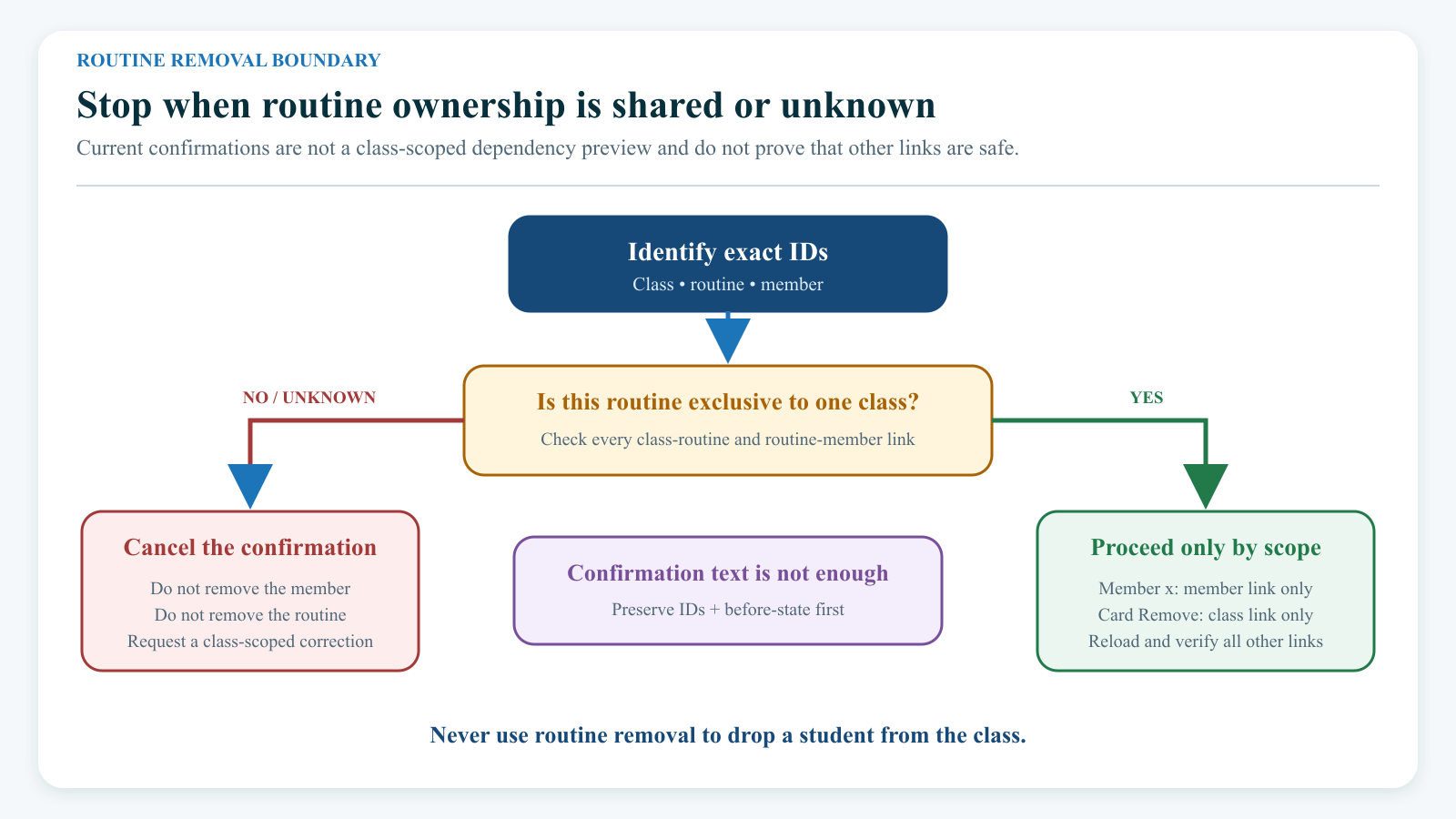
- Record the Routine ID, class ID, Member ID, name, enrollment status, and reason.
- Confirm the routine has no other class association.
- Select the red x beside the exact member.
- Read Remove this member from routine?
- Confirm once.
- Reload the page and verify the intended member is absent.
- Confirm every other routine member remains correct.
- Confirm the class roster, schedules, attendance, and account remain unchanged.
If the routine is shared, its ownership is unknown, or the member appears on another class's copy of the same routine, cancel the confirmation. Support must make and verify a class-scoped correction.
Removing a routine-member link does not drop the student from the class. Use the approved enrollment workflow for an actual class withdrawal.
#Remove a routine from the class
Warning: The card's Remove action deletes the class-routine link only. It does not delete the master routine and does not delete its routine-member links. If the card disappears while member links remain, those relationships are no longer visible from this class page.
Use this action only for an exclusive routine after its member links have been safely cleared and verified.
- Preserve the class ID, Routine ID, routine name, order, and complete member-ID list.
- Confirm the routine is linked to this class only.
- Remove each routine member using the controlled procedure above, reloading and verifying after each change.
- Confirm the card shows No members.
- Select Remove on the exact routine card.
- Read Remove this routine from class?
- Confirm once.
- Reload and confirm the card is absent.
- Ask support or use the approved data inventory to confirm no orphan routine-member links remain.
- Retain the before/after record and approver.
Do not use Remove to archive or delete the master routine. The reviewed current interface has no supported master routine archive/delete workflow.
#Reconcile routines after an account merge
When Merge classes/enrollments is selected during an account merge, the current merge service can change the Member ID on routine-member rows from the source account to the survivor. This does not prove that the survivor belongs in the routine or class.
After every merge that includes class records:
- Use the pre-merge inventory to identify every routine-member row owned by the source.
- Open each affected recital class and compare its class roster and routine cards.
- Confirm the intended person appears once, under the survivor's exact Member ID.
- Check for a duplicate, missing, cross-class, or archived identity.
- Reconcile schedules and attendance separately.
- Record exceptions before resuming recital operations.
A duplicate routine membership can conflict with a studio's unique record rule and stop a merge. Do not use account merge as routine cleanup and do not reverse a questionable result with an opposite-direction merge. See Archive, restore, and merge accounts safely.
#Understand the effects
| Action | Routine definition | Class-routine link | Routine-member links | Class enrollment and schedules | Finance |
|---|---|---|---|---|---|
| Add Routine ID | Unchanged | Added when the insert succeeds | Unchanged | Unchanged | Unchanged |
| Add member | Unchanged | Unchanged | Adds a routine/member row using a resolved class | Unchanged | Unchanged |
| Save Order | Unchanged | Updates order only when a supported field exists | Unchanged | Unchanged | Unchanged |
| Remove member | Unchanged | Unchanged | Deletes all matching routine/member rows, not just the current class | Unchanged | Unchanged |
| Remove routine card | Unchanged | Deletes this class link | Remain in place | Unchanged | Unchanged |
| Merge account with classes selected | Unchanged | Unchanged | Can replace source Member ID with survivor ID | Does not validate routine suitability | Handled separately by merge options |
#Completion checklist
- The class is the intended recital class and its code is correct.
- Every displayed routine has the approved Routine ID and name.
- Each routine is confirmed exclusive to this class before any member mutation.
- Every routine member is an intended, active class enrollee with a verified Member ID.
- No duplicate-name selection was made from search alone.
- The order survived a full page reload, or ordering was documented as unsupported.
- A removed routine showed No members before the class link was removed.
- Support or an approved inventory confirmed that no hidden or orphan links remain after removal.
- Enrollment, schedule, attendance, purchase, and financial records remain unchanged unless another approved workflow intentionally changed them.
- The before/after IDs, operator, approver, reason, date, exceptions, and recovery reference are stored in the studio's protected operations record.
#Troubleshooting
#The Routines tab is missing
Confirm that the class type is Recital and that the staff role has approved Group Classes access. Do not work around a hidden tab with a saved URL.
#The page says Failed to load routines
Preserve the class ID, route, time, and sanitized error. An older tenant can store routine names or order in fields the current list does not recognize. Do not paste a raw database error into a public ticket because it can expose internal schema details. Contact support.
#A routine name is blank
Do not assign members to it. Confirm the master Routine ID and name through an approved inventory. A blank name can indicate an incompatible name field or a broken association.
#Routine added appears, but no card appears
Do not submit the ID again. The add path can store an association without first proving that a matching master routine is visible. Record the ID and contact support to inspect and remove any invalid class link.
#Order saved appears, but the order reverts
The current page did not find a supported order field. Keep the approved sequence in the recital plan and escalate the schema compatibility gap. Re-adding routines is not a safe ordering method.
#Search shows two people with the same name
Return to the class roster and obtain the intended exact Member ID. Enter that ID in Member ID. Do not select by name alone.
#A person outside the roster appears on the routine
The routine list does not validate class enrollment. Stop. If the routine is confirmed exclusive, use the controlled member-removal process. If it is shared or unknown, contact support for a class-scoped correction.
#A member from another class appears on this class's routine card
This can happen when a Routine ID is shared because the current card list loads members by routine without limiting them to the class on the page. Do not select the red x. Preserve the routine, class, and member IDs and contact support.
#Removing one member affected another class
Stop all routine work using that Routine ID. Preserve the before list for every affected class. Do not recreate links from memory. Have support restore the exact class-specific rows from the approved inventory or backup, then verify every class and student.
#Removing a routine left hidden member links
The current class Remove action does not clean routine-member rows. Do not re-add the routine merely to expose and delete them. Ask support to inspect and correct the rows by exact class, routine, and member IDs.
#An archived person still appears
The current card list does not filter routine members by active account status. Confirm whether an account archive or merge occurred and reconcile the intended student identity. Do not remove the row until routine exclusivity is confirmed.
#The member list may be incomplete
The current page loads at most 500 member rows for one routine. Stop if the expected count approaches that limit or differs from the approved inventory. Do not treat the visible count as complete.
#Add or Remove returns Forbidden
The operator may have route access to the class page without authorization to update that class or its routine members. Ask an owner to review the staff group's permissions. Do not retry with a copied endpoint or another person's login. See Roles and permissions.
#Routine membership changed after an account merge
Compare source and survivor Member IDs, the Merge classes/enrollments option, and the pre-merge routine inventory. Follow the merge reconciliation process; do not add or remove rows until duplicate and cross-class risks are understood.
#Privacy and media safety
- Routine cards can reveal student names and performance groupings, including information about minors.
- Use fictional names, IDs, classes, and routine titles in training, screenshots, and videos.
- Crop unrelated students, account details, browser identity, URLs, and private navigation.
- Do not expose music files, unapproved song URLs, copyrighted audio, private choreography notes, access tokens, or medical information.
- Store before/after inventories and merge evidence only in approved protected locations.
- Record the fixture IDs and cleanup result for every routine mutation performed in a disposable test environment.