Classes and finance
Manage class charges and pricing overrides
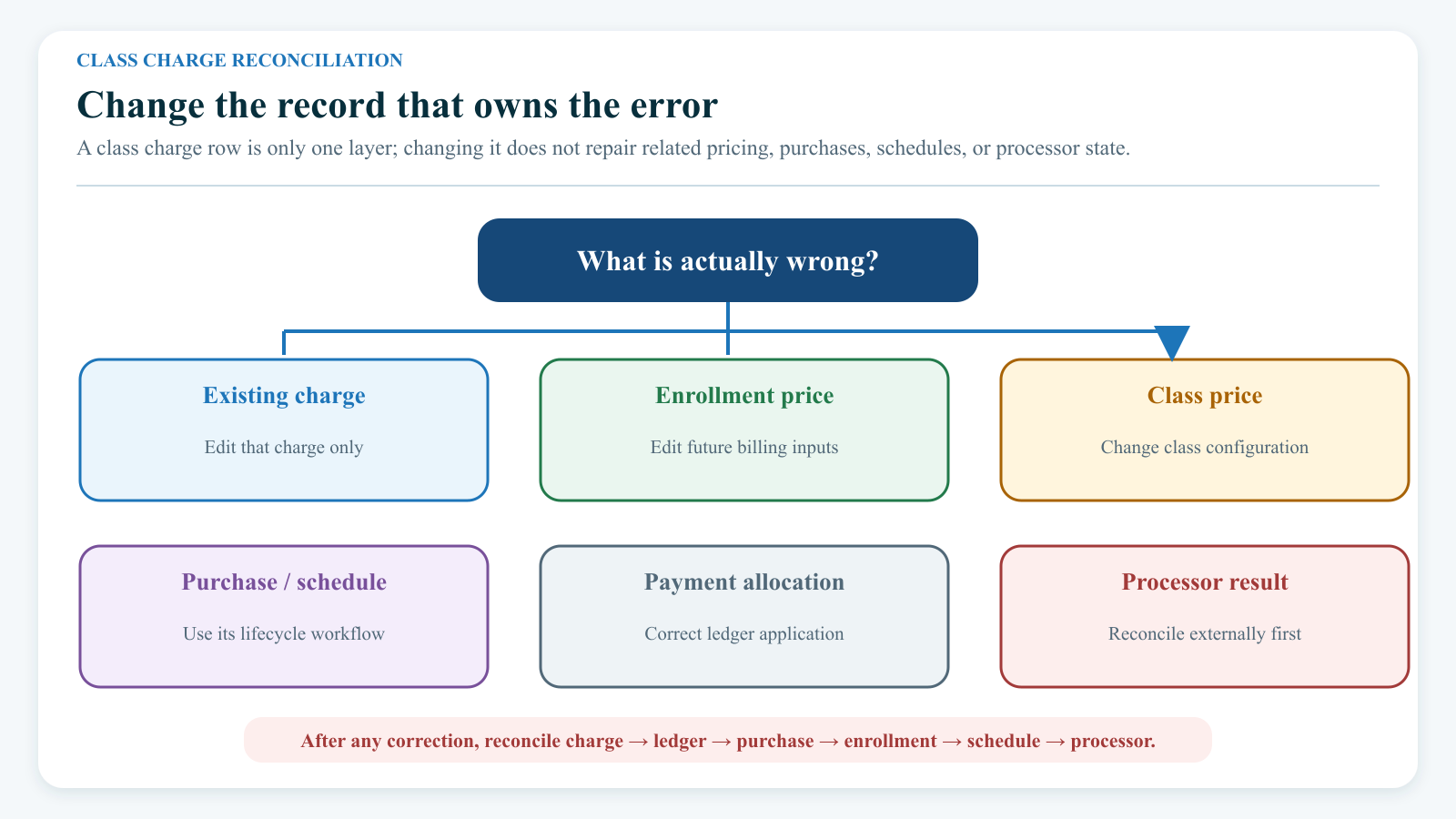
These are different jobs. Changing an existing charge does not change the class price, an enrollment price, a purchase, or a future scheduled payment. Changing a class or enrollment price does not rewrite a charge that already exists.
Important: The current red Void action deletes the charge record; it does not create a reversible void entry. It also does not issue a processor refund. Treat it as a destructive, last-resort correction and reconcile the account immediately afterward.
#Choose the right record
Before changing anything, identify which record is wrong.
| What you need to do | Where to work | What it changes |
|---|---|---|
| Review charges related to one class | Group Classes > class > Charges | Nothing until you edit or delete a row |
| Correct an existing charge's date, amount, category, season, or notes | The row's Edit action on the class Charges page | That charge record only |
| Change several existing charges' category, season, or notes | Select rows on the class Charges page, then Edit Charges | Each selected charge separately |
| Change one student's price or billing schedule for a later tuition run | Group Classes > class > Students > Edit Enrollment | That enrollment's future billing inputs |
| Change the class's configured billing-schedule prices | Group Classes > class > Edit, in the payment section | Class pricing configuration; optionally enrollment pricing when explicitly requested |
| Add one charge to an account | The family or student's Ledger > New Charge | A new account charge |
| Generate recurring billing-schedule tuition | Finance > Tuition | Charges in the reviewed tuition run |
| Add a class-related charge to several accounts | Finance > Misc Charges | New charges for the selected accounts |
| Correct a Sales Item purchase or auto-renewal | The purchase, Sales Item, and related schedule workflow | Purchase and lifecycle records; not merely the class charge row |
| Apply an existing payment credit | The account Ledger | Payment allocation; no new refund |
| Use a fixed family or student tuition total | The account's Tuition Override and the matching Tuition option | An account-level tuition path, not a class-enrollment price |
If the record is uncertain, stop at review. Compare the class row with the account ledger, purchase, enrollment, and any scheduled payment before choosing a correction.
#Before you begin
- Obtain the studio's approval for financial changes and its correction policy.
- Record the class, student, family account, charge ID, original amount, paid amount, balance, date, category, season, and notes.
- Determine whether the class uses Billing Schedule or Sales Item.
- Open the related account ledger in another tab and identify any purchase, order, payment allocation, future scheduled payment, or processor transaction.
- Check whether the charge has been included in a closed accounting period, statement, tax report, reconciliation, or payout.
- Decide how the studio will preserve the reason, approver, and before/after values. Do not use sensitive medical, payment-card, or private family information in charge notes.
- Restrict the work to trusted staff. A visible button is not proof that a staff group is authorized to use it.
Do not practice an edit, deletion, tuition run, refund, or payment on a real family. Use an isolated fictional account and an approved rollback plan for training.
#Understand Billing Schedule and Sales Item classes
The class payment method determines where its price originates and what downstream records may exist.
#Billing Schedule
A billing-schedule class stores a price and billing schedule on the student's enrollment. Finance > Tuition later reads eligible enrollments and applies the tuition run's dates, schedules, discounts, and other rules.
- Editing an enrollment can change a later tuition preview.
- It does not create a prorated adjustment by itself.
- It does not rewrite an earlier charge.
- Always preview tuition and verify the student's proposed amount before running it.
#Sales Item
A Sales Item class uses a product or package definition. Adding an active student can create a purchase and a related charge immediately. Depending on the Sales Item's lifecycle settings, it can also lead to future auto-renew scheduled payments.
- The purchase and the charge are related but distinct records.
- Editing or deleting the charge does not change the Sales Item, purchase terms, remaining uses, expiration, or auto-renew schedule.
- Correct the source workflow as well as the ledger result when the purchase itself is wrong.
For enrollment behavior, see Manage student enrollment. For product setup, see Create and manage Sales Items.
#Review a class's related charges
- Open Group Classes.
- Locate the class and open its Charges action.
- Confirm the class identity in the page header.
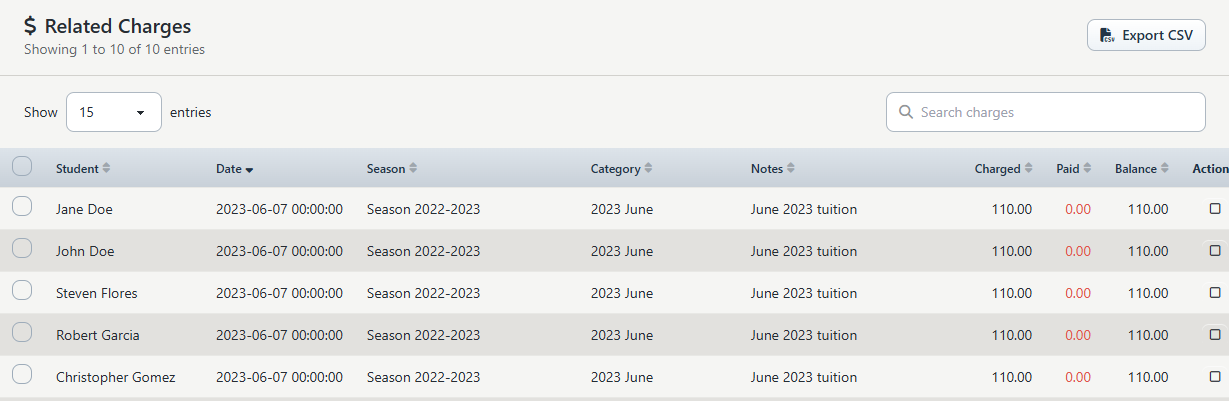
- Review Student, Date, Season, Category, Notes, Charged, Paid, and Balance.
- Search by a distinctive student, date, note, category, or amount when needed.
- Sort a column to inspect duplicates or unexpected dates and amounts.
- Open the student's account ledger in another tab and compare the charge by ID and amount.
- When a Sales Item is involved, also review the purchase and any scheduled payment.
The page can associate a charge with the class through a direct class link, a related purchase, or a legacy online-checkout note. This makes the review useful, but it also means that a row can appear because of an older text-based association. A blank student, season, or category, an unexpected paid value, or a note that merely resembles the class name is a reason to verify the account ledger before editing.
The displayed Balance does not show a negative value when allocations exceed the edited charge amount. Compare Charged and Paid directly. If Paid is greater than Charged, stop and reconcile the allocations rather than relying on the displayed balance.
#Search, paging, selection, and CSV export
The page supports search, sorting, paging, and page sizes of 15, 25, 50, or 100 rows. The header checkbox selects the rows on the current page. Selections can remain active while you change pages or search terms, so the set selected for a bulk edit can be larger than the visible table.
Before a bulk edit, clear stale selections, then review the complete list in the Edit Charges dialog. Reloading the page clears the current selection.
Export CSV exports all rows that match the current search, not only the visible page. The file can contain student names, dates, notes, and financial amounts. Save it only to an approved protected location, share it only with authorized staff, and delete temporary copies according to the studio's retention policy.
#Add the correct kind of charge
There is no add-charge action on the class Charges page. Choose the source that matches the business event.
#Add one account charge
Open the intended family or student, select Ledger, and use New Charge. Select the class, student, season, and approved charge category when those fields apply. Confirm the charge on the ledger and then return to the class Charges page.
See Add a charge and payment for the full procedure.
#Generate tuition
For recurring billing-schedule tuition, use Finance > Tuition. Preview first, review inclusions and exclusions, and run only the approved batch. Never simulate tuition by manually copying one charge across accounts.
See Run tuition safely.
#Add a class-related charge to several accounts
Use Finance > Misc Charges when the same approved charge needs to be assigned to several selected accounts or class members. Review the target list and resulting ledgers. Do not use the class page's bulk edit to create charges; it edits existing rows only.
See Late charges and miscellaneous charges.
#Create a Sales Item purchase and charge
Use the approved enrollment, Online Client, or staff Shopping Cart workflow. Confirm the Sales Item, price, purchaser, assigned student, payment plan, and registration-fee lines before submission. Then reconcile the purchase, charge, payment allocation, and any future schedule.
See Staff Shopping Cart checkout and Review purchases.
#Edit one existing charge
Use this only when the charge exists and its own details are incorrect.
- Record the original charge and its related records.
- On the class Charges page, select the pencil Edit action for the intended row.
- Review Date, Amount, Category, Season, and Notes.
- Enter only the approved correction.
- Select Save once.
- Reload the class page and confirm the saved values.
- Open the account ledger and verify the charge ID, total balance, paid amount, allocations, and available credit.
- If applicable, review the related purchase, order, scheduled payment, tuition preview, statement, report, and processor transaction.
- Record the correction reason, approver, and reconciliation result in the studio's protected operations record.
Do not reduce Amount below Paid. The edit changes the charge amount but does not reduce its payment allocations. That can leave more money allocated than the charge contains while the class page still displays a zero balance.
Changing Date, Category, Season, or Notes can change how the charge appears in statements and reports. It does not change the purchase, order, enrollment, schedule, processor transaction, or other source record.
The category selector can include categories that are not intended for charges. Choose only a studio-approved charge category; do not infer suitability from its presence in the list.
#Edit several existing charges
Bulk edit can replace Season, Category, and, when selected, Notes. It cannot change amounts or dates.
- Reload the page to begin with no previous selection.
- Search and page to the intended rows.
- Select each charge. Remember that selected rows can remain selected when the visible page or search changes.
- Select Edit Charges.
- Read every charge listed in the dialog; this list is the final scope.
- Leave Season or Category at Not Changed unless that field must be replaced.
- Select Update Notes only when every selected charge should receive the same replacement note. A blank replacement clears the notes.
- Select Save once.
- Reload, repeat the same search, and inspect every intended charge.
- Reconcile representative account ledgers and any reports affected by the new category, season, or notes.
The selected charges are updated in separate requests. A bulk edit is not one all-or-nothing transaction: some rows can save before another row fails. If an error appears, do not immediately click Save again. Reload and inspect every selected charge, identify which rows changed, then correct only the remaining rows under a documented recovery plan.
#Delete a charge with the current Void action
The row action is labeled Void, and the confirmation asks Void this charge? In the current implementation, confirming it deletes the charge rather than retaining a reversible void record.
Use it only when the studio's correction policy requires deletion and an authorized finance reviewer has approved the complete downstream plan.
- Preserve the charge ID, original values, reason, approver, related payment allocations, purchase, scheduled payments, and processor transaction reference in a protected record.
- Confirm whether the charge is unpaid, partly paid, or fully paid.
- Decide how any resulting unapplied payment credit will be handled.
- Decide separately whether a processor refund, purchase cancellation, enrollment change, or scheduled-payment cancellation is required. The Void action does none of those jobs.
- Select the red Void action for the exact row.
- Read the browser confirmation and confirm only once.
- Reload the class page and account ledger.
- Reconcile the account's charges, payments, allocations, balance, and unapplied credit.
- Review the purchase or order, the enrollment, every future scheduled payment or charge, and the processor. Resolve each one through its own approved workflow.
- Retain the before/after reconciliation and correction authorization.
Deleting a charge removes its payment allocations. The payment record remains, so previously applied money can become an unapplied credit. The action does not refund the payer. It also does not reliably clear every purchase, order, scheduled-payment, or enrollment reference. Escalate dangling or inconsistent records rather than deleting more records to make a page look balanced.
For payment-allocation recovery, see Unapplied payments and account credits. For processor corrections, see Payment history and corrections.
#Change future enrollment pricing
#Change one student's enrollment
Use this for a billing-schedule enrollment whose future price or schedule differs from the class default.
- Open Group Classes, locate the class, and select Students.
- Find the intended student and select the row's pencil action.
- Confirm the displayed student and class.
- Review Enrollment status, Enrollment price override, and Billing schedule.
- Enter the approved future price and select the approved billing schedule.
- Select Save enrollment.
- Return to the roster and reopen the enrollment to confirm the values.
- Preview the next tuition run and verify this student separately before running tuition.
- Confirm that no earlier charge was expected to change.
Although the page says that leaving the price blank removes the enrollment-specific price, the effect can depend on the tenant's enrollment-price storage. Until the deployed behavior is verified for the studio, do not use a blank as a reset. Enter the approved configured price explicitly, save, and verify the tuition preview.
Entering zero in the class's Add Student dialog is not a reliable way to waive tuition; the add workflow can replace zero with a configured price. Add the enrollment with reviewed values, then use the approved individual enrollment adjustment and preview process.
#Change the class's configured prices
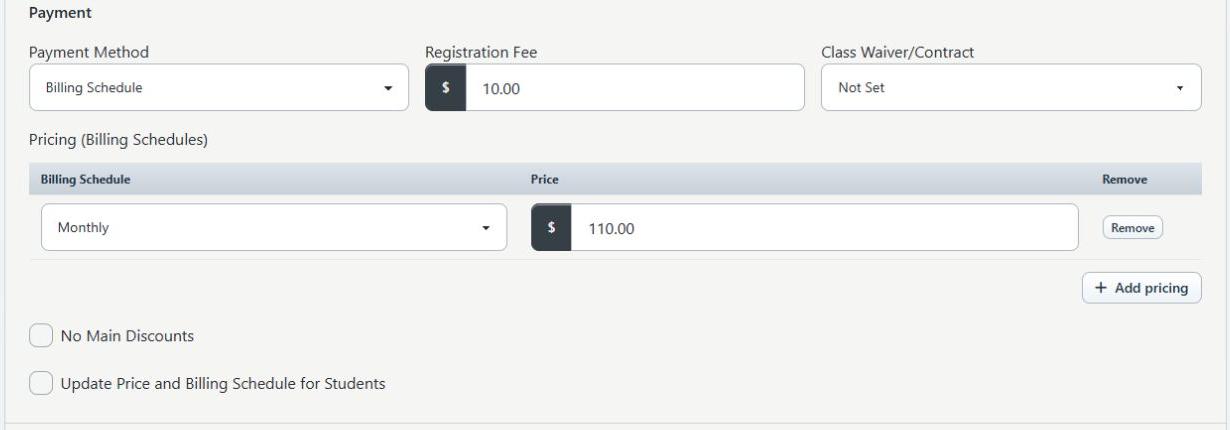
Open the class's Edit page and review its payment section. For a billing-schedule class, the pricing rows define combinations of price and billing schedule.
Saving class pricing does not rewrite existing charges. The checkbox Update Price and Billing Schedule for Students can also copy class pricing to enrollment records. Use it only after a controlled review.
Critical limitation: When the class has more than one pricing row, the current bulk-copy behavior can leave every enrollment with the last valid pricing row's price and schedule. It can also update enrollment records regardless of their active, waiting, invited, or archived status. Leave the checkbox clear for classes with multiple prices, mixed student schedules, or enrollment-specific arrangements. Update individual enrollments instead.
If the class has one approved pricing row and the studio authorizes the bulk copy:
- Export or record the current enrollment prices, schedules, and statuses.
- Save the class pricing first with the checkbox clear and verify it.
- Reopen the class and confirm there is exactly one intended pricing row.
- Select Update Price and Billing Schedule for Students only under the approved bulk plan.
- Save once.
- Inspect active, waiting, invited, declined, drop-in, and archived enrollment records as applicable.
- Preview tuition and compare every affected student with the before list.
#Do not confuse an enrollment price with Tuition Override
A family or student account can have a Tuition Override used by a special fixed-total option on Finance > Tuition. That value is separate from one class enrollment's price. Changing it does not make the class Charges page authoritative for the new total, and changing an enrollment does not update the account-level override.
Before using either override, document its intended scope, effective period, approver, and removal date.
#Handle registration fees separately
DSM can use more than one kind of registration fee:
- a Registration Fee on the class, which can appear as a separate checkout line;
- a student-registration fee controlled by studio and season settings, which can be a separate account charge or checkout line;
- genre-related registration-fee settings attached to a season.
Do not assume that one fee replaces another or that every enrollment path creates the same fee.
The current Group Classes > Students > Add Student to Class dialog does not offer a registration-fee option. Adding a student there is not evidence that the student-registration fee was charged. Use the studio's approved member-registration or checkout workflow when a student fee is required, then verify the account ledger and checkout or purchase record.
A direct student-registration fee may not appear on one class's Charges page because it can be associated with the student, season, and category without a class link. Find it on the account ledger.
Before launch, test class fees, student fees, family caps, per-season rules, and any genre fee with a fictional account. See Create a group class, Manage seasons, and Launch a class for Online Client registration.
#Handle proration, adjustments, and credits
The class Charges page has no proration control.
- Changing an enrollment price can affect a later billing-schedule tuition preview, but it does not calculate a date-based proration or correct a prior charge.
- The staff Shopping Cart can offer Prorate First Payment for an eligible Sales Item or payment-plan workflow. That is separate from editing a class charge.
- An account credit is unapplied value from a payment. It is not a negative class price and is not automatically a refund.
- Deleting a paid charge can create unapplied credit by removing allocations, but deletion is not an approved way to grant a credit.
For an approved mid-period change, preserve the original event and use the studio's accounting policy to create a clearly explained adjustment, apply available credit, or issue a processor refund. Do not silently lower a paid charge, enter a negative enrollment price, or invent a negative class charge as a substitute for a documented correction.
#Understand downstream effects
| Action | Existing charge | Payment allocation or credit | Purchase or order | Future tuition or scheduled payment | Processor |
|---|---|---|---|---|---|
| Edit charge date/category/season/notes | Updated | Allocation amount unchanged | Unchanged | Unchanged | Unchanged |
| Edit charge amount | Updated | Allocations remain; over-allocation is possible | Unchanged | Unchanged | Unchanged |
| Bulk edit charges | Each selected charge is updated separately | Amounts unchanged | Unchanged | Unchanged | Unchanged |
| Current Void action | Charge deleted | Allocations removed; payment can become unapplied credit | Not cancelled; references can remain | Not cancelled | No refund |
| Edit one enrollment price/schedule | Unchanged | Unchanged | Unchanged | Can affect a later billing-schedule tuition preview | Unchanged |
| Save class pricing | Unchanged | Unchanged | Unchanged | Changes class configuration; optional bulk copy can change enrollments | Unchanged |
| Edit a Sales Item or purchase workflow | Not automatically corrected | Not automatically corrected | Source record changes according to that workflow | Auto-renew or schedule requires separate verification | No automatic refund unless that workflow explicitly submits one |
#Reconcile every financial change
Before considering the work complete, confirm all applicable items:
- the exact class, student, family, enrollment, charge, purchase, and schedule IDs;
- the account's charge total, payment total, allocations, balance, and unapplied credit;
- Charged is not below Paid unless an authorized allocation correction is complete;
- the purchase or order retains the intended owner, student, class, price, status, expiration, and remaining uses;
- the next tuition preview includes the intended enrollment price and billing schedule;
- every scheduled payment and scheduled charge has the correct amount, date, status, source, and payment method;
- the processor transaction, refund status, payout, and local payment record agree;
- statements, tax/category reports, season reports, and accounting exports still classify the event correctly;
- the correction reason, before/after values, approver, operator, date, and exceptions are stored in the studio's protected operations record.
Do not rely on the class Charges page alone as proof that a financial correction is complete.
#Troubleshooting
#No charges appear for the class
Confirm the class and clear the search. A billing-schedule enrollment does not become a charge until an approved tuition run creates one. A student-registration fee can exist only on the account ledger. Open the account, purchase, and tuition history before assuming the charge is missing.
#A row has blank context or seems unrelated
The page can use direct links, purchase links, or a legacy checkout-note match. Search the account ledger by charge ID and amount. If the class connection cannot be proven, do not edit or delete the row from this page.
#Paid or balance looks wrong
Compare the account ledger and payment allocations. A prior amount edit can leave Paid greater than Charged, while the class table does not display a negative balance. Stop further edits and use the approved allocation-correction process.
#The edit saved, but another record did not change
This is expected for purchases, orders, enrollment prices, scheduled payments, and processor transactions. The charge edit changes only the charge row. Correct each source record through its own workflow.
#A bulk edit reported an error
Assume partial success. Reload the page, reconstruct the selected list from the before record, and inspect each charge. Do not resubmit the whole batch until you know which rows already changed.
#The charge was deleted accidentally
Stop financial work on the account. Preserve the deleted charge's recorded details and the current ledger state. Check for newly unapplied credit, a remaining payment, purchase or schedule references, and processor state. Escalate for an approved reconstruction or accounting correction; do not create and pay a replacement casually.
#The enrollment price changed, but tuition did not
Confirm the enrollment's status, season, billing schedule, effective tuition date, and class payment method. Make sure the run uses billing-schedule enrollment pricing rather than a family or student Tuition Override path. Reopen the enrollment and use tuition preview; do not run tuition merely to test the amount.
#The wrong students received a class pricing update
Stop before tuition runs. Preserve the pre-change enrollment list, inspect all statuses, and restore each approved price and schedule individually. This can occur when Update Price and Billing Schedule for Students is used with multiple pricing rows.
#A registration fee is missing
Identify whether the expected fee is class-level, student-level, or genre-related. Confirm the enrollment path used, season eligibility, studio fee settings, caps, and family-fee rules. The class-roster add dialog does not submit a student-registration fee. Review the account ledger and checkout record separately.
#A scheduled payment still exists after a charge was changed or deleted
That schedule is a separate record. Review its source purchase, amount, date, status, and payment method in Scheduled payments and scheduled charges. Cancel or correct it only under the studio's approved schedule workflow.
#An action is missing or unexpectedly visible
Ask an owner to review the staff group's class and charge permissions. Deleting requires Charge delete permission, while the reviewed edit path does not present the same granular permission check consistently. Do not use a saved direct link or a visible control as a workaround. See Roles and permissions.
#Privacy and record handling
- Use fictional students and contact details in the approved non-deliverable documentation domain for training and media.
- Never place full card or bank details, processor credentials, medical information, confidential family notes, or access tokens in charge notes, exports, screenshots, or videos.
- Crop unrelated families, browser identity, URLs containing private keys, and account contact details from media.
- Mask payment-method details and transaction references.
- Store CSV exports, before/after inventories, approvals, and reconciliation records only in approved protected locations.
- Follow the studio's retention policy when deleting temporary exports and recording files.
#Related articles
- Manage student enrollment
- Edit a group class safely
- Assign Sales Items and pricing options to a class
- Archive and restore group classes
- Manage class notes
- Create a group class
- Launch a class for Online Client registration
- Run tuition safely
- Add a charge and payment
- Account ledger
- Unapplied payments and account credits
- Payment history and corrections
- Scheduled payments and scheduled charges
- Late charges and miscellaneous charges
- Staff Shopping Cart checkout
- Review purchases
- Create and manage Sales Items
- Manage seasons
- Roles and permissions