Settings
Configure instructor and class payroll rates
#Current boundary
The current page is titled Payroll Settings and describes its values as instructor/class hourly rates. It stores one current rate for each instructor-and-class combination.
This page does not:
- run payroll or send money to staff;
- create pay-period snapshots;
- store an effective date or end date for a rate;
- record salary, overtime, deductions, taxes, reimbursements, or benefits;
- approve schedules or Time Clock entries; or
- replace the studio's payroll system or written pay policy.
Warning: Saving a new value replaces the current rate for that instructor/class pair. Because the setting has no effective date, a report recalculated for an earlier period can use the new current rate. Record the old value and reconcile open and historical pay periods before changing a live rate.
#Before you begin
- Confirm the instructor, class, pay basis, amount, currency, and effective pay period with the payroll owner.
- Record the existing class-specific rate and the staff profile's general hourly rate when one exists.
- Decide whether the related report should treat the number as an hourly rate or a flat fee.
- Verify the class duration and schedule records used by the pay period.
- Finish or pause any payroll review that could be recalculated during the change.
- Prepare a short report date range with one known class occurrence for validation.
- Restrict screenshots and exports to authorized payroll staff.
Important: The settings page labels the value Hourly rate. The current Instructor Hours report also has a separate Flat Fee filter. When Flat Fee is No, the report multiplies the selected rate by included hours. When Flat Fee is Yes, it treats the selected rate as one flat amount for an included schedule row. Confirm the report choice against the studio's written policy.
#Make an instructor available
Only appropriate active staff are listed. On the staff profile, the current labels are Display as Instructor and Display in Payroll.
- Open the staff profile.
- Confirm the correct person and active status.
- Turn on Display as Instructor when the person teaches Group Classes.
- Turn on Display in Payroll when the person should be included in payroll-oriented lists and reports.
- Save the staff profile.
- Return to Settings > Payroll and search again.
The payroll loader can include a person marked as an instructor or for payroll, depending on the studio's available data. Use both profile flags according to the person's actual role rather than using a flag only to make a name appear.
#Understand the Payroll Settings page
The page provides three working areas.
| Area | Use it for |
|---|---|
| Add or update a rate | Select one Instructor, one Class, and one Hourly rate, then save the pair. |
| Edit rates by instructor | Select an instructor and review or save rates across all listed classes. |
| Current rates | Search and review the stored instructor/class pairs. |
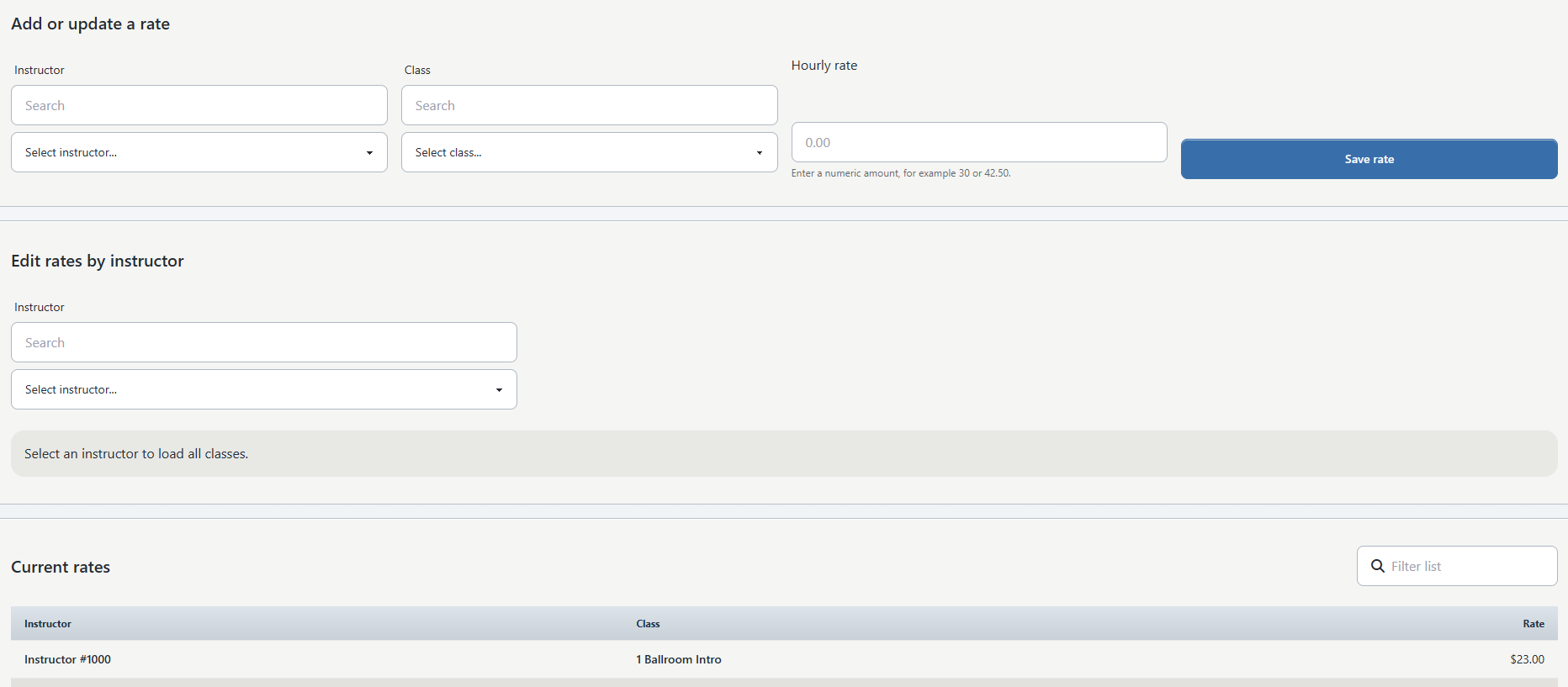
The page shows either Archived classes visible or Archived classes hidden. That state comes from a Global Setting; it is not a filter you can change on the Payroll Settings page.
Some reports can fall back to a general hourly rate on the staff profile when no class-specific payroll rate is found. Do not assume a blank row means the report will calculate zero.
#Add or update one rate
- Select Settings > Payroll.
- Under Add or update a rate, use the first search box to find the instructor.
- Choose the person under Instructor.
- Use the second search box to find the class.
- Choose the class under Class.
- Enter the approved Hourly rate.
- Recheck the instructor, class, and amount.
- Select Save rate once.
- Confirm Rate saved successfully.
- Find the pair under Current rates.
The rate must be a non-negative number. A value such as 30 or 42.50 is accepted by the current form.
Important: Saving 0 creates or updates an explicit zero rate. It does not remove the class-specific row or restore the staff profile's fallback rate. The current page has no delete action. Do not use zero as a substitute for removal unless zero pay is the approved policy for that pair.
#Edit several classes for one instructor
- Under Edit rates by instructor, search for the person.
- Choose the person under Instructor.
- Use Filter classes to narrow the table when needed.
- Compare each Current rate with the approved worksheet.
- Enter one value under New rate.
- Select Save on that row.
- Wait for Saved before moving to another row.
- Repeat for the next approved class.
- Review all changed pairs under Current rates.
Each row saves independently. There is no page-level batch review or single undo action, so keep the worksheet beside you and verify after every save.
#Change whether archived classes appear
The page reads the Global Setting that controls archived payroll classes.
- Record the current Archived classes visible or Archived classes hidden badge.
- Open Settings > Global Settings.
- Search for the setting ID
PAYROLL_ARCHIVED_CLASSESor its current description. - Change it only when the payroll owner needs archived classes in the setup list.
- Select Save changes.
- Return to Settings > Payroll and confirm the badge and class list.
Showing an archived class does not reactivate it, schedule it, or add it to a pay period. It only changes availability in this settings list.
#Verify the rate in Instructor Hours
- Open Reports > Instructor Hours.
- Choose a short From and To date range with a known schedule.
- Select the instructor and relevant location or class filters.
- Set Payroll Only to Yes when the report should exclude staff not marked for payroll.
- Set Flat Fee to No for the hourly calculation test.
- Run the report and compare included hours, rate, and amount with the worksheet.
- When the studio pays a flat amount for this work, rerun with Flat Fee set to Yes and compare the result with policy.
- Confirm substitutions, cancellations, private lessons, or schedule changes are represented correctly before approving the total.
For the current Instructor Hours calculation, a class-specific payroll rate takes precedence when it exists; otherwise a general staff hourly rate can be used. With Flat Fee set to No, the amount is the selected rate multiplied by report hours. With Flat Fee set to Yes, the multiplier is one for each included schedule row.
Important: A mathematically correct report can still be operationally wrong because of an incorrect instructor assignment, duration, status, date range, location, or flat-fee choice. Reconcile the source schedule and staff profile.
#What happens next
Selecting Save rate or a row's Save creates or updates the rate for the selected instructor/class pair. The current interface updates its Current rates list after a successful response.
Supported reports can read the current pair when calculating instructor cost. The settings change does not create a payable, lock a pay period, or notify the instructor.
#Confirm it worked
- Reload Settings > Payroll.
- Search Current rates for the instructor and class.
- Confirm the stored amount.
- Run Instructor Hours for one known schedule with Flat Fee set according to policy.
- Recalculate the expected amount independently.
- Confirm Payroll Only, instructor, class type, private-lesson status, location, and date filters.
- Have the payroll owner review the result before the pay period is approved.
If historical results changed unexpectedly, restore the recorded prior value only after the payroll owner decides which periods require correction or documentation.
#Troubleshooting
#The instructor is missing
Confirm the staff profile is active and review Display as Instructor and Display in Payroll. Then reload Payroll Settings. Do not assign these flags to a vendor or non-teaching login unless the person's real role requires them.
#The class is missing
Clear the class search and confirm the class exists. If it is archived, review the Archived classes visible or Archived classes hidden badge and the PAYROLL_ARCHIVED_CLASSES Global Setting.
#Save reports Select an instructor or Select a class
Choose the value from the corresponding select list after using its search box. Typing in the search field does not select the record.
#Save reports Enter a valid non-negative rate
Enter a number of zero or greater with no currency symbol or pay-period text. Stop if the approved amount or basis is unclear.
#The save fails or the page is unavailable
Your role can lack the rate-save ability, Payroll Settings can be disabled, or the studio can lack required payroll, members, or class storage. Ask an administrator to verify the feature and permission rather than retrying with another person's login.
#The report uses a different rate
Confirm the instructor/class pair, the staff profile's general hourly rate, the actual instructor assigned to the schedule, and whether the class-specific row exists. Review substitutions and archived records.
#The total is too high or too low
Check class duration, number of included schedules, Flat Fee, Payroll Only, date range, class type, private-lesson status, and location. A flat-fee and hourly run can produce very different totals from the same stored number.
#A rate should no longer apply
Do not set it to zero unless zero pay is intended. The current page does not offer delete or effective-date controls. Record the pair and ask the payroll owner or an authorized support contact for the approved removal or rate-history procedure.