Communications
Using literals in messages
For example, you can write:
Hi [STUDENT_FIRST_NAME],
When the message is sent, DSM replaces the literal with the name from the student's account. The recipient might see:
Hi Taylor,
Older DSM instructions call these placeholders literals. In the current software, you will usually see Insert Variable or merge tag. These names all refer to the same feature.
#Add a literal to a message
- Open the message or template you want to edit.
- Click in the subject or message where the information should appear.
- Open the variable menu beside the field, or choose Insert Variable in the message editor.
- Select the literal you want to use.
- DSM inserts the placeholder into your message.
- Save the template and send a test before using it with clients.
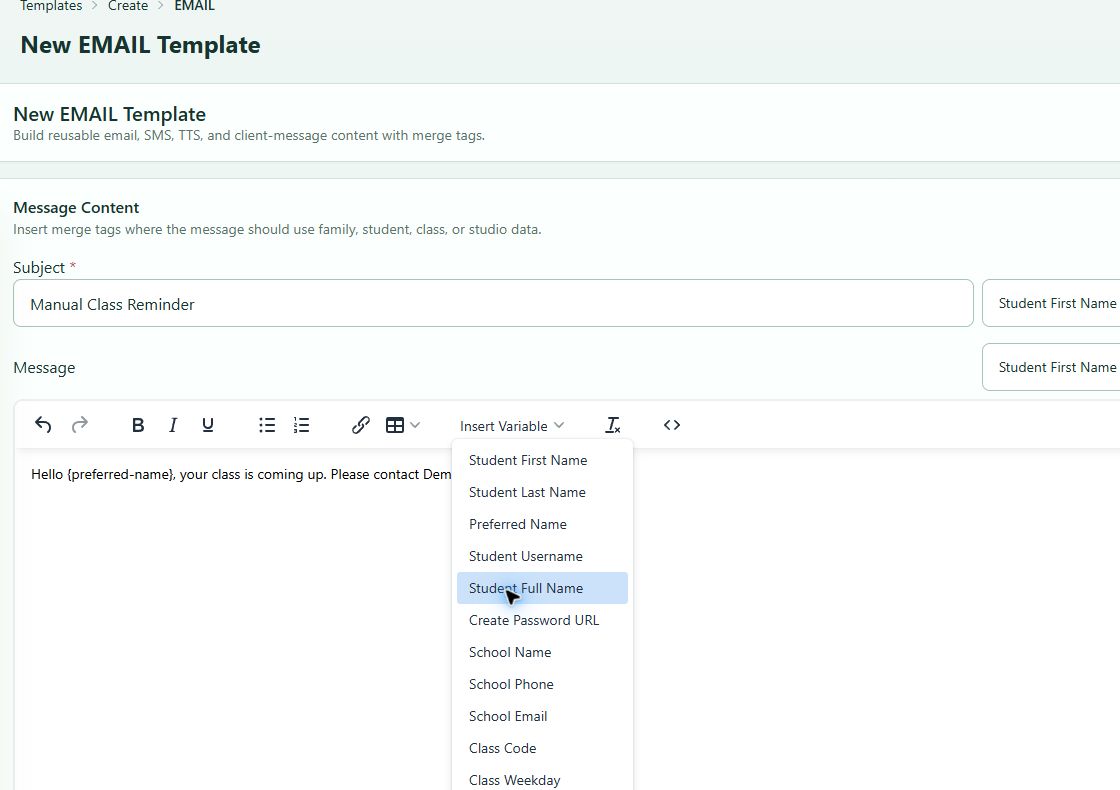
Use the placeholder exactly as DSM inserts it. Changing its brackets, spelling, or spacing can prevent it from working.
#Common literals
Common literals use information from the student account or the studio's settings. These are usually the easiest literals to use because many message workflows already know which student or family is receiving the message.
| Literal | Information DSM uses |
|---|---|
| Student First Name | First name on the student account |
| Student Last Name | Last name on the student account |
| Preferred Name | Preferred name or nickname; when none is available, DSM uses the first name |
| Student Full Name | The student's first and last name |
| Student Username | Online Client username |
| School Name | Studio name from the studio settings |
| School Phone | Studio phone number from the studio settings |
| School Email | Studio email address from the studio settings |
| OC SignIn URL | Link to the studio's Online Client sign-in page |
| Student Registration Fee | Registration fee from the studio settings |
The current picker still uses School in several labels. In Dance Studio Manager, these values refer to your studio.
#Where common literals work best
Common literals are normally appropriate for:
- an individual email opened from a student or family account;
- a general email sent to a group of linked student accounts;
- a reusable message template; and
- an automated message that knows which account caused the event.
Before sending, make sure DSM is using the correct family member. A message opened from a child's record may not use the same name you would use when addressing the parent.
#Class-specific literals
Class literals need information about a particular class or scheduled occurrence.
| Literal | Information DSM uses |
|---|---|
| Class Code | Code or name saved on the class |
| Class Location | Location saved on the class |
| Class Instructor | Instructor associated with the class or schedule |
| Scheduled Class Name | Name of the scheduled class |
| Scheduled Class Start | Full starting date and time |
| Scheduled Class Room | Room assigned to that occurrence |
| Class Weekday | Day of the week, such as Saturday |
| Class Day | Calendar day |
| Class Time | Starting time |
| Class Month | Numeric month |
| Class Month Name | Written month name |
The easy rule is:
Use class literals only when the message starts from a specific class or schedule and DSM carries that class into the message.
They may be useful when composing from a class roster, Day View, a class's Students area, or an automated message tied to a class occurrence. They usually do not belong in a general email opened from a student profile because that message may not know which class you mean.
Current limitation: The bulk email screen can sometimes keep the selected students but lose the original class or schedule context. Always test the exact class-email workflow. If the test shows the placeholder instead of the class information, write the class details as normal text for that message.
#Special-purpose literals
Some literals work only when a particular type of record is part of the message.
| Literal | Use it only when |
|---|---|
| Purchased item and Purchase date | The message is produced by a purchase-aware workflow |
| Gift Card Code and Gift Card Amount | The message is produced for one specific gift card and verified recipient |
| All Students and Classes | The recipient is allowed to receive the family's complete enrollment summary |
| Create Password URL | The message is part of an approved account-access or password-creation process |
Do not add these literals to a general template simply because they appear in the picker. Without the correct purchase, gift card, family, or account-access context, they may be blank or remain visible as placeholders.
Gift-card codes, family schedules, purchase details, and account-access links are private information. Keep them out of broad messages and subject lines unless there is a clear reason for every recipient to receive them.
#What works in different situations
| Where the message starts | Literals that are usually appropriate | What to watch for |
|---|---|---|
| Student or family account | Student/account and studio literals | The message may not know about a class or schedule |
| General group email | Student/account and studio literals | Custom or unlinked addresses may not have student information |
| Class roster, Day View, or class Students area | Student, studio, class, and schedule literals | Test that the current workflow actually keeps the class and occurrence |
| Purchase notification | Student, studio, purchase, and any class supplied by the purchase | Do not reuse it as a general template without removing purchase literals |
| Gift-card notification | Student, studio, Gift Card Code, and Gift Card Amount | Verify the recipient and never expose the code in a screenshot or broad send |
| Scheduled Trigger or automated message | Only literals connected to the event that runs the trigger | A class reminder may know the class; a general account trigger may not |
| Email signature | Prefer no literals | Different message workflows handle signature replacement differently |
If you are unsure whether a message has the right information, use a common student or studio literal first and test it. Add class or special-purpose literals only after that workflow has been verified.
#A class-email example
You might create a class reminder like this:
Hi [STUDENT_FIRST_NAME],
This is a reminder that [SCHEDULE_CLASS] starts [SCHEDULE_START] in [SCHEDULE_START_ROOM].
A completed message might look like:
Hi Taylor,
This is a reminder that Beginning Ballet starts August 20 at 5:00 PM in Studio A.
This example works only if the sending workflow supplies the student, scheduled class, starting time, and room. If it supplies only the student, the class literals will not be reliable.
#Test your literals
Do not judge a literal by how it looks in the editor. It is supposed to look like a placeholder until DSM prepares the message.
Before sending to clients:
- Use a fictional or internal test account with information you can easily recognize.
- Start the test from the same place you will use for the real message.
- Send the message only to an approved internal email address.
- Check the subject and the complete message.
- Make sure every literal was replaced with the expected information.
- Look for empty spaces, missing words, or placeholders still surrounded by brackets.
The general Send Test Email box lets you choose an email destination, but it does not let you choose all of the student, class, and schedule information used for the test. It may use an available student automatically. For class-specific literals, a test started from the intended class workflow is more useful.
#If a literal does not work
#The literal still appears in brackets
The message did not recognize the literal or did not have the information needed to replace it.
- Insert it again from the current Insert Variable menu.
- Make sure the placeholder was not edited.
- Confirm that the message started from a place that knows the required student, class, schedule, purchase, or gift card.
- Use normal text when that workflow cannot provide the information reliably.
#There is a blank space where the literal should be
Check the student's account, class, schedule, or studio settings. The field may be empty, or the message may be using the wrong record.
#The wrong name appears
Check whether the recipient is linked to the student, parent, or primary family account. Stop the send if you cannot tell which person DSM is using.
#The class information is wrong
Confirm that the message started from the correct class and scheduled occurrence. If the message covers several dates, write the dates as ordinary text instead of using a literal that can represent only one occurrence.
#Password and security note
Use Create Password URL only for an approved account-access message. The normal test-email tool deliberately does not create a password link.
Do not copy old password or show-password literals from legacy templates or older instructions. They are not offered by the current picker and should not be used.