Communications
Announcements
#Before you begin
- Confirm that the Online Client Announcements section is enabled. A studio can customize the section title, so clients may see a label other than Announcements.
- Prepare the final title, display dates, image, and description before selecting New Announcement.
- A new announcement requires a JPEG or PNG image no larger than 5 MB. Replacing the image while editing is optional.
- Start date and End date are both required, and the end date cannot be earlier than the start date.
- Decide whether the item should be Draft or Active. A Draft is not shown to clients.
Warning: An Active announcement becomes visible to clients when the current date falls between its start and end dates, inclusive. Saving an Active item with today's date inside that range can publish it immediately.
#Create an announcement
- Open Announcements.
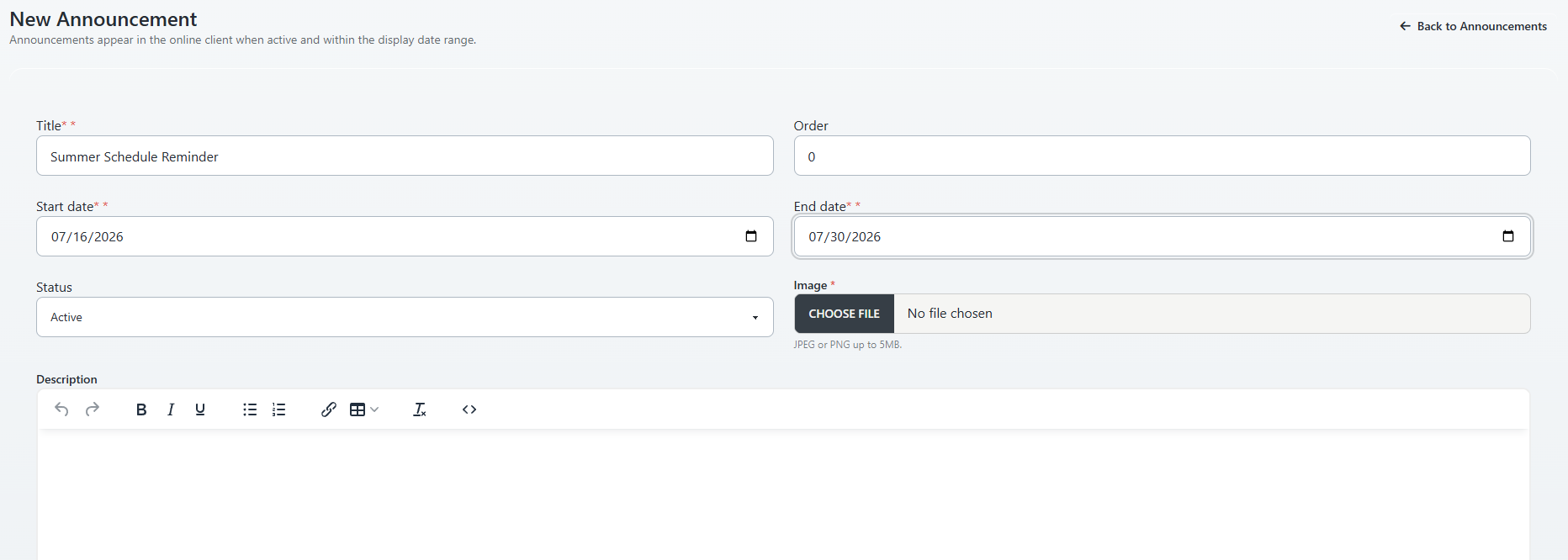
- Select New Announcement.
- Enter the required Title.
- Enter an Order value if the studio uses ordering for announcements.
- Select the required Start date and End date.
- Select Draft while the content is still being reviewed, or Active when it is approved for its date window.
- Under Image, choose a JPEG or PNG file up to 5 MB.
- Enter the Description. Use headings, lists, links, and tables only when they make the notice easier to understand on both desktop and mobile.
- Review all fields, then select Save Announcement.
Important: Do not assume an Order value's placement without checking the Online Client view. Confirm the final order after saving, especially when several announcements share the same display window.
#Edit an announcement
- Open Announcements.
- Use Status or Search to find the item, then select Apply.
- Select Edit for the announcement.
- Update the title, order, dates, status, image, or description.
- If the existing image should remain, do not choose a replacement file.
- Select Save Announcement.
The list's Visible to clients column is the quickest administrator-side check. It shows Yes only when the item is Active and today's date is within the configured range.
#Archive or restore an announcement
To archive a current announcement, select Archive and confirm the prompt. Use the Archived status filter to find it later.
Warning: Archiving removes the announcement from the Online Client display. It does not permanently delete the record.
To restore an item:
- Filter the list to Archived.
- Find the announcement and review its dates and content.
- Select Restore and confirm the prompt.
- Reopen the item if its status or date window must be changed.
Warning: Restore changes the item to Active. If today's date is inside its existing display window and the Online Client section is enabled, the announcement may become visible immediately.
#What happens next
- Saving returns you to the Announcements list with a confirmation message.
- An item is shown to clients only when its status is Active and the current date is on or after Start date and on or before End date.
- Draft and Archived items remain hidden from clients.
- Active announcements are ordered for the Online Client display using their Order value, with creation time used as an additional sort when needed.
- The Online Client navigation label can differ from Announcements when the studio has customized it.
#Confirm it worked
- Return to Announcements and find the item.
- Confirm the Status, Start, End, and Visible to clients values.
- Open Online Client Login using a fictional client account.
- Open the studio's announcements/news section.
- Confirm the title, image, description, links, date eligibility, and placement among other items.
- Repeat the client check at a mobile viewport before publishing a long description or wide image.
Administrator impersonation is useful for a display check, but finish the check and return to the administration area rather than leaving the browser in an impersonated session.
#Troubleshooting
#Announcements is missing from Online Client navigation
The Online Client Announcements section may be disabled or renamed. Check the studio's Online Client settings and look for the configured section title.
#The announcement says No under Visible to clients
Confirm that Status is Active and that today's date is inside the Start date and End date range. Draft, Archived, future, and expired items are not visible.
#The image will not upload
Use a valid JPEG or PNG no larger than 5 MB. If a valid file still fails, ask an administrator to verify that public image storage is writable.
#The announcement appears in an unexpected position
Review the Order values for every announcement in the same date window, then inspect the actual Online Client list. Do not rely only on the order shown in the administrator table.
#A restored announcement appeared immediately
Restore returns the item to Active status. Edit it to Draft or change its date window if it is not ready for clients.