Finance
Payment history and corrections
#Know which system you are changing
Payment History brings together records from several sources, but its correction actions are local:
| Action | Current local effect | Processor effect |
|---|---|---|
| Edit | Changes selected fields on the existing payment record. | None. |
| Refund (Local) | Creates a negative payment row linked to the original and labels it as a refund offset. | None. It does not return funds. |
| Void (Local) | Creates a negative payment row linked to the original and labels it as a void offset. | None. It does not cancel an authorization or settlement. |
| Delete (with offset) | Keeps the original, marks it as deleted in its notes, and creates a negative offset. | None. |
| Receipt or Email Receipt | Produces or queues documentation for the local payment record. | None. |
Warning: A local refund, void, edit, or delete is not a payment-processor action. For a card or ACH transaction, first identify the processor's actual status and follow the approved processor-specific procedure. Never issue an external refund and then repeat it because a local row did not change.
#Before you begin
- Obtain the exact family, date, amount, method, receipt number, transaction number, and source.
- Open the account's Ledger and identify what portion of the payment is applied to charges.
- For card or ACH activity, obtain the current processor status and reference without copying full payment credentials.
- Determine whether the problem is the money movement, the local record, the payment-to-charge allocation, or only descriptive information.
- Follow the studio's approval and accounting policy for refunds, voids, write-offs, and corrections.
- Preserve the original details before changing anything.
Warning: Do not use Edit to make a local processor payment agree with an assumption. Confirm the external transaction first. Changing a local amount does not move money and does not recalculate the existing payment-to-charge allocations in the inspected Payment History path.
#Find and reconcile a payment
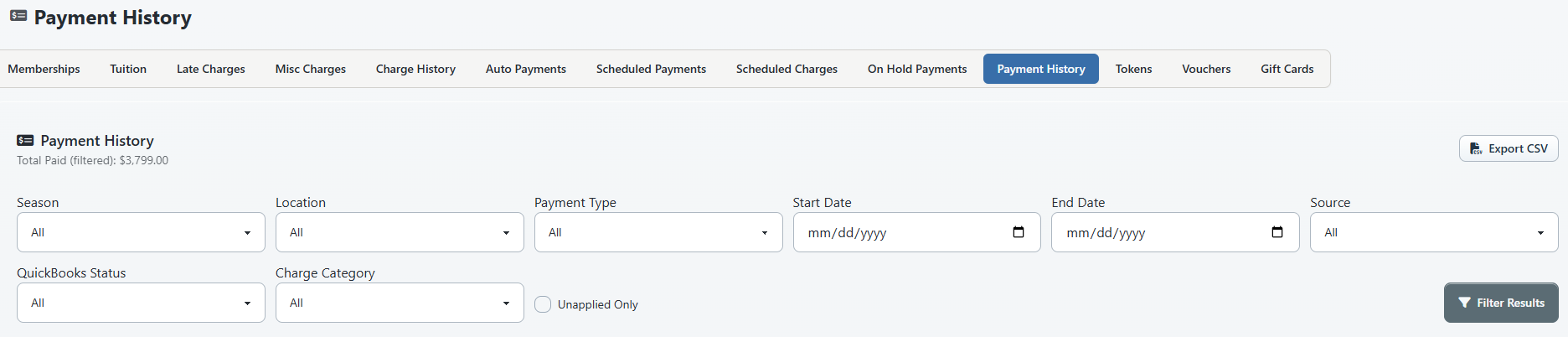
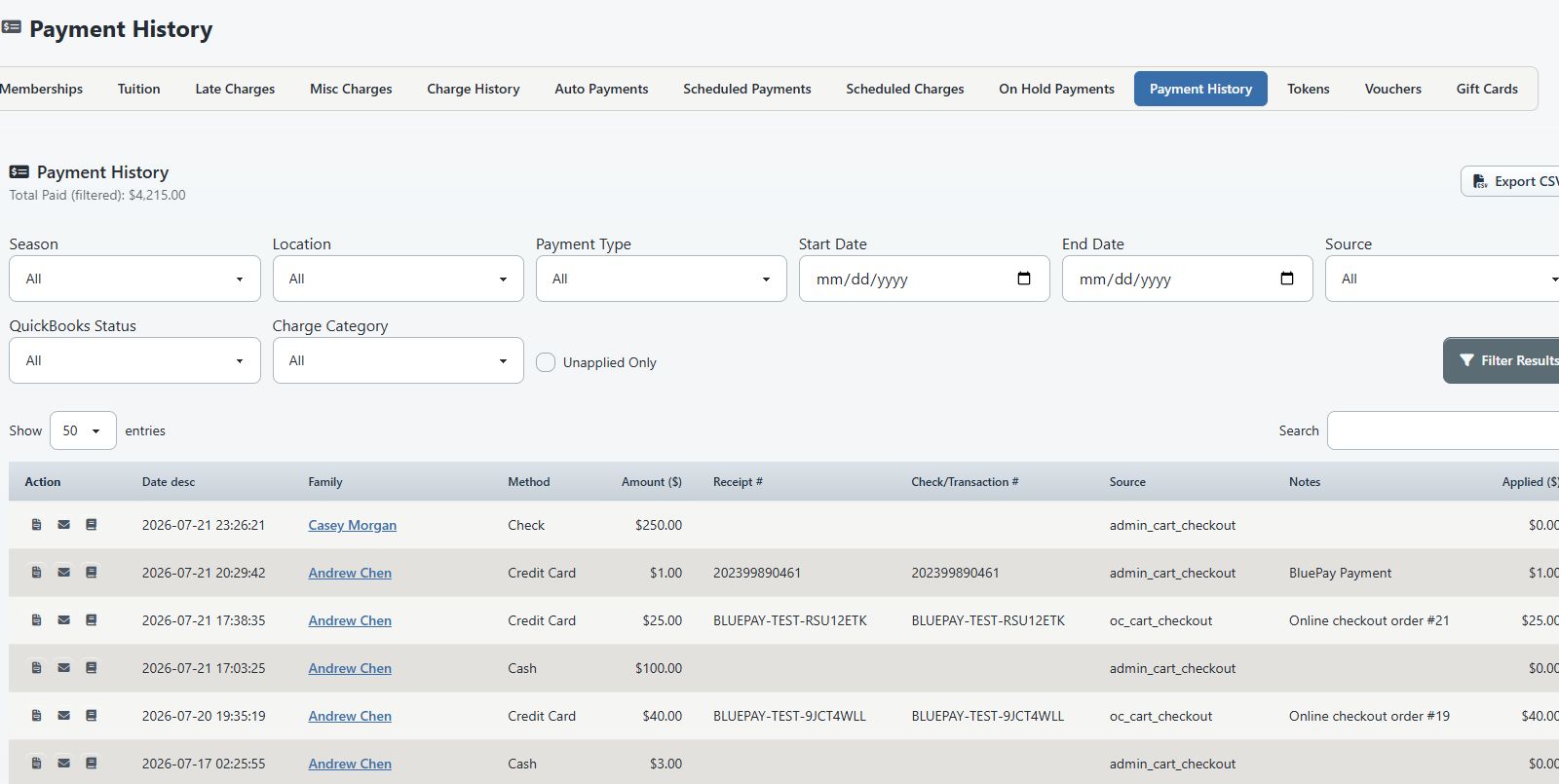
- Open Finance > Payment History.
- Set the narrowest useful filters:
- Season;
- Location;
- Payment Type;
- Start Date and End Date;
- Source;
- QuickBooks Status;
- Charge Category;
- Unapplied Only.
- Select Filter Results.
- Use Search for a receipt number or text from the notes when needed.
- Find the payment and record its Date, Family, Method, Amount, Receipt #, Check/Transaction #, Source, Notes, and Applied amount.
- Select Ledger or the family name to open the account ledger.
- Compare the payment with its applied charges, account totals, receipt, bank or cash record, and processor result when applicable.
Note: The filtered Total Paid includes the records matched by the current filters. A negative correction row can reduce that total. Always record the filters and date basis when using the total for reconciliation.
#Export the current result
Select Export CSV when an authorized reviewer needs the filtered payment rows. The current export includes date, family, method, amount, receipt, transaction, source, notes, and applied amount.
Review the exported file's access and retention because it contains client financial information. It does not contain processor settlement evidence unless that evidence is separately represented in the local fields.
#Choose the correction
Use the smallest action that accurately represents what happened:
| Situation | Appropriate next step |
|---|---|
| Notes, receipt number, or payment date are wrong, but the underlying money and amount are correct. | Consider Edit, then reconcile the ledger and reports. |
| A cash, check, or other locally recorded payment must be reversed in the ledger. | Use an approved local offset procedure. |
| A card or ACH payment must be returned or canceled. | Use the approved processor workflow, confirm its result, then make any required local offset once. |
| The payment is correct but applied to the wrong charge. | Correct the allocation; do not edit the amount or create a second payment. |
| A duplicate or mistaken local payment record must remain auditable. | Consider Delete (with offset) under studio policy. |
| Only the receipt is needed. | Use Receipt or Email Receipt without changing the payment. |
When the right action is uncertain, stop and preserve both the local and processor evidence. A correction chosen by label alone can create a second discrepancy.
#Edit local payment details
The Payment History Edit action prompts for Amount, Payment Date, Receipt #, and Notes.
- Record the original values.
- Select Edit.
- Enter the approved amount.
- Enter the payment date in the requested format.
- Enter the receipt number and notes.
- After the final prompt, wait for Payment updated.
- Reload the payment and open its ledger.
Warning: There is no separate review page after the final prompt in the inspected interface. Complete the edit only when all replacement values are already approved.
Warning: Editing Amount changes the local payment record but does not adjust an external transaction or automatically rebuild existing allocations. Avoid changing the amount of a processor-originated payment. If an amount correction is approved, reconcile Amount, Applied, charge balances, account credit, processor totals, and accounting exports immediately.
#Record a local refund or void offset
Use these actions only when the desired result is a local negative entry and any external money movement has already been handled or is not applicable.
- Reconcile the original payment and record its applied amount.
- Select Refund (Local) or Void (Local).
- Enter a positive correction amount for a partial offset, or leave it blank for the full original amount.
- Accept the amount prompt once.
- Wait for Refund recorded. or Void recorded.
- Reload Payment History and the account ledger.
Warning: Accepting the amount prompt submits the local action; the inspected interface does not show another confirmation. A blank amount creates a full offset. Confirm the original payment and intended amount before accepting the prompt.
The current implementation stores the correction as a new negative payment row. It links the new row and original payment through their refund relationship and adds a refund- or void-offset label to the notes. It also annotates the original payment with the correction amount.
Important: Refund (Local) and Void (Local) currently differ in their audit label, not in external processor behavior. Neither contacts a processor.
#Delete a mistaken payment with an offset
Use Delete (with offset) only when studio policy calls for an auditable cancellation of a mistaken local payment record.
- Record the original payment and confirm that it is the mistaken row.
- Confirm its processor status and applied charges.
- Select Delete (with offset).
- Review Delete this payment and add an offset entry?
- Accept the confirmation once.
- Wait for Payment deleted with offset.
- Reload Payment History and the ledger.
The original payment is not physically removed. The current action creates a negative offset, links the records, and adds deleted wording to the original notes.
Warning: This action does not cancel, refund, or delete a processor transaction. It also does not erase the audit history. Do not use it to hide a duplicate payment attempt.
#Generate or email a receipt
- Confirm the payment and family.
- Select Receipt to open the receipt PDF.
- Review the name, date, amount, method, receipt or transaction number, and studio details.
- To send it, select Email Receipt and enter the approved address.
- Wait for the queue confirmation.
Important: The message If the address is valid, the receipt has been queued. confirms submission to the email queue, not delivery. Use available delivery reporting before telling the client it was delivered.
#What happens next
A local refund, void, or delete-offset leaves both an original payment and a negative correction record. Reports and filtered totals can therefore show both rows. The original payment's charge allocations can also remain relevant to the ledger even though the new negative row reduces total local payments.
An edit keeps the same payment row but changes selected local fields. A receipt reflects the resulting local record; it does not prove processor settlement.
#Confirm a correction
Use all applicable checks:
- Find the original payment and the negative offset or edited values in Payment History.
- Confirm the notes clearly identify the correction.
- Open the account Ledger and compare payment amount, applied amount, charge balances, and account totals.
- Use Unapplied Only to identify any amount that now differs from its allocations.
- Confirm that the local net change equals the approved correction.
- For card or ACH, confirm the processor shows exactly one intended refund, void, or unchanged transaction.
- Compare the relevant deposit, bank record, accounting export, or financial report using the same payment date range and statuses.
- Preserve the processor reference and internal approval according to studio policy.
Do not consider the correction complete while the local ledger and processor disagree.
#Troubleshooting
#The action was submitted but the result is unclear
Do not submit it again. Reload Payment History, search the original amount and receipt, and look for a negative offset with the current timestamp and correction notes. Then check the ledger and processor independently.
#A local refund exists but the client has not received funds
That is expected when only Refund (Local) was used. It records a ledger offset and does not contact the processor. Escalate through the approved processor-refund workflow without creating another local offset unless reconciliation shows one is required.
#The processor shows a refund but DSM does not
Record the processor reference, status, amount, and date. Have an authorized finance administrator add the single required local correction under studio policy. Do not issue another external refund.
#The payment total and applied amount no longer agree
Review the original payment, negative offset, and every payment-to-charge allocation. An amount edit or offset does not necessarily rebuild allocations. Correct the allocation rather than adding an unexplained payment or charge.
#The wrong amount was entered in a local offset
Stop before adding another correction. Preserve the original and offset rows, determine the required net result, and have an authorized reviewer approve the next auditable entry.
#The receipt email may not have arrived
Queue confirmation is not delivery confirmation. Verify the address and use delivery reporting. Do not include full card, ACH, or processor credentials in a resend or support request.