Settings
Create pages, agreements, waivers, and contracts
#Before you begin
- Obtain approved text from the person responsible for studio policy, privacy, and legal review.
- Decide exactly where the text belongs and who must acknowledge or sign it.
- Prepare a fictional guardian, adult, and student account when those roles are relevant.
- For a class or Sales Item contract, identify the exact record that will use the Page.
- Draft and review the content outside Dance Studio Manager before saving it.
- Plan how the studio will handle a new version, existing signatures, and clients who decline.
Warning: Dance Studio Manager provides tools to display, accept, sign, store, and report agreements. It does not determine whether your wording is legally sufficient. Have the appropriate professional approve legal, privacy, medical, payment, cancellation, and electronic-signature language.
Warning: A new Page is active after it is saved. An active agreement can appear in registration, checkout, or a pending-waiver workflow immediately. The current Pages form does not have a draft status.
#Choose the correct Page Type
| Page Type | Use it for | How it reaches the client |
|---|---|---|
| Agreement | Studio-wide account terms or waivers | Appears with account agreements and can become a pending requirement for the account or family. |
| Student Agreement | Terms that apply to a student | Appears in student agreement flows and can become a pending requirement for the student. |
| Guardian Agreement | Terms a parent or guardian acknowledges | Appears for guardian signers and can become a pending requirement for the guardian/family context. |
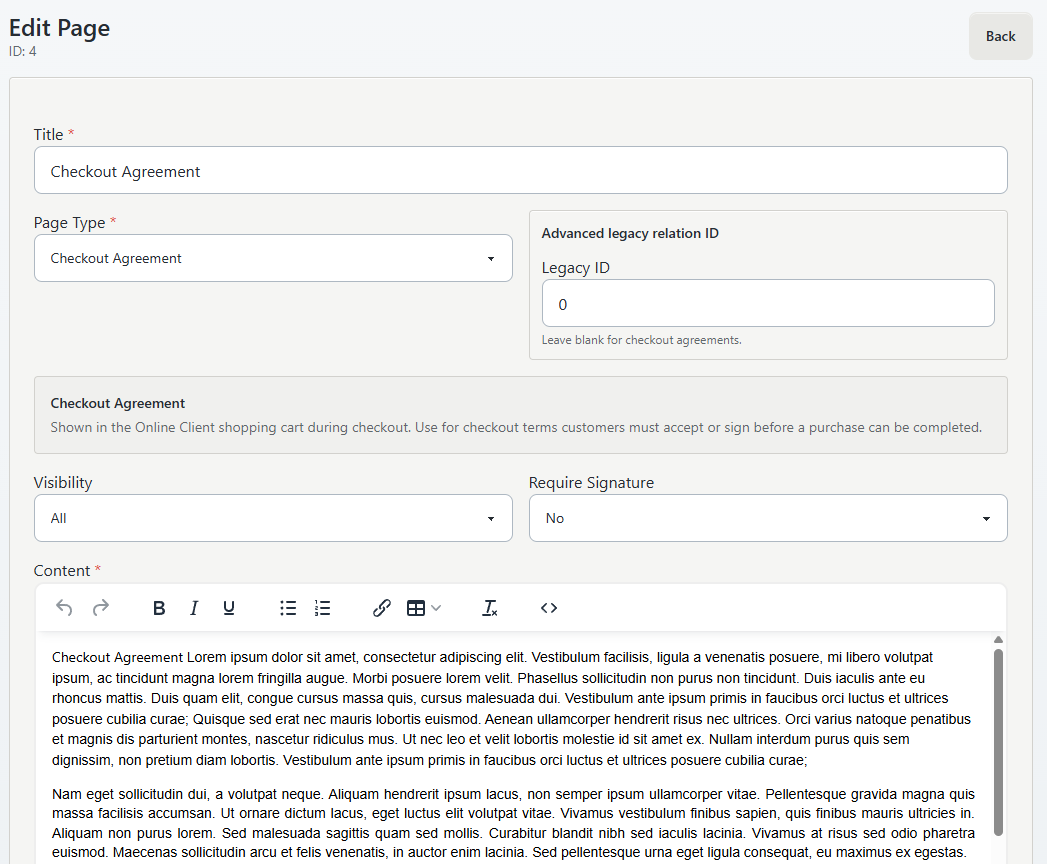
| Checkout Agreement | Terms that apply to an Online Client checkout | Appears in the cart/checkout agreement section before completion. |
| Sales Item or Classes Contract | A contract tied to a specific purchase or class | Create it here, then attach the saved Page from the Sales Item or class setup. |
| Category | Informational text above a selected Online Client category | Select the category in Category. This is not a signature agreement. |
| Classes | Additional informational text on a selected class | Select the class in Class. For a signed class contract, use Sales Item or Classes Contract instead. |
| Home page | General text on the Online Client home page | Displayed according to active status and supported visibility rules. |
| "Buy Items" page | Shopping instructions or notes above the Online Client item catalog | Displayed according to active status and supported visibility rules. |
Important: Relation ID does not attach a contract to a class or Sales Item. For contracts, save the Page first and select it in the related class or Sales Item setup.
#Understand Visibility
The form offers:
- All;
- Anonymous; and
- Logged in.
The current informational Page readers use these values to decide whether signed-out or signed-in clients see home-page, Buy Items, and related display text.
Important: The current registration-agreement and checkout-agreement loaders select active Pages by Page Type and do not apply the Page's Visibility value in the inspected source. Do not use Visibility as a draft switch or as the only way to hide an agreement from a client group. Test the actual registration, checkout, and waiver path.
#Understand Require Signature
| Value | Intended client action | Verification guidance |
|---|---|---|
| No | No drawn signature. An agreement can still require a checkbox acknowledgement where its workflow includes it. | Verify registration or checkout acceptance and confirm that no pending signature is created unexpectedly. |
| Yes | The supported flow collects an electronic signature, consent, finalization, and signing time, then stores a signed-waiver record and file. | Test with a fictional signer and confirm the completed file. |
| Agreement Only | The client acknowledges the agreement without drawing a signature. Current waiver requirements still treat this as an active required agreement in supported contexts. | Verify the pending and completed states for the exact Page Type before publishing. |
Signature behavior varies by context. Account registration, related-student registration, quick registration, checkout, kiosk, and the dedicated waiver page do not all present the same layout.
#Create an informational Page
Use this procedure for Category, Classes, Home page, or "Buy Items" page text.
- Open Settings > Pages.
- Select New Page.
- Enter a clear internal Title.
- Select the appropriate Page Type.
- For Category or Classes, select the exact target.
- Choose Visibility.
- Set Require Signature to No.
- Enter and format Content.
- Review links, dates, prices, contact details, headings, and mobile readability.
- Select Save.
The form reports Page created and opens the new Page's edit screen. The Page is active after saving.
For Home page and "Buy Items" page, the advanced legacy relation ID is normally left blank. Existing studios can use it for ordering, but do not introduce an ordering value without first reviewing the studio's current Pages.
#Create an account, student, or guardian agreement
- Prepare the final approved wording outside Dance Studio Manager.
- Open Settings > Pages and select New Page.
- Enter a versioned Title, such as the policy name and effective date.
- Select Agreement, Student Agreement, or Guardian Agreement.
- Leave Advanced legacy relation ID blank.
- Do not rely on Visibility to stage the agreement.
- Choose Require Signature:
- No for checkbox acknowledgement only where supported;
- Yes for a drawn electronic signature; or
- Agreement Only for required acknowledgement without a drawn signature.
- Enter the approved Content.
- Review the signer language and any supported placeholders.
- Coordinate the test window, then select Save.
- Immediately test the intended account-creation or waiver path with a fictional family.
Warning: A required studio-wide Agreement with a new Page ID can create an unsigned requirement for existing clients and related students. Test the family scope, not only the administrator's own account.
#Create a Checkout Agreement
- Open Settings > Pages and select New Page.
- Enter a versioned Title.
- Select Checkout Agreement.
- Leave Advanced legacy relation ID blank.
- Choose Require Signature according to the approved policy.
- Enter the approved checkout terms in Content.
- Select Save during a controlled test window.
- Build a fictional cart and open checkout.
- Confirm the agreement title, content, client action, and signer.
- Confirm checkout cannot bypass the required acknowledgement or signature.
- Complete only an approved test checkout and verify the stored record or file.
Warning: A Checkout Agreement can block checkout when it is required and incomplete. Test a normal purchase, a no-payment-due checkout, a signed-in client, and any anonymous checkout mode the studio supports.
#Create and attach a class or Sales Item contract
- Open Settings > Pages and select New Page.
- Enter a versioned Title.
- Select Sales Item or Classes Contract.
- Leave Advanced legacy relation ID blank.
- Select the approved Require Signature value.
- Enter the contract Content.
- Select Save and record the Page title and ID.
- Open the related class or Settings > Sales Items record.
- Select the saved contract in the contract or waiver field provided by that record.
- Save the class or Sales Item.
- Test the exact registration or purchase path.
When an administrator creates the registration or sale outside the client checkout flow, the contract can appear as a pending waiver that the client must complete later. Verify both client checkout and staff-created scenarios if the studio uses both.
Warning: A contract Page by itself is not attached to every class or item. Confirm the selected Page ID on the specific class or Sales Item.
#Use placeholders carefully
The current waiver renderer recognizes supported placeholders including:
{signature-full-name};{signature-date}; and{signature}.
It also replaces a run of underscores used by legacy content with signer initials in the dedicated waiver rendering path.
Test every placeholder in the exact destination. Do not assume that registration, checkout, stored PDF, email, and a class description all render placeholders identically.
#Search and maintain Pages
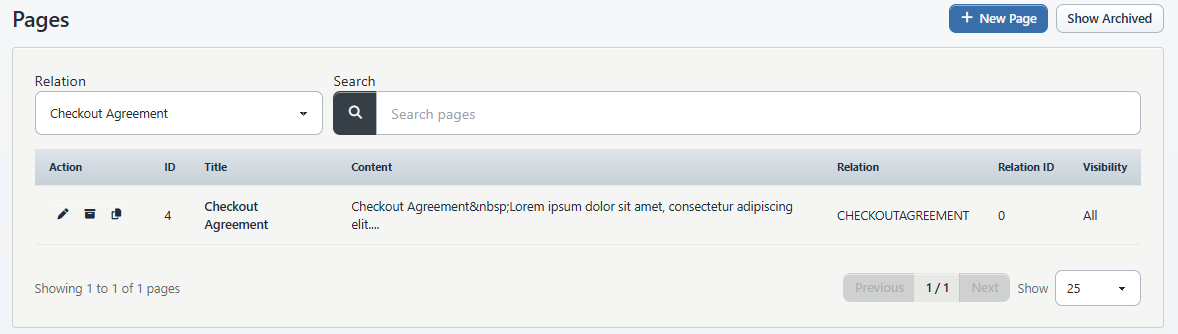
The Pages list can:
- filter by Relation;
- search ID, title, content, or relation;
- change the number of rows shown;
- open active or archived Pages;
- edit;
- archive or restore; and
- clone when the role allows it.
The table shows ID, Title, Content, Relation, Relation ID, and Visibility.
#Edit a Page
Select the edit action, change the approved field, and select Save. The form reports Page updated.
Warning: Editing an existing agreement changes the active Page but keeps the same Page ID. Current signed-waiver checks use the Page ID, so clients who already signed that ID are not automatically required to sign again. Do not edit an old Page when the policy requires a new consent event without first planning a version transition.
#Archive or restore a Page
Archive sets the Page inactive and removes it from active Page queries. Show Archived displays inactive Pages and provides Restore.
Archiving does not delete historical signed-waiver records or their stored files. It can, however, remove active text or a required agreement from a current workflow. Review every attached class, Sales Item, registration path, and checkout before archiving.
#Clone a Page
Clone creates a new Page ID, adds Copy to the title, and makes the copy active immediately.
Warning: Cloning a required Agreement, Student Agreement, Guardian Agreement, or Checkout Agreement can immediately expose a duplicate active requirement. Because there is no draft status in the current form, prepare the new wording outside Dance Studio Manager and use a controlled transition rather than cloning casually.
#Version an agreement
Use a new Page ID when approved policy requires clients to acknowledge or sign a new version.
- Finalize the new wording outside Dance Studio Manager.
- Record the current Page ID, title, attachments, and signing/reporting requirements.
- Decide the exact transition time and whether the old Page will remain available for historical reference.
- Create the new Page during a controlled window; avoid cloning when an immediately active duplicate would be harmful.
- Attach the new Page to each intended class or Sales Item.
- Test one new client, one client who signed the old Page, a guardian with a dependent, and the relevant checkout.
- Confirm the new Page creates the expected requirement and the old signed file remains available.
- Archive or detach the old active Page only after dependency review.
Dance Studio Manager does not provide a complete agreement-version migration wizard on the current Pages screen. Keep an external policy/version register with effective date, Page ID, reviewer, and attachment list.
#What happens next
An active Page becomes available to the readers for its Page Type:
- home, category, class, or Buy Items text can be rendered as client-facing content;
- account, guardian, and student agreements can appear in registration and waiver workflows;
- checkout agreements can be enforced during checkout; and
- contracts can participate after a class or Sales Item points to the Page.
When a supported signature is completed, Dance Studio Manager records the Page and member relationship and stores a signed waiver file. A guardian can have access to dependent waiver records according to the family relationship.
Saving the Page does not attach a contract, send a message, enroll a student, create a purchase, or by itself prove that every intended signer received the requirement.
#Confirm it worked
For informational text:
- check the correct destination as a signed-out visitor and signed-in fictional client;
- confirm the target category or class;
- test desktop and mobile widths; and
- confirm hidden or archived content is absent.
For an agreement or contract:
- confirm the exact Page title and ID;
- test the intended new-account, related-student, checkout, class, Sales Item, kiosk, or waiver path;
- confirm the correct person is named as signer;
- verify checkbox-only versus drawn-signature behavior;
- confirm an incomplete required agreement blocks or interrupts the intended workflow;
- complete one fictional signature;
- confirm the pending item clears and the completed waiver/file appears; and
- verify a previously signed old Page behaves according to the version plan.
#Troubleshooting
#The Page does not appear
Confirm it is active, the Page Type is correct, the target class/category or attachment is correct, and the client is in the intended signed-in or signed-out state. For contracts, confirm the class or Sales Item points to the saved Page ID.
#Visibility does not hide an agreement
The current registration and checkout agreement loaders do not use Visibility in the inspected source. Archive or transition the Page only after dependency review, and verify the actual workflow. Do not treat Anonymous or Logged in as agreement staging controls.
#A client who signed the old wording is not asked to sign again
Editing content keeps the same Page ID, and signed records are matched to that ID. Create a properly reviewed new version with a new Page ID, attach it where required, and test the transition.
#The client sees two similar agreements
Filter Settings > Pages by Relation and inspect active titles and IDs. A clone or new Page may have created a second active record. Do not archive either until you know which classes, Sales Items, signed records, and current checkouts refer to it.
#A signature cannot be completed
Confirm the correct person is signing, the Page is active, the selected Require Signature mode matches the intended action, and all consent/finalization fields were completed. Record the Page ID, member role, route, and validation message.
#A contract exists but does not appear for a purchase
Open the Sales Item or class and confirm the contract Page is attached. Then verify item/class status, Online Client visibility, the selected student, and the exact registration or checkout route.