Settings > Signatures
Create and manage email signatures
An email signature is reusable message content. It does not change the email's From name or From address, prove delivery, act as an electronic signature, or replace an approved template body.
Important current boundary: Signature handling is not identical in every email workflow. The individual account composer displays the selected signature in the message before sending. The generic template test and bulk-send paths currently do not append the template's stored signature selection. Some automated notification paths do append it, but can format rich HTML differently. Test the exact consumer you plan to use.
#Before you begin
- Confirm that you are in the correct studio and that your login group is authorized to change settings. Access to Signatures, message templates, student accounts, and outbound email can be separate.
- Obtain approval for the wording, public contact details, links, and staff identity that recipients will see.
- Decide where the signature will be used: an individual account email, the generic bulk-template workflow, or a specific automated notification.
- Inventory every template, trigger, registration notice, room-booking notice, and staff procedure that refers to the signature you intend to change.
- Prepare a fictional account and a controlled internal or delivery-test mailbox before any outbound verification. Do not test with a client address.
- Preserve the current signature's ID, name, visible content, HTML source when relevant, and known consumers before editing it.
- Confirm who owns future link, phone, address, staff-title, and branding reviews.
Warning: Creating a signature makes it active immediately. Editing the same record changes what future consumers can retrieve. Neither action sends an approval request or alerts the people who use that signature.
#Understand the signature record
| Field or state | Current behavior | Safe guidance |
|---|---|---|
| ID | Identifies the record and remains the same through edits, archive, and restore | Record the ID in the studio's change log. Use it to distinguish similar names. |
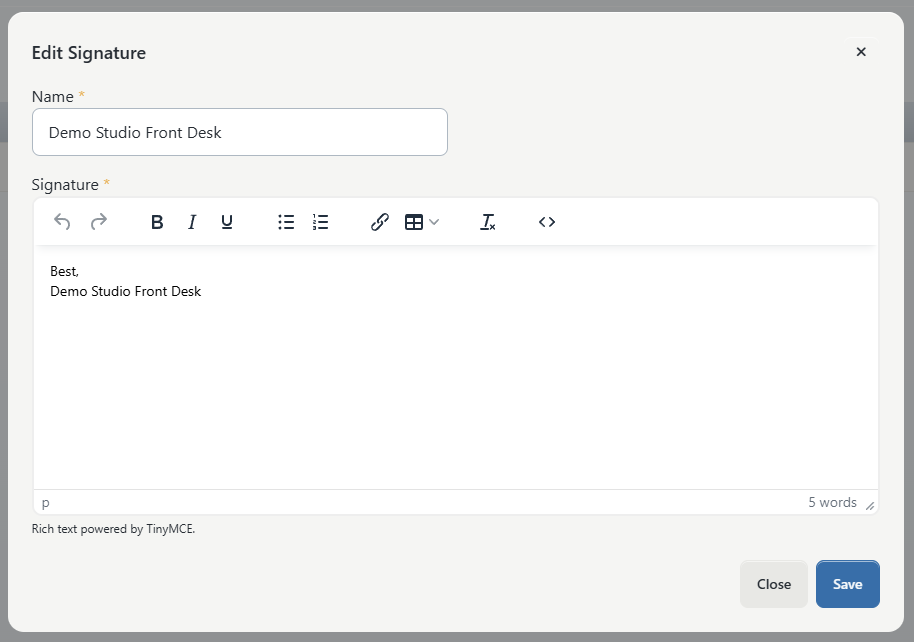
| Name | Required, up to 64 characters, and shown in selection lists | Use a unique operational name such as Client Services — General. Do not rely on a person's name alone. |
| Signature | Required rich-text content stored for reuse | Keep it short and simple. Verify its rendered result in every intended consumer. |
| Active | Appears in the normal Email Signatures list | Active does not mean approved, tested, or used by a template. |
| Archived | Appears when Show Archived is selected | Archived does not mean deleted or unusable everywhere. Existing references and some selectors can still find it. |
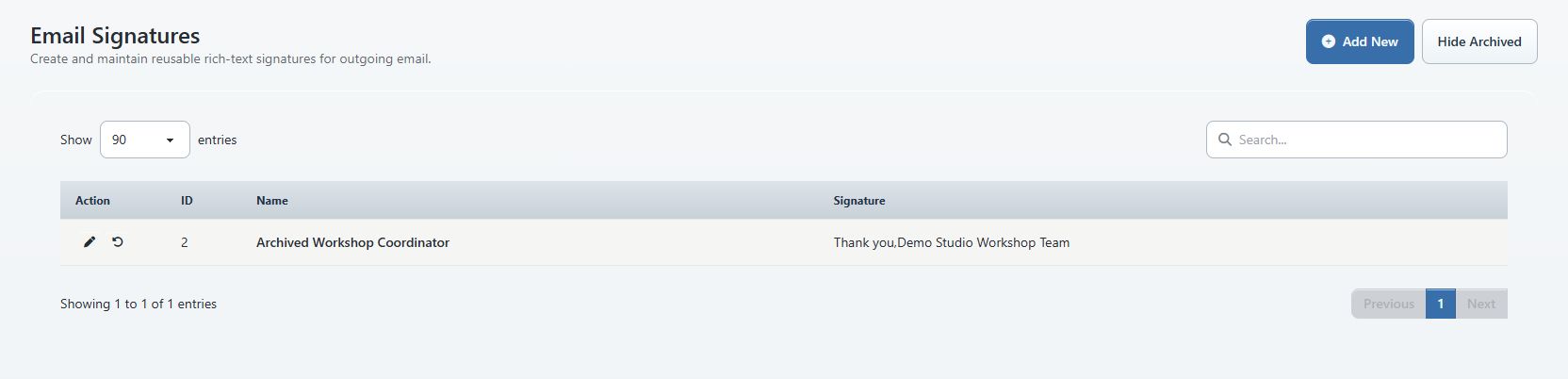
The normal settings list shows active signatures only and orders them by ID. Show Archived switches to an archived-only list. The list's Signature column is a shortened plain-text preview, not a full rendering of the saved HTML.
Selection lists can behave differently. The current individual composer and email-template editor order signatures by Name, and both can include archived records. The individual composer initially selects the first active signature in alphabetical name order.
Important: There is no visible Default setting or manual ordering control. Renaming or archiving a signature can change which active signature the individual composer chooses first. Verify the default selection after either action.
Duplicate names are allowed. Because selectors show the name without the record ID, duplicates are ambiguous to staff. Give every active signature a unique name and keep its purpose in the name.

#Find a signature
- Select Settings > Signatures.
- Confirm the page heading is Email Signatures.
- Enter all or part of the name in Search.
- Search the numeric ID when similar names exist.
- If necessary, search a distinctive word or link from the signature body.
- Check additional pages when the result count exceeds the selected page size.
- Select Show Archived and repeat the search when the record is not active.
- Select Hide Archived to return to active records.
Search works within the currently displayed active or archived state. It can match the stored HTML as well as the visible words, so a link URL can produce a result even when it does not appear in the shortened preview.
#Create a signature
- Select Settings > Signatures.
- Select Add New.
- Enter a unique Name that describes the role or purpose.
- Enter the approved sign-off under Signature.
- Use the editor toolbar only for the formatting that is necessary.
- Review every line, link, title, phone number, and address.
- Select Save once.
- Wait for Signature created.
- Search for the exact name and record the new ID.
- Select Edit and confirm the complete saved content, not only the list preview.
The new record is active immediately. There is no draft, preview, schedule-for-later, approval, or notification step on this page.
If Save reports an error or no confirmation appears, close or reload the page and search both active and archived lists before submitting the form again. A second submission can create a duplicate name.
#Write safe, durable signature content
A reusable signature should normally contain only:
- a short closing;
- a studio or team name;
- a public role or department;
- approved public contact information; and
- one or two descriptive HTTPS links when needed.
Use fixed studio information whenever possible. A signature is shared content, so it should not depend on one staff member's private phone, personal email, schedule, or employment status unless the studio has approved that use and assigned an owner.
#Keep the HTML simple
The current editor offers bold, italic, underline, lists, links, tables, formatting removal, and source-code editing. Stored signature HTML can be passed directly into an individual email's HTML body.
Warning: The signature save path does not sanitize the stored HTML. Restrict signature editing to trusted staff. Do not paste scripts, forms, iframes, tracking pixels, hidden content, login tokens, remote styles, or code from an unknown source.
Prefer short paragraphs and line breaks. Avoid complex tables, copied website layouts, large images, decorative fonts, and color-dependent content. Email clients can remove or reinterpret advanced formatting.
If copied text brings unwanted formatting:
- select the affected content;
- use Remove formatting;
- rebuild only the essential emphasis and links;
- save and reopen the record; and
- inspect a received test in more than one email client when practical.
#Use links safely
- Use a full
https://address. - Use descriptive text such as Contact Client Services, not click here.
- Link only to a public, maintained page that the intended recipients may open.
- Remove temporary query parameters, preview tokens, session identifiers, and staff-only paths.
- Test the exact saved link outside the editor.
- Do not rely on a link alone when a phone number or email address is operationally important.
#Protect privacy
Do not include client or student information, balances, class schedules, private notes, credentials, payment details, support-ticket links, or internal extensions. Every recipient using that signature can receive the same stored content.
Avoid putting a real staff member's direct details in training screenshots or videos. Use a fictional department and a link in the approved non-deliverable documentation domain for media fixtures.
#Avoid merge tags in shared signatures
The individual account email path can replace supported merge tags inside a selected signature, but other consumers do not apply them consistently. Some append the signature after their own replacement step.
Keep reusable signatures free of member-, class-, booking-, purchase-, or password-related merge tags. Put personalized content in a separately tested message template instead.
#Test in an individual account email
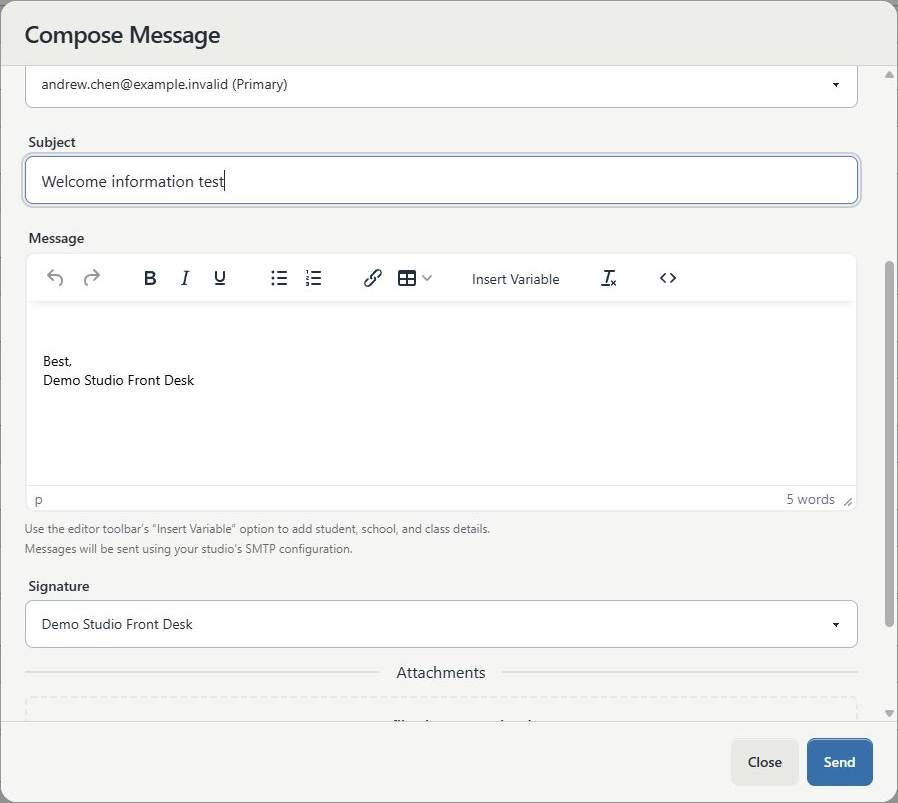
The individual account composer gives staff the clearest pre-send check because the selected signature is inserted into the editable Message body.
- Open an approved fictional account under Students.
- Open Compose Message and select Email.
- Choose a controlled destination under For.
- Enter a harmless test subject and body.
- Open Signature and select the record by its unique name.
- Confirm that the complete signature appears at the end of Message exactly once.
- Change to None and confirm that the generated signature block disappears.
- Select the signature again and inspect every line and link.
- If you select a message template, review Signature and the complete body again; the template can change the selected signature.
- Edit the inserted copy only when that one message needs an approved exception. The reusable signature record is not changed by editing the composed message.
- Send only when the controlled test is approved and outbound email is enabled.
- Inspect the received message's sender identity, spacing, text, links, mobile layout, and signature count.
- Check the appropriate local history and provider result before concluding that delivery worked.
Switching the selection removes the previously generated signature block and inserts the new one. The server also avoids appending a second copy when the composed body already contains its generated signature marker.
Warning: The current individual composer can list archived signatures. Do not assume a signature is approved because it appears in this selector. Use the unique active name and verify its current status under Settings > Signatures.
The individual composer requires a real message body in addition to the signature. A signature by itself is not a complete message.
#Understand where a signature is selected
| Consumer | What the current workflow does | Required verification |
|---|---|---|
| Individual account Compose Message | Selects a signature, inserts it visibly into the editable email body, and logs the rendered body when the send is recorded | Confirm the body shows the signature exactly once before sending, then inspect the received email. |
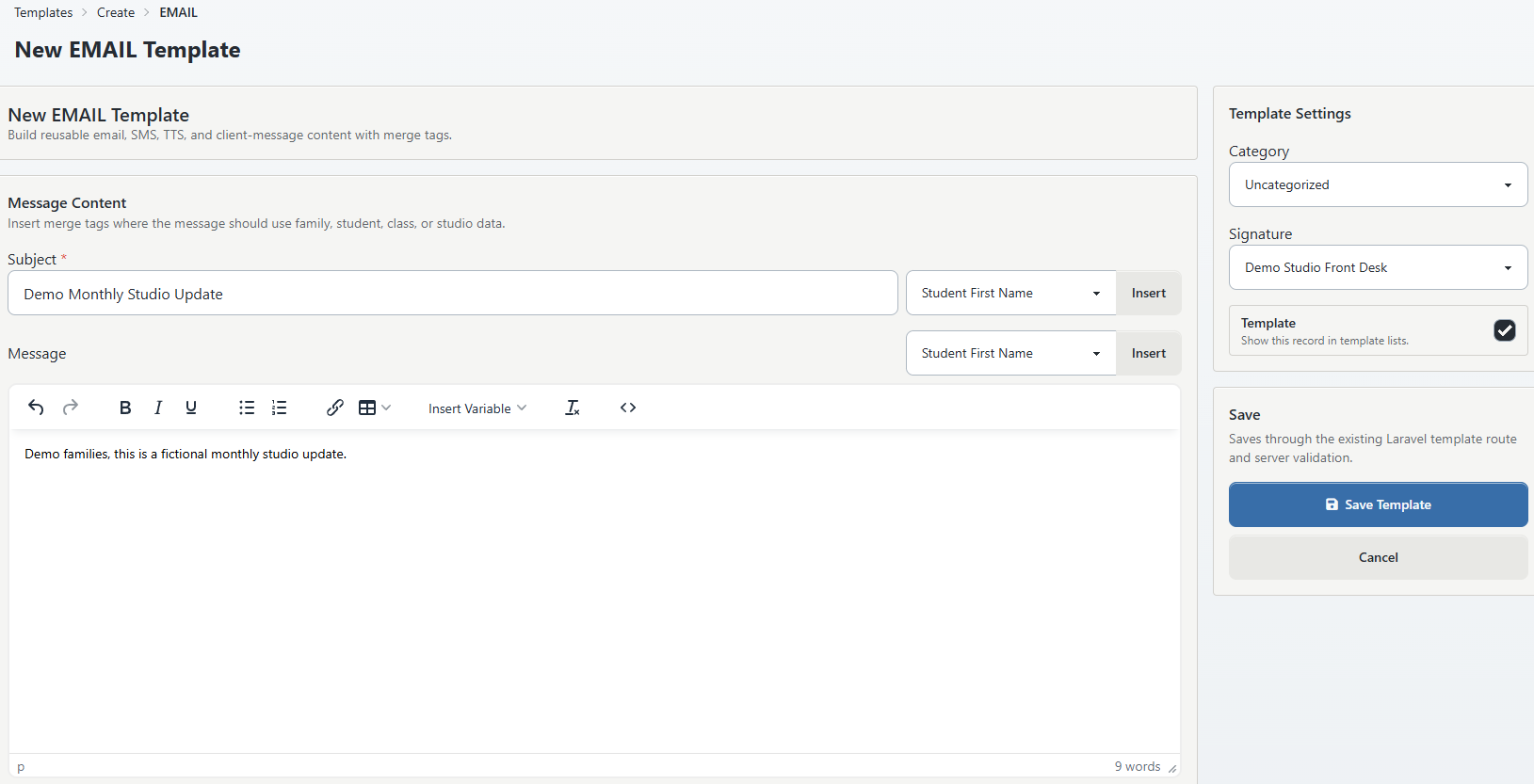
| Email Message Template editor | Stores a signature ID under Template Settings | Do not infer that every test, bulk, or automated consumer appends it. Test the exact route. |
| Generic template Send Test Email and bulk send | Currently send the template subject/body and attachments without appending the stored signature selection | Put the required bulk sign-off directly in the template body and verify a controlled received test. |
| Registration, class-registration, room-booking, and Scheduled Trigger services | Certain current services fetch the template's signature ID and append that record at execution | Test the exact event. Archive status is not checked, and rich HTML can be escaped or formatted differently. |
| SMTP or Emailer settings | Control sender and transport information | A signature does not change the From address, From name, SMTP provider, or delivery permission. |
#Use signatures with message templates carefully
The Email template editor displays Signature and stores the selected record ID. Its selection list can include archived records and shows names without IDs.
In the current generic Send Test Email and bulk-send paths, that selected signature is not appended to the email body.
For a template used by the current generic bulk workflow:
- put the complete approved sign-off directly in the email body;
- select None under Signature unless another separately verified consumer requires the reference;
- send a controlled test;
- inspect the received message for the sign-off; and
- confirm that it appears exactly once.
Do not reuse one template for both the generic bulk workflow and an automated notification when their signature behavior differs. Create separate, clearly named templates and test each consumer independently.
Warning: A successful generic template test cannot prove how a registration, booking, or Scheduled Trigger email will render its signature. It also cannot prove that the selected signature will appear in the current bulk send.
Continue with Manage message templates, history, and email delivery for the complete template procedure and Choose message recipients and send safely before loading or sending a bulk audience.
#Use a signature in automated notifications
Some automated services resolve the signature referenced by their selected message template when the event runs. Current examples include certain account-registration, class-registration, room-booking, and Scheduled Trigger emails.
Before relying on one:
- identify the exact setting, trigger, or event that selects the message template;
- record the template ID and signature ID;
- use a dedicated template and signature when practical;
- keep the signature plain and simple;
- trigger the event only with a controlled fictional record;
- inspect the received content, not only the saved template;
- check whether markup appears as visible text;
- confirm the signature appears exactly once; and
- repeat the test after any signature or template change.
Several current automated paths escape the stored signature HTML before appending it. A signature that looks correct in the rich-text editor or individual composer can therefore show paragraph, link, or other markup as text in an automated email.
Important: These services fetch a signature by ID without requiring it to be active. Archiving the signature does not reliably stop an automated template that still points to that ID.
See Create and control Scheduled Triggers for trigger-specific timing, audience, safety, and test requirements.
#Edit a signature safely
Editing overwrites the same signature record. Future consumers that retrieve its ID can receive the revised content immediately.
Use an in-place edit for a small correction whose purpose and ownership have not changed. Create a new signature when the change represents a new brand, team, location, legal footer, staff identity, or approved version that must be rolled out and reversed deliberately.
#Make a small correction
- Search for the active signature by exact name or ID.
- Record its known template and automation references.
- Preserve the current visible content and HTML source when formatting matters.
- Select the pencil Edit action.
- Confirm the ID and name before changing anything.
- Make only the approved correction.
- Recheck links, contact details, spacing, and privacy.
- Select Save once.
- Wait for Signature updated.
- Reload, search by ID, and reopen Edit.
- Compare the saved result with the approved change.
- Repeat every affected individual, bulk, and automated consumer test.
Closing the editor does not warn about unsaved changes. Preserve the source before editing and select Save only when the complete result is ready.
#Roll out a material revision
- Preserve the existing signature's ID, source, consumers, and test evidence.
- Create a new signature with a unique version or purpose in its name.
- Test the new record in every intended consumer.
- Reassign one controlled template or procedure at a time.
- Verify each reassignment with a fictional record.
- Record the old and new signature IDs in the change log.
- Keep the old signature active until all known references are migrated.
- Archive the old record only after the migration and rollback decision are approved.
There is no signature clone action. Copy the approved content into a new record manually and compare the result before reassigning a consumer.
Important: Changing a signature's Name can change its alphabetical position and therefore the initial default in the individual account composer. Recheck that composer even when the visible signature body did not change.
#Archive a signature
Archive removes the record from the normal settings list. It does not hard-delete it, erase previously sent content, remove its ID from every selector, or break every stored reference.
Warning: The Archive action submits immediately without a confirmation dialog. Confirm the row's ID and name before selecting the archive icon.
- Inventory templates, automated settings, triggers, and staff procedures that use the signature.
- Create and test a replacement when future messages still need a sign-off.
- Reassign and verify every known consumer.
- Search for the exact signature under Settings > Signatures.
- Confirm the ID and name.
- Select the Archive action once.
- Wait for Signature archived.
- Select Show Archived.
- Search by the same ID and confirm that the record is present.
- Open every affected selector and automation to confirm that staff will not keep choosing it.
Because some selectors and services ignore archive status, the migration and verification steps are mandatory. Archive should be treated as an organizational state, not an enforcement control.
#Restore a signature
Restore changes the same record back to active. It retains the ID, name, and stored content.
- Select Settings > Signatures.
- Select Show Archived.
- Search by the exact ID or name.
- Review why the signature was archived and whether its content is still approved.
- Select the Restore action once.
- Wait for Signature restored.
- Select Hide Archived.
- Search by ID and reopen Edit.
- Test every intended consumer before staff use it.
- Recheck the individual composer's initial signature because restoring can change the first active alphabetical choice.
Restore does not automatically reassign templates, notify staff, or repeat an old test.
#Recovery, audit, and retention limits
The signature screen does not provide revision history, an undo action, a change reason, an approval state, an editor identity, or visible created/updated dates.
Use a protected studio change record that includes:
- signature ID and unique name;
- approved owner and purpose;
- before and after content or source;
- known template and automation references;
- change date and operator;
- test workflow, fictional fixture, and result;
- rollback content or replacement ID; and
- archive or review date.
#Recover an accidental edit
- Stop further edits and sends that use the record.
- Retrieve the preserved before-state from the approved change record.
- Paste it back into the same ID only when an exact rollback is intended.
- Save and reopen the record.
- Retest every affected consumer.
- Record the rollback and its reason.
Without a preserved before-state, there is no customer-facing undo control.
#Recover an accidental archive
- Select Show Archived.
- Search for the exact ID.
- Confirm the archived content is still approved.
- Select Restore.
- Recheck default selection and all intended consumers.
#Resolve an accidental duplicate
- Find both records and record their IDs.
- Compare their complete saved content.
- Identify which ID, if either, is already referenced.
- Choose one approved active record.
- Reassign and test references before archiving the other.
- Do not distinguish duplicates by name alone.
Editing or archiving cannot recall a delivered email. A recorded individual message can retain the rendered body that was sent, but history and retention behavior varies by workflow. Follow the studio's approved communication-retention process when an exact sent copy is required.
#What happens next
- Create makes a new active signature available immediately.
- Edit changes the content future consumers can retrieve from that same ID.
- Archive moves the record to the archived settings list but does not reliably remove it from all selectors or stored template references.
- Restore makes the same ID active again.
- None of these actions sends a client message, staff alert, approval request, or replacement notification.
- Individual, bulk, and automated email paths must be verified separately.
- The signature does not change the configured sender identity or delivery provider.
#Confirm it worked
- The active settings list shows the expected unique name and ID.
- Reopening Edit shows the complete approved content.
- The intended signature is the initial individual-composer selection, or staff know to choose another.
- The individual account composer displays the signature exactly once.
- A controlled received individual email renders correctly when that workflow is used.
- A generic bulk template contains its required sign-off directly in the body.
- Every automated consumer has its own controlled event test.
- No archived or duplicate record remains in an approved staff procedure.
- Links, privacy, sender identity, mobile layout, and message history were reviewed.
- The studio change record contains the before-state and rollback plan.
#Troubleshooting
#A signature is missing from the settings list
Clear Search, check additional pages, and switch between Show Archived and Hide Archived. Search the exact ID when known. The two states are separate lists rather than one combined view.
#Save failed or the result is unclear
Confirm that Name and Signature are not blank and that the name is no more than 64 characters. Reload and search both active and archived lists before selecting Save again. If the action remains unavailable, ask an owner or administrator to compare the login group's settings permissions.
#The wrong signature is selected initially
The individual composer uses the first active signature in alphabetical Name order. Review active names, recent renames, archives, and restores. There is no separate Default control.
#An archived signature still appears in a selector
That is possible in the current individual composer and email-template editor. Verify status under Settings > Signatures, migrate the stored reference, and tell operators not to select the archived name. Do not treat archive as access enforcement.
#A selected template signature is missing from a bulk test or send
Put the approved sign-off directly in the Email template body, select None for that bulk-only template, and run a new controlled test. The current generic template test and bulk paths do not append the stored signature selection.
#HTML tags or broken formatting appear in an automated email
Simplify the signature to plain text and basic line breaks, then retest the exact event. Some current automated paths escape the stored rich HTML before appending it. A correct individual-composer preview does not prove the automated result.
#A signature appears twice
Check whether the sign-off is already written in the template body and also selected as a reusable signature. Use only the method verified for that consumer. After choosing a template in the individual composer, review the complete body and selector again before sending.
#Two signatures have the same name
Use the IDs on the settings page to distinguish them. Identify their references, rename the approved record uniquely, test it, and archive the unused duplicate only after references are reconciled.
#A link is wrong in messages already sent
Correcting the reusable signature affects future retrieval only. It does not update or recall delivered messages. Follow the studio's approved correction process and do not resend broadly until the audience and wording are reviewed.