Sales
Sales, purchases, and inventory overview
#Understand the relationship
| Area | Its role in the workflow |
|---|---|
| Settings > Sales Items | Defines the sellable item, product, package, bundle, gift card, room booking, pricing, restrictions, payment choices, and contract requirements. |
| Inventory | Defines physical variants and stock by location when a product requires inventory tracking. |
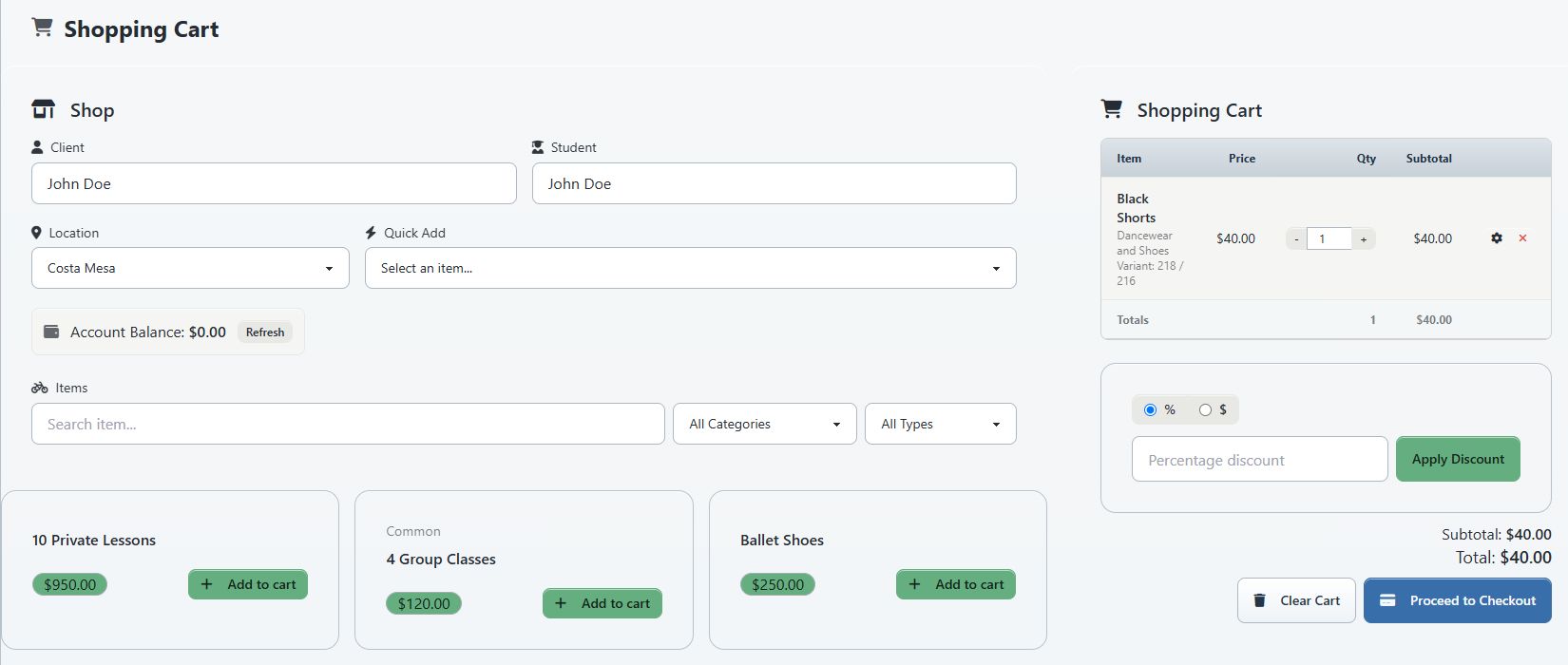
| Shopping Cart | Selects the client, student, and location; adds eligible items; applies supported discounts or payment choices; and prepares checkout. |
| Purchases | Records what was acquired and tracks status, use, scheduled or charged quantities, expiration, assignments, notes, and related payments. |
The client-facing Buy Items, Cart, and Checkout pages use many of the same definitions but apply Online Client visibility, eligibility, agreement, and payment rules.
#Before you create an item
- Decide whether the studio is selling a physical product, a service/package, a bundle, a gift card, or room access.
- Decide who can buy it, when it becomes active, when it expires, and what it can be used for.
- Write down the intended price, payment plan, scheduled payments, restrictions, and agreement.
- Create required categories, pricing levels, locations, classes, rooms, or billing schedules first.
- Test with a fictional client before making the item broadly visible.
Important: Editing an item already used by purchases can change what future buyers see without rewriting the historical purchase in the way you expect. Preserve the old configuration and compare an existing purchase with a new test purchase.
#Choose a Sales Item type
The current setup supports these broad types:
| Type | Typical use |
|---|---|
| Item | A general sellable service or entitlement. |
| Product | A physical product, optionally connected to inventory variants and locations. |
| Package | A set amount of class, lesson, or related usage. |
| Bundle | A grouped offer containing multiple defined components. |
| Gift card | Stored gift value that can be redeemed through supported checkout workflows. |
| Room booking | A sellable room reservation tied to room-booking setup. |
The available form sections can include common details, package contents, activation and expiration, purchase restrictions, payment plans, scheduled payments, pricing, additional options, and contracts.
#Prepare an inventory product
- Create and save the corresponding Sales Item.
- Open Inventory.
- Add the required size, color, or other variant.
- Set the sale and wholesale prices where those values are used.
- Add stock for each location.
- Save and confirm that the variant appears in the filtered inventory list.
Warning: Stock adjustments affect the quantities available to staff and Online Client sales. Record the reason for a correction and verify the intended location.
#Complete a staff sale
The full checkout procedure needs a controlled payment walkthrough. Use this orientation for a safe test:
- Open Shopping Cart.
- Select the fictional client, student, and location before adding items.
- Find and add the intended Sales Item or product variant.
- Review quantity, price, eligibility, class or package context, discount, gift card, agreement, and payment-plan choices.
- Open the checkout preview.
- Confirm the account, student, line items, totals, and payment consequence.
- Complete the test only with an approved non-production payment method or a no-payment scenario designed for testing.
Warning: Do not submit a test sale against a real client's account or stored card/ACH method.
#Review the purchase
Open Purchases and locate the new record. Depending on the purchase type, review:
- client, student, item, category, and location;
- purchase status and expiration;
- scheduled, used, charged, and completed quantities;
- assigned private lessons or classes;
- scheduled payments;
- notes and instructor; and
- cancellation or edit actions available to the role.
A purchase, ledger entry, inventory change, and payment record answer different questions. Confirm all records that should have changed.
#Confirm it worked
For a controlled sale, confirm:
- the expected purchase appears under Purchases and on the client's account;
- the ledger shows the expected charge and any confirmed payment;
- package or lesson quantities match the offer;
- inventory decreased at the intended location, when applicable;
- required agreements were captured; and
- the Online Client account shows the intended result when the purchase should be client-visible.
#Correct or cancel a purchase
Use the purchase's preview and detail information before editing or canceling. Identify assigned lessons, used quantities, charges, scheduled payments, and inventory consequences first.
Warning: Canceling a purchase can affect future lessons, payment schedules, usage balances, and account history. A dedicated cancellation article must be runtime-verified before it gives final-action instructions.
#Account Services
Account Services is a separate, externally configured admin surface. Its current checkout connection is incomplete, so it should not be presented as an alternative to the normal Shopping Cart workflow. Document it only for studios where the external service is configured and the supported task has been verified.
#Troubleshooting
#An item does not appear in Shopping Cart or Online Client
Check its status, type, active dates, location, client/student restrictions, purchase limits, class or room targeting, Online Client visibility, and required context. Also confirm that the correct client, student, and location are selected.
#A product has no selectable variant
Confirm that the Sales Item has inventory records, that the required size/color combination exists, and that stock is available at the selected location.
#A package cannot be used for a class or lesson
Compare the package contents and restrictions with the exact class, lesson, student, instructor, location, and date. Then inspect the purchase's remaining and expiration values.
#Checkout completed but the expected record is missing
Do not submit the checkout again until you have checked the client ledger, Purchases, inventory, payment history, and any confirmation identifier.