Classes and scheduling
Manage class instructors and substitutes
Those are separate records. A class can name one regular instructor while a particular date names a substitute. This allows accurate calendars and instructor reports, but it also means that changing one layer does not normally repair the other.
Critical warning: Leave Update Instructors for future Class schedules off during an ordinary class edit. When selected, it replaces the complete instructor list on every matched future occurrence with the class-level list. Existing substitutes, assistants, co-instructors, and role choices on those dates are not preserved, and there is no preview or customer-facing undo.
#Understand the three instructor lists
| List | Where to manage it | What it is for | What it does not prove |
|---|---|---|---|
| Class-level Instructors | Class Details | The usual teaching team for the class definition and class-level displays | Who is teaching every dated occurrence |
| Dated schedule Instructors and Role | Schedules > Edit for one occurrence | Who is assigned on that date, including a substitute, assistant, or co-instructor | Availability, notification, or the amount each person should be paid |
| Scheduling Permissions (can schedule this class) | Class Details | A separate class-specific list retained by the class record | A complete or currently proven access-control boundary |
At least one class-level instructor is required by the normal class save rules. A dated occurrence can hold multiple instructor assignments.
Do not use Scheduling Permissions as a substitute for assigning the teacher. Also do not rely on that list alone to secure schedule editing. Current schedule access depends on the signed-in person's login group, route permissions, a studio-wide instructor-edit setting, and—when an instructor edits—their existing assignment to the dated occurrence. Test the actual staff account before granting production access.
#Choose the correct scope
Use this decision rule before editing:
- Change Details > Instructors when the usual class teaching team has changed.
- Edit one dated occurrence when one date has a substitute, assistant, guest teacher, or other exception.
- Edit each affected occurrence when a temporary change spans several selected dates but other future exceptions must remain intact.
- Use the future-schedule checkbox only when every future occurrence should have exactly the same instructors and primary-role treatment as the new class-level list.
- Preserve past occurrence assignments unless an approved historical correction is required.
If a replacement begins on a specific date, record the intended first and last affected occurrences before opening the editor. “Future” is a moving boundary; a class-level bulk action is not a reliable way to express a temporary coverage period.
#Before you begin
- Confirm the studio, class name, Class ID, and the exact schedule dates involved.
- Confirm that every intended person has an active staff profile and is marked Display as Instructor.
- Record the current class-level instructors and scheduling-permission list.
- Open Schedules, set the period to include every affected date, and record each occurrence's instructors and roles.
- Check instructor availability and calendar conflicts separately.
- If payroll is in use, record the staff rate, any class-specific rate, the affected pay period, and whether it is already closed or exported.
- Identify who must be told. Saving either instructor list does not send a staff or client notification in the reviewed workflow.
- For an established class, export or capture a privacy-safe before state that can be used for recovery.
Use fictional staff and clients for training, screenshots, videos, and support reproduction. Do not expose real compensation in a visual.
#Assign the regular instructor or teaching team
- Open Group Classes.
- Select the class and open Details.
- Under Instructors, select every person who belongs to the usual class teaching team.
- Under Scheduling Permissions (can schedule this class), review the separate list. Select a person there only when the studio has approved that scheduling responsibility.
- Leave Update Instructors for future Class schedules off unless the reviewed bulk-replacement conditions below are all true.
- Select Save changes once.
- Reload Details and confirm both lists.
- Open Schedules and verify that existing dated assignments did not change.
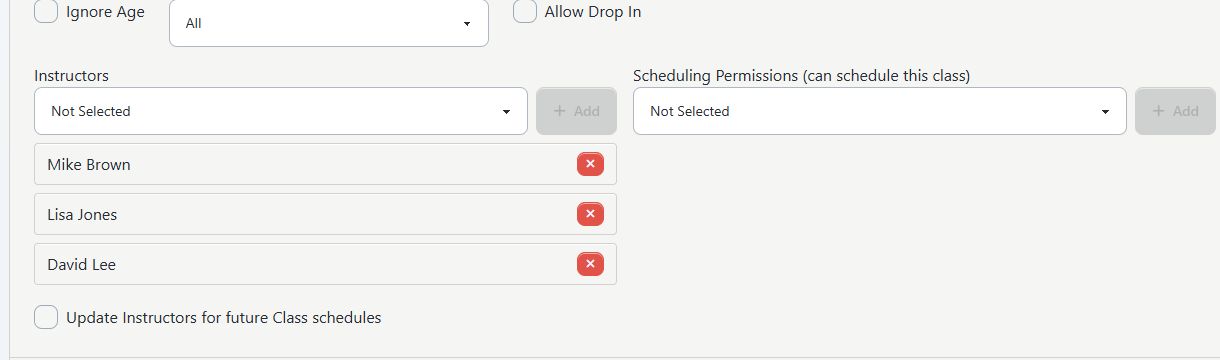
Saving Details replaces the complete class-level instructor list with the visible selections. The normal form does not allow a class to be saved with no instructor.
An inactive or no-longer-eligible person can disappear from the class selector even while an older relationship still exists. Review the before state carefully: the next class save can drop a hidden stale relationship when it rebuilds the list.
#Set instructors while creating schedules
The Add Schedules form starts with the class-level instructors selected. Review that list before creating either a single occurrence or a recurring series.
- Open the class's Schedules tab.
- Select Add Schedules.
- Enter the intended single date or recurring pattern.
- Under Instructors, keep, add, or remove people for the occurrences being created.
- Review the date range and the complete instructor list.
- Create the schedules once.
- Inspect the first, a middle, and the last created occurrence.
The schedule creator assigns the selected people to every occurrence it creates. It does not provide the dated editor's role choice. Use Edit afterward for a date that needs a substitute or assistant label.
Copy warning: Copying an occurrence also copies its instructor assignments and stored roles. If the source date was a substitution or exception, edit and verify the copy immediately so that the exception is not repeated accidentally.
#Assign a substitute for one date
- Open the class's Schedules tab.
- Set Period to include the date and find the exact occurrence.
- Select Edit for that occurrence.
- Under Instructors, add the substitute.
- Choose Substitute as the displayed role when that label correctly describes the assignment.
- Decide whether the regular instructor should remain assigned:
- Keep both only when both people will teach or the studio intentionally wants both included in schedule-based reporting and pay review.
- Remove the regular instructor when the substitute is the only person who should appear and receive schedule-based hours for that occurrence.
- Review any instructor-conflict warning. Resolve or consciously approve the conflict before saving.
- Save once and reopen the occurrence.
- Verify the administrator Calendar, the applicable Online Client schedule view, Instructor Schedule, and Instructor Hours.
- Send any approved staff or client message separately and verify its recipients and history.
Payroll warning: If the regular instructor and substitute both remain assigned, current Instructor Hours calculations can credit both people with the full occurrence duration and each person's applicable rate. The Substitute label does not suppress or reduce pay.
#Assign co-instructors or an assistant
Use multiple dated assignments when more than one person is genuinely responsible for the occurrence.
- Edit the exact schedule occurrence.
- Add every person who should be shown on that date.
- Select the most accurate available role label for each assignment.
- Review overlaps in the conflict panel.
- Save, reopen, and confirm the full list.
- Review Instructor Hours for the occurrence before payroll is approved.
Current schedule role labels are descriptive. They do not select a different pay rate, divide the duration, or make one person unpaid. Instructor Hours applies a class-specific instructor rate first when present, otherwise the person's general instructor rate, and counts the full schedule duration for each assignment. If an assistant or co-instructor has a different approved rate, configure the applicable rate separately and verify the exact report result.
Do not use the role label as proof of authority, teaching ownership, attendance responsibility, commission ownership, or message recipients. Staff purchase commissions use the purchase's instructor association, not the dated class assignment.
#Replace or remove an assignment
For a usual teaching-team change:
- Update the class-level list with the future default teaching team.
- Keep the future-schedule checkbox off.
- Edit the intended future occurrences individually, or in a reviewed controlled set, so that existing exceptions remain visible.
- Leave past occurrences unchanged.
For one occurrence:
- Edit the exact dated schedule.
- Add the intended replacement before removing the current person.
- Remove only the person who should no longer appear or receive schedule-based hours for that date.
- Save and reopen the occurrence.
The dated editor replaces the submitted assignment set rather than adding a hidden second list. In the current main form, removing the final remaining instructor may not submit an empty instructor set. Do not repeatedly save. Add the intended replacement first; if the occurrence truly must have no instructor, stop and ask an administrator or support contact to use a reviewed supported procedure.
#Use future-schedule propagation only for a complete reset
Update Instructors for future Class schedules is a broad replacement action. Current source selects every schedule for the class whose start timestamp is later than the save time, deletes all instructor relationships for those schedules, and then assigns every selected class-level instructor as the primary role.
Before selecting it, confirm all of the following:
- every matched future occurrence should use the same people;
- there are no substitutes, assistants, co-instructors, leave periods, guest teachers, or other exceptions to preserve;
- the existing dated assignment and role list has been exported or recorded;
- payroll for the affected dates has not been finalized;
- client-visible changes and staff/client messages have been approved;
- a named operator is ready to verify every affected date immediately; and
- a manual restoration plan exists if the save only partly completes.
If any statement is false, leave the checkbox off and edit the dated occurrences deliberately.
The propagation action has no impact preview, date-range selector, audit timeline, or one-click undo. It does not change past occurrences. A schedule beginning exactly at the current timestamp is outside the source query's strict “later than now” condition; do not depend on that edge when planning an operational change.
#Check every affected surface
Different pages intentionally read different assignment layers:
| Surface | Assignment normally shown | What to verify |
|---|---|---|
| Group Classes and class-level staff teaching views | Class-level instructor list | The usual teaching team |
| Online Client class detail or registration overview | Class-level instructor list | The public class description and usual instructor |
| Class Schedules list | Dated assignment when present, with class-level fallback in the reviewed list | The exact occurrence and any fallback |
| Administrator Day View and schedule calendar | Dated assignment | The person expected on site that day |
| Online Client calendar and public schedule | Dated assignment, subject to active-staff filtering | The client-visible substitute or co-instructor |
| Online Client My Classes schedule rows | Dated assignment | The participant's dated view |
| Instructor Schedule report | Dated assignment | Which occurrences belong to each instructor |
| Instructor Hours and class profitability calculations | Dated assignment, duration, and applicable rate | Full hours and cost for every assigned person |
| Staff purchase commissions | Purchase-associated instructor | No automatic change from a class substitution |
It can be correct for the class overview to show the regular instructor while a dated calendar shows the substitute. The important result is that the difference is intentional and explained.
Archived staff are not filtered consistently in every reviewed surface. One page may retain a historical name while another hides it. Preserve the underlying assignment and use approved reports or exports when historical evidence is required.
#Review access before allowing instructors to edit schedules
Administrators and approved office roles can use the schedule editor according to their configured access. An instructor can edit a dated schedule only when the current workflow's conditions are met:
- the account uses the instructor login group;
- the studio-wide Instructor Edit Own Schedules setting is enabled; and
- that instructor is already assigned to the dated occurrence.
When allowed into the current editor, the instructor can reach more than their own name. The form can include the class, date, time, rooms, instructor list, and students. Test both allowed and denied actions with the exact role before enabling self-service. For substitute assignment and payroll-sensitive changes, an administrator-managed workflow is the safer operating policy.
Do not infer permission from menu visibility or from the class's scheduling-permission list. Use a separate private-browser role test and include saved or direct URLs in the denial check.
#Check conflicts and availability separately
Assigning an instructor does not prove that the person is available.
The dated schedule editor can display room and instructor overlap warnings. In the reviewed workflow, those warnings advise the operator but do not block the save. The conflict result can also include an inactive or canceled overlapping schedule, so inspect the underlying occurrence rather than dismissing or accepting a warning from its label alone.
Before saving:
- compare the person's dated Calendar;
- review their configured availability when the studio uses it;
- inspect the time zone, date, start, and end times;
- resolve genuine overlaps; and
- record an approved exception when an overlap is intentional.
#Communicate the change
Changing the class-level or dated instructor assignment does not automatically notify the assigned instructor, removed instructor, students, or guardians in the reviewed source.
If the studio communicates instructor changes:
- confirm the final occurrence assignment first;
- identify the approved recipient group;
- use the separate messaging workflow;
- state the class, date, time, and location without including private staff details;
- review the final recipient list; and
- verify message history before sending a second notice.
Do not assume that a class-roster message automatically copies the instructors. An older legacy workflow offered that option, but it was not found in the current class-roster message path reviewed for this article.
#Preserve historical records and offboard staff safely
Past dated assignments can support schedule history, instructor reports, payroll, and cost analysis. Deactivating a staff profile or clearing Display as Instructor does not itself delete those relationships.
When an instructor leaves:
- export or approve the closed-period Instructor Schedule and Instructor Hours evidence;
- replace only the future dated assignments that need coverage;
- update the class-level teaching team with propagation off;
- review future copied schedules and recurring-series defaults;
- send the approved handoff messages;
- then complete staff deactivation and access revocation through the staff lifecycle procedure.
Do not remove old links or edit past dates merely to make an inactive name disappear. Because archived staff visibility varies by surface, retain a protected export when the studio must be able to reproduce a closed pay period.
If an approved correction to a past occurrence is required, record the reason, before value, approver, and affected payroll/report exports. Change the one occurrence, rerun the reports, and issue the studio's correction record. Do not silently overwrite a closed historical result.
#Confirm it worked
For every change, confirm all applicable rows:
| Check | Class-level change | One-date change |
|---|---|---|
| Reload class Details | Required | Check for context |
| Reload exact schedule Edit page | Required for affected future dates | Required |
| Class Schedules list | Required | Required |
| Administrator Calendar or Day View | Required for dated effects | Required |
| Online Client class overview | Required when client-visible | Check expected regular teacher |
| Online Client dated calendar/My Classes | Required for dated effects | Required when client-visible |
| Instructor Schedule report | Required for dated effects | Required |
| Instructor Hours/payroll preview | Required for dated effects | Required |
| Message history | Required only when a notice was approved | Required only when a notice was approved |
Use a narrow date range and fictional or approved records. Confirm both the added person and the removed person; a correct new name does not prove that the old assignment was removed.
#Recover from a mistake
#The wrong class-level instructor was saved, but occurrences are correct
Edit Details, restore the class-level list, keep future propagation off, save once, and verify the dated occurrences remain unchanged.
#Future propagation replaced substitutes or assistants
Stop making class-level edits. Preserve the current state, compare it with the before-state export, and rebuild the affected dated assignment and role list occurrence by occurrence. Then verify calendars, client views, Instructor Schedule, Instructor Hours, and any messages. There is no reviewed one-click reversal.
#Both the regular instructor and substitute received hours
Confirm who actually taught and the approved pay policy. Correct the dated assignment only if the schedule record itself is wrong; otherwise use the studio's approved payroll-correction process. Rerun the report and retain both versions with the approver and reason.
#A historical instructor disappeared from some pages
Check whether the staff profile was deactivated or lost the instructor flag. Do not reactivate access or rewrite the past solely for display. Use the protected report/export, and escalate inconsistent historical visibility when the missing name affects a required record.
#The save may have completed only partly
Do not submit the same broad action again. Check, in order: class Details, class-level instructors, scheduling permissions, every affected schedule assignment and role, Calendar, client-visible views, and instructor reports. Restore only the confirmed differences.
#Troubleshooting
#An instructor is missing from the selector
Open the person's staff profile and confirm Active and Display as Instructor. Do not create a duplicate staff record. If the person is intentionally inactive, use an approved historical-record or support procedure rather than restoring their login casually.
#The class shows one instructor and the calendar shows another
Compare the class-level list with the exact dated occurrence. This can be an intentional substitution. Correct the layer that is wrong; do not use future propagation just to make two pages look identical.
#A conflict warning appears even though the instructor is free
Open the conflicting occurrence and check its status, time, room, and instructor relationship. The warning is advisory and can include rows that are not operationally active. Document the result before saving an intentional overlap.
#Changing the role did not change pay
That is expected in the reviewed payroll calculation. Role labels do not control duration or rate. Review the staff rate, class-specific rate, payroll inclusion, occurrence assignment, and report scope.
#A removed instructor still appears in a report
Confirm the report's date range, reload it, and inspect the exact schedule assignment. Also check whether the report is reading a purchase-associated commission rather than the schedule instructor. Do not change a purchase owner merely to match a substitution.
#The new instructor did not receive a message
Assignment saves do not send an automatic notice in the reviewed workflow. Use the approved messaging procedure and verify recipients and message history.
#I cannot remove the last class instructor
The normal class save requires at least one instructor. Assign the intended replacement first. If the class should temporarily have no instructor, stop and ask the studio administrator or support contact to confirm the supported business rule rather than inserting a placeholder person.
#Protect staff and payroll information
- Use synthetic names and addresses in the approved non-deliverable documentation domain in screenshots, recordings, support tickets, and training.
- Crop staff email, phone, birth date, address, notes, login details, payroll flags, and unrelated schedules.
- Do not show real hourly rates, payroll totals, attendance, client names, or message recipients.
- Keep password managers, browser profiles, notifications, autofill, other tabs, and server details outside the capture.
- Use a mail/SMS sink and disabled processors for the media fixture.
- Record the media's capture date, tenant, role, interface version, fixture IDs, redactions, and whether it is current or legacy.
- Give every legacy image or video a visible “older interface” caption and an internal replacement-needed status.
#Related articles
- Add, manage, deactivate, and reactivate staff
- Edit a group class safely
- Create and maintain class schedules
- Use Calendar views and filters
- Use Day Overview and instructor Teaching views
- Configure instructor availability
- Configure instructor and class payroll rates
- Staff hours, schedules, and payroll reports
- Choose message recipients and send safely
- Roles and permissions overview
- Group Classes
- Create a group class
- Clone a group class safely
- Find and register for classes
- Manage My Classes and cancellations