Classes, students, enrollment, and reports
Manage class prerequisites and student completion
Current release boundary: The reviewed DSM Next build can evaluate existing prerequisite groups and show prerequisite results during enrollment, but it does not currently provide a self-service class editor for creating those groups. Its current student Prerequisites picker is also not connected to the same visit records used by the reviewed eligibility check in the standard studio data layout. Treat class setup and visit correction as support-assisted until your studio's exact workflow passes the controlled test in this guide.
Important: Do not use the prerequisite feature as the only control for a safety-critical, legal, licensing, medical, or safeguarding requirement. The current checks can allow registration when prerequisite storage is missing or unreadable, an administrator can acknowledge an enrollment warning, and the reviewed Quick Registration path does not run the prerequisite eligibility service.
#Understand the rule before configuring it
A prerequisite rule has three parts:
- the target class a student wants to join;
- one or more prerequisite groups attached to that target class; and
- a required visit count for each group.
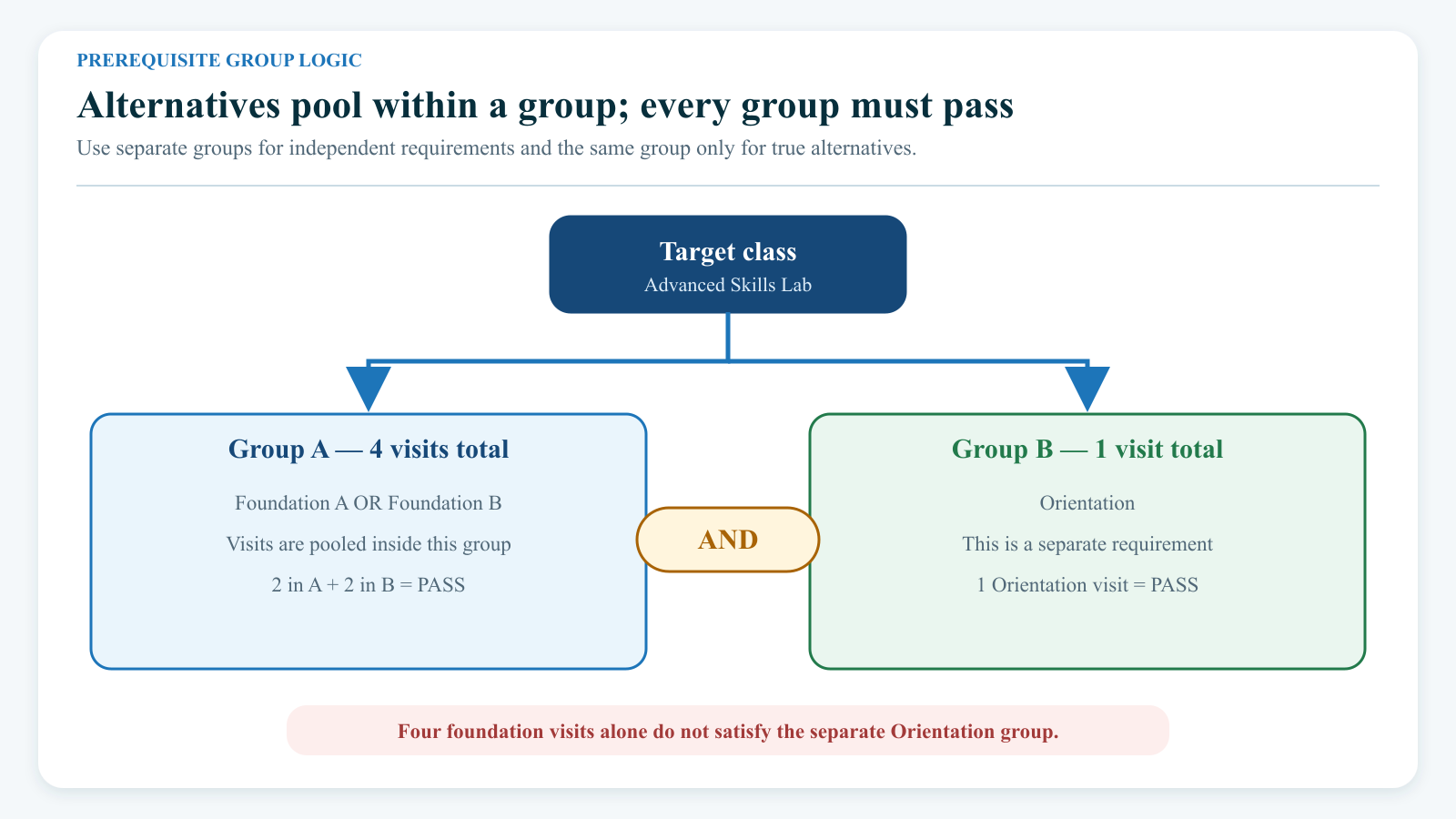
Every group must be complete. Within one group, visits from its listed classes are pooled.
| Group for the target class | Required visits | How it is evaluated |
|---|---|---|
| Foundation A or Foundation B | 4 | Any combination totaling at least four attended visits |
| Orientation | 1 | At least one attended Orientation visit |
In this example, two Foundation A visits plus two Foundation B visits satisfy the first group. The student must also have one Orientation visit. Four foundation visits alone do not satisfy the second group.
Use separate groups for requirements that must all be completed. Put true alternatives in the same group. A class level, member category, enrollment, purchase, or staff note is not a prerequisite visit and does not increase this total.
#Before you begin
- Name the target class and each acceptable prerequisite class by unique class code and class ID, not name alone.
- Decide whether classes in one group are alternatives whose visits can be combined.
- Set a positive required visit count for every group.
- Confirm which attendance status means Attended in the current studio configuration.
- Review existing class rules, attendance history, registration settings, and affected future enrollments.
- Identify one fictional student below the requirement, one exactly at it, and one above it.
- Close or restrict registration for the target class while an unverified rule is being changed.
- Use a direct fictional Online Client login for testing. Do not infer client behavior from an administrator's impersonated session alone.
Warning: Changing a class rule or a student's completion total can immediately change who appears eligible in the Online Client. There is no reviewed prerequisite change journal or one-step undo. Preserve an approved before-state record and a rollback instruction before any correction.
#Enable prerequisites
An owner or authorized administrator can review the studio setting:
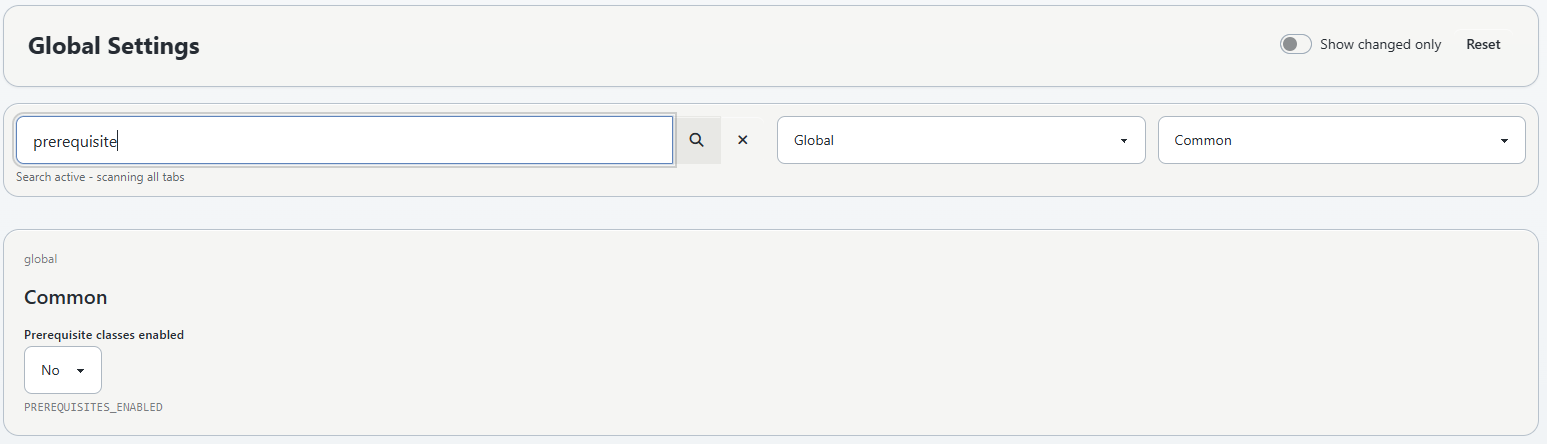
- Open Settings > Global Settings.
- Open the Global tab and Common category if they are not already selected.
- Search for prerequisite.
- Set Prerequisite classes enabled to Yes.
- Save the settings.
- Reload an individual student record and confirm Main Account > Prerequisites appears.
Enabling the setting activates supported prerequisite checks and conditionally reveals the student picker. It does not create a class rule, calculate missing visit totals, or repair existing records.
#If you cannot find the setting
Confirm that you are in Global Settings, have permission to update settings, and searched the Global > Common category. Ask support to verify the studio's current setting record rather than creating a duplicate setting.
The application also contains an environment-level prerequisite feature entry, but the reviewed current interface and eligibility services use the studio's Prerequisite classes enabled setting. Changing server environment configuration is not part of the customer workflow.
#Define the prerequisite groups for a class
The reviewed current Create Class and Edit Class forms do not include a prerequisite-group editor. Do not use the student record picker as a substitute: that picker concerns one student's class/count rows, not the target class's rule.
Prepare this worksheet for an authorized support or engineering change:
| Required information | Example |
|---|---|
| Target class | Advanced Skills Lab [class ID 7100] |
| Group 1 prerequisite classes | Foundation A [7001], Foundation B [7002] |
| Group 1 required visits | 4 combined visits |
| Group 2 prerequisite classes | Orientation [7003] |
| Group 2 required visits | 1 visit |
| Intended effective date | Before registration opens for the next season |
| Rollback | Restore the recorded before-state groups or close prerequisite checking for this class |
Ask the authorized person to:
- Verify that the target and prerequisite classes exist in the correct studio.
- Read and record the target class's current groups before changing anything.
- Create one group for each independent requirement.
- Keep alternative classes together only when their visits should be pooled.
- Read the saved groups back from the same source used by eligibility.
- Return the exact class IDs, groups, required counts, date, build, and rollback record.
Do not configure an empty group, a zero-count group, the target class as its own prerequisite, or a class whose identity is ambiguous. Do not copy an old screenshot's values into the current system. Historical screens showed a Required selector and class-group controls, but those controls were not found in the reviewed DSM Next class form.
#Record completion through accurate attendance
A prerequisite visit represents an attended class occurrence. Maintain the underlying attendance honestly:
- Open the exact dated class occurrence.
- Confirm the student and class identity.
- Record Attended only when the studio's approved attendance policy is satisfied.
- Correct a mistaken attendance status on the original occurrence rather than adding a fictional visit.
- Re-run the prerequisite report for the same student, class, and date range.
Enrollment in a class is not completion. Scheduled, waiting, cancelled, late-cancelled, or no-show records should not be presented as attended visits merely to make a student eligible.
Current synchronization warning: The current prerequisite reports calculate Times Taken from attended schedule rows. The reviewed current attendance mutation paths do not update the separate stored visit totals read by eligibility. A correct report count therefore does not prove that registration will pass. If the two results disagree, stop and request reconciliation; do not edit attendance again to chase the eligibility result.
#Review or correct a student's stored class/count rows
When prerequisites are enabled, an individual record can show Main Account > Prerequisites. The current picker lets an authorized user search classes, add a class, enter a number, remove a row, and select Save.
Do not use this picker to change enforced prerequisite completion unless support has first confirmed that it is connected to the eligibility records for your studio and build. In the reviewed current build, the picker and eligibility service use separate data paths.
If support has confirmed the picker for a specific studio variant:
- Preserve the student's before-state and the evidence supporting the correction.
- Open the exact student's Main Account > Prerequisites tab.
- Search using a unique class code or name. Stop if two results are ambiguous.
- Select Add for the approved class.
- Enter only the verified count.
- To remove one row, select Remove. This changes only the on-screen list until you save.
- Review every remaining class/count row.
- Select Save once.
- Wait for Saved, reload the entire page, reopen Prerequisites, and confirm the persisted result.
- Test the student's registration result and compare it with attendance evidence.
The current success message is based on the request response and the picker does not automatically reload the saved records. A full reload is part of verification.
Removing a student's row is not the same as removing a prerequisite group from the target class. To change the rule for everyone, use the class-level support-assisted process.
#Use the prerequisite reports
The current reports are attendance-history tools. They do not display the target class's prerequisite groups, and they do not read the stored visit summary used by the current eligibility service.
#Prerequisite by Student
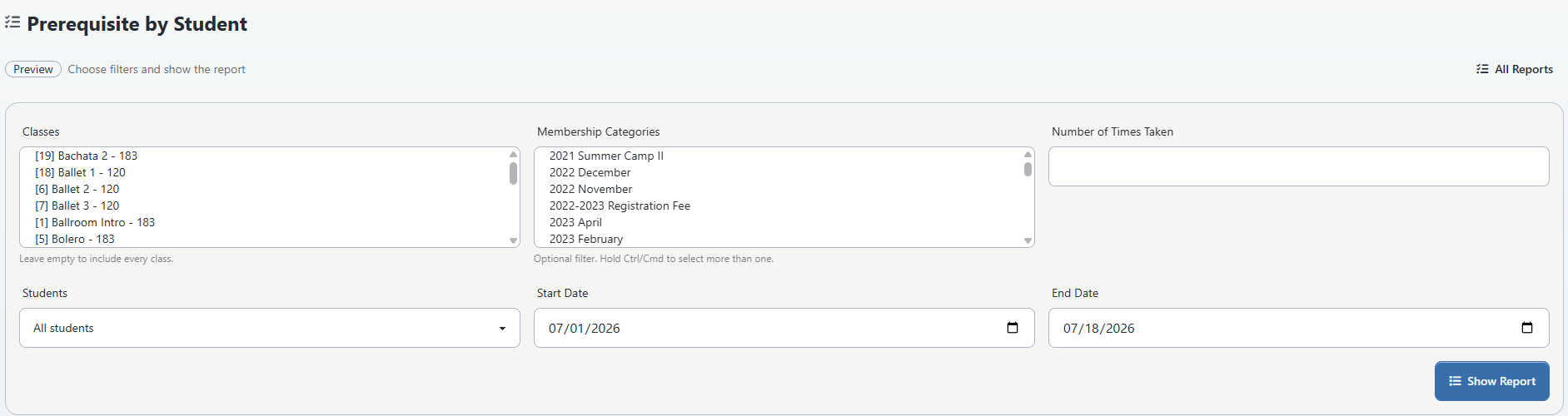
Open Reports > Prerequisite by Student to review students who match selected class and membership-category filters.
Available filters include:
- Classes;
- Membership Categories;
- Number of Times Taken;
- all students or active students only; and
- start and end dates.
The report shows student ID, linked student name, phone, email, first class date, and Times Taken. Number of Times Taken is an exact-match filter, not a minimum. If you enter 4, a student with five visits is not included in that filtered result.
When classes are selected, the current query also requires a matching active class-enrollment relationship. A person with valid historical attendance but an inactive or archived class relationship can therefore be absent. Use the result as an investigation aid, not the sole completion certificate.
#Prerequisite by Numbers
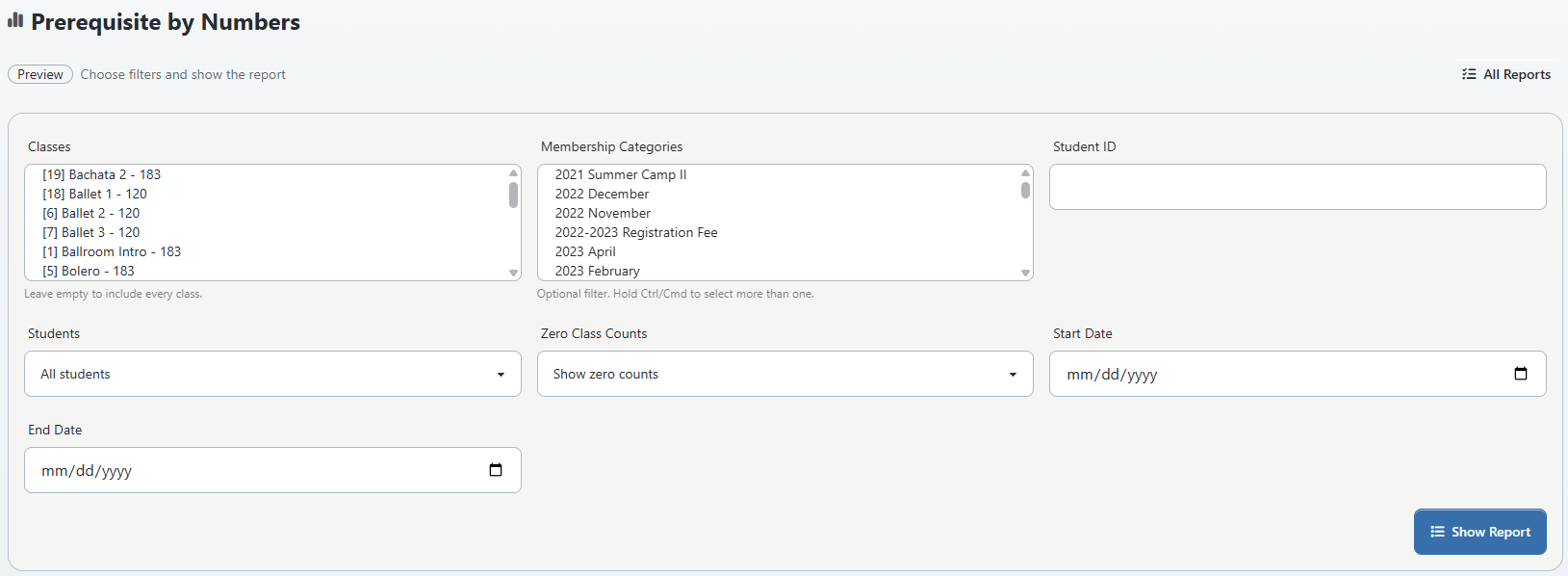
Open Reports > Prerequisite by Numbers when you need to focus on one student ID, hide zero counts, or compare days since the first selected class.
Available filters include:
- Classes;
- Membership Categories;
- Student ID;
- all students or active students only;
- show or hide zero class counts; and
- start and end dates.
The report shows student ID, linked student name, first class date, Times Taken, and Days Since First Class.
The selected date range limits Times Taken, but the current First Class Date in this report is calculated across the selected classes without that date range. A first date earlier than the filter is therefore possible.
#Read both reports carefully
- Membership Categories filters the student's active membership-category relationships; it does not define the prerequisite class group.
- Only attended schedule rows are counted when the attendance-status field is available.
- Leaving the class filter empty counts across every class in scope, which is rarely the right prerequisite audit.
- The report pages sort and paginate the returned rows in the browser. No dedicated prerequisite export was configured in the reviewed pages.
- Prerequisite by Student exposes phone and email. Limit access and do not use a public screen share.
#Understand the Online Client result
For the normal signed-in class registration flow, the current service checks prerequisites when:
- Prerequisite classes enabled is on;
- the target class has readable prerequisite groups; and
- readable student visit totals are available.
All groups must be complete. If the student is below a group total, the student-selection or purchase-option flow can show Prerequisite required and explain that required classes are incomplete.
The class list has an intentional nuance: when incomplete prerequisites are the only blocker, it can still show Book Now so the next step can display the student-specific reason. A list card or button is not proof that every family member is eligible.
If age, membership category, prerequisite, and enrollment-date checks all fail, the current student result reports the first matching reason in that order. Resolve and retest one truthful data issue at a time.
#Missing data can allow registration
The current eligibility and administrator warning checks treat missing prerequisite tables, missing required fields, and several read failures as no prerequisite block. If an expected below-count student appears eligible, do not assume the rule is satisfied. Close registration for the target class and ask support to verify the setting, groups, visit records, and exact studio connection.
#Understand administrator enrollment
When authorized staff add a student to a class, the current administrator enrollment check can show:
Student must complete prerequisite classes first.
This is a warning in the reviewed add workflow. Staff can submit an ignore warnings choice and continue. Decide who is permitted to approve an exception, what evidence is required, and where the approval is recorded outside the prerequisite counter.
After any approved exception, verify the class enrollment, schedules, pricing or purchase, charges, messages, and the reason for the exception. Do not change the student's visit count to disguise an administrative override.
#Do not use Quick Registration as a prerequisite gate
The reviewed Quick Registration route validates its schedule key, profile fields, security challenge, and agreements, then enrolls the person in the selected schedule. It does not call the current class prerequisite eligibility service.
Do not publish or distribute a Quick Registration link for a prerequisite-controlled class until a controlled end-to-end test proves the intended rule is enforced on that exact route and build. Use the normal signed-in Online Client flow for the prerequisite test.
#Keep related controls separate
| Control | What it represents | What it does not prove |
|---|---|---|
| Member category | A current classification, entitlement, or registration audience | Attended visits in a prerequisite class |
| Class or student level | A classification used by supported class, display, or pricing workflows | Current prerequisite eligibility in the inspected service |
| Class enrollment | A relationship between a student and a class | Attendance or completion |
| Attendance | Status on one dated occurrence | Automatic synchronization to the current eligibility summary |
| Student Prerequisites picker | A conditional per-student class/count editor | The target class's group definition or, without studio-specific confirmation, the enforced total |
| Prerequisite reports | Counts derived from attended schedule history | The stored total currently read by eligibility |
| Quick Registration | A schedule-key registration path | Prerequisite enforcement in the reviewed build |
Do not use a level or category to imitate visit history. If the real policy is membership, invitation, age, or staff approval rather than attendance count, use the control designed for that purpose and test it separately.
#Permissions and privacy
Prerequisite history can reveal a student's participation pattern, progression, and past class activity. It may concern minors.
- Give settings and correction access only to staff authorized by the studio's policy.
- Test a view-only and instructor role; do not assume that seeing a student record and changing prerequisite rows are separated correctly in every current route.
- Restrict prerequisite reports to staff who need the student identities and contact details they display.
- Do not include real names, birth dates, emails, phone numbers, addresses, account balances, or attendance history in screenshots or videos.
- Do not write medical, disability, disciplinary, or safeguarding details into a prerequisite count.
- Keep approval evidence and before/after records in the studio's protected system.
- Define how long exception and correction evidence is retained.
The Online Client's reviewed prerequisite message is generic; it does not publish the student's detailed attendance history. Keep support replies equally limited and verify identity before discussing a student's records.
#Verify the complete rule
Use a disposable class and fictional students. Do not open public registration until every expected result is observed.
| Fictional student state | Normal Online Client expectation | Administrator expectation |
|---|---|---|
| Below one required group | Prerequisite required after student selection | Warning before add; an authorized override may be possible |
| Exactly at every group total | Student passes prerequisite check | No prerequisite warning |
| Above every group total | Student passes prerequisite check | No prerequisite warning |
| One pooled group complete, another incomplete | Blocked | Warning |
| No readable rule or visit storage | Treat apparent eligibility as a failed safety test | Escalate; do not rely on the absence of a warning |
| Quick Registration link | Not approved as proof | Keep unpublished for this class |
For each fictional student:
- Record the expected attendance rows and expected total for every group.
- Run both prerequisite reports with narrow class and date filters.
- Record the support-confirmed eligibility totals separately.
- Sign in directly as the fictional client.
- Check the class list, select Book Now when offered, and inspect the exact student result.
- Stop before payment or final enrollment unless the fixture and no-notification path are explicitly approved.
- Use the administrator add dialog to confirm the warning state without submitting a real enrollment.
- Recheck with a restricted staff role.
- Record the build, setting, class and student IDs, group definitions, report filters, result, and cleanup status.
#Recover from a mismatch
If the report, student picker, and registration result disagree:
- Close or restrict Online Client registration for the target class.
- Do not repeat Save, change attendance again, or raise the visit count as a guess.
- Record the studio, target class ID, prerequisite class IDs, student ID, expected groups, report filters, current result, time, and signed-in role.
- Preserve the relevant attendance rows and the before-state of the support-managed rule and visit summary.
- Ask support to compare the class groups, eligibility visit totals, attendance history, setting, studio data layout, and request result.
- Correct the authoritative source once under an approved rollback plan.
- Repeat the below, exact, and above tests before reopening registration.
If an unsupported picker Save says Save failed, do not keep selecting Save. The reviewed endpoint can return that result when its optional storage is absent. Repeated attempts do not create the missing structure and can make the investigation harder.
#Troubleshooting
#The student Prerequisites tab is missing
Confirm Prerequisite classes enabled is on, save the setting, and reload the individual student record. Also verify the signed-in role and that the studio is using a student/account mode that exposes the current Main Account view.
#There is no prerequisite control on the class form
That is the reviewed current DSM Next boundary, not a reason to use a different field. Prepare the group worksheet and request the controlled support-assisted change.
#A student has enough report visits but is still blocked
The reports and eligibility currently read different sources. Preserve the evidence and request reconciliation of the student's enforced visit summary. Do not create duplicate attended rows.
#A student without enough visits can continue
Check the studio setting, target class groups, every group's required count, stored eligibility visits, and exact route. Missing prerequisite storage can allow registration, an administrator warning can be overridden, and Quick Registration does not run the inspected check.
#The report is empty or misses a former student
Narrow the date range carefully, select the correct prerequisite class, review Active students only, membership-category filters, and active class enrollment. The current class filter can exclude a person whose matching enrollment relationship is not active even when historical attendance exists.
#Book Now appears for a blocked student
Continue only to the student-selection or purchase-option step. The current class list deliberately defers a prerequisite-only explanation. Stop when Prerequisite required appears.
#An instructor can change a prerequisite row
Stop role testing without saving real data. The reviewed save endpoint uses student-view authorization rather than a separate student-update check. Restrict the workflow operationally and request a permission review.