Classes
Create a group class
#Before you begin
Prepare the records the class will use:
- genre, level, program, location, and billing schedule categories;
- the season and its enrollment dates, visibility, fees, and waitlist policy;
- at least one active instructor;
- rooms, when the studio uses them;
- a class waiver or contract, when required;
- message templates for early cancellation, late cancellation, or no-show notices, when used; and
- the pricing method described below.
Important: The initial New Class form does not create meeting dates. Saving it takes you to Schedules, where you assign the season, dates, times, room, instructors, and capacity.
Warning: Do not open Online Client registration until you have tested eligibility, capacity, waitlist behavior, every fee, and the checkout result with a fictional client.
#Choose the pricing method
| Choose | Best fit | Required follow-up |
|---|---|---|
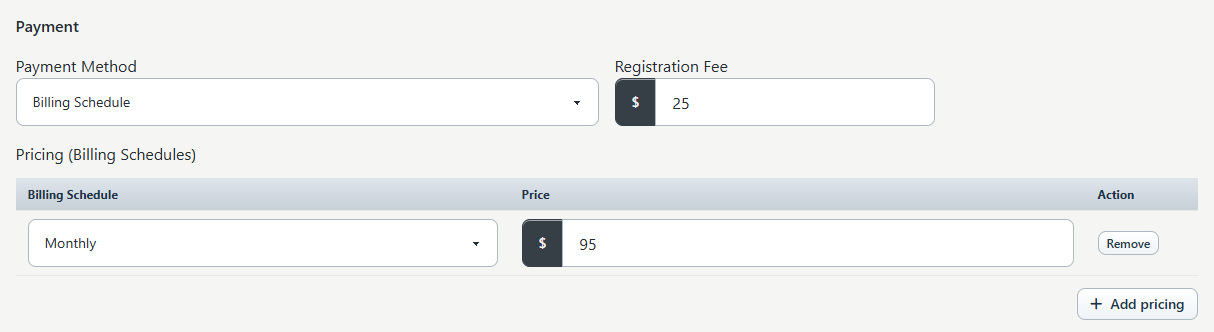
| Billing Schedule | Tuition priced directly on the class by one or more studio billing schedules. These classes participate in billing-schedule tuition workflows. | Add at least one Billing Schedule and Price row before saving. Review the class in a tuition preview before any live run. |
| Sales Items | Registration sold through an item or package with its own price, restrictions, contents, payment plans, activation, expiration, or contract rules. | Save the class, open its Sales Items tab, move the intended item into Assigned Sales Items, then select Save changes. |
The choice is exclusive on the class form. Use one authoritative pricing model rather than trying to reproduce the same price in both places.
Warning: A new Sales Items class is saved before any item is assigned and displays a warning that Sales Items are not assigned yet. It is not ready for registration until the assignment and checkout behavior have been verified.
#Create the class record
- Open Group Classes.
- Select Add New.
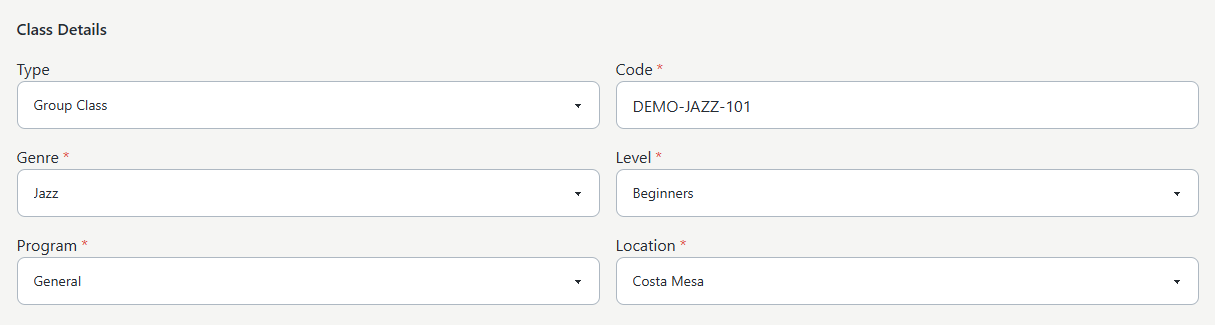
- If Type appears, select Group Class.
- Enter a unique, recognizable Code.
- Select Genre, Level, Program, and Location.
- Select a Default Room when available. A schedule can use a different room later.
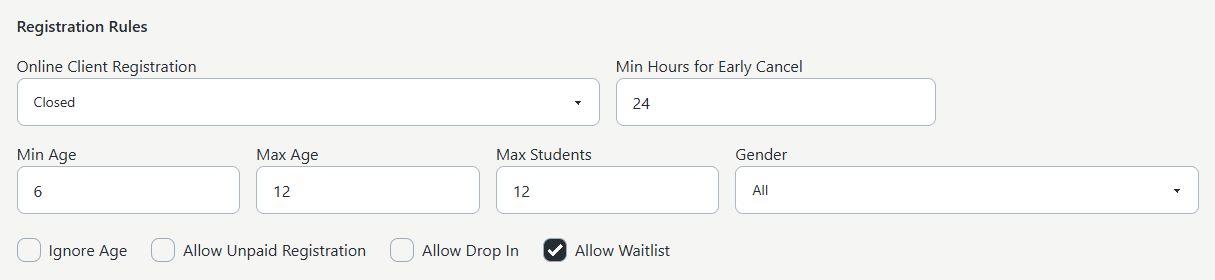
- Under Registration Rules, choose Online Client Registration.
- Enter age, capacity, gender, and cancellation rules, then review the optional registration controls.
- Under Payment, choose Billing Schedule or Sales Items and finish the applicable pricing setup.
- Enter Registration Fee only when the studio's fee policy calls for a class-level fee.
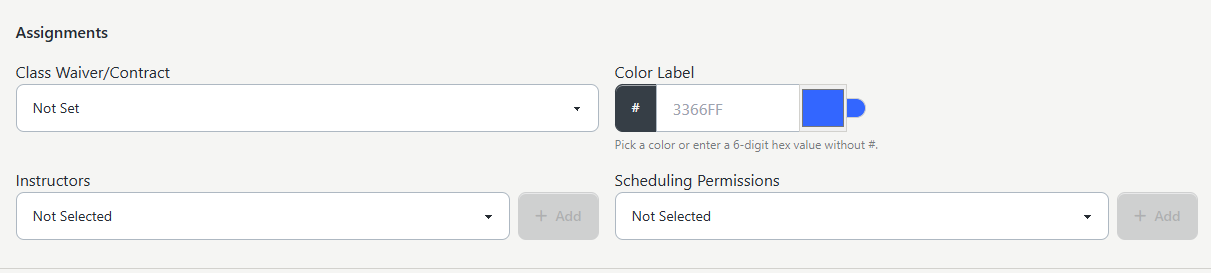
- Under Assignments, choose the class waiver or contract, color label, at least one instructor, and any staff who need Scheduling Permissions.
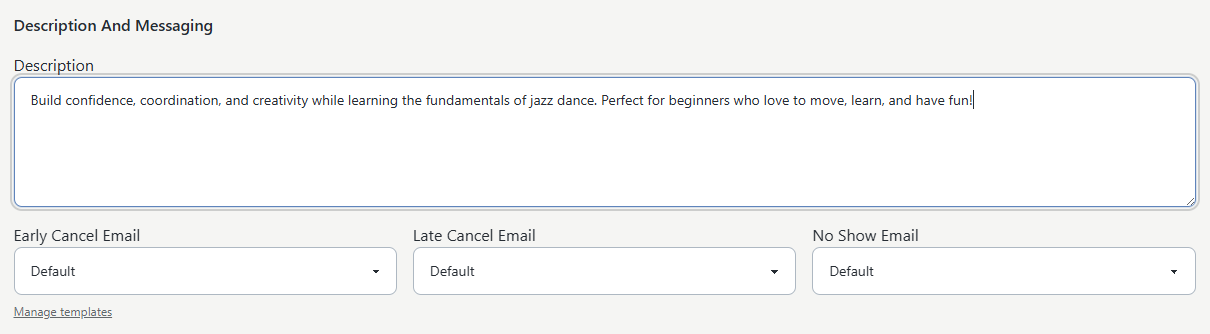
- Add the public Description and optional cancellation/no-show email templates.
- Review the full form, then select Save changes.
For group classes, Code, Genre, Level, Program, Location, Payment Method, and at least one instructor are required by the current save rules.
#Registration-rule reference
| Control | Guidance |
|---|---|
| Open | Makes the class available for normal Online Client registration when all other season, schedule, eligibility, capacity, and checkout rules pass. |
| Invitation | Use when staff determine eligibility before the client registers. Test the Eligible-to-enrolled path separately. |
| Member Categories | Select at least one allowed category. Saving is rejected when none is selected. |
| Closed | Closes registration, but some Online Client display settings can still show closed classes. Do not use it as the only privacy control. |
| Min Age / Max Age | Limits eligibility by the student's calculated age when age rules are active. |
| Ignore Age | Bypasses class age limits. Use only when that is intentional. |
| Max Students | Sets class capacity; schedule capacity can also be set when schedules are created. |
| Allow Unpaid Registration | Allows eligible flows to continue without immediate payment. It does not make tuition free; the resulting enrollment and charge state needs live checkout verification. |
| Allow Drop In | Supports individual-date registration behavior. The current form is designed to keep this with the Billing Schedule choice; verify date-level price and status. |
| Allow Waitlist | Enables the class waitlist. The season also has an Allow Wait List setting. Review both. |
| Min Hours for Early Cancel | Defines the boundary between early and later cancellation handling for this class. Test the exact timestamp and fee/message effects before publishing a policy. |
Warning: Registration Fee on the class is separate from student registration fees configured through the season and global settings. They can appear as distinct cart line items. Preview a fictional registration and confirm that the total contains only the intended fees.
#Add schedules
After the class saves, the Schedules tab indicates that schedules have not been added.
- Select Add Schedules.
- Choose Recurring for a date range or Single Date for one meeting.
- Select Season.
- Confirm Max in Class.
- For a recurring schedule, confirm Date Start and Date End, then enter start and end times for each meeting day.
- For a single date, enter Date, Start Time, and End Time.
- Confirm Room and Instructors.
- Add any date Exceptions, such as a planned closure, when using recurring mode.
- Leave Add active class students to new schedules off for a brand-new class with no enrollments.
- Select Create Schedules.
Recurring dates initially follow the selected season's range but can be adjusted before creation. Review every generated date rather than assuming the season contains all holidays and closures.
#Finish Sales Item pricing
If Payment Method is Sales Items:
- Open the class's Sales Items tab.
- Select the intended item under Available Sales Items.
- Move it to Assigned Sales Items.
- Select Save changes.
- Edit the assigned Sales Item and confirm its registration method, price, sale dates, season or schedule restrictions, package quantity, activation/expiration, payment plan, and contract.
Do not assume that assigning any item makes it valid for this class. The Sales Item's own settings determine what it sells and when it is available.
#What happens next
Saving the initial form creates an active class record, its instructor assignments, any billing-schedule pricing rows, and scheduling-permission assignments. It does not create schedules, enroll students, assign a Sales Item, or process tuition.
Creating schedules associates the class with a season and creates the selected dates. A class without schedules can appear in the admin list when Include unscheduled is selected, but it is not a complete class-registration offering.
#Confirm it worked
- Return to Group Classes and locate the class.
- Confirm its code, classifications, instructor, pricing summary, OC Reg, and date range.
- Open Schedules and compare the count, dates, times, season, room, instructors, and capacity with the plan.
- If using Sales Items, confirm the correct item is under Assigned Sales Items.
- View the Online Client as an eligible fictional client and an intentionally ineligible client.
- Add the class to a fictional cart and confirm tuition, fees, discounts, waiver or contract, and expected enrollment or waitlist result before checkout.
#If you clone an existing class
The Clone action creates a new active class and copies core class details, registration mode, fee, waiver, instructors, and billing-schedule pricing when those copies succeed. The current clone does not copy schedules, students, scheduling permissions, Sales Item assignments, attendance, notes, routines, charges, or history.
Warning: The cloned class preserves sensitive settings such as Online Client Registration, Allow Unpaid Registration, waitlist, cancellation threshold, fee, and pricing. Instructor or pricing copy failures can also be skipped while the new class is still created. Open the clone immediately, give it a distinct code, review every field, rebuild its schedules or Sales Item assignment, and test it before clients can use it.
#Troubleshooting
#A category or instructor is missing
Confirm the category or staff record is active. Class category lists come from active values under the expected top category, and the instructor list uses active staff marked as instructors or assigned the instructor login group.
#Billing Schedule pricing will not save
Add at least one complete row with both Billing Schedule and Price. A blank or partial row does not satisfy the required pricing rule.
#The class saved but shows no dates
That is expected until schedules are created. Open Schedules, select Add Schedules, and assign the season and meeting dates.
#The class does not appear in the Online Client
Check that schedules exist, the season is visible and open at the intended time, season registration is not blocked, the class is active, Online Client Registration is appropriate, and the client meets eligibility. For Sales Items, also confirm the correct item is assigned and currently available.
#The total is not what you expected
Review the class price or assigned Sales Item, class Registration Fee, season/student registration fee settings, coupons, multi-class discounts, payment plans, and processor fees. Do not repeat checkout until the first attempt's result is known.
#Related articles
- Create, use, and retire studio locations safely
- Manage class charges and pricing overrides
- Edit a group class safely
- Manage class instructors and substitutes
- Clone a group class safely
- Assign Sales Items and pricing options to a class
- Manage class routines
- Manage class notes
- Archive and restore group classes
- Control who can register for a class
- Manage class prerequisites and student completion
- Launch a class for online registration
- Group Classes
- Create and maintain categories
- Create and publish a season
- Settings overview
- Find and register for classes