Classes
Clone a group class safely
Cloning is not a season rollover, schedule copy, roster copy, or backup. The current action creates a new active class immediately, gives it a new Class ID, and opens its edit page. It does not show a preview or confirmation first.
Warning: Selecting Clone or Clone Class is the final action. The current interface does not ask you to confirm, and there is no undo. Verify the source Class ID and code before selecting it. If you are practicing, use only a disposable fictional class.
#Decide whether cloning is the right starting point
| Goal | Use this clone action? |
|---|---|
| Reuse classifications, registration rules, descriptive details, instructor assignments, and billing-schedule prices | Yes, followed by the complete review in this article |
| Create new meeting dates in a season | No. Clone the class settings, then build and verify new schedules separately. |
| Carry students, waiting-list entries, attendance, charges, notes, routines, or history into another class | No. Those operational records are not copied. |
| Reuse a Sales Item offering | Only as a starting point. The class can retain the Sales Items payment method, but its Sales Item assignments are not copied. |
| Produce an exact duplicate of every class setting | No. Several conditional settings and related records are not copied, and some relationship copies can fail without a warning. |
| Stage a class that must begin closed and inactive | No. Both the current clone and New Class workflow create an active class row. Keep registration closed and withhold schedules, or use an administrator-approved staging process. |
If the source is archived, cloning it still creates an active class. Archive status is not inherited.
#Understand what is copied
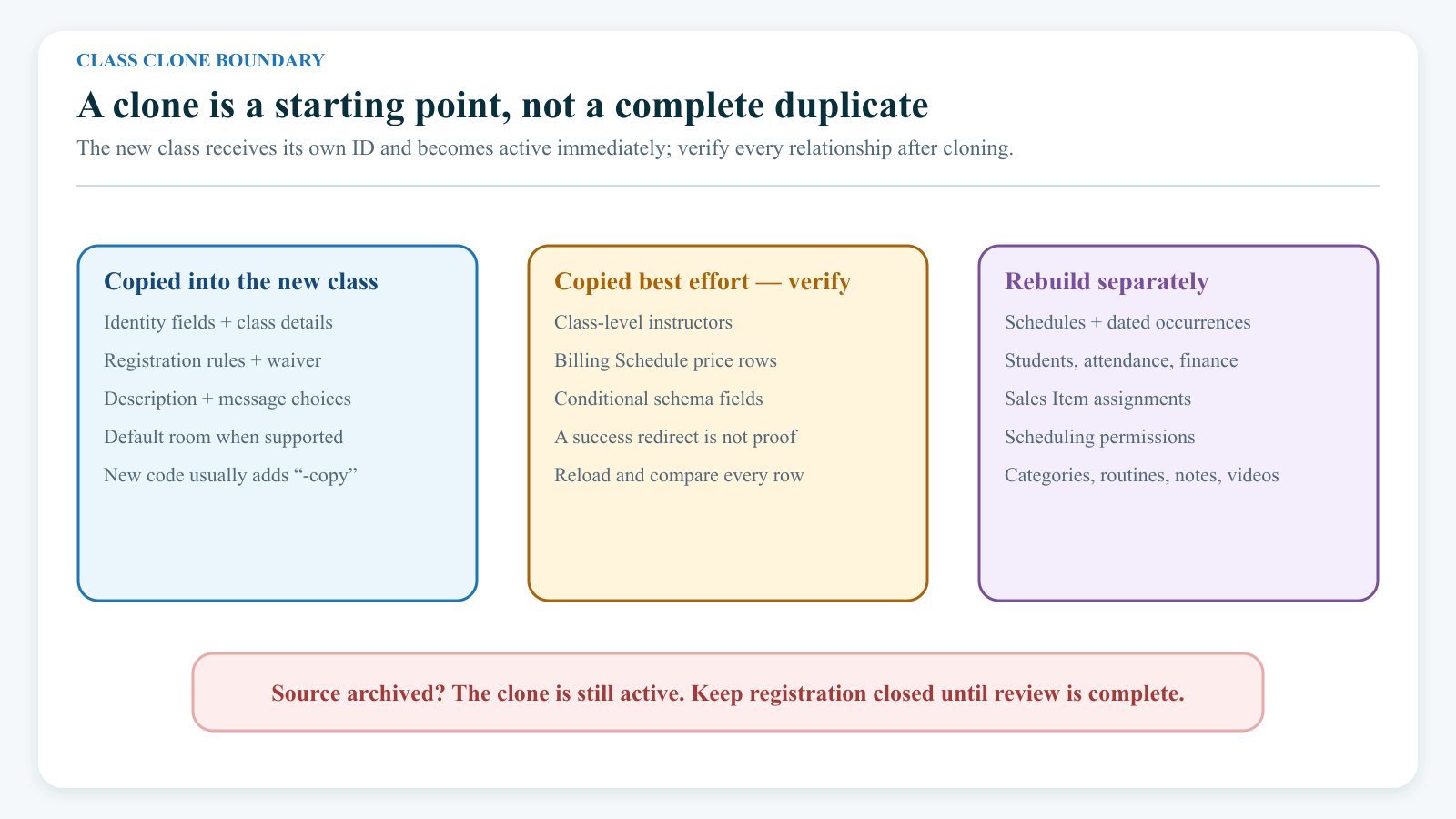
The copy is intentionally incomplete.
| Area | Current result |
|---|---|
| Identity | A new Class ID is created. If the source has a code, -copy is added to it. The name or genre, level, program, and location are copied. |
| Type and presentation | Class type, color, public description, and default room are copied when the studio's database supports those fields. |
| Registration rules | Age limits, Ignore Age, gender, capacity, Allow Unpaid Registration, Allow Drop In, cancellation threshold, Online Client registration mode, Allow Waitlist, registration fee, and waiver are copied. |
| Messaging | The selected early-cancellation, late-cancellation, and no-show templates are copied when those fields exist. No message is sent by cloning. |
| Instructors | Class instructor assignments are copied on a best-effort basis. Verify them on the new class. |
| Billing Schedule pricing | Billing schedule and price rows are copied on a best-effort basis. Verify every row and amount. |
| Status | The new class is active even when the source is archived. |
The following are not copied by the current class clone:
- schedules, meeting dates, season association, rooms or instructors on individual schedules, holidays, exceptions, or closures;
- students, waiting-list entries, attendance, schedule attendance, enrollment prices, purchases, charges, payments, credits, or registration history;
- Scheduling Permissions (can schedule this class);
- Sales Item assignments;
- class notes, routines and routine members, videos or video meetings;
- class prerequisites and other class-to-class relationships; and
- reports, exports, audit history, or communications.
Some studios also show Category, No Main Discounts, Set Member Pricing Level on register, and Member Categories. The current clone does not carry those selections into the new row. In particular, a source limited to Member Categories can produce a clone whose registration mode still says Member Categories but whose category list is empty. Select the intended categories or change the registration mode before saving.
#Before you begin
- Confirm that you are in the intended studio and that your role is authorized to clone and edit group classes.
- Open the source and record its Class ID, code, name, active or archived status, payment method, Online Client registration mode, instructors, and pricing.
- Decide the new unique code before cloning. Repeated copies can otherwise accumulate similar
-copycodes. - Decide which season, dates, times, room, instructors, capacity, and exceptions the new schedules will use.
- If the class will use Sales Items, identify the exact item that will be assigned after the class details are reviewed.
- Decide who needs Scheduling Permissions on the new class; these assignments must be made again.
- Plan to keep Online Client registration Closed while the copy is being reviewed and tested.
- Use fictional clients for registration and checkout testing. Do not test with a real family, charge, payment method, message recipient, or enrollment.
The source remains unchanged. If changing the source is also required, treat that as a separate reviewed task rather than assuming the clone action updates both records.
#Clone the class
You can start from either the list or the class record:
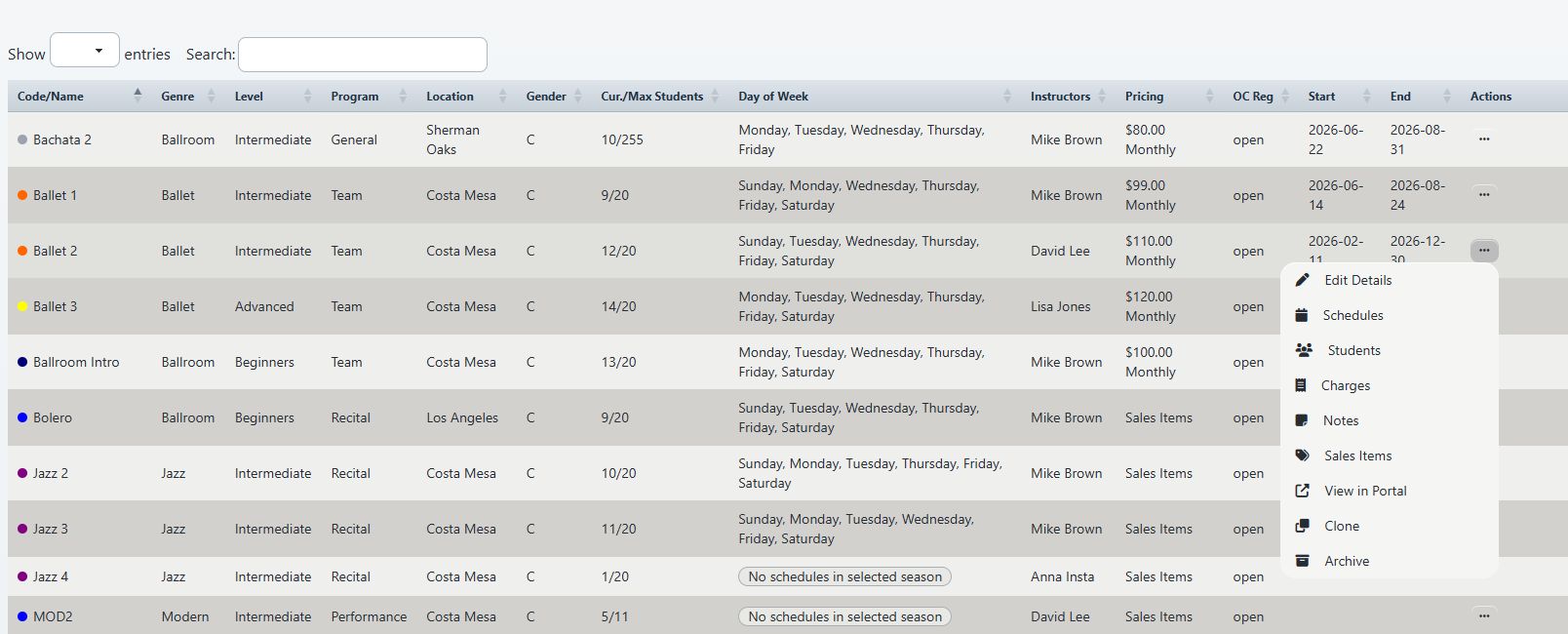
- From Group Classes, locate the exact source row, open its quick-actions menu, and use Clone.
- From an open class, use Action > Clone Class.
For the safest path:
- Open Group Classes.
- Search for the source by its exact code.
- Open the source class and compare its Class ID, code, name, payment method, and registration mode with your plan.
- Return to the list if you prefer the row action, or stay on the class page to use its Action menu.
- Recheck that no similarly named class is selected.
- Select Clone or Clone Class once.
- Wait for the new class edit page to open. Do not select the action again while the request is in progress.
The destination should have a different Class ID. Its code normally starts as the source code followed by -copy.
#Contain and review the new class
Do this before adding schedules, students, or Sales Items.
- Confirm that the page shows the new Class ID, not the source Class ID.
- Change Code to the final unique code.
- For a staging copy, set Online Client Registration to Closed while you complete the review.
- Review Type, Genre, Level, Program, Category when shown, Location, and Default Room.
- Review the complete Instructors selection. Do not assume a successful redirect proves every instructor was copied.
- Rebuild Scheduling Permissions (can schedule this class) for the people who need them.
- Review Payment Method.
- For Billing Schedule, compare every schedule and price with the source and the new plan. Also review No Main Discounts and Set Member Pricing Level on register when shown.
- For Sales Items, note that no item is assigned yet. Complete that assignment only after this review is saved.
- Review minimum and maximum age, Ignore Age, gender, Max Students, Allow Unpaid Registration, Allow Drop In, Allow Waitlist, and the cancellation threshold.
- Review the registration fee and waiver or contract.
- If the registration mode is Member Categories, select the intended categories. An empty list is not inherited proof of eligibility.
- Review color, description, and the cancellation or no-show message templates.
- Select Save changes.
- Reload the class and confirm that the saved values remain.
Do not use the source as the only comparison. A copied category, instructor, waiver, room, template, or billing schedule can later be archived or inappropriate for the new season even when its ID was copied successfully.
#Complete the new offering
After the class details are saved and rechecked:
- Open Schedules and confirm that the new class has no meeting dates.
- Add the intended season, recurring or single dates, start and end times, room, instructors, capacity, and exceptions.
- Review the generated dates after saving. Do not assume the source schedule was reproduced.
- If the payment method is Sales Items, open Sales Items, assign the exact intended item, and save the assignment.
- Keep registration closed while you compare the class, schedules, price or Sales Item, fees, eligibility, capacity, and waiver with the approved setup.
- Test the class in the Online Client with an eligible fictional student and an intentionally ineligible fictional student.
- If checkout is part of the test, use only the approved demo payment path and verify the resulting cart, fee, enrollment, purchase, charge, and payment states before trying again.
- Open registration only after the administrative record and Online Client result are both approved.
Cloning alone does not enroll anyone, create tuition, send a message, add a meeting, or place the class in a season. Those effects begin only through later schedule, registration, finance, or messaging actions.
#What happens next
The software inserts the new class first, then attempts to copy instructors and billing-schedule prices. Those steps are not one all-or-nothing operation. An instructor or price copy can fail while the class is still created and the interface still opens it successfully.
The source class is not changed. The new class has its own Class ID and is active. It can be found in Group Classes, including under Include unscheduled before schedules exist.
Because the clone action has no preview, confirmation, completion summary, or list of skipped relationships, the edit-page review is part of the supported workflow rather than an optional cleanup step.
#Confirm it worked
Use this checklist before the class is opened for registration:
- The source and clone have different Class IDs.
- The clone has the final unique code rather than a temporary or repeated
-copycode. - The intended type, classifications, location, room, instructors, waiver, templates, description, and registration rules are saved.
- Member Categories, Category, No Main Discounts, and Set Member Pricing Level on register are correct when those controls appear.
- Scheduling permissions were assigned again.
- Every billing-schedule row and amount is present, or the correct Sales Item was assigned separately.
- Only the intended new schedules exist, with the correct season, dates, times, room, instructors, capacity, and exceptions.
- The new class has no unexpected students, waitlist entries, attendance, charges, notes, routines, videos, or history.
- An Online Client test confirms visibility, eligibility, fees, waiver, capacity, and the expected enrollment or waitlist result.
- Group Classes shows both the unchanged source and the correctly identified new class.
#Recover from an unwanted or uncertain clone
#Clone failed or the page did not redirect
Do not select Clone again immediately. A network or browser error can hide a request that reached the server.
- Return to Group Classes.
- Search for the expected
-copycode and sort or review the newest Class IDs. - Open any possible result and compare it with the source.
- If no result can be confirmed, record the time, source Class ID, exact message, and role, then contact an administrator or support before retrying.
This check prevents a second request from creating another active copy.
#The clone exists but instructors or prices are missing
Keep registration closed. Add the approved instructors and billing-schedule rows manually, save, reload, and compare again. If you cannot establish which relationships were copied, archive the unused clone before adding schedules or students and create a controlled replacement.
#Save changes requires Member Categories
The registration mode was copied but its allowed categories were not. Select at least one approved Member Category, or change Online Client Registration to the intended mode, then save again.
#The wrong class was cloned
Do not add schedules, students, Sales Items, notes, or other records. Set registration to Closed if you can safely save the record, record the unwanted Class ID, and archive that new class. Archiving is containment, not deletion or undo.
If follow-up records were already added, stop and inventory them before cleanup. Archiving the class does not reverse enrollments, charges, payments, purchases, messages, or every related record.
#The clone came from an archived class but is active
That is the current behavior. Review the new class as an independent active record. Archive it if it should not be used.
#Troubleshooting
#Clone is missing from the Action menu
The control is shown only when the current role passes the class-clone route permission. Ask an administrator to review Group Permissions and the role's intended class responsibilities. Do not use another person's account to bypass the missing action.
#The cloned code is blank or not unique
A source with no code produces no useful copied code, and repeated cloning can produce similar suffixes. Give the new class its planned unique code before saving schedules or sharing a link.
#The clone has no dates
That is expected. Class cloning does not copy schedules or a season association. Open Schedules and create the new dates deliberately.
#The Sales Items class has nothing assigned
That is expected after cloning. The payment method can be copied, but Sales Item assignments are not. Assign the correct item on the new class and test its price, availability, restrictions, payment plan, activation, expiration, and contract.
#A copied value points to an old or inactive option
Choose a current category, instructor, room, waiver, template, or billing schedule and save. Cloning copies stored identifiers; it does not certify that the referenced record is still active or suitable.
#Related articles
- Create, use, and retire studio locations safely
- Create a group class
- Group Classes
- Edit a group class safely
- Assign Sales Items and pricing options to a class
- Create and maintain class schedules
- Manage class charges and pricing overrides
- Control who can register for a class
- Launch a class for online registration
- Archive and restore group classes
- Create and publish a season
- Roles and permissions