Private lessons
Review private lessons and request changes
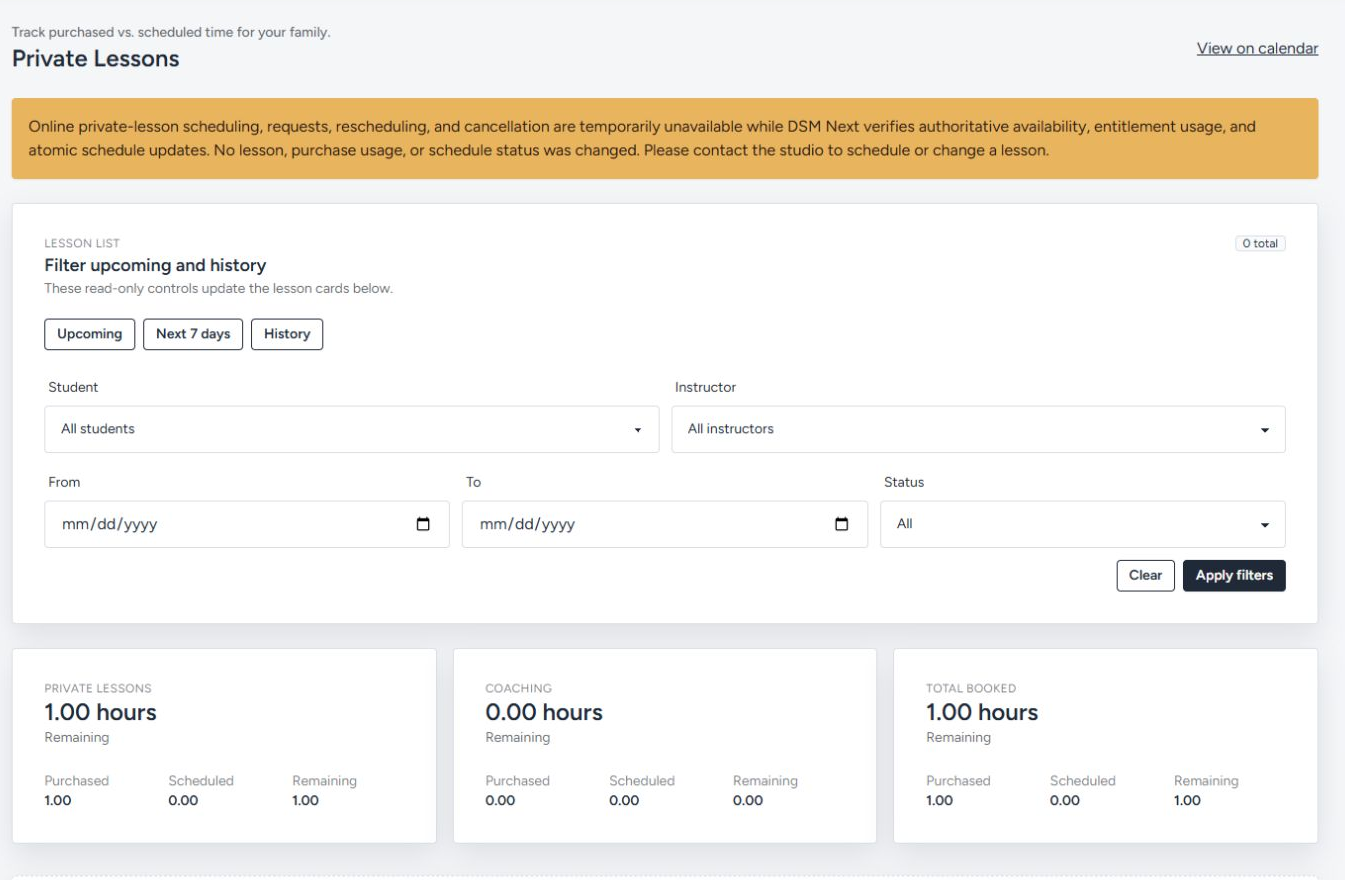
Current availability: Online private-lesson scheduling, requests, rescheduling, and cancellation are temporarily unavailable while Dance Studio Manager verifies availability, purchase usage, and schedule updates. The page is read-only and does not change a lesson, purchase, or schedule status.
#Before you begin
- Sign in to the correct studio and Online Client account.
- Confirm the intended student appears on your account.
- Ask the studio which lesson package or purchase is required before arranging a new lesson.
- Have the preferred student, instructor, date range, and lesson type ready when contacting the studio.
Your studio can use a customized name for private lessons or hide the feature from the Online Client menu.
#Open Private Lessons
- Open the account menu in the upper-right corner.
- Select Private Lessons.
- Read the availability notice at the top of the page.
- Review the filters, totals, and lesson cards below it.
The notice is authoritative. If it says scheduling or changes are unavailable, do not expect a booking, reschedule, or cancellation button to appear.
#Understand the totals
The page can show cards for Private lessons, Coaching, and Total booked. Each card separates:
- Purchased — lesson units associated with the family account;
- Scheduled — units currently assigned to lesson schedules; and
- Remaining — purchased units not currently counted as scheduled.
These are lesson-unit totals. They do not prove that an invoice is paid, that a refund is due, or that cancelling a lesson will restore a unit. Use Finance and Purchases for financial records.
#Filter lessons
- Select Upcoming, Next 7 days, or History for a quick view.
- To narrow the list further, choose a Student and Instructor when those options are populated.
- Enter From and To dates when you need a particular range.
- Choose Upcoming or History under Status, or leave All selected.
- Select Apply filters.
- Select Clear to remove all filters.
Upcoming is for future lesson records. History can include completed, cancelled, and other past statuses. An empty result can mean that no lessons match the filters; clear the filters before concluding that the account has no lessons.
#Review a lesson
When lesson cards are available, confirm:
- student and class or lesson type;
- date, start time, and duration;
- instructor and location;
- current status; and
- any displayed purchase assignment or notes that are appropriate for the client to see.
If any detail is wrong, record the lesson date and student name and contact the studio. Do not create a duplicate request solely because the Online Client page is read-only.
#View lessons on the calendar
- Select View on calendar.
- Use the available calendar views to find the date.
- Compare the lesson date, time, student, and instructor with the Private Lessons list.
- Return to Private Lessons when you need totals or history filters.
The calendar is another view of schedule information; it does not override the read-only notice on the Private Lessons page.
#Book, reschedule, or cancel
Contact the studio using its normal phone, email, or message process. Include:
- the student;
- the preferred instructor, if any;
- one or more acceptable dates and times;
- the lesson type or goal; and
- the existing lesson date when requesting a change.
Wait for the studio to confirm the appointment or status change. Then reopen Private Lessons and verify the result in Upcoming or History.
Warning: Cancellation timing can affect studio policy, charges, and purchased lesson units. The Online Client page does not promise a refund or restored unit. Ask the studio to explain the result for the specific lesson.
#Confirm it worked
After the studio handles the request:
- Open Private Lessons again.
- Clear any old filters.
- Check Upcoming for a new or changed appointment, or History for a completed cancellation.
- Review Purchased, Scheduled, and Remaining.
- Check Finance or Purchases separately if the request was expected to affect a charge, payment, or package.
Do not treat an email or verbal confirmation as proof that every account record has already refreshed; verify the schedule and, when relevant, the financial record.
#Troubleshooting
#Private Lessons is missing
The studio may hide Online Client private-lesson access or use a different label. Confirm you are signed in to the correct studio, then contact the studio.
#The page says changes are temporarily unavailable
This is the current supported state. The page remains useful for reviewing totals, filters, lessons, and history, but the studio must make scheduling changes.
#No instructors appear
The account may have no lesson records matching the current filters, or the studio may not expose its instructor list to this page. Clear the filters and contact the studio if you need to arrange a lesson.
#No lessons appear
Select Clear, then check Upcoming and History separately. If the studio has confirmed a lesson but it is still absent, provide the studio with the student, date, and instructor.
#The totals do not look right
Compare the lesson list with Purchases and ask the studio to review purchase assignment. Do not book or cancel another lesson solely to change a displayed total.
#A cancelled lesson still appears
Check its status and whether you are viewing History. If it still shows as scheduled after the studio confirmed cancellation, contact the studio before assuming the appointment was removed.