Classes
Manage class capacity, waitlists, and drop-in registration
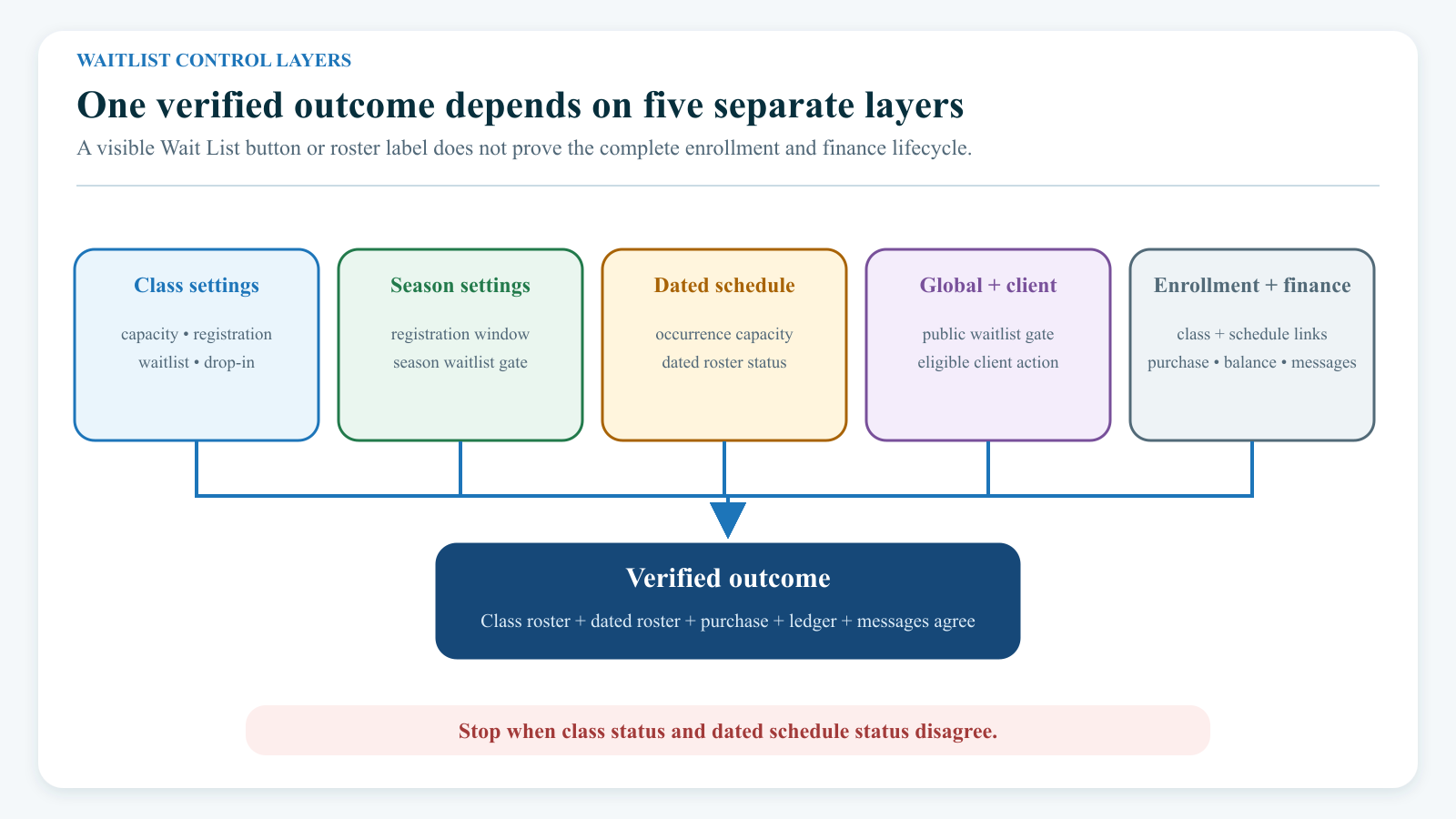
Current implementation boundary: Do not treat the class Students page or the Waiting List report as the only source of truth for a waitlist. Class-enrollment statuses and dated schedule statuses are separate, and current registration paths can leave them out of step. Automatic promotion updates the dated schedule record, not necessarily the class roster. Until those paths are unified, verify every waitlist change in both places and stop if they disagree.
#Before you begin
- Keep Online Client registration Closed while configuring or testing a class.
- Confirm the class's season, payment method, future schedules, age or category restrictions, prerequisites, and registration dates.
- Decide whether capacity is the same for every occurrence or varies by date.
- Decide which registration paths you intend to support: standard enrollment, waitlist, invitation, unpaid enrollment, or drop-in purchase.
- Review assigned Billing Schedules or Sales Items and the expected purchase, charge, discount, and fee behavior.
- Use a fictional family, non-deliverable contact details, a mail sink, and a test or disabled payment processor for end-to-end testing.
- Record the current class roster, schedule rosters, purchases, ledger, scheduled payments, and message history before changing an existing class.
#Understand the five control layers
One checkbox does not control the complete lifecycle. Review these layers together.
| Layer | What it controls | What it does not prove |
|---|---|---|
| Class settings | Default maximum students, Online Client registration mode, class waitlist permission, Allow Drop In, and Register Unpaid | That every existing schedule inherited the same capacity or that the Online Client exposes the intended action |
| Season settings | Whether the season permits a waitlist and the season's registration window | That the class and global Online Client waitlist settings also permit it |
| Dated schedule | The capacity and roster state for one occurrence | That the class-level Students roster has the matching status |
| Global and Online Client settings | Whether public waitlists and some regular-class drop-in options are available | That the class, student, purchase, or schedule is otherwise eligible |
| Enrollment and finance records | The student's class relationship, dated schedule relationships, purchase assignment, order, balance, and messages | That another layer was updated or reversed automatically |
#Reconcile class capacity with schedule capacity
The class's Maximum Students value is the default and the number displayed with the current count in the Group Classes list. A dated schedule can have its own maximum, and the Online Client uses the schedule maximum when one is available.
This means a class can appear to have room in one view while a particular date is full in another.
- Open the class and note its Maximum Students value.
- Review every future schedule in Schedules or the relevant schedule editor.
- Record each schedule's date, maximum, and count of students in capacity-using schedule statuses.
- If every future occurrence should adopt a new class maximum, select Update Maximum Students for Schedules while saving the class change.
- Reopen representative future schedules and confirm the new value. The class option updates future schedules; do not assume past schedules or every exceptional date changed.
- If capacities vary by date, edit them deliberately and retain a short reason for each exception.
Warning: The bulk schedule-capacity editor can save a maximum below current enrollment even when the individual editor would block that value. Compare the proposed maximum with the dated roster before saving a bulk change.
The Group Classes Cur./Max display is useful for orientation, but it is not a dated availability guarantee. The current quantity is derived from schedule participation while the displayed maximum is the class-level value. Use the dated schedule for the final capacity decision.
#Configure a public waitlist
For the Online Client to offer Wait List when a schedule is full, all of these must be true:
- the global Online Client waitlist setting is enabled;
- the class allows a waitlist;
- the selected season allows a waitlist;
- the dated schedule is at capacity; and
- the selected student otherwise passes the current eligibility checks.
Configure and test in this order:
- Keep the class's Online Client registration mode Closed.
- Enable Allow Wait List on the intended season.
- Enable Wait List on the class.
- Have an authorized administrator verify the global Online Client waitlist setting.
- Confirm the capacity on each future schedule.
- Verify age, category, prerequisite, season, and registration-window rules with one eligible and one intentionally ineligible fictional student.
- Open registration only after the action, checkout, roster, purchase, message, and recovery tests below pass.
Invitation-only caution: Eligible (Invited) on the class roster and Eligible in Online Client availability are different concepts. The first is a class-enrollment status; the second can mean that the student passed age, category, prerequisite, and registration-window rules. Current source review did not confirm reliable end-to-end enforcement of Invitation Only in the normal Online Client cart path. Do not use that mode as the sole access control until it passes a controlled test for an invited and a non-invited account.
#Test the Online Client lifecycle
Use separate fictional accounts or students for each scenario. Clear the controlled cart between tests.
#When the schedule has room
- Sign in as an eligible fictional parent or adult student.
- Find the class and select the intended participant.
- Confirm that the registration action opens the expected purchase-option step.
- Review the schedule dates, selected participant, pricing option, discounts, fees, and total.
- Complete checkout only in the approved test environment.
- Confirm that the student appears on the class roster and intended dated schedules.
- Reconcile the order, purchase, charge, ledger, and messages.
The current Online Client opens the purchase-option step even when only one option is available. Treat this as a confirmation point, not an unnecessary screen to bypass.
#When the schedule is full
If all waitlist gates are enabled, an otherwise eligible student should see Wait List. If a gate is disabled, the class should show Full instead.
- Confirm the dated schedule is genuinely full using its schedule roster and maximum.
- Select Wait List with a fictional eligible participant.
- If the account has multiple eligible students, confirm that the correct participant can be selected. Stop if the flow does not provide an unambiguous participant choice.
- Review the cart line. A waitlist line is currently priced at $0 and is marked as a waitlist item.
- Complete the controlled checkout.
- Confirm the student has Waiting status on the dated schedule and sees the corresponding state in My Classes.
- Separately inspect the class Students roster, purchases, order history, ledger, and messages. Do not correct a surprising class status by toggling it until the discrepancy is recorded.
A waitlist cart line currently excludes the class registration fee, convenience fee, coupons, and multiclass-discount grouping because its total is zero. Checkout can still create an order context and enrollment records. A zero total is not proof that no record was created.
#Configure and test drop-in registration
Allow Drop In is available for classes using the Billing Schedule payment method. It affects staff enrollment behavior and makes the class's Sales Items assignment area available. The Online Client uses a separate global setting when deciding whether to expose Sales Items for a regular class.
Because those rules differ, the class checkbox alone does not prove that clients can buy a single visit.
- Confirm that drop-in registration is appropriate for the class and each applicable date.
- Enable Allow Drop In on the class if the staff workflow requires the Drop In roster status.
- Assign and review the intended single-visit Sales Item, including active status, visibility, sale window, season, restrictions, price, and usage rules.
- Have an authorized administrator confirm the global Online Client setting for regular-class drop-in choices.
- Test the intended participant and date in the Online Client.
- Confirm the selected option, effective cart price, order, purchase, usage, dated schedule, class roster, and ledger.
An option named Drop-in or Single Visit is a pricing choice; selecting it does not by itself prove that the saved class-roster status is Drop In. Conversely, adding a student with the admin Drop In status does not prove the correct one-visit purchase and date were recorded. Verify both.
Capacity warning: The current staff enrollment capacity guard skips classes that allow drop-ins. Do not interpret that as unlimited physical capacity. Staff must still verify the selected schedule before adding a drop-in.
#Understand Register Unpaid
Register Unpaid is not a general “pay later” switch and does not make tuition free.
In the current staff class-enrollment path, the setting primarily determines whether an unpaid Billing Schedule enrollment is attached to selected schedules when no price or Sales Item is supplied. When the setting is off, the class relationship can still be created while schedule attachment is skipped. A separate staff schedule-selection path also checks a global or member-category permission before offering an unpaid option.
The normal Online Client class-browsing and cart path did not use the class Register Unpaid flag in the reviewed implementation. Before promising unpaid online registration:
- identify the exact staff or client workflow that should use it;
- test an authorized and unauthorized fictional member category;
- confirm the class and every intended schedule relationship;
- confirm whether an order, purchase, charge, balance, or scheduled payment was created; and
- document how payment will be collected and how an unpaid enrollment will be recovered or removed.
#Add special statuses from the admin roster
On the class Students page, Add Student to Class can offer Waiting, Eligible (Invited), or Drop In in addition to an active enrollment.
Use these statuses cautiously:
| Admin status | Configuration to confirm | Finance and schedule check |
|---|---|---|
| Waiting | Class and season waitlists | The dialog can still require pricing, and a selected Sales Item can create a purchase even while waiting. Verify the dated schedule status separately. |
| Eligible (Invited) | Intended invitation process and Online Client access test | The direct add path bypasses Sales Item purchase creation. It does not prove an invitation was delivered or checkout is restricted correctly. |
| Drop In | Class or applicable global drop-in setting, intended occurrence, and single-visit pricing | The add path can create a purchase, but the dated schedule status may not represent the intended class status. Reconcile both rosters. |
Important: Current staff add and roster-status paths can reuse class-status numbers as dated schedule-status numbers even though those numbers have different meanings. For example, a class-level Waiting state can resemble a cancellation state on the dated schedule, while a dated schedule Waiting state can resemble Drop In on the class roster. Do not repair this by trying several statuses; preserve evidence and use the recovery procedure below.
#Promote a waitlisted student safely
Automatic promotion is schedule-specific. It considers students waiting for that occurrence in oldest-added order, checks the schedule capacity, and attempts to assign an available purchase before changing the dated schedule status to scheduled.
Promotion can run after supported Online Client cancellations and certain Day View removals. If no usable purchase is available, it is normally skipped unless the studio has enabled the setting that permits waitlisted students to be activated without a purchase.
Before relying on automatic promotion:
- Confirm the occurrence's maximum and current capacity count.
- Confirm the first fictional waiting student's dated schedule row, added date, and available purchase.
- Confirm whether activation without a purchase is allowed by studio policy and configuration.
- Confirm that the promotion message template and delivery channel are safe in the test environment.
- Cancel or remove only through the exact approved path being tested.
- Verify the promoted student's dated schedule status, purchase assignment, class-roster status, Online Client My Classes, and message history.
- Verify the canceled student's remaining schedules, class relationship, purchases, ledger, credits, and messages.
Changing Waiting to In Class directly on the class roster is not equivalent to schedule promotion. It does not rerun the capacity or pricing checks, create or repair a missing purchase, or synchronize the dated schedule status.
#Leave a waitlist, cancel, or remove an enrollment
Different controls remove different records:
- Leave Waitlist in the Online Client removes the waiting dated schedule row. It does not necessarily remove or update the class-enrollment row.
- The trash control on the class Students page deletes the class membership row only. It does not prove that dated schedules or financial records were removed.
- Delete Student Schedule in Day View affects the selected occurrence and can trigger promotion.
- Delete Student From Class in Day View removes the current schedule relationship and class membership, but it is not proof that every occurrence or financial record was cleaned up.
Do not use any one of these controls as a complete refund, transfer, or cancellation procedure. Before production use, document the intended outcome for every schedule, the class relationship, purchase usage, charges, payments, credits, refunds, scheduled payments, promotion, and client message.
#Verify messages and reports
A waitlist checkout can use a waitlist-specific registration template when the relevant client and admin registration notifications are configured. Automatic promotion can run the Waitlist Status Change scheduled trigger. No message is guaranteed merely because a status changed.
After a controlled action:
- Check the recipient, template, channel, timestamp, and delivery or failure state in message history or logs.
- Confirm that only the intended fictional account received the message.
- Do not send a manual duplicate until the automated result is known.
The admin Waiting List report reads class-enrollment records with class status Waiting. It does not report the complete dated-schedule waitlist and does not show schedule date, queue position, purchase readiness, or promotion state. An Online Client waitlist checkout can therefore appear on a schedule without appearing correctly in this report.
Use the report as one reconciliation view, not as the queue ledger.
#Confirm the complete result
For every test or real exception, compare all applicable surfaces before declaring the workflow complete.
| Surface | Confirm |
|---|---|
| Class Students | Student, season, class-level status, added date, and expanded schedules |
| Dated schedule or Day View | Correct occurrence, schedule-level status, capacity, and purchase assignment |
| Online Client My Classes | Expected enrolled, waiting, canceled, or removed state for the correct participant |
| Waiting List report | Whether the class-level Waiting record appears; record any mismatch rather than treating absence as proof |
| Orders and purchases | Correct option, amount, usage, schedule link, and no unintended duplicate |
| Ledger and scheduled payments | Expected charge, payment, credit, refund, balance, and future collection state |
| Message history | Correct template, recipient, trigger, channel, and delivery result |
#Recover when the views disagree
- Stop further status changes, cancellations, promotions, checkouts, and messages for the affected class.
- Record the class ID, schedule ID and date, member ID, order and purchase references, status shown in each view, timestamps, and the operator or client path used. Keep personal and payment details out of screenshots and support tickets.
- Preserve the class roster, dated roster, Waiting List report export, My Classes result, purchase assignment, ledger, and message history.
- Determine whether the intended truth is scheduled, waiting, eligible/invited, drop-in, canceled, or removed for each dated occurrence.
- Have operations and finance agree on the required class, schedule, purchase, ledger, and communication outcome before any repair.
- Use an approved data-repair or support procedure that updates the correct status domain and retains an audit trail. Do not toggle the class roster until the schedule appears correct.
- Recheck every surface in the confirmation table and record the final result.
#Troubleshooting
#The class says it has room, but the Online Client says Full
Compare the selected dated schedule's maximum with the class maximum. Also confirm which schedule the Online Client selected and whether that occurrence already has scheduled or attended students consuming capacity.
#The class is full, but Wait List does not appear
Confirm the global Online Client setting, class waitlist setting, season waitlist setting, schedule capacity, registration dates, and selected student's eligibility. If any waitlist gate is off, Full is expected.
#The student is Waitlisted in My Classes but appears as Drop In on the class roster
This is a known current status-domain risk. Do not toggle the roster status. Preserve both views, verify the dated schedule row and finance records, and follow the recovery procedure.
#Waiting List report does not show an Online Client waitlist entry
The report reads the class-level Waiting status, while the Online Client waitlist is schedule-level. Verify the dated schedule roster and My Classes, then record the mismatch for repair.
#A vacancy did not promote the next student
Confirm that the removal path supports promotion, the occurrence is below capacity, a waiting schedule row exists, and the next student has an available purchase. Also confirm whether activation without a purchase is enabled. Do not promote from the class roster as a shortcut.
#Promotion occurred, but the class roster still looks wrong
Automatic promotion updates the dated schedule record. It does not currently guarantee a matching class-status update. Reconcile the schedule, purchase, class roster, My Classes, and message before another action.
#A drop-in option is missing online
Confirm the separate global Online Client setting for regular-class drop-in choices, the assigned Sales Item's active and visibility state, sale and season windows, participant restrictions, and the selected schedule. The class Allow Drop In checkbox alone is not sufficient.
#Register Unpaid is enabled, but checkout still asks for payment
The reviewed normal Online Client cart path does not use that class flag as a pay-later permission. Identify and test the intended staff or category-specific unpaid path; do not promise online unpaid registration based on the checkbox alone.
#Protect client and financial information
- Use fictional names and addresses in the approved non-deliverable documentation domain for testing, screenshots, videos, and support reproduction.
- Do not expose real birth dates, eligibility categories, balances, order references, processor IDs, payment tokens, or card and bank details.
- Keep screenshots limited to the relevant class, schedule, or account section. Exclude other browser tabs, notifications, password managers, and autofill suggestions.
- Use a controlled mail and SMS sink. A waitlist, cancellation, promotion, or roster-status action can run configured notifications.
- Keep the class closed and the live processor disabled while building a media fixture.
- Record who approved capacity, price, promotion, unpaid access, financial correction, and client communication.
#Related articles
- Group Classes
- Create a group class
- Edit a group class safely
- Manage class schedules
- Manage student enrollment
- Assign Sales Items and pricing options to a class
- Control who can register online
- Staff Shopping Cart and checkout
- Attendance and rosters
- Enrollment, attendance, and roster reports
- Choose message recipients and send safely
- Account ledger
- Find and register for classes
- Manage My Classes and cancellations