Calendar
Create and manage Calendar events
#Before you begin
- Confirm which class, date, start and end time, season, room, instructor, and capacity should be used.
- Check the studio time zone and any closure dates.
- Decide whether you are creating one occurrence or a recurring series.
- Review the affected roster, assigned purchases, room bookings, private registration link, and communications before changing an established occurrence.
- If you are an instructor, confirm that the studio allows instructors to edit their own schedules and that you are assigned to this occurrence.
Warning: A schedule is used by Calendar, Day View, rosters, attendance, reports, Online Client displays, rooms, instructors, private links, and sometimes purchase or billing logic. There is no customer-facing schedule version history or one-select undo. Record the original values before any production change.
Important: In this part of the software, a Calendar "event" is normally a displayed schedule occurrence. Calendar is not a confirmed standalone event composer.
#Choose the workflow that owns the event
| What you need | Supported starting point | Boundary |
|---|---|---|
| One group-class meeting or one extra dated occurrence | Group Classes > select the class > Schedules > Add Schedules > Single Date | The occurrence belongs to an existing class. |
| A repeating group-class series | Group Classes > select the class > Schedules > Add Schedules > Recurring | Creation produces separate dated occurrences; later editing one occurrence does not change the series. |
| Review or change one existing occurrence | Calendar > select the event > Day View > Edit | Use the form, not drag/resize. |
| A private lesson or coaching appointment | Private Lessons and its approved booking workflow | Private-lesson purchase, availability, cancellation, and fee rules are separate. The current admin workflow is under read-only containment. |
| A room booking | The studio's room-booking workflow | Show Room Bookings only overlays those records on Calendar; it does not create them. |
| A general note or standalone event | No confirmed Calendar write path | Schedule Event and Add Notes are visible under some settings but are not connected to an active form end to end. |
Do not create a placeholder group class merely to imitate a private lesson, room booking, closure, or general note. Each record type has different visibility, roster, purchase, and cancellation effects.
#Create one occurrence or a recurring series
Calendar itself does not currently provide a confirmed creation form. Create the schedule from the class that owns it.
- Open Group Classes.
- Select the class.
- Open Schedules.
- Select Add Schedules.
- Select Single Date for one occurrence or Recurring for a weekday pattern across a date range.
- Enter the season, date or range, start and end times, capacity, room, and instructors required by the form.
- For a recurring series, enter closure dates under Exceptions and decide whether existing active class students should be added to the new occurrences.
- Review the complete schedule plan.
- Select Create Schedules once.
- Read the result message, including any count of duplicates that were skipped.
The detailed field rules, recurring exceptions, duplicate behavior, student-assignment option, copying, and range tools are covered in Create and maintain class schedules.
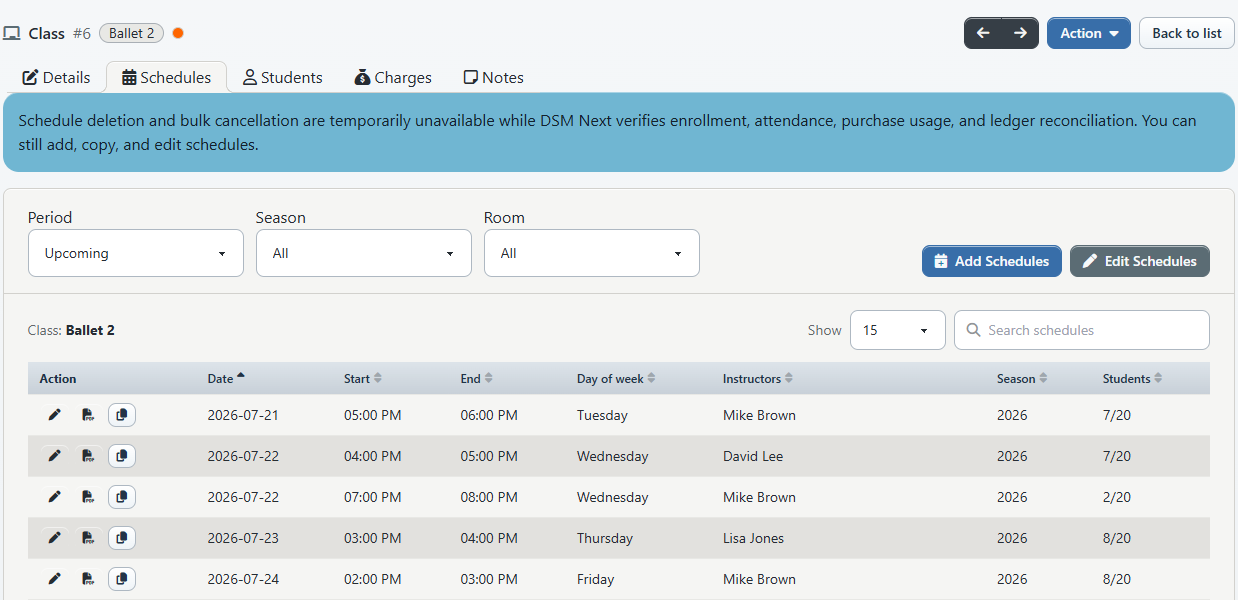
Important: Creation-time room checking depends on a studio setting, and recurring creation does not provide the same instructor-overlap review as the individual editor. A successful creation message is not proof that every room and instructor is conflict-free.
#Open an occurrence in Day View
- Open Calendar.
- Move to the intended date and clear any filters that could hide the event.
- Select the event. Selecting a blank date also opens Day View for that date.
- Find the occurrence by time and class label.
- Expand it to review the instructor, capacity, and roster.
- Select Edit when you need to change this occurrence.
An event selection opens Day View and attempts to expand the matching schedule. If the card is not expanded, find it by time and class, then expand it manually.
Depending on settings and permissions, right-selecting an event can offer Roll Sheet or Student List. Those are context and reporting actions, not edit confirmation. On a touch screen, do not rely on a right-select or long-press gesture; open the event and use Day View instead.
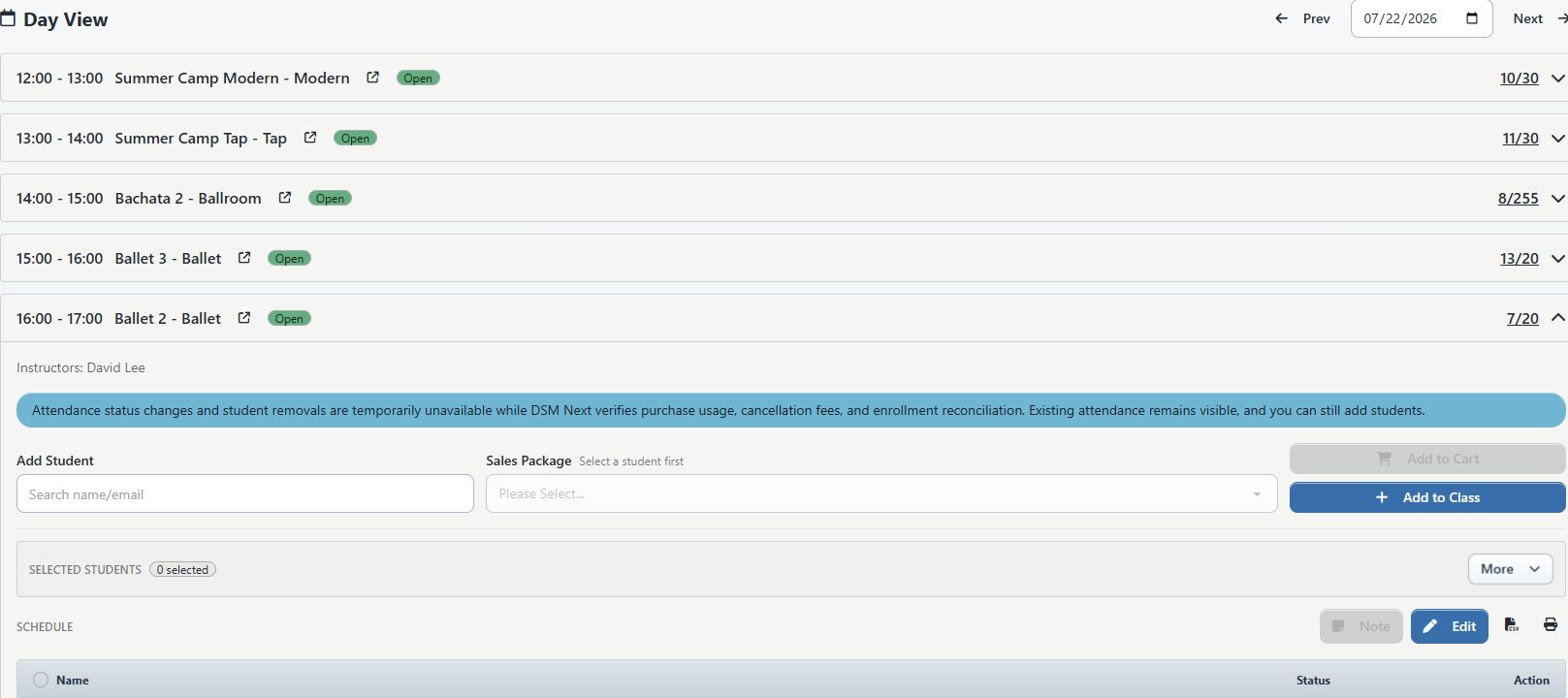
Warning: The expanded Day View also contains roster, attendance, cart, messaging, export, and removal actions. Those can affect purchases, charges, attendance, or communications. Selecting an event does not make those actions part of a schedule-time correction.
#Change one occurrence with Edit Schedule
Use the form when one occurrence has the wrong date, time, season, room, instructor, or capacity.
- Before editing, record the occurrence ID when available and its current class, date, time, season, room, instructors, capacity, and roster count.
- From the expanded Day View card, select Edit.
- Confirm that Edit Schedule shows the intended class and date.
- Change only the fields required for this correction:
- Class;
- Season;
- Rooms;
- Max in Class;
- Instructors and their roles;
- Allow registration via private URL;
- Date, Start, and End.
- Wait for room and instructor conflict warnings to refresh.
- Resolve every displayed conflict before continuing.
- Recheck the date and both times. End must be later than Start.
- Select Save once.
- Confirm that Schedule updated successfully appears.
- Select Back to Day View, then complete the reconciliation checklist below.
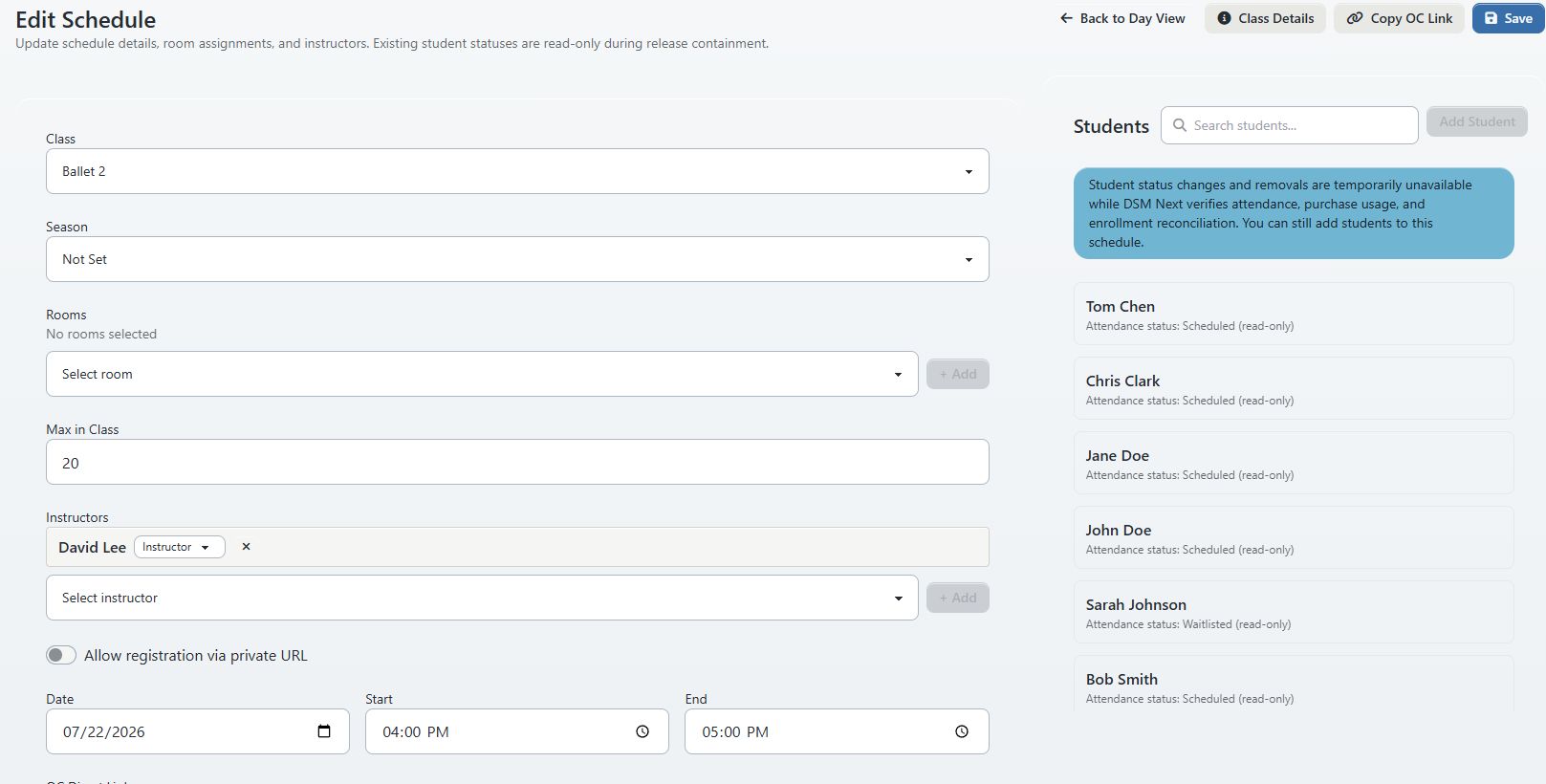
Important: The conflict messages are advisory. The form asks the conflict endpoint about the currently selected rooms and instructors, but the save endpoint does not repeat that check or block a conflicting save. If the advisory request fails, the form can show no warnings. Always compare the result with Calendar and the affected instructor and room schedules.
Reducing Max in Class below the number of scheduled students is blocked by the individual editor. This safeguard does not make a capacity change harmless; review waiting-list and Online Client effects separately.
Changing Class reassigns the schedule occurrence while its downstream relationships require separate review. Use that field only to correct a clearly misfiled occurrence. Do not use it as a general class-transfer tool.
#Change one occurrence, not a series
Edit Schedule changes only the selected dated occurrence. It does not shift the other occurrences that were created with the same recurring pattern.
For a series-wide correction, return to the class's Schedules tab and review its range tools. The current bulk editor can apply a common time pair, season, or capacity to an inclusive range, but it does not change dates, rooms, or instructors and does not run the individual conflict review. See Create and maintain class schedules before using it.
#Do not use drag or resize for a controlled change
When the studio enables calendar rescheduling for your role, events can be draggable and resizable. Selecting Action > Reschedule Event only displays an instruction; it does not open a review form.
Important - current product gap: Dragging or resizing sends the new start and end directly to the schedule record. The current path does not show a confirmation, run the room/instructor conflict endpoint, synchronize room bookings, show a success receipt, or provide an undo history. An API failure causes the visible event to return to its prior position, but a successful request can still create an incorrect or conflicting schedule.
Use Day View > Edit for production changes. If an event was moved accidentally:
- Open the event in Day View.
- Select Edit.
- Restore the recorded date, start, and end values.
- Resolve any conflict warnings.
- Save once.
- Reconcile Calendar, Day View, the class schedule list, room, instructor, and Online Client visibility.
Do not repeatedly drag the event while waiting for the screen to react.
#Treat schedule notes as read-only from Calendar
Existing schedule notes can appear in Calendar event text when the studio enables that display. However:
- Action > Add Notes currently routes to Day View with a query flag that the active Day View does not consume;
- the Day View Note control is disabled and says class notes are not available yet; and
- the active Edit Schedule form does not expose a schedule-notes field.
There is therefore no approved Calendar note-entry procedure in this release. Do not use another field to store a note.
Privacy: Treat schedule notes as potentially visible wherever the schedule is displayed or reported. Never put health information, payment details, access codes, private contact information, disciplinary information, or other sensitive client data in a schedule title or note. Test visibility with fictional data before using notes operationally after the write path is restored.
#Understand cancellation and deletion boundaries
The Edit Schedule header contains a button labeled Delete. Its confirmation asks Cancel this schedule?, and the current endpoint reports Schedule canceled. This is cancellation-like behavior, not a general undo command.
Warning: The current action makes the schedule inactive or hidden where supported and removes important relationships, including roster assignments, instructor links, assigned-purchase links, and the private registration key. Complete cleanup of room bookings, finance records, messages, reports, and every historical reference is not confirmed. There is no customer-facing restore action.
Use Delete only when the studio has approved permanent cancellation of that one occurrence:
- Record the schedule ID and original date, time, class, room, instructor, roster, purchase assignments, and private-link state.
- Confirm that you selected one occurrence, not the wrong date in a recurring series.
- Review any attendance, cancellation-fee, purchase, refund, and notification work that must be handled separately.
- Select Delete.
- Read the confirmation carefully, then confirm only if permanent cancellation is intended.
- Recheck Calendar, Day View, the class schedule list, room-booking overlay, instructor schedule, rosters, purchases, and client-visible schedule.
- Follow the studio's communication and finance procedures; do not assume this action sent a notice or reversed money.
Do not use Delete to correct a time typo. Edit the occurrence instead. Do not recreate a deleted occurrence as a recovery shortcut when students, purchases, attendance, or finance records were attached; a new schedule ID does not restore those relationships.
Changing a student's attendance or cancellation status on the roster is also different from cancelling the schedule itself. Private-lesson cancellation is a separate workflow that can involve purchase usage and fees.
#Confirm and reconcile the result
For every creation or edit:
- Open the class's Schedules tab and show a range that includes the occurrence.
- Confirm the date, start, end, season, room, instructors, capacity, and student count.
- Open Calendar, clear restrictive filters, and inspect the occurrence.
- Open it in Day View and confirm the expanded card and roster.
- Check the assigned instructor's schedule and the room or room-booking view when applicable.
- If the occurrence is client-visible, review it as an eligible fictional client in the Online Client.
- If a private registration link is enabled, verify its intended state without sharing it publicly.
- Compare roster and purchase assignments before and after the change.
- Confirm any required staff or client communication separately.
The inspected form-save and drag/resize paths do not themselves prove that a schedule-change notification was sent. A Calendar update is also not proof that tuition, purchases, charges, payments, refunds, or attendance were recalculated.
#Mobile considerations
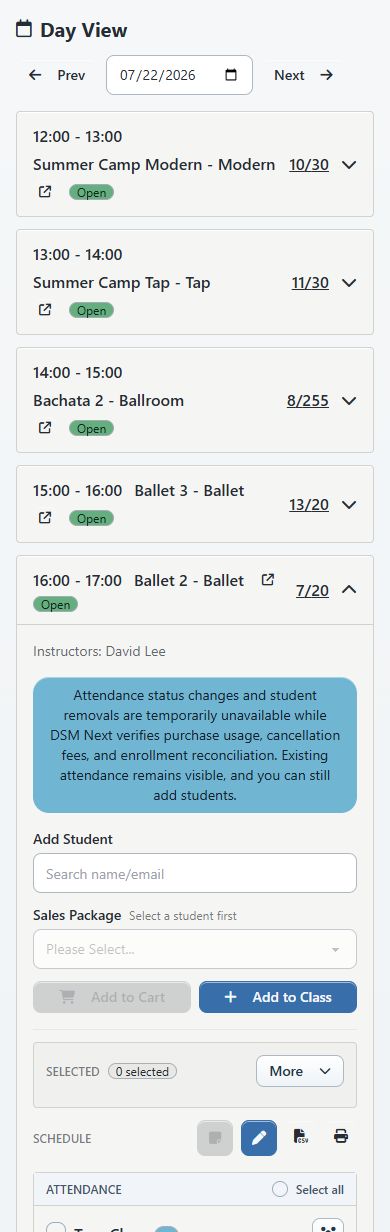
- Calendar stacks its toolbar at narrow widths, and Day View is the more reliable way to select a specific occurrence.
- Use event selection and the Edit link. Do not rely on right-select context menus, drag, resize, or long-press behavior.
- The edit form stacks its controls, so verify the date, Start, and End again immediately before Save.
- Use a desktop for recurring creation, conflict review, established rosters, and cancellations when possible.
- After a mobile save, return to Day View and Calendar rather than assuming the previous screen reflects refreshed data.
#Recovery and troubleshooting
#Schedule Event or Add Notes opens Day View but no form appears
This matches the current G-022 product gap. Return to the owning class's Schedules tab for schedule creation. Treat Calendar notes as read-only until the active form is restored and verified.
#The event moved without a confirmation
Calendar rescheduling is enabled for your role. Open the occurrence with Day View > Edit, compare it with the recorded values, correct it if necessary, and complete the reconciliation checklist. Ask an owner to disable drag rescheduling if the studio does not use it.
#No conflict warning appears
Confirm that rooms and instructors are selected and that the date and both times are valid. Then check Calendar and the relevant room and instructor schedules manually. No warning is not proof of availability.
#Save reports that the end must be after the start
Correct End so it is later than Start on the selected date. Overnight occurrences are not documented as supported by this form; use the studio's approved scheduling process rather than forcing an invalid range.
#An instructor cannot open Edit Schedule
An instructor must be assigned to the occurrence and the studio must enable instructor editing of owned schedules. An administrator or owner can make the change when the setting or assignment does not allow it.
#The event is missing after a save
Clear Calendar filters, return to the saved date, and check the class's Schedules tab. Also confirm that the class and schedule are active and that the correct location calendar is open.
#The wrong occurrence was deleted
Stop before creating a replacement. Record the old schedule ID and contact the studio owner or support with the class, date, time, roster, room, instructor, purchase, and private-link details. Re-creation alone cannot restore the removed relationships.
#Related articles
- Use Day Overview and instructor Teaching views
- Use Calendar views and filters
- Create and maintain class schedules
- Review private lessons and use the calendar
- Create and manage a private registration link
- Take attendance and manage a daily roster
- Review Calendar and private events in the Online Client