Settings > Categories, people, classes, Calendar, Rooms, Inventory, Shopping Cart, Finance, and Reports
Create, use, and retire studio locations safely
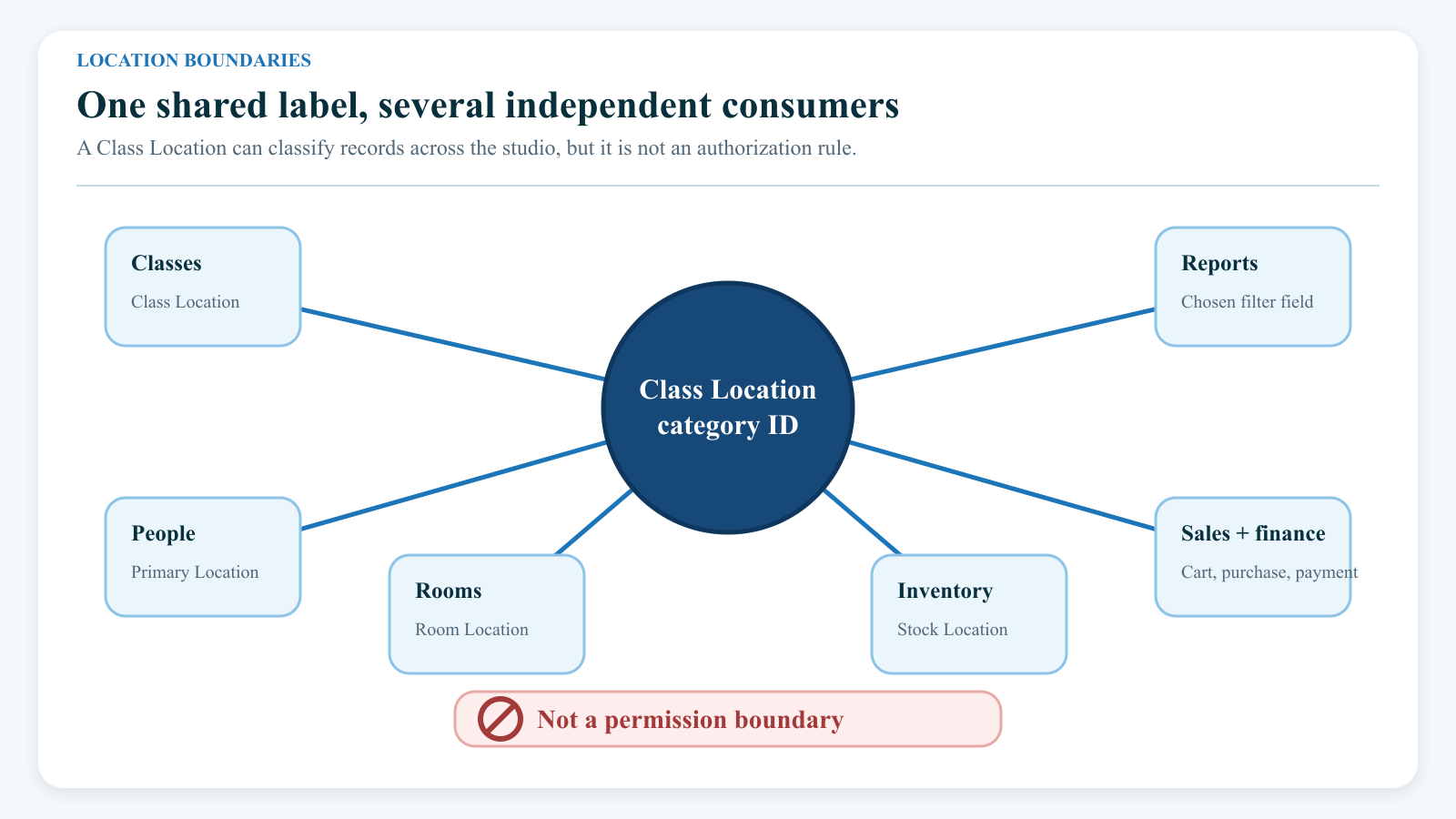
Most important boundary: A studio location is a classification and filtering value. A person's Primary Location does not grant or deny access to a studio, class, record, menu, report, or Online Client feature. The reviewed authorization paths do not use Class Location or Primary Location as a permission boundary.
#Understand the location model
A location begins as one category row under the Class Locations top category. The category has an ID, a visible name, an optional order, and an active or archived state when the tenant schema supports status.
Other records save or derive that ID for different purposes:
| Location fact | What it means | What it does not mean |
|---|---|---|
| Class Location | Where the class is categorized as taking place | That only people with the same Primary Location may view or register for it |
| Client, student, or staff Primary Location | The person's usual or preferred location for supported defaults, lists, and filters | Permission to enter that location or access its records |
| Room Location | Which studio location contains or normally uses the room, when the room schema supports it | That every saved schedule automatically has a matching room |
| Inventory stock Location | Where one stock adjustment or quantity is attributed | The customer's Primary Location or the class location |
| Cart, purchase, or payment location | Operational context recorded or derived for that sale or receipt | A universal accounting rule shared by every report |
| Report Location filter | A filter over the report's chosen location field | Proof that another report uses the same field or fallback |
The same category ID can therefore appear in several independent records. Changing one person's Primary Location does not move a class, room, stock quantity, purchase, or payment. Changing a class location does not rewrite its clients' profiles.
#Current, conditional, and unverified behavior
Keep these evidence levels separate while configuring a studio:
| Evidence level | What was established |
|---|---|
| Confirmed in the reviewed current build | Class Locations are category rows; active locations feed many selectors; normal group classes require a nonzero Location; calendars can filter class events by Location; people can store Primary Location; location-aware rooms, stock, carts, payments, and reports consume location values. |
| Tenant-schema or setting dependent | Whether room Location is an ID selector or text field; whether payments and purchases have their own location columns; whether a report falls back to a person's Primary Location; whether a separate class_locations table is used; and whether archive controls exist. |
| Not yet proved as a current operational rule | That the global Default Location setting automatically supplies a fallback in every DSM Next workflow; that archiving removes a location from every selector; that reports share one location definition; or that restoring a location repairs dependencies changed separately. |
Some current consumers resolve the Class Locations root by its configured slug or name and fall back to the historical root ID 6. Other current consumers still query root ID 6 directly. Do not move or replace the Class Locations top category, and ask support to reconcile the tenant taxonomy if one location list differs from another.
#Before you begin
- Confirm the exact studio and your authority for settings, people, scheduling, rooms, inventory, sales, finance, and reports. Access to one area does not authorize changes in another.
- Export or record every active and archived location by ID, name, order, and status.
- Define one stable operational name for each physical or virtual service location.
- Search active and archived values for spelling, punctuation, abbreviations, former names, and near-duplicates.
- Inventory the people, classes, rooms, stock rows, purchases, payments, settings, and report procedures that use a location before changing it.
- Record the intended class, room, stock, cart, payment, and report meaning separately. Do not assume one field supplies all of them.
- Prepare fictional records and a protected before-state for controlled verification.
- Assign an owner to naming, scheduling, inventory, finance, and historical-report decisions.
Warning: The category page does not provide a dependency preview, uniqueness check, change reason, approval workflow, or one-step undo. Add, rename, move, archive, and restore actions change the shared definition directly.
#Design a location list that will last
Use names that remain clear in a class list, calendar heading, room form, cart selector, payment filter, and exported report. Examples such as North Campus and South Campus are usually more durable than Main and Other.
Include a city or neighborhood only when it is needed to distinguish locations. Do not put a temporary lease status, manager name, access code, door instruction, or full private address in the category name. Put operational directions in the appropriate public page or internal procedure.
Avoid treating a delivery area, inventory shelf, room, class program, department, or payment account as a studio location merely to obtain another filter. Those concepts have separate records or settings.
#Prevent duplicates before they exist
The current add and edit requests do not require a unique name. Two active locations can have the same label, and selectors often show the label without the category ID.
Before creating a value:
- Open Settings > Categories.
- Select Class Locations under Top Category.
- Search the intended name and meaningful fragments.
- Select Show Archived, clear the search, and repeat it.
- Compare IDs and definitions with the studio's location dictionary.
- Restore or deliberately rename the existing record when it represents the same place.
- Create a new record only when it represents a genuinely different location.
In the current Categories view, Show Archived removes the active-only filter. The result can contain both active and archived rows, so read each row's status and action instead of assuming every displayed row is archived.
#Create a Class Location
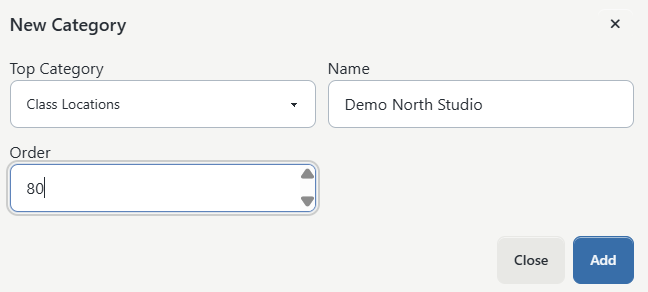
- Open Settings > Categories.
- Select Class Locations as the Top Category.
- Complete the duplicate search above.
- Select New Category.
- Confirm that Top Category still says Class Locations.
- Enter the approved Name.
- Enter Order when available. Use a pattern such as 10, 20, and 30 so a later location can be inserted cleanly.
- Select Add once.
- Wait for Category added.
- Search the exact name and record its assigned category ID.
The new category is active immediately when the schema has a status column. It does not create an address, room, class, schedule, stock quantity, person assignment, payment account, or report rule.
If no confirmation appears, reload and search active and archived rows before submitting again. Repeating the form can create a second location with the same name.
#Configure defaults and person-level Primary Location deliberately
Three settings commonly shape the person experience:
- Members Primary Location Enabled controls whether supported client and member forms show a Primary Location field.
- Members Primary Location Required can make the field required in supported administrator forms.
- Default Location stores a selected active Class Location or Not selected in Global Settings.
Find these by their exact descriptions under Global Settings; tenant labels and grouping can differ.
#Treat Default Location as unverified until the exact consumer proves it
The current Global Settings page renders Default Location as an active Class Location dropdown and omits archived choices. In the current application source reviewed for this guide, no operational DSM Next consumer of DEFAULT_LOCATION_ID was found outside that settings rendering. Historical DSM 2.7 code used it when a member had no Primary Location, but historical behavior is not current proof.
Saving Default Location therefore proves only that the setting row was saved. It does not prove that a new account, class, cart, stock adjustment, payment, or report will receive that value. Test the exact workflow and read back the saved record before relying on it.
#Set a person's Primary Location
For a fictional account or student:
- Open the exact person record.
- Open the account or profile section that contains Primary Location.
- Select the intended active location.
- Save once.
- Reload the record and confirm the selected label.
- Check the Families/Students list or applicable report filter with one matching and one nonmatching fictional person.
For a fictional staff member, open the staff profile, select Primary Location, save, reload, and verify the Staff location filter. The current staff form and list use this field as profile data and a filter.
When enabled in the standard Online Client registration form, Primary Location is selected from the current active choices and the placeholder is rejected. The signed-in profile and Quick Registration paths apply different server-side validation rules, so verify each entry point separately before making the field required.
Important: A client whose Primary Location is North Campus can still see or register for a South Campus class when the class and Online Client rules otherwise allow it. Use class publication, registration eligibility, capacity, and permissions for access decisions - not Primary Location.
One confirmed convenience is narrower: when a signed-in staff user opens Add Inventory Stock, the current form can preselect that staff member's Primary Location. The operator must still verify the selected stock location before saving.
#Use locations in class setup
The current group-class create and edit forms require Location for a normal group class. The selected category ID is stored on the class record and can then drive class lists, calendars, Online Client display, room choices, cart context, and class-based reports.
- Create the approved Class Location first.
- Open the exact fictional class under Group Classes.
- Open its Details or edit form.
- Select the intended Location.
- If a Default Room is used, choose a room assigned to the same location.
- Save once and reload the class.
- Confirm the Location on the class details and active class list.
- Inspect one schedule on the administrator Calendar and, when published, in the Online Client.
The reviewed class request requires a positive integer for a group-class Location, but it does not itself validate that the submitted ID is active or belongs to the Class Locations root. Normal UI selection supplies an active listed value; stale links, moved categories, and direct requests still require read-back verification.
Current class forms load active location children from historical root ID 6. A tenant whose configured Class Locations root has another ID can therefore show a correct location in one area and an incomplete list in the class form. Do not create duplicates to work around that symptom.
Cloning a class copies its existing Location. Review the copied value before treating the clone as a new offering.
#Keep rooms and class locations aligned
A room is a separate record. Assigning North Campus to a class does not create North Room, and assigning North Campus to a room does not move existing classes or schedules.
Where the tenant's room schema has a location field, Settings > Rooms can show either a Class Location selector or a text field. The current scheduling room endpoint can filter active rooms to the class Location when compatible class and room location columns exist.
For every room used by a class:
- open the room and confirm its location;
- confirm that the room is active and permitted for the intended class type;
- reopen the class and confirm its Location and Default Room;
- open a schedule and confirm the assigned room; and
- check the Calendar or Daily Booking view for the same combination.
Do not assume the class form blocks every mismatched room. The reviewed class edit data can load room choices without applying the class-location filter, while another room endpoint does filter them. A successful save is not proof that the class, room, and schedule locations agree.
Continue with Set up rooms and Online Client room booking for capacities, availability, Sales Items, checkout, and booking verification.
#Use Calendar location filters and per-location views
The administrator Calendar can filter class events by the class record's Location. When One Calendar Per Studio is enabled and active location choices exist, the current administrator interface can render a separate calendar surface for each location instead of one global location filter. The public and signed-in client calendar also preserve per-location rendering and location-scoped event requests.
Calendar location behavior is a view of class and room-booking data; it does not modify those records.
- Open Calendar.
- If one combined calendar is shown, open Filters and select the location.
- Confirm that a fictional class at that location appears.
- Confirm that a control class at another location does not appear.
- Clear the filter and verify that both return.
- If separate calendars are enabled, confirm each active heading and its event set.
- If room bookings are shown, verify that the booking's room or booking-level location agrees with the calendar heading.
- Repeat the test in the Online Client when the calendar is public or client-visible.
The Calendar can also display a location label in event text when its display setting is enabled. Displaying the label and filtering by the ID are separate settings and behaviors.
Archiving a location can remove its heading or filter choice while classes and schedules retain the old ID. It does not archive those classes or cancel their schedules. A renamed location can change the label shown for old and future events because current views often resolve the category's present name.
See Use Calendar views and filters and Create and manage Calendar events for the full calendar workflow.
#Track inventory stock by location
Inventory stock uses location-level adjustment rows when the studio has the expected inventory tables. Each row records an inventory variant, Location ID, quantity, date, and the staff member who created it.
- Open Settings > Inventory.
- Find the exact fictional Sales Item and inventory variant.
- Open its Stock action.
- Review existing rows by ID, location, date, quantity, and staff member.
- Select Add Stock only in an approved fictional fixture.
- Confirm the preselected Location; the current form can use the signed-in staff member's Primary Location.
- Enter the controlled quantity and date.
- Save once and reload the stock list.
- Reconcile the variant's displayed total and the Inventory Remaining report for that location.
The current stock request requires a positive Location ID but does not validate that it belongs to the active Class Locations set. Use the selector, record the stock-row ID, and verify its resolved label after saving.
Renaming the category can change the label shown for existing stock rows. Archiving it removes the value from the normal stock selector but does not remove historical stock adjustments. Reassign or reconcile stock before retiring a location; otherwise quantities can remain attributed to an ID staff cannot select for a new adjustment.

See Create and manage inventory for variants, pricing, quantities, and correction procedures.
#Select location carefully in the staff Shopping Cart
The current staff Shopping Cart requires a client and Location before normal cart actions are enabled. A class or schedule entry point can preselect the class, schedule, or room location. If only one location row is available, the cart can select it automatically.
The chosen cart context can affect:
- the location saved on an item or purchase when compatible columns exist;
- the inventory option chosen for location-level stock;
- the location passed into checkout and payment creation;
- a payment-account selection or processor context configured by location; and
- later sales, payment, inventory, and reconciliation reports.
Current archive caution: The reviewed staff-cart location feed resolves the Class Locations root but does not filter child category status. An archived location can therefore remain in that selector even when class, room, stock, or settings selectors hide it.
Before adding a line, read the selected Location rather than trusting a default. Before checkout, compare the class or service location, inventory location, cart location, payment account, test/live mode, and expected purchase/payment location.
Payment-account mapping is setting dependent. The reviewed resolver selects a configured second account only when the location value passed to it exactly matches the configured mapping, case-insensitively; otherwise it normally uses account 1 when available. Category IDs, category names, and manually configured text are not interchangeable. A category rename does not prove that payment-account settings were updated.
Use Sell an item with the staff Shopping Cart for the complete review and reconciliation procedure. Do not submit a payment merely to test a location selector.
#Interpret locations in Finance and Reports
There is no universal Finance or Reports meaning for Location. Read the report's definition before comparing totals.
Examples from the reviewed current build include:
| Workflow or report family | Location source used in the reviewed path |
|---|---|
| Payment History, Daily Totals, and Gross Income Summary | The payment's own Location ID when that column exists; Payment History can fall back to a member location only on schemas without a payment location column |
| Manual account payment | An optional active Class Location stored on the payment when the payments schema supports it |
| Scheduled Payments display | Completed payment location when available, otherwise the member's Primary Location; its location filter can use the member location |
| Membership, retention, clients-at-risk, and some client-list reports | The member's Primary Location or compatible member-location column |
| Class profitability, utilization, roll sheets, instructor hours, and class calendars | The class Location, sometimes combined with room or schedule data |
| Sales and Sales by Category | A precedence that can use inventory purchase location, class location, purchase location, or payment location depending on item type and schema |
| Inventory Remaining | Location-level inventory or purchase data supported by that report's schema |
| Staff payroll commissions | The purchase Location when a compatible purchase column exists |
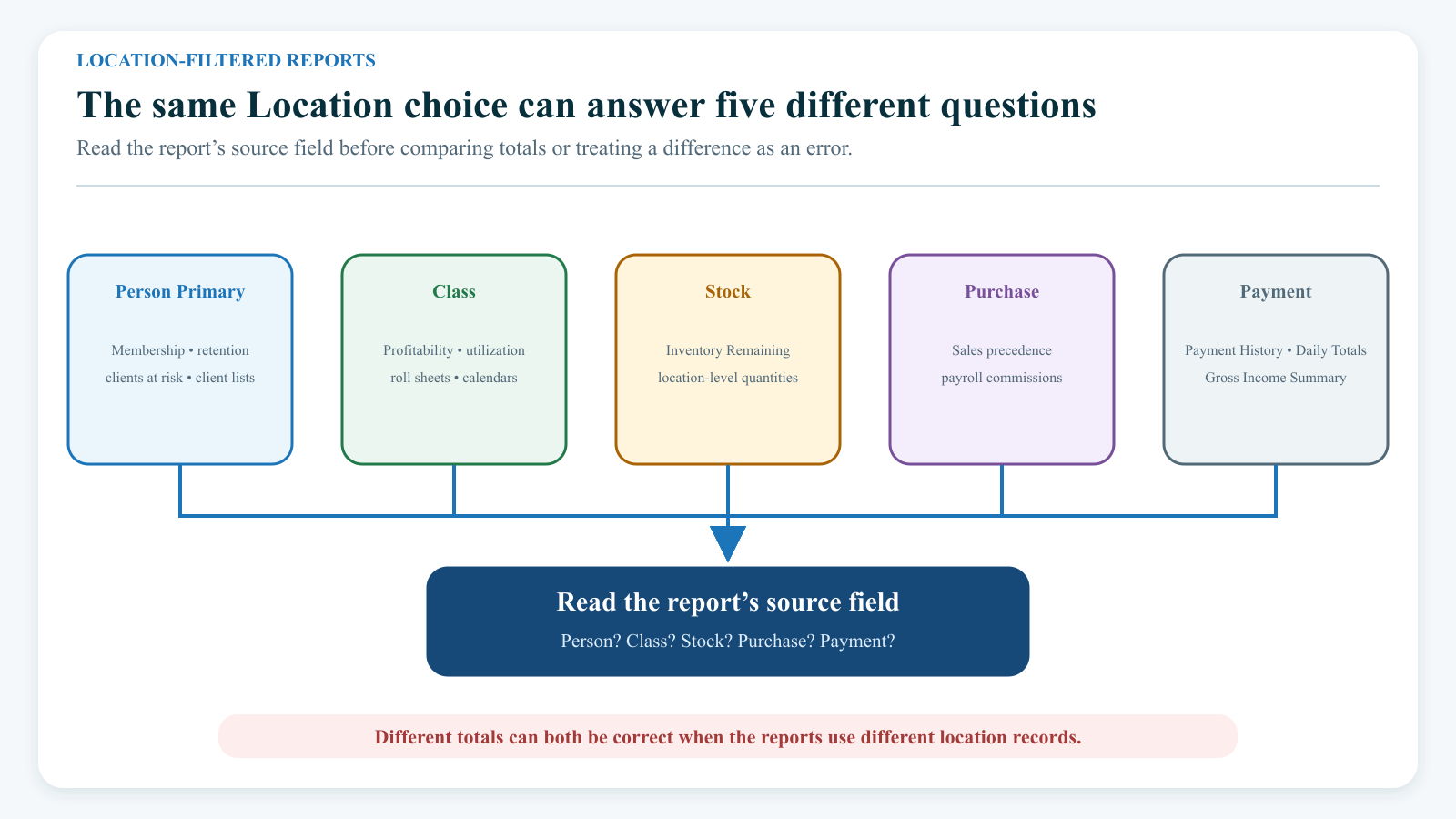
Two reports can therefore return different totals for the same selected location without either report using a broken filter. One may answer, "Where was the payment recorded?" while another answers, "What is the client's primary location?" or "Where does the class take place?"
For every location-filtered result, record:
- report name and route;
- selected location ID and current label;
- date field and inclusive boundaries;
- source record and location column or documented fallback;
- treatment of blank, zero, missing, and archived locations;
- grouping and deduplication rules;
- expected control records; and
- export or PDF result compared with the on-screen result.
Use No Location Assigned or Not Assigned deliberately where available. Do not reclassify old records just to make that bucket disappear until the record that should own the historical location has been identified.
Some Sales report paths still look for a separate class_locations table when resolving labels, while many other current paths use Class Location categories. If filters work but labels are blank, or one report lacks the current choices, treat it as a tenant-schema/product issue rather than creating duplicate definitions.
See Income, sales, and daily totals reports, Client follow-up, retention, and contact reports, and Reports overview.
#Rename a location safely
Rename the same category only when the physical location's identity is unchanged and the old wording was incorrect or outdated. Create a new location when records before and after the change must remain distinct, such as a move to a different site, a new legal entity, or a reporting boundary.
Before an in-place rename:
- record the category ID, old name, order, status, and reason;
- capture counts or samples for people, classes, rooms, stock, purchases, and payments that reference the ID;
- preserve location-based payment-account and integration settings that use text;
- record representative Calendar, Finance, and report outputs;
- obtain operations and finance approval;
- edit only Name and save once;
- reload the category and confirm that the ID did not change;
- check every affected selector and report; and
- verify external procedures, exports, and integrations separately.
Many current screens resolve a saved ID through the category's current name. Renaming can therefore relabel historical classes, people, stock, purchases, payments, and reports instead of preserving the old wording as it appeared at the time.
If the revised name is wrong, edit the same category ID back to the protected old name. Do not create a replacement duplicate as the first recovery action.
#Archive a location only after dependencies are retired
Archiving changes the category's status. It does not reassign, cancel, close, delete, refund, move, or notify anything that refers to the location.
Before archive, verify at least:
- Settings: Default Location and any location-specific payment-account, Calendar, or integration setting;
- People: active and archived clients, students, and staff with this Primary Location;
- Classes: active and archived classes, clones, future schedules, Online Client publication, registrations, and waitlists;
- Rooms: room records, default-room assignments, availability, and room bookings;
- Calendar: combined and per-location views, room-booking overlays, and public/client calendars;
- Inventory: variants, stock rows, adjustments, pending carts, and remaining-stock reports;
- Sales and Finance: open carts, purchases, payments, scheduled payments, payment-account routing, and processor reconciliation;
- Reports and exports: saved procedures, current totals, historical labels, blank/Not Assigned buckets, and downstream imports; and
- Permissions and communications: procedures that incorrectly assume Primary Location limits access or audience.
#Archive procedure
- Freeze new operational use of the location through an approved date and communication plan.
- Record the exact category ID and dependency inventory.
- Reassign only records that are genuinely wrong or still operational. Preserve correct historical attribution.
- Close or move future class and room activity through their own workflows.
- Reconcile stock and every open cart.
- Verify payment-account and reporting effects with finance.
- Select Archive once on the exact category row.
- Reload Settings > Categories, select Class Locations, and use Show Archived to confirm the same ID is inactive.
- Repeat the dependent checks, including the staff Shopping Cart's archived-inclusive location feed.
- Record the result and rollback owner.
There is no confirmation dialog or affected-record count on the current category Archive action.
#Restore a location deliberately
Restore is useful for recovery when the wrong definition was archived. It changes only the category status; it does not undo reassignments or reopen classes, schedules, rooms, stock, carts, or settings changed during retirement.
- Open Settings > Categories and select Class Locations.
- Select Show Archived.
- Search the exact ID and name.
- Confirm why the restore is needed and which dependencies were changed separately.
- Select Restore once.
- Reload and confirm the same ID is active.
- Recheck every affected selector.
- Re-enable or correct other records only through their own approved workflows.
- Verify Calendar, Online Client, stock, cart, Finance, and report behavior independently.
If the old location should remain historical but not return to service, restore it only long enough for an approved investigation or migration, then archive it again after verification.
#Do not move a location to another Top Category
The edit form allows Top Category to change. Moving a Class Location preserves its category ID but can remove it from active Class Location selectors and make it appear in an unrelated category workflow.
If a location was moved accidentally, preserve the ID and before-state, identify records created while it was misplaced, and return it to the verified Class Locations root only with data-owner approval. Do not solve an inconsistent root by creating a same-name child under both parents.
#Verify the complete location lifecycle
Use a disposable fictional fixture and stop before financial commit:
- Create one uniquely named Class Location and record its ID.
- Confirm it once in the category list and once in the Class Location API-backed selector.
- Open a fictional class form, select it, and verify the saved class read-back when an approved class fixture is available.
- Associate a fictional room and confirm the room/class combination.
- assign it as Primary Location to one fictional person and one fictional staff member;
- confirm another fictional person remains assigned elsewhere;
- compare combined and location-filtered Calendar results;
- open an inventory stock form and confirm the staff Primary Location default without saving an unapproved adjustment;
- select the location in an empty staff cart, verify context, then clear the cart without checkout;
- open representative people-, class-, payment-, and sales-based reports and record which source each uses;
- rehearse rename rollback with the same ID only when approved;
- archive and restore only the isolated retirement location, not a shared fixture; and
- prove cleanup and record every residual archived definition.
Do not create a real payment, charge, purchase, enrollment, room booking, message, or notification merely to make a screenshot look populated. Financial and client-facing commit tests require their own approval and reconciliation plan.
#Troubleshooting
#A location appears in one screen but not another
Check the category ID, Top Category, active status, and order. Then determine whether the missing screen resolves the configured slug/name, hard-coded root ID 6, or a separate class_locations table. Do not create a duplicate until the root or schema difference is understood.
#A duplicate location was created
Stop using the newer or incorrect ID. Record both IDs and every dependency, select a canonical survivor, and correct only confirmed misassignments. No current category merge or bulk location-reassignment action was found. Ask support for a previewed migration when many records are involved, then archive the unused definition after verification.
#Default Location did not fill a form
That is not currently proved to be a defect. Confirm the setting saved, then inspect the exact consumer's documented default logic. Some workflows use the selected class or schedule, one available location, a person's Primary Location, or no default at all. Do not keep changing the global setting until one form happens to match.
#Primary Location did not limit class access
That is expected. Primary Location is classification/filter data. Review the class's Online Client publication, enrollment window, eligibility, capacity, prerequisites, Member Categories, and role permissions.
#A room is missing for a class
Confirm that Rooms are enabled, the room is active and allowed for the class type, and its Location matches the class. Compare the class editor's unfiltered room list with the class-scoped room endpoint. If the room Location is text rather than a category ID, ask support to confirm the supported matching rule.
#An archived location is still in Shopping Cart
The reviewed cart feed does not filter category status. Stop checkout, clear the cart context, verify the location definition, and choose an active location. Report the stale option rather than using it. Archiving alone is not a cart revocation control.
#Checkout selected the wrong payment account
Do not submit or resubmit. Record the location ID and label, configured account-location mapping, chosen account, processor, and live/test mode. Category rename and ID/name mismatches can affect literal mapping. Correct and retest with an empty fictional cart before any approved processor test.
#A report changed after a rename
Confirm whether it resolves the current category name for a saved ID. Restore the prior name on the same ID if the rename was wrong. If historical periods require distinct labels, create a new location for future records and preserve the old definition rather than rewriting its meaning.
#Reports disagree about the same location
Identify the location source for each report: person, class, room, stock, purchase, or payment. Compare blank handling, date field, status, item-type precedence, and schema fallbacks. Reclassify a record only after its authoritative source is known.
#A stock row has no usable location label
Preserve the stock-row and category IDs. Check for an archived, moved, or missing category and confirm that the row was not saved with an arbitrary positive integer. Restore the definition for investigation when approved, then reconcile stock through the inventory workflow.
#Completion checklist
- Active and archived location definitions are inventoried by ID.
- Every active location has a unique, durable name and documented meaning.
- The Class Locations root resolves consistently in categories, classes, rooms, stock, cart, and reports.
- Default Location is treated as consumer-specific until read-back proves its effect.
- Client, student, and staff Primary Location fields are verified as classification, not access control.
- Every active group class has the intended Location.
- Rooms and class locations agree for representative schedules.
- Combined, filtered, and per-location Calendar views were checked.
- Location-level stock was reconciled and the staff default was confirmed.
- Empty-cart location, inventory, payment-account, and test/live context were reviewed without checkout.
- Each critical report documents whether Location means person, class, stock, purchase, or payment.
- Rename, archive, restore, duplicate, and wrong-parent recovery procedures have owners.
- Retirement preserved valid history and removed every future operational dependency separately.
- Fictional fixtures were cleaned up and residual archived IDs were recorded.
#Related articles
- Create and maintain categories
- Find and change Global Settings safely
- Create a group class
- Edit a group class
- Clone a group class safely
- Use Calendar views and filters
- Set up rooms and Online Client room booking
- Add a family and student
- Edit account and family details
- Add and manage staff
- Create and manage inventory
- Sell an item with the staff Shopping Cart
- Review payment history and make corrections
- Income, sales, and daily totals reports
- Client follow-up, retention, and contact reports
- Reports overview
- Prepare the Online Client for launch
- Online Client: Create an account
- Online Client: Manage your account and family
- Online Client: Use the Calendar