Classes
Manage student enrollment
#Before you begin
- Confirm the student already has the correct family relationship and contact information.
- Confirm the class, season, future schedules, capacity, and registration dates.
- Identify whether the class uses a Billing Schedule or Sales Item.
- Review the intended price and the student's existing purchases, balance, credit, discounts, and scheduled payments.
- If using Waiting, confirm that waitlists are enabled for both the class and selected season.
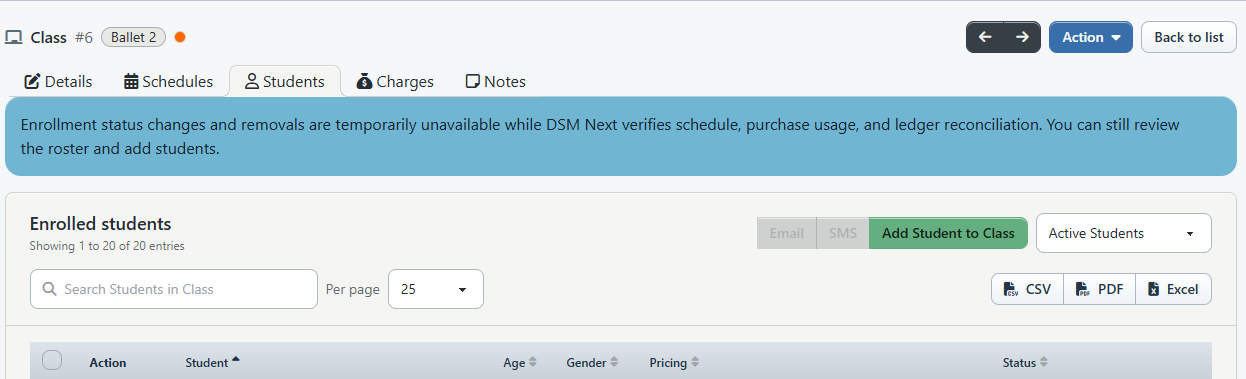
Open Group Classes, locate the class, and select its Students action. The Students page shows the class enrollment roster, not one date's attendance roster.
Warning: For a sales-package class, adding an enrollment can create a purchase and related charge from the selected Sales Item. A billing-schedule enrollment records pricing information that can affect later tuition processing. Confirm the student, season, payment choice, price, and schedules before selecting Add Student to Class.
Warning: Enrollment and status changes can run configured schedule-status notifications. Do not use a status change as a harmless label test on a real account.
#Add a student to a class
- On the class's Students page, select Add Student to Class.
- In Student, search for and select the intended person. Search results exclude students already enrolled in this class.
- In Season, select the season that contains the enrollment.
- Confirm the read-only Class value.
- Select the required Sales Item or Billing Schedule, according to the class's payment method.
- Review Price. Do not use a price override without authorization.
- Under Schedules, select every meeting schedule the student should attend.
- Use Add More Schedules only if the class itself is missing a required future schedule. Save and verify that schedule before returning to enrollment.
- In Status, select Active for an in-class enrollment, Waiting for the waitlist, or Eligible (Invited) for an invitation state.
- Recheck the student, season, pricing choice, amount, schedules, and status.
- Select Add Student to Class once.
If the class is full, the form can require Waiting instead of Active. Do not raise capacity or choose another status merely to bypass the warning.
#Understand enrollment statuses
| Status | Use it for | Important consequence |
|---|---|---|
| In Class | A student currently enrolled in the class. The add dialog labels this choice Active. | A normal add can create the configured purchase and charge. |
| Waiting | A student waiting for an available place. | Waitlist settings must permit it. The current dialog still requires the class's pricing choice, and a selected Sales Item can create a purchase even while the student is waiting. |
| Eligible (Invited) | A student marked as eligible or invited. | The add path does not create a sales-package purchase. Invitation delivery and Online Client checkout must be verified separately. |
| Declined | A student who declined the opportunity. | This is a class-enrollment state, not an account archive. |
| Drop In | A drop-in enrollment where the class configuration permits it. | Pricing and date-level attendance still require review. |
| Archived | A retained but inactive class-enrollment record. | Archiving does not prove that schedule rows, purchases, charges, or payments were reversed. |
The page filter also provides Active Students and All Students. Active Students is a view filter; it is not another status to assign.
#Move a student from Waiting to In Class
The status control on each roster row saves immediately.
Warning: Changing Waiting to In Class from the roster does not repeat the add workflow's capacity, waitlist, or sales-item checks and does not create or repair a missing sales-package purchase. Review those items before changing the status.
- Filter the roster to Waiting.
- Confirm that the selected class schedules have room for the student.
- Confirm which schedules the student is linked to by expanding the schedule detail in the roster.
- Review the student's purchase, price, balance, and scheduled payments.
- Complete any separately authorized purchase or billing work required for the active enrollment.
- Change the row's status from Waiting to In Class.
- Wait for the roster to finish saving, then reopen or refresh it.
- Confirm the status, schedules, purchase assignment, ledger, and any configured message.
Do not assume a different student was promoted automatically when a roster record was removed. Promotion behavior differs by removal path and has not been verified end to end.
#Transfer a student to another class
There is no verified one-step Transfer command on the current class roster. Treat a transfer as a coordinated destination enrollment plus an approved source cleanup.
Warning: Do not begin a transfer with the trash icon. The class-roster removal endpoint deletes only the class membership row; it does not reverse or remove schedule rows, purchase links, purchases, charges, payments, credits, or scheduled payments.
- Record the source class, status, season, schedules, purchase assignment, price, ledger entries, payments, credits, and scheduled payments.
- Confirm the destination class's eligibility, capacity, schedules, pricing method, and waitlist state.
- Add the student to the destination class using the procedure above.
- Confirm the destination enrollment, schedules, purchase assignment, ledger, and notifications.
- Have an authorized operations or finance reviewer decide how the source schedules and financial records should be retained, moved, credited, or reversed.
- Complete the approved source cleanup only after the destination has been confirmed.
- Recheck both class rosters and the student's account.
Important: Until controlled demo testing establishes the full cleanup procedure, neither changing the source status to Archived nor using the trash icon should be described as completing a transfer. Both can leave other records that require review.
#Remove a student from a class
The current class roster shows a trash icon with the confirmation Remove this student from the class? Its behavior is narrower than the wording suggests.
Warning: Do not use this control as a routine cancellation, refund, or transfer procedure. Current source evidence shows that it deletes the class membership row only. Existing schedule entries and every financial record remain unless handled through separate, approved work.
The Day View also has Delete Student Schedule and Delete Student From Class actions. Those actions operate from one scheduled date and have different cleanup and waitlist effects; they are not safe substitutes for a complete enrollment cancellation. In current source, Delete Student From Class removes the class membership and the current schedule row, not necessarily every schedule or financial record.
Before any production removal:
- Export or record the student's class and schedule state.
- Review purchases, usage, charges, payments, credits, refunds, and scheduled payments.
- Identify every class schedule to which the student is linked.
- Review whether a waitlisted student should be promoted and what notification would be sent.
- Obtain approval for the exact schedule, finance, and communication changes.
- Perform the approved actions and verify every affected area afterward.
This removal procedure remains a verification blocker for publication. Test it with fictional demo data before giving staff a production checklist.
#What happens next
- A successful add creates the class-enrollment relationship and the schedule relationships selected by the operator.
- A sales-package add can create a purchase and related charge from the selected Sales Item. A billing-schedule add records the selected billing setup for later processing.
- Eligible (Invited) bypasses sales-package purchase creation in the current add service. Waiting does not guarantee that a purchase or charge was skipped.
- Changing a roster status updates the class enrollment immediately and can run configured notifications.
- Quick removal from the class roster does not refund money or prove that package usage and schedules were cleaned up.
#Confirm it worked
- Reopen the class's Students page.
- Choose the relevant status filter and find the student.
- Expand the student's schedule details and confirm every intended schedule.
- Open the student's account and review Purchases, Ledger, and Scheduled Payments.
- Confirm the balance, credit, and assigned purchase match the approved outcome.
- Check message history or notification logs when a configured message was expected.
- For a transfer, confirm both source and destination classes.
#Troubleshooting
#Add Student to Class is unavailable
The class needs at least one future schedule. Add and verify the class schedule, then reopen the Students page.
#No Sales Item is available
The class can require one or more assigned sales items before active enrollment. Confirm the class's payment method and pricing configuration instead of selecting an unrelated item.
#The class is full
Verify the selected schedules and capacity. If the class and season allow a waitlist, use Waiting. Otherwise stop and ask the authorized class administrator to review capacity.
#Waiting is rejected
Confirm waitlists are enabled on both the class and selected season. Do not use Eligible (Invited) as a substitute unless the student is genuinely being invited.
#The student does not appear in search
Search the class roster under All Students. The add search excludes an existing enrollment, including records in another enrollment status.
#The status changed but the purchase or balance did not
The roster status control does not rebuild pricing. Review the account's purchase assignment and ledger, then use the separately approved finance workflow. Do not toggle statuses repeatedly.
#The student disappeared but schedules or charges remain
This is consistent with the current quick-removal behavior. Do not delete additional records blindly. Record the remaining schedule and financial links and have an authorized reviewer plan the cleanup.
#Related articles
- Manage class capacity, waitlists, and drop-in registration
- Manage class charges and pricing overrides
- Assign Sales Items and pricing options to a class
- Manage class routines
- Manage class notes
- Manage student measurements from a class
- Manage class videos and video meetings
- Manage class prerequisites and student completion
- Choose message recipients and send safely
- Group Classes
- Edit a group class safely
- Archive and restore group classes
- Create a group class
- Add a family and student
- Attendance and rosters
- Account ledger